
Wstęp
This manual provides essential information for the safe and efficient use of your ONN 42-Inch Full HD LED Smart TV, Model 100018254. Please read these instructions thoroughly before operating your television and retain them for future reference.
Co jest w pudełku
Przed przystąpieniem do instalacji sprawdź, czy wszystkie komponenty są obecne.
- ONN 42-Inch Full HD LED Smart TV
- Zdalne sterowanie
- Stojak pod telewizor (2 sztuki)
- Śruby do stojaka pod telewizor
- Przewód zasilający
- Szybki przewodnik (nie jest zawarty w tym podręczniku)

Obraz: Przód view of the ONN 42-inch Smart TV displaying the Roku TV home screen with various streaming app icons like Netflix, Disney+, Apple TV, Hulu, Peacock, and Roku Channel. The TV is black with slim bezels and two stand feet.
Organizować coś
1. Montaż stojaka pod telewizor
- Ostrożnie połóż telewizor ekranem do dołu na miękkiej i czystej powierzchni, aby zapobiec jego uszkodzeniu.
- Dopasuj każdy element stojaka do odpowiedniego otworu na śrubę na spodzie telewizora.
- Przymocuj każdy element stojaka za pomocą dołączonych śrub. Upewnij się, że są mocno dokręcone.

Image: A diagram illustrating the dimensions of the ONN 42-inch TV, showing its width as 43 inches and height as 37 inches when placed on its stand.
2. Montaż na ścianie (opcjonalnie)
This TV is compatible with VESA standard wall mounts. Refer to your wall mount's instructions for proper installation. Ensure the wall mount can support the weight of the television.

Obraz: Tył view of the ONN 42-inch TV, highlighting the VESA mounting screw holes in a square pattern and various input ports on the side and bottom right.
3. Podłączanie urządzeń
Connect your external devices such as cable boxes, gaming consoles, or Blu-ray players to the TV's input ports.
- HDMI: For high-definition audio and video. Use an HDMI cable to connect devices like set-top boxes, game consoles, or streaming sticks.
- USB: Do podłączania urządzeń pamięci masowej USB w celu odtwarzania multimediów files.
- Wi-Fi: For internet connectivity to access smart TV features and streaming services.
4. Pierwsze włączenie i kreator konfiguracji
- Podłącz przewód zasilający do telewizora, a następnie do gniazdka ściennego.
- Naciśnij przycisk zasilania na pilocie lub na samym telewizorze.
- Follow the on-screen instructions to complete the initial setup, including language selection, network connection (Wi-Fi), channel scanning, and linking to your Roku account (if applicable).
Obsługa telewizora
1. Zdalne sterowanieview
The remote control allows you to navigate the TV's interface and control various functions.
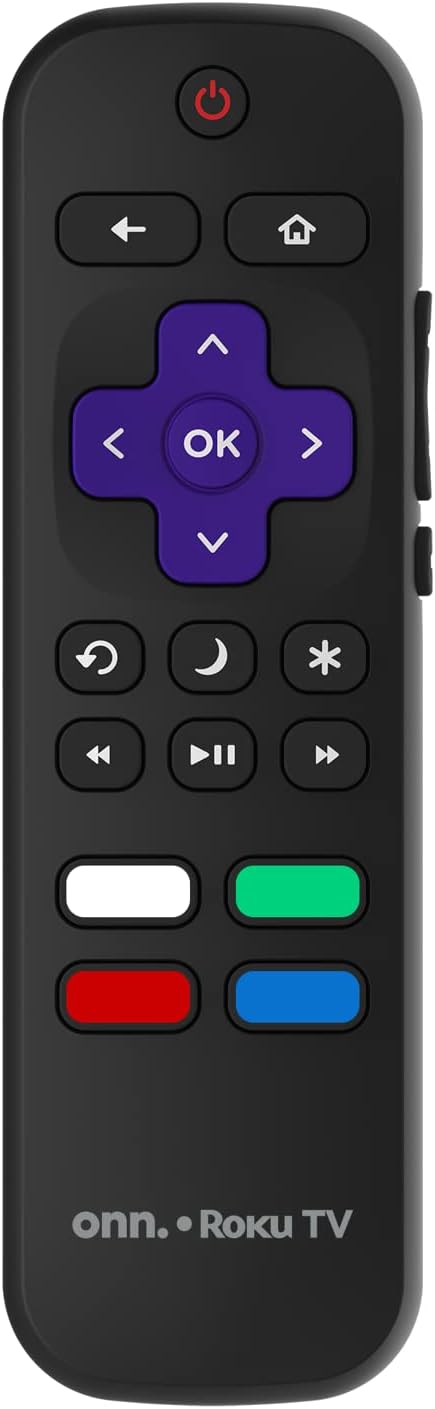
Image: The ONN Roku TV remote control, featuring a power button, directional pad, OK button, home button, back button, volume controls, and dedicated buttons for popular streaming services.
- Przycisk zasilania: Włącza lub wyłącza telewizor.
- Directional Pad (D-Pad) & OK: Umożliwia nawigację po menu i potwierdzanie wyborów.
- Przycisk Home: Powrót do ekranu głównego telewizora Roku.
- Przycisk Wstecz: Powrót do poprzedniego ekranu lub menu.
- Zwiększanie/zmniejszanie głośności: Dostosowuje głośność dźwięku.
- Przycisk wyciszenia: Wycisza lub wyłącza wyciszenie dźwięku.
- Kanał w górę/w dół: Changes channels (for antenna/cable inputs).
- Dedykowane przyciski aplikacji: Quick access to popular streaming services like Netflix, Hulu, etc.
2. Funkcje Smart TV
Your ONN Smart TV provides access to a wide range of streaming content and smart functionalities.
- Usługi przesyłania strumieniowego: Access pre-installed apps like Netflix, YouTube, and many more through the Roku Channel Store.
- Sterowanie głosowe: Compatible with Alexa and Google Assistant for hands-free control (requires a separate compatible voice assistant device).
- Automatyczne aktualizacje oprogramowania: The TV will automatically update its software when connected to the internet, ensuring you have the latest features and security.
3. Wybór wejścia
To switch between connected devices (e.g., cable box, game console), use the Wejście button on your remote or select the desired input from the Roku TV home screen.
4. Ustawienia obrazu i dźwięku
Access the TV's settings menu to customize picture and sound preferences. Navigate to Settings > TV picture settings or Ustawienia > Dźwięk to adjust options like brightness, contrast, color, sound mode, and equalizer settings.
Konserwacja
1. Czyszczenie ekranu
- Always turn off the TV and unplug it before cleaning.
- Użyj miękkiej, niepozostawiającej włókien ściereczki, lekkoampspłukać wodą lub specjalnym środkiem do czyszczenia ekranów.
- Nie rozpylaj środka czyszczącego bezpośrednio na ekran. Najpierw nanieś go na ściereczkę.
- Unikaj stosowania środków czyszczących o właściwościach ściernych, alkoholu, benzenu i rozcieńczalników, gdyż mogą one uszkodzić ekran.
2. Aktualizacje oprogramowania
Ensure your TV is connected to the internet to receive automatic software updates. These updates improve performance, add features, and enhance security. You can manually check for updates in the Ustawienia > System > Aktualizacja systemu menu.
Rozwiązywanie problemów
Jeśli masz problemy z telewizorem, zapoznaj się z poniższymi typowymi rozwiązaniami:
Brak zasilania
- Sprawdź, czy przewód zasilający jest prawidłowo podłączony do telewizora i gniazdka ściennego.
- Sprawdź, czy gniazdko ścienne działa prawidłowo, podłączając do niego inne urządzenie.
- Spróbuj nacisnąć przycisk zasilania na samym telewizorze, nie tylko na pilocie.
Brak obrazu / Zniekształcony obraz
- Sprawdź, czy wybrano prawidłowe źródło sygnału wejściowego (np. HDMI 1, HDMI 2).
- Sprawdź wszystkie połączenia kablowe między telewizorem i urządzeniami zewnętrznymi.
- Jeżeli to możliwe, spróbuj użyć innego kabla HDMI.
- Adjust picture settings (brightness, contrast) in the TV menu.
Brak dźwięku / Cichy dźwięk
- Check if the TV is muted or if the volume is turned down.
- Ensure external audio devices (soundbars, receivers) are properly connected and powered on.
- Sprawdź ustawienia dźwięku w menu telewizora.
Problemy z połączeniem sieciowym
- Verify your Wi-Fi router is powered on and functioning.
- Uruchom ponownie router i modem.
- Idź do Ustawienia > Sieć > Sprawdź połączenie na telewizorze, aby zdiagnozować problem.
- Upewnij się, że wpisujesz prawidłowe hasło Wi-Fi.
Specyfikacje
| Funkcja | Szczegół |
|---|---|
| Numer modelu | 100018254 |
| Rozmiar ekranu | 42 cali |
| Technologia wyświetlania | PROWADZONY |
| Rezolucja | 1080p (Pełna rozdzielczość HD) |
| Częstotliwość odświeżania | 60 Hz |
| Łączność | USB, Wi-Fi |
| Obsługiwane usługi internetowe | Netflix, YouTube (and others via Roku platform) |
| Metoda kontroli | Voice (via Alexa & Google Assistant compatible devices), Remote Control |
| Typ montażu | Uchwyt ścienny (zgodny ze standardem VESA) |
| Kolor | Czarny |
| UPC | 671227025567 |

Image: Energy Guide label for Television Model 100018254, indicating an estimated yearly energy cost of $11 based on 12 cents per kWh and 5 hours use per day.
Gwarancja i wsparcie
For warranty information and technical support, please refer to the documentation included with your purchase or visit the official ONN support webstrona. Zachowaj dowód zakupu na potrzeby roszczeń gwarancyjnych.