
1. Wprowadzenie
This manual provides detailed instructions for the HPRT N80 Barcode Scanner. It covers the scanner's features, setup, operation, maintenance, and troubleshooting. Please read this manual carefully before using the product to ensure proper and safe operation.

Image: HPRT N80 Barcode Scanner, USB cable, and included instruction manual.
2. Funkcje produktu
- 1D & 2D Scanning: Supports a wide range of 1D and 2D codes including UPC, UCC/EAN-128, ISBN/ISSN, Code 39, Code 128, Interleaved 2 of 5, QR Code, Data Matrix, and Postal Codes.
- Screen and Paper Scanning: Capable of scanning barcodes from both printed labels and digital screens.
- Szeroka kompatybilność: Works with Windows, iOS, Android, Linux, and Mac OS. Connects to PCs, laptops, and iPads. (Note: Mac OS requires a USB wired connection).
- Fast and Precise Scan: Utilizes a superior CMOS sensor and image scanning technology for quick decoding. Achieves recognition precision up to 4 mil.
- Wiele trybów skanowania: Offers manual trigger mode, continuous scan mode, and auto-sensing mode.
- Ergonomiczna konstrukcja: Features a comfortable grip and durable ABS plastic construction, designed to withstand drops from up to 3.93ft.

Image: The HPRT N80 barcode scanner demonstrating its ability to decode a wide range of 1D and 2D barcode formats, including QR codes, Data Matrix, and Aztec Code.

Image: Illustration showing the HPRT N80 barcode scanner's capability to read damaged, blurred, and stained barcodes effectively.

Image: The HPRT N80 barcode scanner being applied in various environments, including a supermarket, hospital, warehouse, and library.
3. Konfiguracja i połączenie
The HPRT N80 Barcode Scanner is designed for plug-and-play functionality, requiring no driver installation for most operating systems.
3.1 Połączenie przewodowe USB
- Podłącz kabel USB do portu skanera.
- Plug the USB connector into an available USB port on your computer or device.
- The scanner will be automatically recognized by your system. No additional drivers are typically needed.
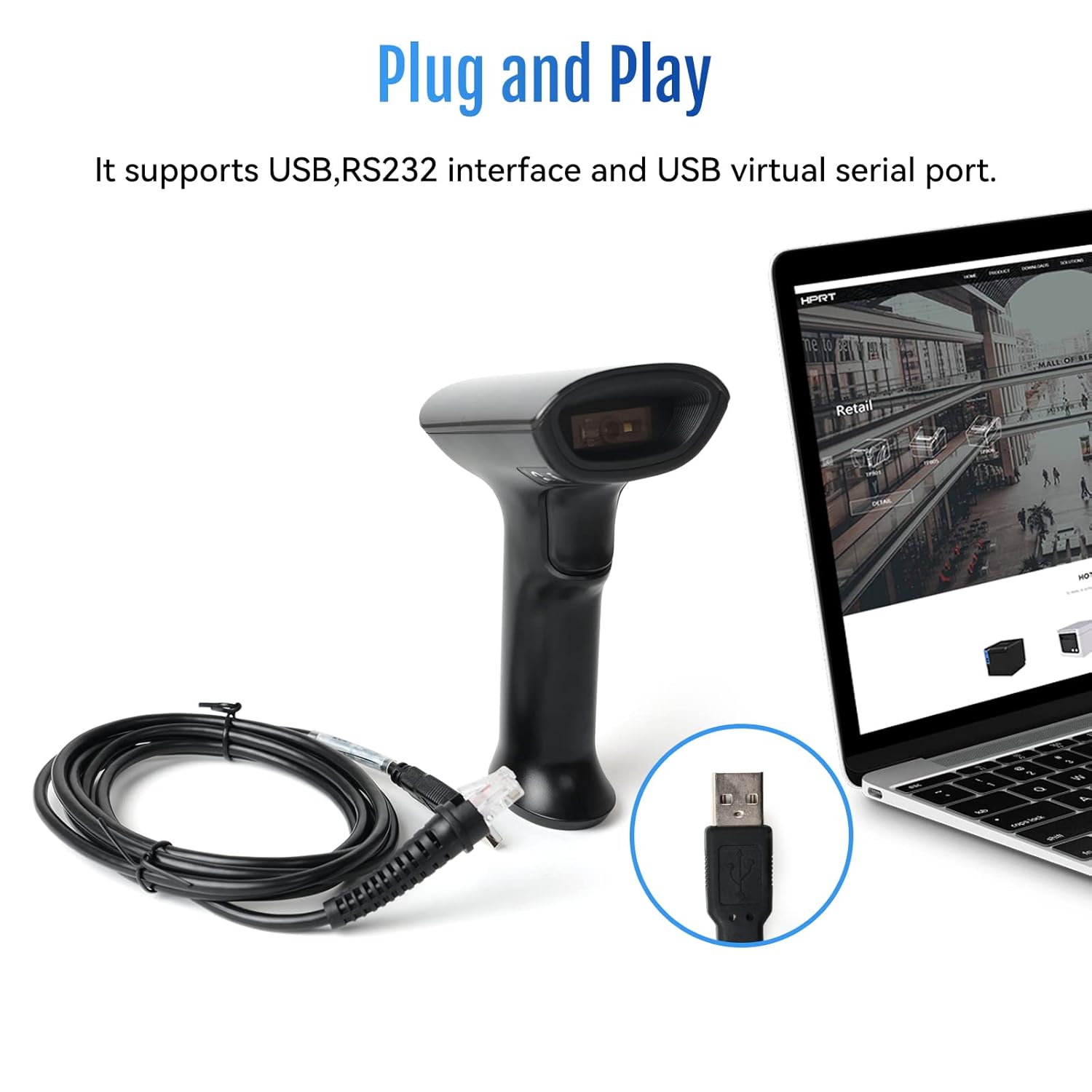
Image: The HPRT N80 barcode scanner with its USB cable, illustrating the plug-and-play connection to a laptop.

Image: A close-up of the HPRT N80 barcode scanner being connected to a laptop, demonstrating the plug-and-play functionality.
4. Działanie
The HPRT N80 Barcode Scanner offers various modes for efficient scanning.
4.1 Skanowanie kodów kreskowych
- Ustaw skaner tak, aby okienko skanowania było skierowane w stronę kodu kreskowego.
- Press the trigger button to activate the scan beam.
- Ensure the scan beam covers the entire barcode. A successful scan is usually indicated by an audible beep and/or a visual indicator.
- The decoded data will appear on your connected device.
4.2 Tryby skanowania
- Tryb wyzwalania ręcznego: Press the trigger for each scan.
- Tryb ciągłego skanowania: Skaner nieprzerwanie emituje wiązkę skanującą i skanuje każdy wykryty kod kreskowy.
- Tryb automatycznego wykrywania: The scanner activates the scan beam automatically when a barcode is presented within its field of view.

Image: The HPRT N80 barcode scanner performing a fast scan of both 1D and QR codes displayed on a smartphone screen.

Image: The HPRT N80 barcode scanner accurately scanning a barcode even in a dark environment, highlighting its low-light performance.
4.3 Wideo operacyjne
Video: Demonstrates the HPRT N80 barcode scanner's fast scanning capabilities for both 1D and 2D barcodes on paper and screens, highlighting its plug-and-play setup and ergonomic design.
5. Konserwacja
To ensure the longevity and optimal performance of your HPRT N80 Barcode Scanner, follow these maintenance guidelines:
- Czyszczenie: Do czyszczenia zewnętrznej części skanera użyj miękkiej, suchej ściereczki. Do czyszczenia okna skanowania użyj delikatnej, niepozostawiającej włókien ściereczki.ampCzyścić łagodnym, nieściernym środkiem czyszczącym. Unikać stosowania silnych środków chemicznych i materiałów ściernych.
- Składowanie: Przechowuj skaner w chłodnym i suchym miejscu, z dala od bezpośredniego światła słonecznego i ekstremalnych temperatur.
- Obsługiwanie: While the scanner is designed to be durable, avoid unnecessary drops or impacts.
- Pielęgnacja kabli: Do not bend or twist the USB cable excessively. Always grasp the plug, not the cable, when disconnecting.
6. Rozwiązywanie Problemów
If you encounter issues with your HPRT N80 Barcode Scanner, please refer to the following common troubleshooting steps:
- Skaner nie odpowiada:
- Upewnij się, że kabel USB jest prawidłowo podłączony zarówno do skanera, jak i do urządzenia hosta.
- Try plugging the scanner into a different USB port.
- Uruchom ponownie komputer lub urządzenie hosta.
- Nie można skanować kodów kreskowych:
- Verify that the barcode is not excessively damaged, blurred, or stained.
- Upewnij się, że okno skanowania jest czyste i nic go nie blokuje.
- Check if the scanner is in the correct scanning mode (e.g., manual trigger, continuous, auto-sensing).
- Zapewnij odpowiednie oświetlenie kodu kreskowego.
- Nieprawidłowe dane wyjściowe:
- Confirm that the correct keyboard layout or input method is selected on your host device.
- Refer to the full product manual (if available) for advanced configuration barcodes to reset settings or adjust data formatting.
If the problem persists, please contact HPRT customer support.
7. Specyfikacje
| Funkcja | Szczegół |
|---|---|
| Marka | HPRT |
| Model | N80 |
| Technologia łączności | Kabel USB |
| Źródło zasilania | Zasilany bateryjnie |
| Kompatybilne urządzenia | Laptop (Windows, iOS, Android, Linux, Mac OS) |
| Możliwość skanowania | 1D & 2D (UPC, EAN, QR, Data Matrix, etc.) |
| Trwałość | Withstands drops from up to 3.93ft |
8. Gwarancja i wsparcie
For warranty information or technical support, please contact HPRT customer service.
- Adres e-mail obsługi klienta: pravin.m@hprt.com
- Urzędnik Webstrona: https://www.hprt.com

Image: HPRT customer service contact details, including email and official webstrona.