
Produkt ponadview
The VIISAN DL8 is an innovative document scanner designed for efficiency and high-quality capture. It features a 13MP camera, asymmetric lighting technology, and powerful scanning software compatible with both Windows and macOS. This device is ideal for scanning documents, books, and for use in remote learning environments.

The VIISAN DL8 document scanner positioned over a scanning mat with documents, showcasing its compact design and readiness for use.
Główne cechy
- Excellent Scanning Quality: 13MP super high-resolution output (4208x3156 pixels) for detailed captures.
- Powerful Scanning Software: VIISAN OfficeCam software offers automatic flattening of curled pages, finger image erasure, background purification, and automatic page splitting.
- OCR Capabilities: Convert scanned documents or books into searchable PDF or editable Word, Excel, and Text formats with its embedded OCR engine.
- Unique Text to Speech (TTS): Assistive technology for word-by-word reading and listening to any document, beneficial for users with dyslexia or for language learning.
- Full Lighting Coverage: Innovative asymmetric LED lighting evenly illuminates the scanning area, reducing reflections and ensuring clear visibility in low-light conditions.
- Desk Saving Design: Compact short-arm design and triangular base save valuable desk space.
- Gotowość do nauki na odległość: UVC/UAC compliant, allowing live demonstrations of physical objects via third-party video conferencing software like Zoom, Google Meet, and Microsoft Teams.

The compact design of the VIISAN DL8, highlighting its short camera arm (118mm) and stable triangular base, designed to save desk space.
Przewodnik po konfiguracji
Follow these steps to set up your VIISAN DL8 Document Scanner:
- Zawartość opakowania: Carefully remove the DL8 Document Camera, USB cable, Scan Pad, and Quick Start Guide from the packaging.
- Pozycja skanera: Place the DL8 scanner on a stable, flat surface. Ensure there is enough space for the scan pad and documents.
- Połącz z komputerem: Connect the provided USB cable from the DL8 scanner's USB Type-C port to an available USB port on your Windows or macOS computer.
- Zainstaluj oprogramowanie: Download and install the VIISAN OfficeCam scanning software from the official VIISAN website. Refer to the Quick Start Guide for specific download instructions.
- Place Scan Pad: Position the included scan pad directly under the scanner's camera, ensuring it is centered and flat.

The VIISAN DL8 scanner connected to a laptop, illustrating its compatibility with both Windows and macOS operating systems.
Instrukcja obsługi
Once set up, you can begin using your VIISAN DL8 for various scanning tasks:
- Uruchom oprogramowanie: Open the VIISAN OfficeCam software on your computer.
- Umieść dokument: Place the document or book you wish to scan on the scan pad, ensuring it is within the camera's view.
- Dostosuj oświetlenie: If needed, press the LED touch button on the scanner to activate the built-in high-brightness LED light. It features 3-level brightness control for optimal illumination.
- Skandować: Use the software interface to initiate the scan. The software will automatically process the image, including features like auto-flattening for curled pages and deskewing.
- Utilize OCR: After scanning, you can use the embedded OCR engine to convert the image into editable text formats (Word, Excel, Text) or searchable PDFs.
- Tekst na mowę: For accessibility or learning, activate the Text-to-Speech feature within the software to have the scanned document read aloud.
- Współpraca zdalna: For live demonstrations or remote learning, the DL8's UVC/UAC compliance allows seamless integration with video conferencing platforms.

The VIISAN DL8 scanner connected to a laptop, demonstrating its powerful OCR capabilities to convert scanned documents into various editable formats like DOC, TXT, XLS, and PDF.

A boy using the VIISAN DL8 scanner with a laptop, illustrating the unique Text to Speech (TTS) feature that reads documents aloud, aiding in learning and accessibility.

Various applications of the VIISAN DL8, including remote cooperation, learning from home, live demonstrations, and efficient book scanning, highlighting its versatility.
Konserwacja
Proper maintenance ensures the longevity and optimal performance of your VIISAN DL8 scanner:
- Czyszczenie: Regularly wipe the scanner's body and camera lens with a soft, dry, lint-free cloth. Avoid using abrasive cleaners or solvents.
- Aktualizacje oprogramowania: Periodically check the official VIISAN webwitryna z aktualizacjami oprogramowania, dzięki której masz pewność, że korzystasz z najnowszych funkcji i udoskonaleń wydajności.
- Składowanie: Gdy skaner nie jest używany, należy przechowywać go w czystym i suchym miejscu, z dala od bezpośredniego światła słonecznego i ekstremalnych temperatur.
Rozwiązywanie problemów
If you encounter issues with your VIISAN DL8, refer to the following common solutions:
- Skaner nie został rozpoznany:
- Ensure the USB cable is securely connected to both the scanner and your computer.
- Spróbuj podłączyć do innego portu USB.
- Uruchom ponownie komputer.
- Verify that the necessary drivers and VIISAN OfficeCam software are correctly installed.
- Software Not Loading/Operating:
- Ensure your operating system meets the software's minimum requirements.
- Reinstall the VIISAN OfficeCam software, ensuring you download the correct version for your OS.
- Temporarily disable antivirus or firewall software during installation, then re-enable.
- Poor Scan Quality (Dark/Orange Images, Curled Pages):
- Ensure the document is placed flat on the scan pad.
- Adjust the LED lighting brightness using the touch button on the scanner.
- Verify that the asymmetric lighting is properly illuminating the document and reducing glare.
- Utilize the software's automatic flattening and background purification features.
- OCR Not Working Correctly:
- Upewnij się, że zeskanowany obraz jest wyraźny i dobrze oświetlony.
- Check the language settings in the OCR software to match the document's language.
Dane techniczne
| Funkcja | Specyfikacja |
|---|---|
| Nazwa modelu | DL8 |
| Typ skanera | Dokument |
| Rezolucja | 4208 x 3156 pikseli (13 MP) |
| Technologia łączności | USB |
| Wymiary produktu | 4.65" gł. x 3.86" szer. x 12.01" wys. (11.8 x 9.8 x 30.5 cm) |
| Waga przedmiotu | 2.2 funta (1 kilogram) |
| Rozmiar arkusza | Up to 16.5 x 11.7 Inches (A3) |
| Głębia koloru | 24 bitów |
| Cotage | 5 watów |
| Producent | VIISAN |
| Kraj pochodzenia | Tajwan |
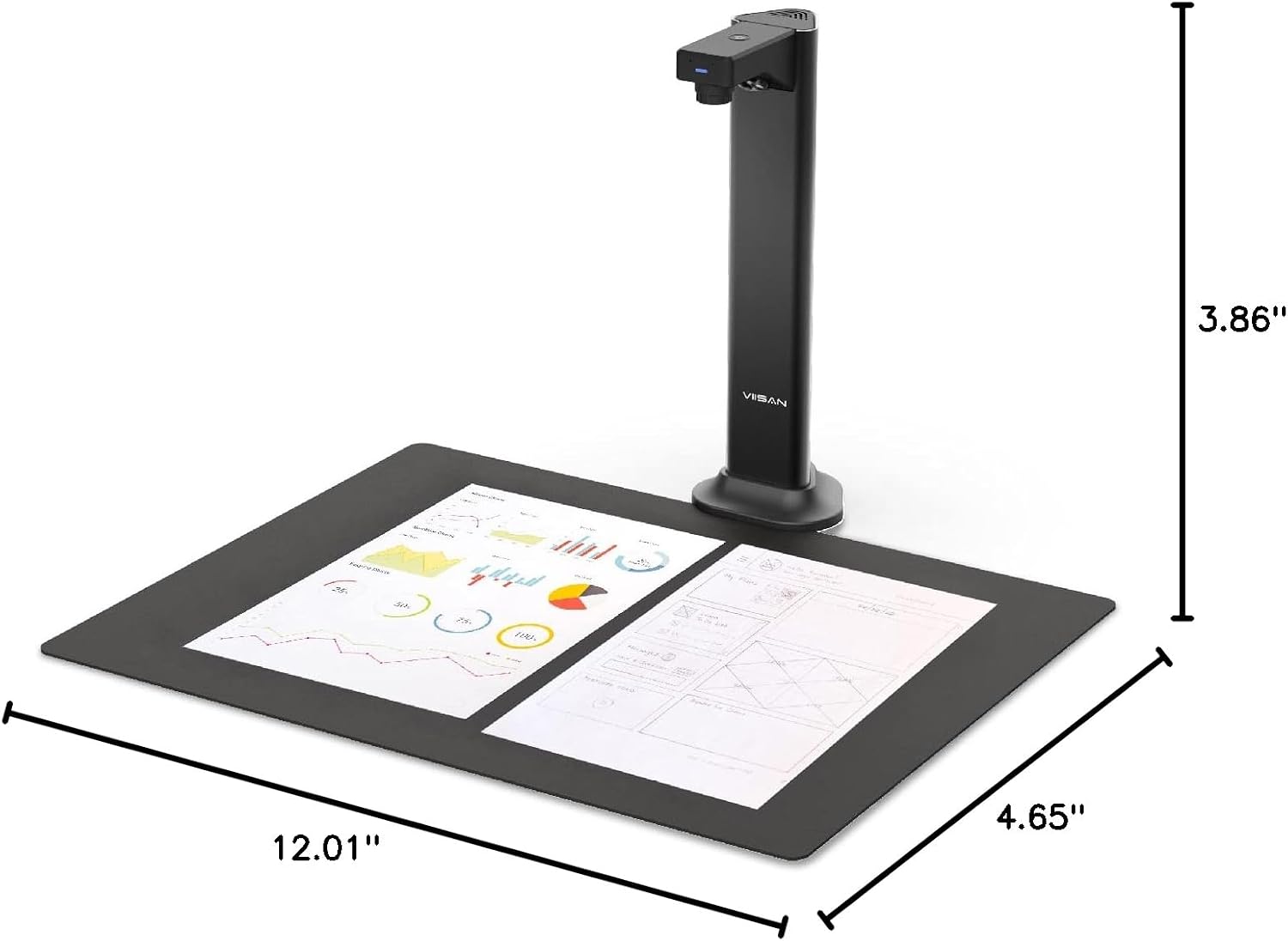
Detailed dimensions of the VIISAN DL8 document scanner, showing its compact footprint.
Zawartość opakowania
The VIISAN DL8 package includes:
- Aparat do dokumentów DL8
- Kabel USB
- Scan Pad
- Szybki przewodnik
Gwarancja i wsparcie
VIISAN is committed to providing excellent customer service and product support:
- Gwarancja: The VIISAN DL8 comes with a 1-year warranty from the date of purchase.
- Zwroty: A 30-day free return policy is available for this product.
- Wsparcie techniczne: For any technical assistance or inquiries, please contact the responsible VIISAN technical support team. Refer to the Quick Start Guide or the official VIISAN webwitryna do informacji kontaktowych.