

Wstęp
This manual provides comprehensive instructions for the Xtrfy M8 Wireless Gaming Mouse. Designed for professional gamers, the M8 offers an ultra-lightweight design, symmetrical shape, and lag-free 2.4 GHz wireless connectivity.
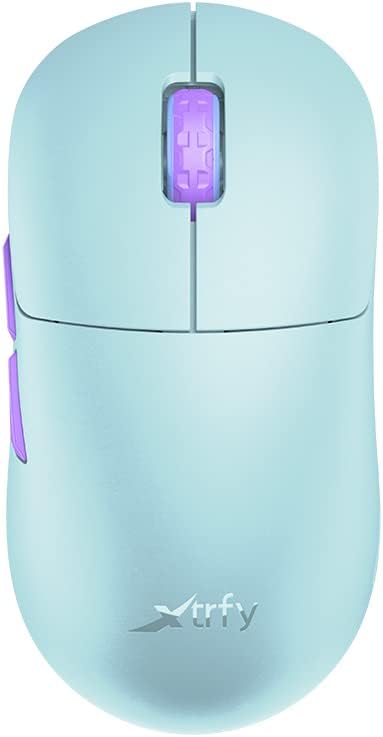
Image: The Xtrfy M8 Wireless Gaming Mouse in Frosty Mint, showcasing jego ergonomicznej konstrukcji.
A key design feature is its ultra-low front, measuring just 4mm, which allows for a unique grip style.

Obraz: Zbliżenie view of the Xtrfy M8 mouse's front, highlighting its low profile 4mm.
Zawartość opakowania
Sprawdź, czy w przesyłce znajdują się wszystkie elementy:
- Xtrfy M8 Wireless Gaming Mouse
- Kabel ładujący USB-C
- Odbiornik bezprzewodowy USB (klucz sprzętowy)
- USB-A to USB-C Adapter (for receiver extension)
- Instrukcja obsługi (ten dokument)

Image: The USB-C charging cable and the USB wireless receiver (dongle) for the Xtrfy M8 mouse.
Organizować coś
- Naładuj mysz: Before first use, connect the USB-C charging cable to the mouse and a powered USB port. The mouse has an internal Lithium Ion battery.
- Connect the USB Wireless Receiver:
- Insert the USB wireless receiver directly into an available USB-A port on your computer.
- For optimal signal strength or if your computer's USB port is not easily accessible, use the provided USB-A to USB-C adapter with the charging cable to extend the receiver closer to the mouse.
- Włącz mysz: Locate the power switch on the underside of the mouse. Slide the switch to the "ON" position.
- Automatyczne połączenie: The mouse should automatically connect to the receiver. No additional pairing software is typically required for 2.4 GHz wireless operation.

Image: The underside of the Xtrfy M8 mouse, displaying the power switch, optical sensor, and hardware adjustment buttons.
Instrukcja obsługi
The Xtrfy M8 mouse features standard left and right click buttons, a scroll wheel, and two side buttons. All functions are plug-and-play compatible with most operating systems.
Hardware Adjustments
The Xtrfy M8 allows for on-the-fly adjustment of key performance settings directly from the mouse hardware, without the need for software. These settings are typically located on the underside of the mouse.
- DPI/CPI (Dots Per Inch / Counts Per Inch): Adjusts mouse sensitivity. Use the dedicated button on the mouse bottom to cycle through preset DPI levels. An indicator light may change color to show the current setting.
- Polling Rate (PR): Determines how often the mouse reports its position to the computer. Higher polling rates (e.g., 1000 Hz) provide smoother tracking but consume more battery.
- Lift-off Distance (LOD): Controls how high the mouse can be lifted before tracking stops. A lower LOD prevents unwanted cursor movement when repositioning the mouse.
Refer to the markings near the buttons on the mouse's underside for specific adjustment procedures.

Obraz: Bok view of the Xtrfy M8 mouse, highlighting the main click buttons, scroll wheel, and two programmable side buttons.
Ładowanie i bateria
The Xtrfy M8 Wireless Gaming Mouse is equipped with a rechargeable Lithium Ion battery. To charge the mouse, connect the supplied USB-C cable to the front port of the mouse and the other end to a powered USB port on your computer or a USB wall adapter.
- A small LED indicator on the mouse will typically show charging status (e.g., solid light for charging, off or different color for fully charged).
- The mouse can be used while charging, though the cable connection point may feel unusual during active use.
- Battery life varies based on usage and polling rate settings.
Konserwacja
Proper maintenance ensures the longevity and performance of your Xtrfy M8 mouse.
- Czyszczenie: Do przecierania powierzchni myszy użyj miękkiej, suchej ściereczki. W przypadku uporczywych zabrudzeń delikatnie przetrzyjampPrzetrzyj szmatkę wodą. Unikaj silnych środków chemicznych i materiałów ściernych.
- Transduktor: Utrzymuj czujnik optyczny na spodzie myszy w czystości i bez kurzu i zanieczyszczeń. W razie potrzeby użyj wacika lub sprężonego powietrza.
- Składowanie: Jeśli mysz nie będzie używana przez dłuższy czas, należy ją przechowywać w suchym i chłodnym miejscu.
- Pielęgnacja kabli: Avoid sharp bends or excessive pulling on the USB-C charging cable to prevent damage.
Rozwiązywanie problemów
If you encounter issues with your Xtrfy M8 mouse, refer to the following common solutions:
- Mysz nie odpowiada:
- Upewnij się, że mysz jest włączona.
- Sprawdź, czy odbiornik bezprzewodowy USB jest prawidłowo podłączony do działającego portu USB.
- Verify the mouse battery is charged. Connect the charging cable and observe the indicator light.
- Spróbuj podłączyć odbiornik do innego portu USB.
- Opóźnienia lub rozłączenia:
- Ensure the receiver is close to the mouse and not obstructed by metal objects.
- Avoid placing the receiver near other wireless devices that may cause interference (e.g., Wi-Fi routers, other wireless peripherals).
- Lower the polling rate setting on the mouse if experiencing frequent disconnections in a crowded wireless environment.
- Niedokładne śledzenie:
- Wyczyść czujnik optyczny znajdujący się na spodzie myszy.
- Upewnij się, że używasz myszy na odpowiedniej powierzchni (zaleca się używanie podkładki pod mysz).
- Adjust the DPI/CPI settings to a comfortable level.
- Scroll Wheel Issues (e.g., jumping):
- Ensure the mouse firmware is up to date (check the Xtrfy official website for any available updates).
- If the issue persists, contact Xtrfy customer support.
Specyfikacje
| Numer modelu | M8 |
| Marka | Xtrfy |
| Technologia łączności | Radio Frequency (2.4 GHz), USB (for charging/wired mode) |
| Technologia wykrywania ruchu | Optyczny |
| Cechy specjalne | Lekki, bezprzewodowy |
| Waga przedmiotu | 1.94 uncji (około 55 gramów) |
| Baterie | 1 bateria litowo-jonowa (w zestawie) |
| Wymiary opakowania | 7.32 x 4.06 x 2.44 cala |
| ASIN | B0BMLF5FMT |
| Data pierwszej dostępności | 16 listopada 2022 r. |
Gwarancja i wsparcie
The Xtrfy M8 Wireless Gaming Mouse typically comes with a 1-year manufacturer's warranty. For specific warranty details, claims, or technical support, please contact Xtrfy directly through their official webstrona.
Xtrfy Official Webstrona: www.xtrfy.com
Always refer to the manufacturer's official resources for the most current support information and firmware updates.