
1. Wprowadzenie
Dziękujemy za zakupasing the Yifeng Wireless Keyboard. This keyboard offers versatile connectivity options, supporting both 2.4 GHz USB wireless and Bluetooth connections. It is designed for multi-device use, allowing simultaneous pairing with up to four devices and quick switching between them. Featuring a comfortable scissor-switch mechanism and an integrated stand, it enhances productivity across various platforms including Windows, iOS, and Android devices.
2. Informacje dotyczące bezpieczeństwa
- Nie wystawiaj klawiatury na działanie płynów i ekstremalnych temperatur.
- Avoid disassembling or attempting to repair the device yourself.
- Przechowywać w miejscu niedostępnym dla dzieci.
- Do ładowania używaj wyłącznie dostarczonego kabla USB.
3. Zawartość opakowania
Sprawdź, czy wszystkie elementy są obecne:
- Yifeng Wireless Keyboard
- Kabel ładujący USB
- 2.4 GHz USB Receiver (may be stored in the keyboard's battery compartment)
- Instrukcja obsługi (ten dokument)
4. Konfiguracja
4.1. 2.4 GHz USB Wireless Connection
- Locate the 2.4 GHz USB receiver. It is often stored in a dedicated slot on the keyboard.
- Podłącz odbiornik USB do wolnego portu USB w komputerze lub urządzeniu.
- Włącz klawiaturę za pomocą włącznika zasilania (zazwyczaj znajdującego się z boku lub z tyłu).
- The keyboard should automatically connect to your device. If not, press the dedicated 2.4GHz connection key (often labeled with a '4' or '2.4G' icon) to activate pairing mode.
4.2. Połączenie Bluetooth
- Sprawdź, czy klawiatura jest naładowana i włączona.
- Naciśnij i przytrzymaj jeden z przycisków kanału Bluetooth (np. Bluetooth 1, Bluetooth 2, Lub Bluetooth 3) for 3-5 seconds until the indicator light flashes, indicating pairing mode.
- Na swoim urządzeniu (tablecie, smartfonie, komputerze) przejdź do ustawień Bluetooth i włącz Bluetooth.
- Szukaj available devices. The keyboard should appear as "Yifeng Keyboard" or similar.
- Wybierz klawiaturę, którą chcesz sparować. Postępuj zgodnie z instrukcjami wyświetlanymi na ekranie, takimi jak wpisanie kodu parowania.
- Po sparowaniu kontrolka przestanie migać i będzie świecić światłem ciągłym przez kilka sekund.
4.3. Parowanie wielu urządzeń
This keyboard supports connecting up to 4 devices simultaneously: one via 2.4 GHz USB and three via Bluetooth. Follow the steps above to pair each device to a different channel (2.4GHz, Bluetooth 1, Bluetooth 2, Bluetooth 3).
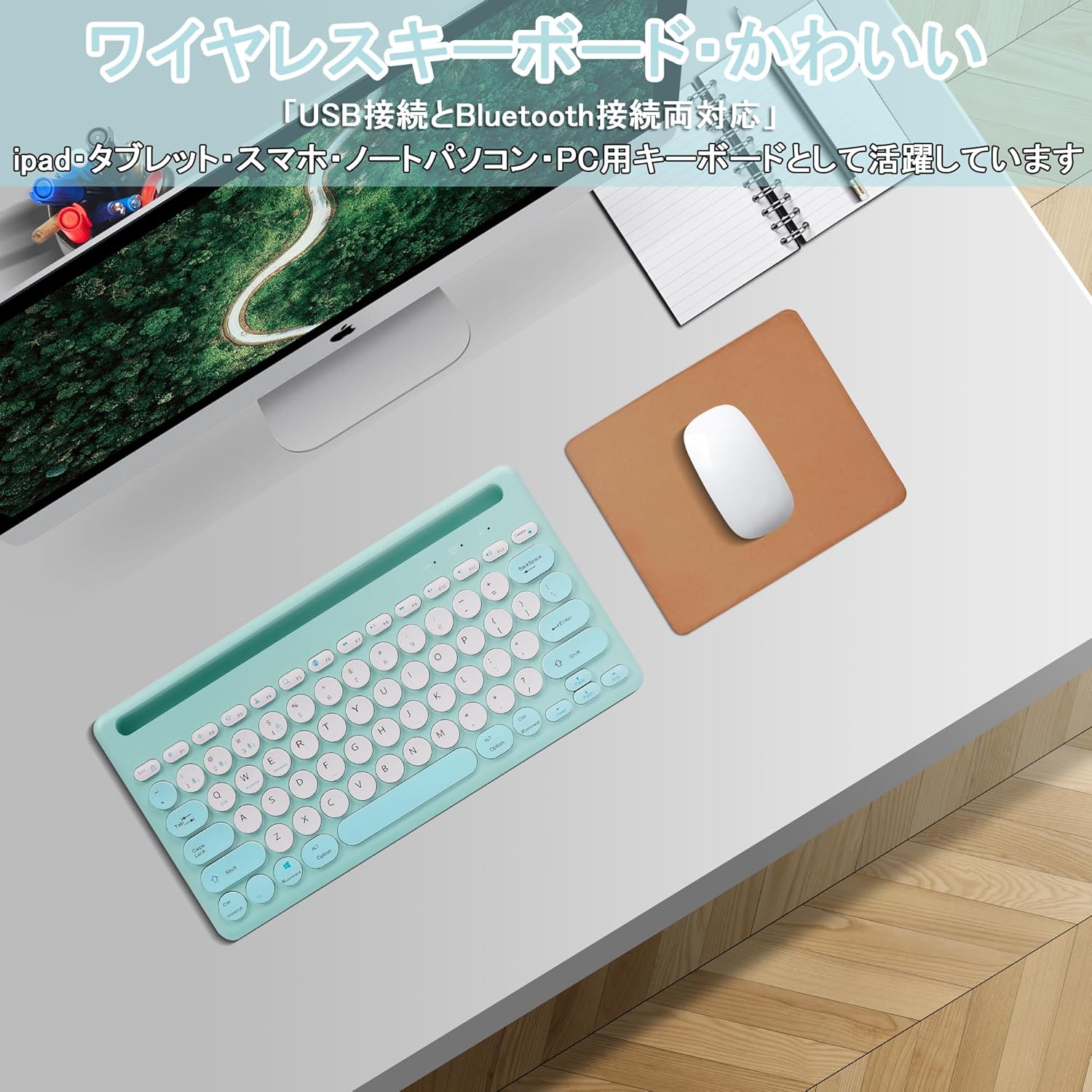
Image: The Yifeng Wireless Keyboard connected to a tablet, smartphone, and laptop, demonstrating its multi-device pairing capability.
5. Instrukcja obsługi
5.1. Przełączanie między podłączonymi urządzeniami
To switch between your paired devices, simply press the corresponding connection key:
- Naciskać Bluetooth 1 to switch to the first Bluetooth device.
- Naciskać Bluetooth 2 to switch to the second Bluetooth device.
- Naciskać Bluetooth 3 to switch to the third Bluetooth device.
- Naciśnij 2.4 GHz key (often labeled with a '4' or '2.4G' icon) to switch to the USB wireless device.
5.2. System Compatibility Switching
The keyboard supports Windows, iOS, and Android operating systems. Use the dedicated system keys to optimize key functions for your current device:
- Naciskać Fn + Q dla iOS.
- Naciskać Fn + W dla Androida.
- Naciskać Fn + E dla systemu Windows.
5.3. Ładowanie klawiatury
The keyboard features a built-in rechargeable lithium-ion battery. A single full charge provides approximately 30 days of continuous use.
- Connect the included USB charging cable to the charging port on the keyboard.
- Podłącz drugi koniec kabla USB do źródła zasilania USB (np. portu USB komputera, zasilacza ściennego USB).
- Podczas ładowania kontrolka ładowania będzie się świecić, a po pełnym naładowaniu zgaśnie.

Image: The Yifeng Wireless Keyboard connected to a power strip via its USB charging cable, indicating the rechargeable feature.
5.4. Korzystanie ze zintegrowanego stojaka
The keyboard includes an integrated stand slot at the top, designed to hold your tablet or smartphone upright. This allows for comfortable viewing and typing, making it ideal for document creation, chatting, or watching media while commenting.
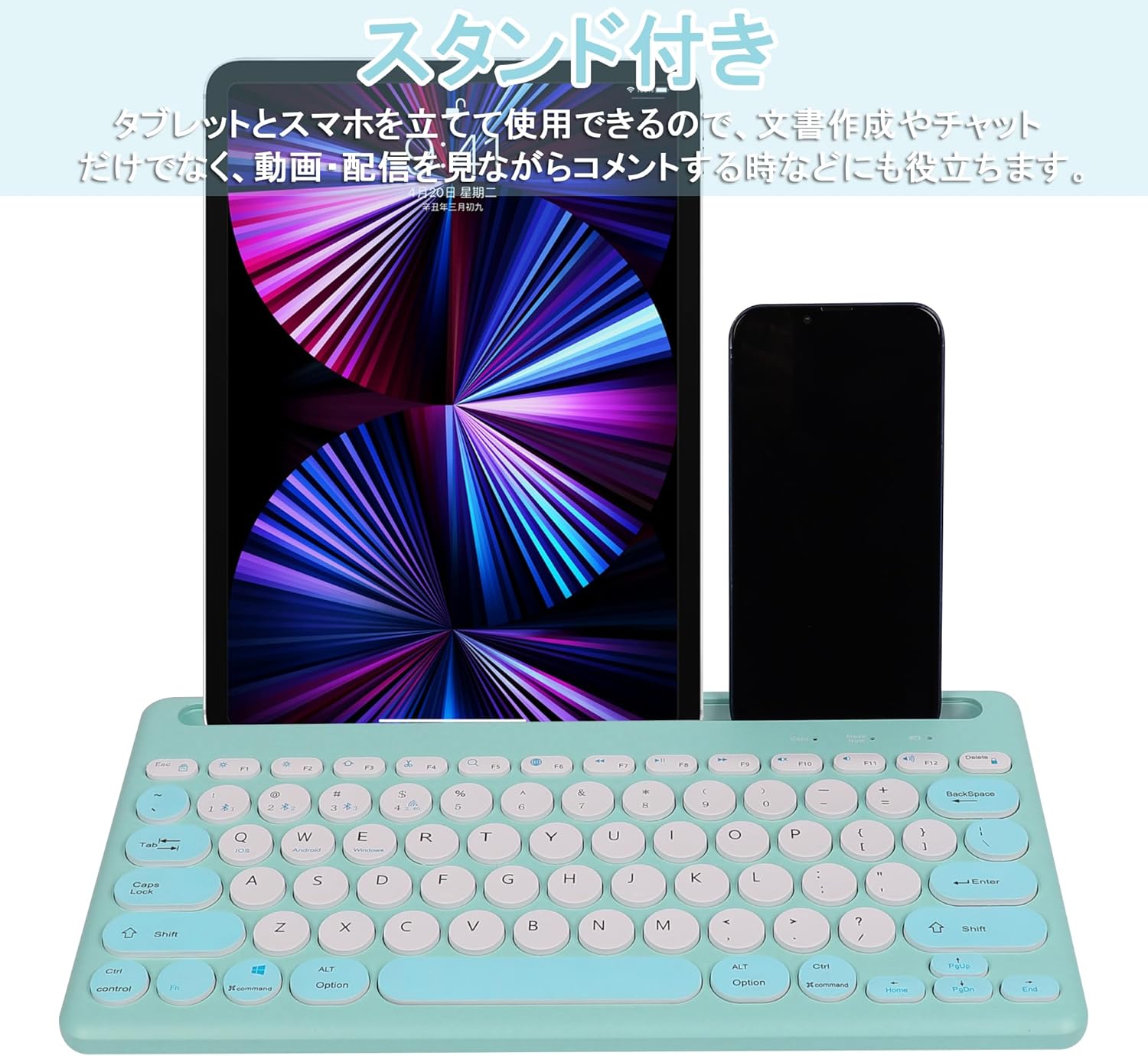
Image: The Yifeng Wireless Keyboard with a tablet and smartphone securely positioned in its integrated stand, demonstrating its utility for multi-device setups.
6. Konserwacja
- Clean the keyboard regularly with a soft, dry cloth. For stubborn dirt, a slightly damp cloth can be used, ensuring no moisture enters the keyboard.
- Unikaj stosowania silnych środków chemicznych i ściernych środków czyszczących.
- Przechowuj klawiaturę w chłodnym i suchym miejscu, gdy jej nie używasz.
- The keyboard features anti-slip pads on the back for stable use. Ensure these pads are clean and intact for optimal stability.

Image: The underside of the Yifeng Wireless Keyboard, highlighting the four anti-slip pads designed for stable placement on various surfaces.
7. Rozwiązywanie Problemów
7.1. Klawiatura nie łączy się
- Sprawdź moc: Sprawdź, czy klawiatura jest włączona i czy jej bateria jest wystarczająco naładowana.
- Naprawa: For Bluetooth, delete the keyboard from your device's Bluetooth list and attempt to pair again. For 2.4 GHz USB, try plugging the receiver into a different USB port.
- Przełącz kanały: Ensure you have selected the correct channel (Bluetooth 1/2/3 or 2.4GHz) for your device.
- Urządzenie Bluetooth: Verify that Bluetooth is enabled on your device and that it is discoverable.
7.2. Klawisze nie reagują
- Poziom naładowania baterii: Jeśli bateria jest słaba, naładuj klawiaturę.
- Tryb systemowy: Ensure the keyboard is set to the correct operating system mode (Windows, iOS, Android) using Fn + Q/W/E.
- Ingerencja: Przesuń klawiaturę bliżej urządzenia i oddal ją od innych urządzeń bezprzewodowych, które mogą powodować zakłócenia.
7.3. Problemy z ładowaniem
- Kontrola kabla: Ensure the USB charging cable is securely connected to both the keyboard and the power source.
- Źródło zasilania: Spróbuj użyć innego portu USB lub zasilacza ściennego.
- Kontrolka: If the charging indicator light does not turn on, the cable or power source may be faulty.
8. Specyfikacje
| Marka | Yifeng |
| Numer modelu | AMWS0584A-L |
| Technologia łączności | Bluetooth, 2.4 GHz Wireless (USB) |
| Kompatybilne urządzenia | Tablets, Smartphones, PCs, Laptops (Windows, iOS, Android) |
| Układ klawiatury | QWERTY (układ amerykański) |
| Kluczowy mechanizm | Przełącznik nożycowy |
| Funkcja specjalna | Rechargeable, Integrated Stand, Multi-Pairing (4 devices) |
| Typ baterii | 1 bateria litowo-jonowa (w zestawie) |
| Żywotność baterii | Approx. 30 days (per charge) |
| Wymiary | Wymiary 33.7 x 16.7 x 2.9 cm |
| Waga | 820 gramów |
| Zawarte komponenty | Kabel USB |
9. Gwarancja i wsparcie
Ten produkt jest dostarczany z 1 rok gwarancji jakości from the date of purchase. In case of initial defects or malfunctions occurring within the warranty period, we offer return or exchange services.
Should you encounter any issues or require assistance, please contact us directly through your purchase platform:
- Przejdź do swojego Historia zamówień.
- Select the order for this product.
- Kliknij na Kontakt ze sprzedawcą.
Our support team will be happy to assist you.