
Produkt ponadview
The MLEEDA USB C KVM Switch is a versatile device designed to streamline your workspace by allowing two USB-C enabled computers or laptops to share a single HDMI monitor and up to four USB 2.0 peripheral devices. This includes keyboards, mice, printers, and USB drives. It supports high-resolution video output up to 4K@60Hz and offers Power Delivery (PD 3.0) up to 100W to connected devices.
Główne cechy obejmują:
- 2-Port USB C KVM Switch: Easily switch between two USB-C desktops or laptops.
- Ultra HD 4K@60Hz: Supports HDMI 2.0 output for crisp, clear visuals.
- Dostawa mocy 100 W: Capable of charging connected computers (power output to computer may vary based on input power).
- 4 porty USB 2.0: Connect multiple USB peripherals.
- Podwójne tryby przełączania: Switch via the panel button or the included wired remote controller.
- Szeroka kompatybilność: Driver-free for Windows, Mac OS, and Linux; fully compatible with Thunderbolt 3.

Konfiguracja i instalacja
Zawartość opakowania
Sprawdź, czy w przesyłce znajdują się wszystkie elementy:
- 1 x MLEEDA USB C KVM Switch
- 2 x 1.0m USB-C Cables
- 1 x 1.5m HDMI 2.0 Cable
- 1 x przewodowy pilot zdalnego sterowania
- 1 x Instrukcja obsługi

Instrukcje dotyczące połączenia
Follow these steps to connect your KVM switch:
- Podłącz monitor: Connect your HDMI monitor to the 'Monitor' port on the KVM switch using the provided HDMI 2.0 cable.
- Połącz komputery: Use the provided USB-C cables to connect your two computers/laptops to the 'USB-C 1' and 'USB-C 2' ports on the KVM switch. Ensure your computers support USB Type-C Alternate Mode for video output.
- Podłącz urządzenia peryferyjne USB: Plug your keyboard, mouse, printer, U-disk, or other USB 2.0 devices into the four USB ports on the front of the KVM switch.
- Podłącz przewodowy pilot (opcjonalnie): If desired, connect the wired remote control to the dedicated port on the KVM switch for convenient desktop switching.
- Power Connection (If Needed): The KVM switch is typically powered by the USB-C cables connected to your computers. However, if you are using high-power USB devices (e.g., external hard drives, digital cameras, SSDs), an external power adapter (not included) may be required. Connect it to the 'POWER1' or 'POWER2' port. Note that each power port only provides power to its associated 'PC' port.

Notatka: Please insert the data cable into the USB-C1/USB-C2 port. The ports marked POWER1 and POWER2 are optional charging ports, which are only used to charge your laptop 1/laptop 2, and cannot be crossed. Charging via POWER1 can only charge computer 1. If the computer does not need to be charged, you can use USB C1 and USB C2 to power the KVM without using POWER1/POWER2.
Instrukcja obsługi
Przełączanie między komputerami
The KVM switch offers two convenient methods for switching between connected computers:
- Przycisk panelu: Press the 'SELECT' button located on the top panel of the KVM switch to toggle between Computer 1 and Computer 2.
- Przewodowy pilot zdalnego sterowania: Use the included wired remote control. Press the button on the remote to switch between the active computers. The digital LED indicators on the remote will show which computer is currently active (1 or 2).
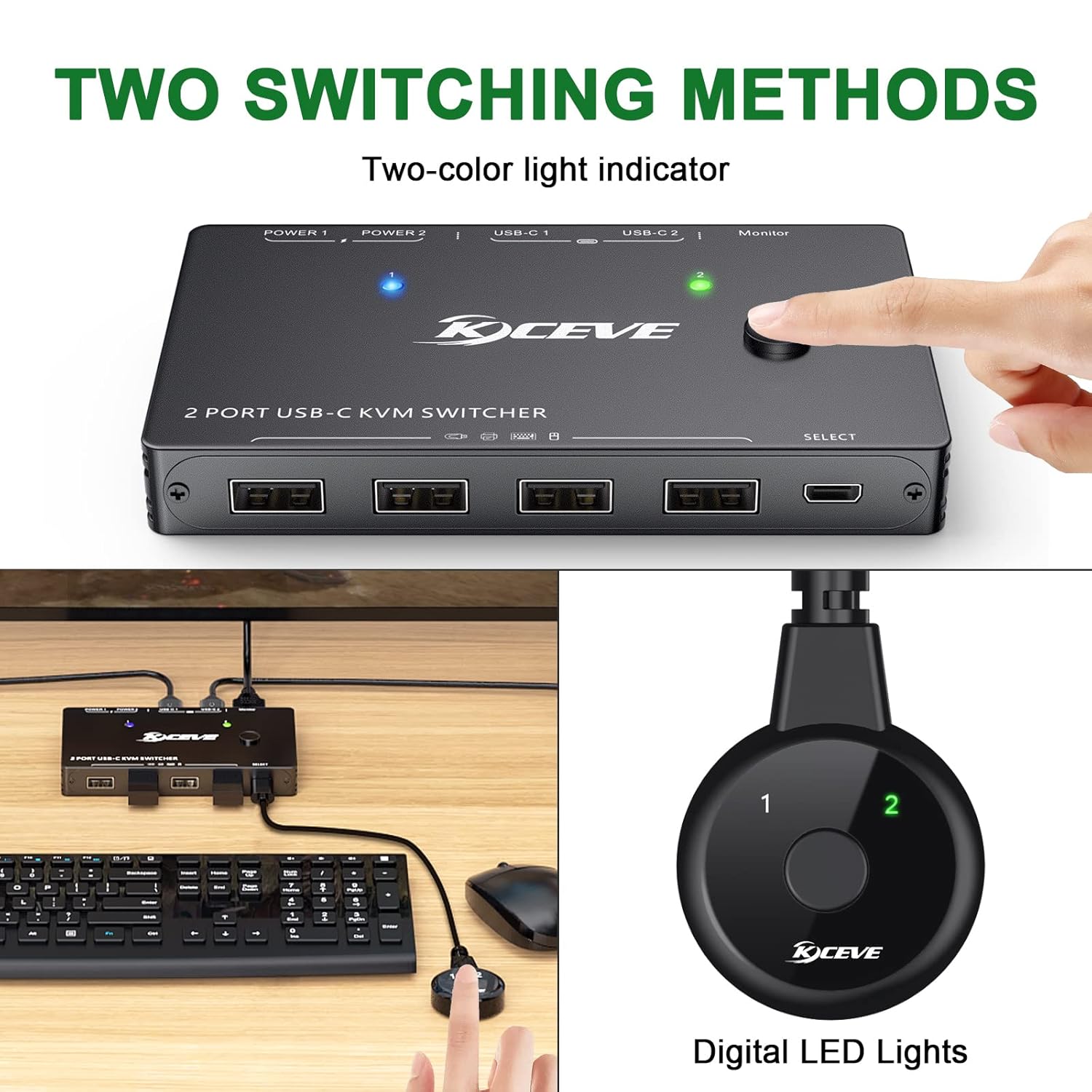
Wskaźniki LED
The KVM switch features LED indicators that show the active computer:
- A blue LED indicates Computer 1 is active.
- A green LED indicates Computer 2 is active.
Funkcjonalność dostarczania energii
The KVM switch supports Power Delivery (PD 3.0) up to 100W. This allows the KVM to charge your connected laptops via the USB-C connection. The actual power output to the computer will depend on the power supplied to the KVM's input and the computer's charging settings.

Zgodność
The MLEEDA USB C KVM Switch is designed for broad compatibility:
- Systemy operacyjne: Driver-free for Windows 10/8/8.1/7/XP, Mac OS, and Linux.
- Piorun 3: Fully compatible with Thunderbolt 3 enabled devices.
- USB Type-C Alternate Mode: This KVM switch is only suitable for computers, tablets, or phones capable of outputting video over USB Type-C (Alternate Mode).

Rozwiązywanie problemów
Jeśli napotkasz problemy, zapoznaj się z poniższymi typowymi rozwiązaniami:
- No Video Output or Low Resolution:
- Ensure your computers and monitor support 4K resolution if you intend to use 4K@60Hz.
- Verify that you are using an HDMI 2.0 cable for 4K@60Hz output.
- Confirm that your USB-C source devices (computers/laptops) support video output via USB Type-C Alternate Mode.
- USB Devices Not Working or Disconnecting:
- If using high-power USB devices (e.g., external HDDs, SSDs, digital cameras), an external power adapter (not included) connected to the 'POWER1' or 'POWER2' port on the KVM switch is required.
- Ensure the USB-C cables are securely connected to both the KVM and your computers.
- Problemy z przełączaniem:
- Ensure the KVM switch is receiving adequate power from the connected computers or an external power adapter.
- If using the wired remote, ensure it is properly connected to the KVM switch.
- Tablet/Mobile Phone Usage:
- When using a tablet or mobile phone as a source, an external power supply is always required to power the KVM switch.
Specyfikacje
| Wymiary produktu | 4.49 x 2.56 x 0.55 cala |
| Waga przedmiotu | 3.88 uncji |
| Numer modelu | USB C KVM Switch KC-KVM201TCC |
| Producent | MLEEDA |
| Tryb działania | WŁĄCZONY-WŁĄCZONY |
| Obecna ocena | 2 Amps |
| Objętość operacyjnatage | 5 wolty |
| Typ złącza | Type-C, USB Type-C |
| Typ obwodu | 2-drożny |
Konserwacja
To ensure the longevity and optimal performance of your MLEEDA USB C KVM Switch, please follow these maintenance guidelines:
- Czyszczenie: Use a soft, dry cloth to wipe the exterior of the device. Avoid using liquid cleaners or aerosols, as they may damage the internal components.
- Składowanie: Przechowuj przełącznik KVM w chłodnym i suchym miejscu, z dala od bezpośredniego światła słonecznego i ekstremalnych temperatur.
- Obsługiwanie: Obchodź się z urządzeniem ostrożnie. Unikaj upuszczania go i narażania na silne uderzenia.
- Wentylacja: Upewnij się, że urządzenie ma odpowiednią wentylację, aby zapobiec przegrzaniu. Nie blokuj otworów wentylacyjnych.
Gwarancja i wsparcie
Your MLEEDA USB C KVM Switch comes with a 2-letnia gwarancja. This includes a Wymiana na 1 lat polityka i dożywotni serwis techniczny.
For technical assistance, troubleshooting, or warranty claims, please contact MLEEDA customer support through their official channels. Refer to the contact information provided on the product packaging or the official MLEEDA webstrona.