
1. Wprowadzenie
Thank you for choosing the Uogic Stylus Pen. This magnetic wireless charging stylus is designed to enhance your iPad experience with features like tilt sensitivity, palm rejection, and real-time power display. This manual provides detailed instructions for setup, operation, and maintenance to ensure optimal performance.
2. Funkcje produktu
- Magnetyczne ładowanie bezprzewodowe: Effortlessly attaches to compatible iPads for convenient charging.
- Wyświetlacz mocy w czasie rzeczywistym: Monitor battery level directly on your iPad screen via Bluetooth.
- Funkcja pochylenia: Allows for varied line thickness and shading, mimicking a traditional pencil.
- Odrzucenie dłoni: Write or draw comfortably by resting your hand on the screen without interference.
- Sleek & Durable Design: Port-free barrel design prevents dirt buildup and enhances longevity.
- Detachable Nib: Easy replacement of the wear-resistant tip.
3. Zgodność
The Uogic Stylus Pen is compatible with specific iPad models that support magnetic wireless charging. Please verify your iPad model before use.
Kompatybilne modele iPada:
- iPad Air (4./5. generacji)
- iPad mini (6. generacja)
- iPad Pro 11" (1st/2nd/3rd/4th generation)
- iPad Pro 12.9" (3rd/4th/5th/6th generation)
Note: Non-compatible iPad models do not support magnetic charging for this stylus. Please check your device before purchase.
How to Identify Your iPad Model:
- Check the back of your iPad for the model number (e.g., AXXXX).
- Go to Settings > General > About > Model Name.
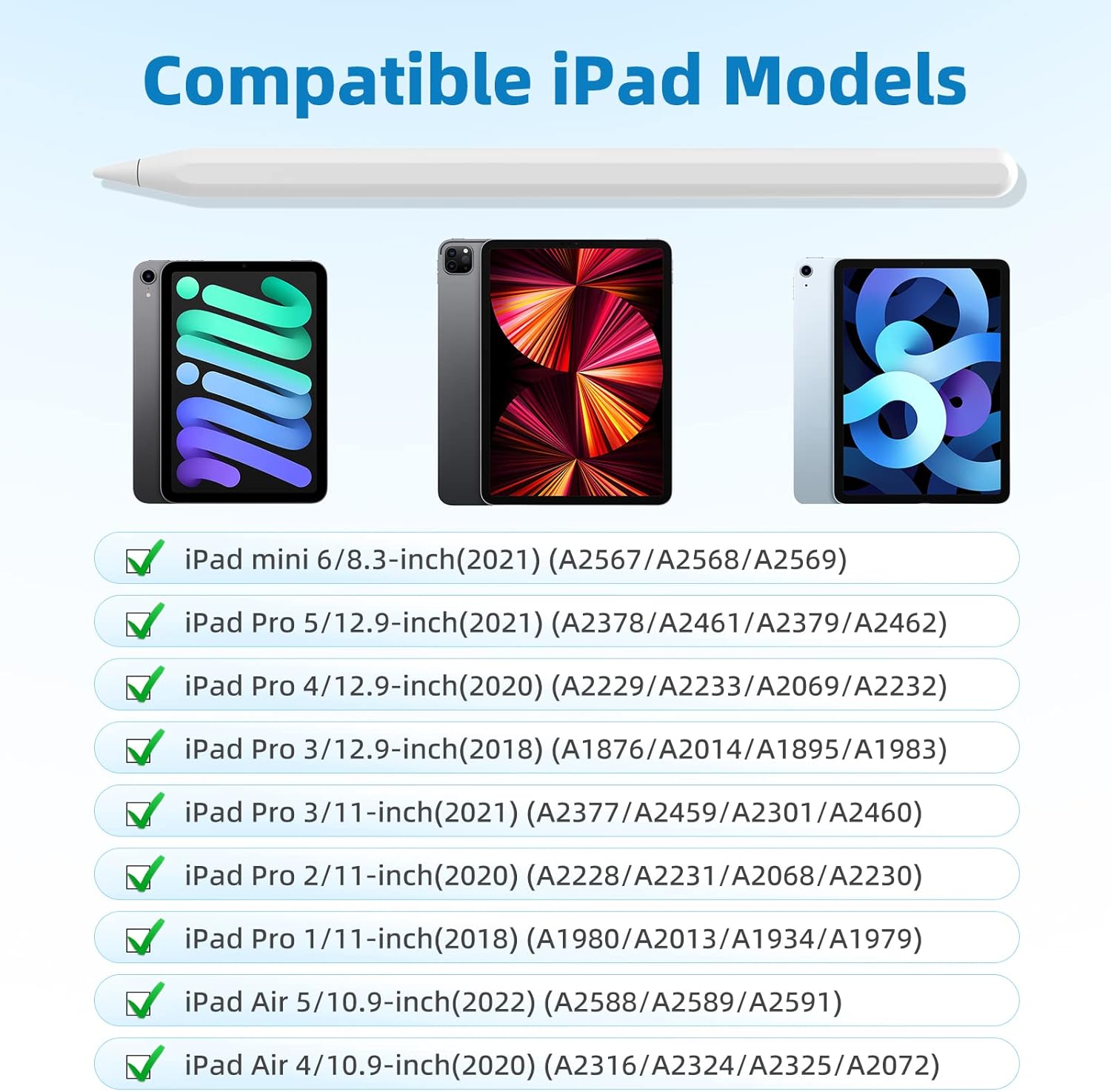
Rysunek 3.1: Zgodne modele iPada
4. Przewodnik konfiguracji
4.1 Pierwsze ładowanie
The Uogic Stylus Pen charges wirelessly by magnetically attaching it to the side of your compatible iPad. A full charge takes approximately 40 minutes and provides up to 10 hours of continuous use.
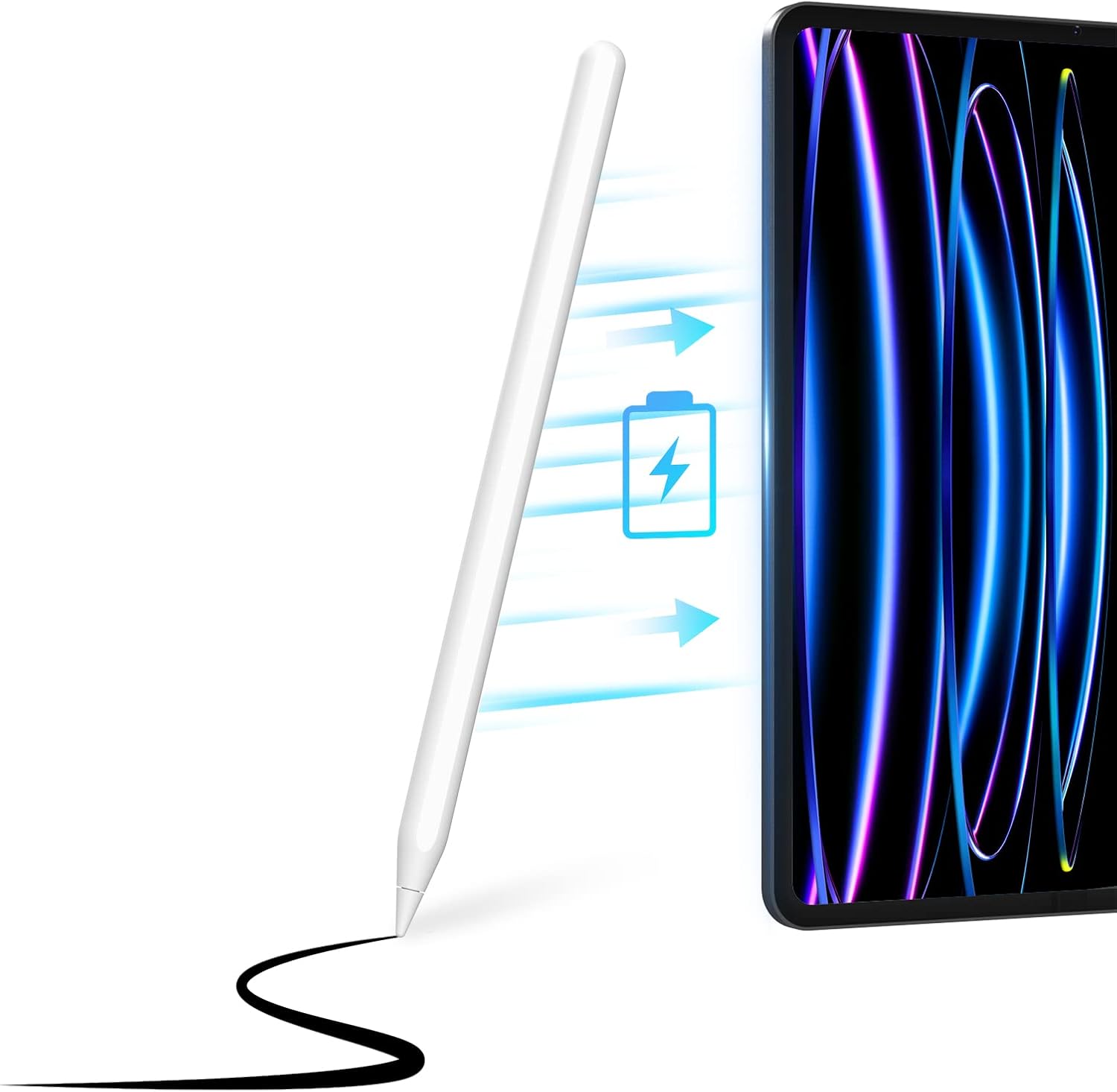
Rysunek 4.1: Ładowanie bezprzewodowe magnetyczne

Figure 4.2: Charging Duration and Usage Time
4.2 Połączenie Bluetooth
To enable the real-time power display and full functionality, connect the stylus via Bluetooth.
- Attach the stylus pen magnetically to your iPad to turn it on.
- Go to your iPad's Settings and turn on Bluetooth.
- In the Bluetooth device list, connect to the device named "Pencil".
Important: If you have previously connected other stylus pens, please disconnect them from your iPad's Bluetooth settings before attempting to connect the Uogic Stylus Pen.

Rysunek 4.3: Kroki połączenia Bluetooth
4.3 Adding Power Display Widget
Do view the stylus's battery level in real-time on your iPad's home screen:
- Long press on an empty area of your iPad homepage.
- Click the "+" sign in the upper left corner to add a widget.
- Szukaj and select "Batteries".
- Choose your preferred real-time battery display type to show.

Figure 4.4: How to Add Power Display Widget
5. Instrukcja obsługi
5.1 Power On/Off and Intelligent Power Management
The stylus powers on automatically when magnetically attached to the iPad. It features intelligent power management:
- If Bluetooth is not connected, the stylus will automatically shut down after 70 seconds of inactivity.
- After Bluetooth is connected, the pen will enter an automatic sleep state if not used for 75 seconds. It will reboot when you hold the pen again.

Rysunek 5.1: Inteligentne zarządzanie energią
5.2 Real-Time Battery Display
Once connected via Bluetooth and the battery widget is added, you can monitor the stylus's battery level directly on your iPad screen, eliminating unexpected power loss.

Figure 5.2: Real-Time Battery Display
5.3 Tilt Function and Palm Rejection
The stylus supports tilt functionality, allowing you to vary line thickness and create shading effects by changing the angle of the pen, similar to a traditional pencil. Palm rejection technology ensures that only the stylus input is registered, allowing you to rest your hand comfortably on the screen while writing or drawing.

Figure 5.3: Tilt Function and Palm Rejection
5.4 Scenariusze użycia
The Uogic Stylus Pen is suitable for various tasks, including:
- Digital Drawing and Sketching
- Graphic Design and Illustration
- Note-taking and Document Annotation
- Gaming and Interactive Applications

Rysunek 5.4: Wszechstronne zastosowania
6. Konserwacja
To ensure the longevity and optimal performance of your Uogic Stylus Pen:
- Zachowaj czystosc: The port-free design helps prevent dirt buildup. Wipe the stylus regularly with a soft, dry cloth.
- Protect the Nib: The stylus features a smooth and wear-resistant POM plastic nib. Avoid excessive force or dropping the stylus to prevent damage to the tip. Replacement nibs are available if needed.
- Składowanie: When not in use, attach the stylus magnetically to your iPad or store it in a protective case to prevent loss or damage.
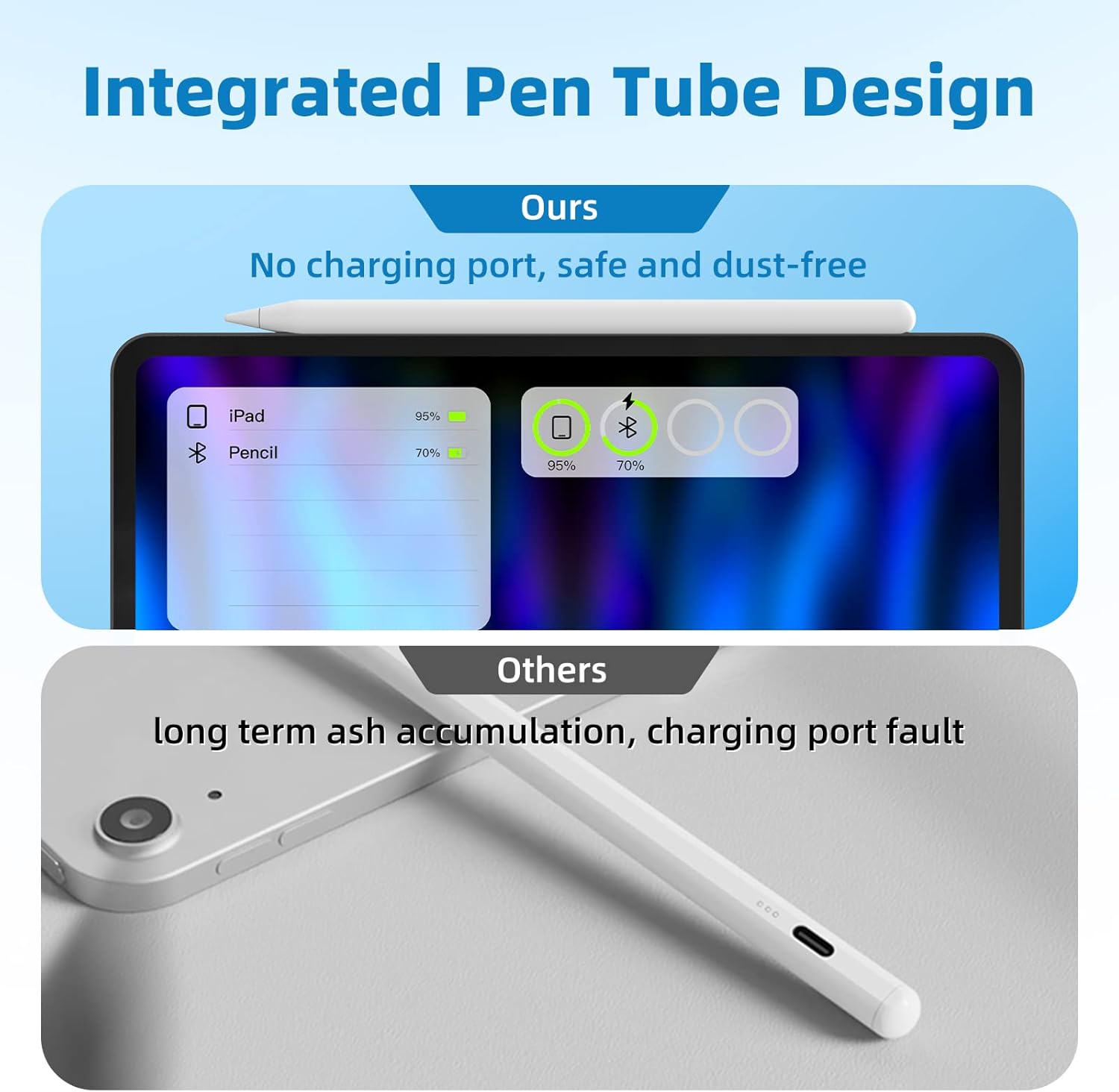
Figure 6.1: Integrated Pen Tube Design for Durability

Figure 6.2: Smooth and Wear-Resistant Nib
7. Rozwiązywanie Problemów
If you encounter issues with your Uogic Stylus Pen, please refer to the following common solutions:
- Rysik nie łączy się lub nie reaguje:
- Ensure your iPad model is listed as compatible (refer to Section 3).
- Check if the stylus is sufficiently charged by attaching it to your iPad.
- Verify that Bluetooth is enabled on your iPad and that the stylus is paired (named "Pencil").
- If you have previously used other styluses, go to iPad Bluetooth settings and "Forget This Device" for any old stylus connections before attempting to pair the Uogic Stylus Pen.
- Restart your iPad and try connecting again.
- Inaccurate input or intermittent writing:
- Ensure the nib is securely attached and not worn out. Replace if necessary.
- Clean your iPad screen to remove any smudges or debris that might interfere with touch input.
- Confirm that palm rejection is functioning correctly; avoid placing excessive pressure on the screen with your palm.
- Power display not showing:
- Ensure the stylus is connected via Bluetooth.
- Verify that the "Batteries" widget has been added to your iPad's home screen (refer to Section 4.3).
8. Specyfikacje
| Numer modelu | AC10 |
| Marka | UOGIC |
| Kolor | Biały |
| Tworzywo | Aluminium |
| Waga przedmiotu | 2.39 uncji (0.07 kilograma) |
| Wymiary opakowania | 7.32 x 2.4 x 0.67 cala |
| Typ baterii | 1 bateria litowo-jonowa (w zestawie) |
| Czas ładowania | Około 40 minut |
| Czas użytkowania | Do 10 godzin (ciągłe użytkowanie) |
| Kompatybilne urządzenia | iPad Air (4th/5th gen), iPad mini (6th gen), iPad Pro 11" (1st/2nd/3rd/4th gen), iPad Pro 12.9" (3rd/4th/5th/6th gen) |
9. Gwarancja i wsparcie
Your Uogic Stylus Pen comes with a 12-miesięczna gwarancja from the date of purchase, covering manufacturing defects. For any inquiries, technical assistance, or warranty claims, our dedicated customer support team is available 24/7 aby Ci pomóc.
Please refer to the contact information provided with your product packaging or visit the official Uogic webstronie, aby uzyskać szczegółowe informacje na temat pomocy technicznej.