
1. Koniec produktuview
The havit GK59 Gaming Microphone is designed for clear audio capture during gaming, streaming, and voice communication. It features a condenser microphone for high-quality sound and a versatile design for ease of use.

Rycina 1.1: Przód view of the havit GK59 Gaming Microphone, showcasing its main body, stand, and control buttons.
Główne cechy:
- Łatwy w użyciu: Simple plug-and-play functionality.
- Good Performance: Delivers clear and consistent audio.
- Good Quality: Durable construction for reliable use.
- Przenośna konstrukcja: Kompaktowy i łatwy w transporcie.
- Regulowany stojak: Umożliwia elastyczne pozycjonowanie.
2. Instrukcje konfiguracji
2.1 Zawartość opakowania
Proszę sprawdzić, czy w paczce znajdują się następujące elementy:
- havit GK59 Gaming Microphone
- Kabel połączeniowy USB
- Instrukcja obsługi (ten dokument)
2.2 Podłączanie mikrofonu
The GK59 microphone offers versatile connectivity options for various devices.
- Połączenie USB: Connect the provided USB cable to the USB-C port on the back of the microphone and the other end to an available USB port on your computer or gaming console. The microphone is plug-and-play and should be automatically recognized by most operating systems.
- 3.5mm Jack Connection: For devices supporting a 3.5mm auxiliary input, connect a 3.5mm audio cable (not included) to the 3.5mm jack on the back of the microphone and to your device's audio input.
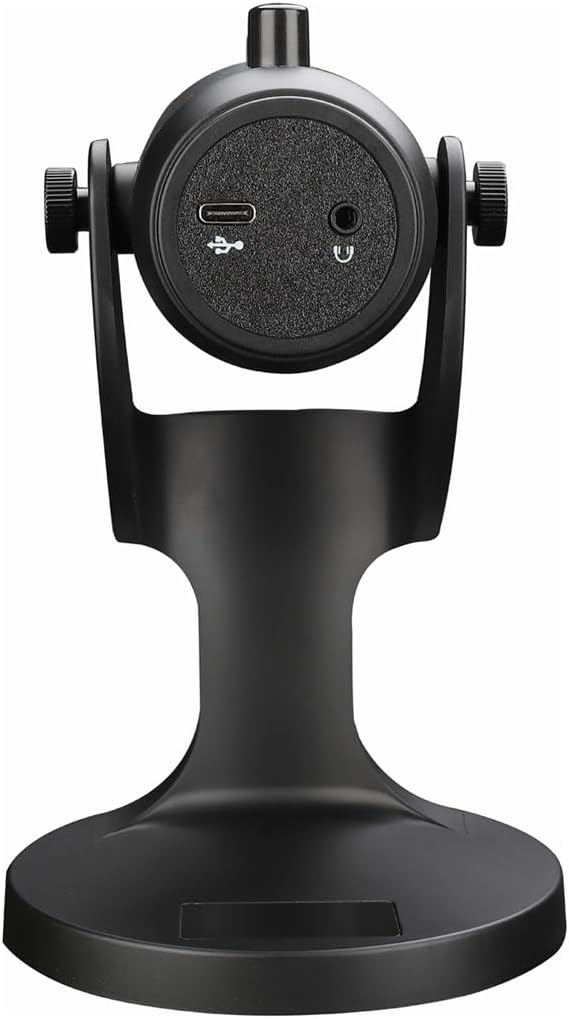
Rysunek 2.1: Tył view of the havit GK59 Gaming Microphone, highlighting the USB-C port for data and power, and the 3.5mm headphone jack for monitoring.
After connecting, ensure the microphone is selected as the default input device in your system's sound settings or your gaming/streaming software.
3. Instrukcja obsługi
3.1 Podstawowe sterowanie
The havit GK59 features intuitive controls located on the front of the microphone body:
- Przycisk wyciszenia: Press to mute or unmute the microphone. An indicator light will typically show the mute status.
- MIC +/- Buttons: Adjust the microphone input sensitivity (gain). Press '+' to increase, '-' to decrease.
- Przyciski VOL +/-: Adjust the headphone output volume for monitoring. Press '+' to increase, '-' to decrease.
- ECHO +/- Buttons: Adjust the echo effect level. Press '+' to increase, '-' to decrease.
Rysunek 3.1: Szczegółowy view of the microphone's control panel, including the mute button, microphone gain, volume, and echo adjustment buttons.
3.2 Adjusting Microphone Position
The microphone is equipped with an adjustable stand, allowing you to optimize its position for best sound capture and comfort.
- Gently hold the microphone body and the base of the stand.
- Tilt the microphone forward or backward to achieve the desired angle. The stand's design helps reduce vibration and abnormal sounds during use.
- Aby uzyskać optymalną czystość głosu, umieść mikrofon w odległości około 15–30 cm od ust.

Figure 3.2: The havit GK59 microphone demonstrating its adjustable tilt feature on the stand, designed for anti-vibration.
4. Konserwacja
4.1 Czyszczenie
To maintain the microphone's performance and appearance:
- Disconnect the microphone from its power source before cleaning.
- Do wycierania powierzchni zewnętrznych należy używać miękkiej, suchej ściereczki.
- Nie należy używać płynnych środków czyszczących, aerozoli ani rozpuszczalników, gdyż mogą one uszkodzić wykończenie lub wewnętrzne elementy.
4.2 Przechowywanie
When not in use, store the microphone in a cool, dry place away from direct sunlight and extreme temperatures. Protect it from dust and moisture.
5. Rozwiązywanie Problemów
If you encounter issues with your havit GK59 Gaming Microphone, please refer to the following table for common problems and solutions:
| Problem | Możliwa przyczyna | Rozwiązanie |
|---|---|---|
| No sound input from microphone | Mikrofon nie jest prawidłowo podłączony Wybrano nieprawidłowe urządzenie wejściowe Mikrofon wyciszony | Sprawdź, czy kabel USB jest podłączony prawidłowo. Check system sound settings and select GK59 as input. Aby włączyć mikrofon, naciśnij przycisk wyciszenia. |
| Niska głośność mikrofonu | Wzmocnienie mikrofonu jest zbyt niskie System input volume too low | Press the 'MIC +' button on the microphone. Adjust input volume in your system's sound settings. |
| Zniekształcony lub niewyraźny dźwięk | Microphone gain too high Microphone too close to mouth Hałas środowiskowy | Press the 'MIC -' button on the microphone. Dostosuj położenie mikrofonu (6-12 cm od ust). Zredukuj hałas tła w swoim otoczeniu. |
| No headphone monitoring sound | Słuchawki nie są podłączone Głośność słuchawek jest zbyt niska | Ensure headphones are plugged into the 3.5mm jack. Press the 'VOL +' button on the microphone. |
6. Specyfikacje techniczne
Below are the technical specifications for the havit GK59 Gaming Microphone:
| Funkcja | Specyfikacja |
|---|---|
| Marka | havit. |
| Numer modelu | GK59 |
| Technologia łączności | USB, 3.5 mm Jack (Auxiliary) |
| Zalecane zastosowania | Hazard |
| Wzór biegunowy | Jednokierunkowy |
| Współczynnik kształtu mikrofonu | Handheld (with desktop stand) |
| Waga przedmiotu | 429 gram |
| Impedancja | 250 omy |
| Stosunek sygnału do szumu | 18dB |
| Hałas słyszalny | 18 decybeli |
| Źródło zasilania | Elektryczny przewodowy (przez USB) |
| Kompatybilne urządzenia | Gaming Consoles, PCs |
| Wymiary produktu (DxSxW) | 5.59 x 4.92 x 9.06 cala |
| Kolor | Czarny |
7. Gwarancja i wsparcie
7.1 Informacje o gwarancji
The havit GK59 Gaming Microphone comes with a standard manufacturer's warranty. Please refer to the warranty card included in your product packaging or visit the official havit webSzczegółowe warunki gwarancji można znaleźć na naszej stronie.
7.2 Obsługa klienta
For technical assistance, troubleshooting not covered in this manual, or warranty claims, please contact havit customer support through their official channels. You can find more information and contact details on the Sklep havit na Amazonie lub ich urzędnik webstrona.