
1. Koniecview
The ASRock X670E PG Lightning is a high-performance motherboard designed to support AMD AM5 Ryzen 7000 Series Processors. It features advanced connectivity, robust power delivery, and extensive expansion options, making it suitable for demanding computing tasks and gaming. This manual provides essential information for the proper installation, operation, and maintenance of your motherboard.
Główne cechy:
- Supports AMD AM5 Ryzen 7000 Series Processors
- Chipset AMD X670
- Dual Channel DDR5 Memory, up to 128GB
- Multiple PCIe 5.0 and PCIe 4.0 slots for expansion
- Integrated AMD RDNA2 Graphics (actual support varies by CPU)
- 7.1-kanałowy dźwięk HD (Realtek ALC897)
- Sieć LAN Realtek 2.5 Gb
- Six SATA3 ports and three Hyper M.2 slots
- Extensive I/O with USB 3.2 Gen2x2 Type-C, HDMI, and DisplayPort
2. Konfiguracja i instalacja
Before beginning installation, ensure your workspace is clean and static-free. Always handle components by their edges to avoid damage from electrostatic discharge.
2.1. Instalacja procesora
Carefully open the CPU socket lever. Align the triangular mark on your AMD AM5 Ryzen processor with the corresponding mark on the socket. Gently place the CPU into the socket without applying force. Close the lever to secure the processor.

Obraz: widok z góry view of the ASRock X670E PG Lightning motherboard, showing the CPU socket ready for processor installation.
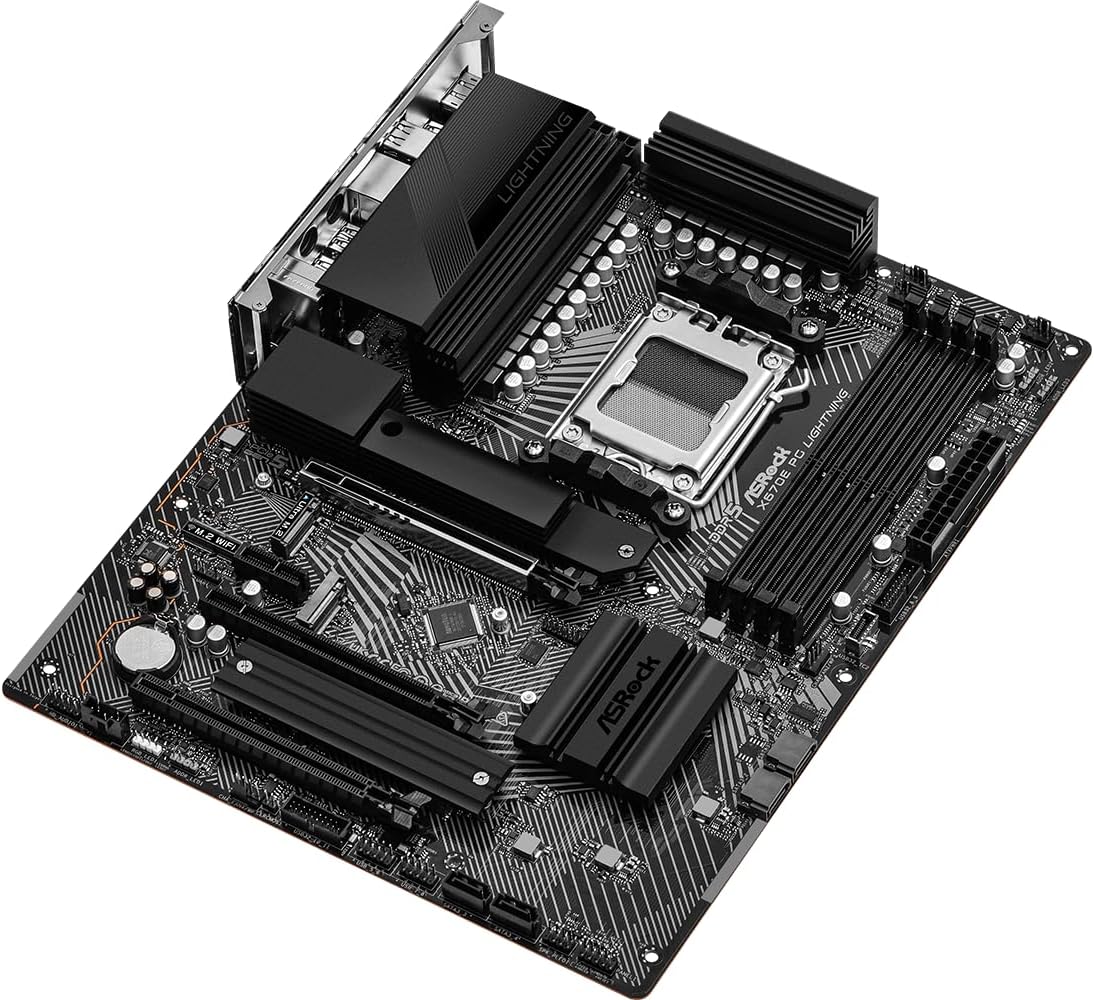
Image: Close-up of the CPU socket on the ASRock X670E PG Lightning motherboard with the retention arm open, illustrating the installation readiness.
2.2. Instalacja pamięci
The motherboard supports DDR5 memory. For optimal performance, install memory modules in a dual-channel configuration. Refer to the motherboard manual for specific slot population guidelines. Open the clips on the DIMM slots, align the memory module notch with the slot key, and press down firmly on both ends until the clips snap into place.
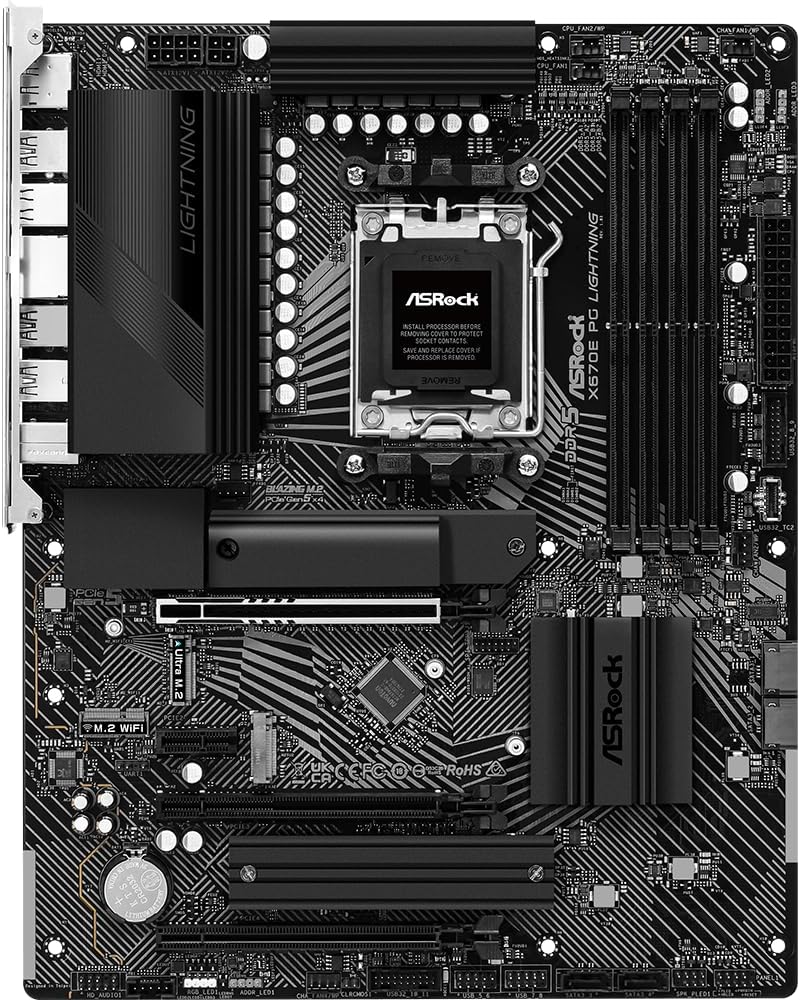
Obraz: kątowy view of the ASRock X670E PG Lightning motherboard, showing the four DDR5 memory slots and the CPU socket area.
2.3. Instalacja urządzenia pamięci masowej
Install M.2 NVMe SSDs into the available M.2 slots. Secure them with the provided screws or standoffs. For SATA drives, connect the SATA data cables to the motherboard's SATA ports and the power cables from your power supply to the drives.

Obraz: Zbliżenie view of the ASRock X670E PG Lightning motherboard, detailing the M.2 slots, heatsinks, and chipset area.
2.4. Instalacja karty graficznej
Insert your PCIe graphics card into the primary PCIe 5.0 x16 slot. Ensure it is seated firmly and secure it with the case screw. Connect the necessary PCIe power cables from your power supply to the graphics card.
2.5. Podłączenie zasilania
Connect the 24-pin ATX power connector and the 8-pin (or 4+4-pin) CPU power connector from your power supply to the corresponding headers on the motherboard. Ensure all connections are secure.
3. Instrukcja obsługi
3.1. Pierwsze uruchomienie
After assembling your system, connect your monitor, keyboard, and mouse. Power on the system. The first boot may take longer than usual due to memory training. If the system does not display, check all power connections and component seating.
3.2. Konfiguracja BIOS/UEFI
Press the 'Delete' or 'F2' key during startup to enter the BIOS/UEFI setup utility. Here you can configure boot order, enable XMP/EXPO profiles for memory, adjust fan speeds, and monitor system status. Save changes before exiting.
3.3. Instalacja sterownika
After installing your operating system, install the latest drivers for your motherboard's chipset, LAN, audio, and any other integrated components. These can typically be found on the ASRock support webwitrynę dla Twojego konkretnego modelu.
4. Konserwacja
4.1. Aktualizacje BIOS-u
Regularnie sprawdzaj ASRock website for BIOS/UEFI updates. Updates can improve system stability, compatibility, and performance. Follow the provided instructions carefully when performing a BIOS update to avoid system damage.
4.2. Czyszczenie
Regularnie czyść wnętrze komputera, aby zapobiec gromadzeniu się kurzu, który może prowadzić do przegrzewania i spadku wydajności. Użyj sprężonego powietrza, aby usunąć kurz z wentylatorów, radiatorów i innych podzespołów. Przed czyszczeniem upewnij się, że system jest wyłączony i odłączony od zasilania.
4.3. Sprawdzanie komponentów
Occasionally inspect all internal connections (power cables, data cables, expansion cards) to ensure they are securely seated. Loose connections can cause intermittent issues or system instability.
5. Rozwiązywanie Problemów
5.1. Typowe problemy
- Brak wyświetlacza: Verify monitor connection, graphics card seating, and power cables. Try reseating RAM modules.
- Boot Loops/System Instability: Reset BIOS to default settings. Check memory compatibility and seating. Ensure CPU cooler is properly installed.
- Nie wykryto urządzenia peryferyjnego: Ensure USB devices are connected to the correct ports. Update chipset drivers.
5.2. Diagnostic LEDs
The motherboard features four single LEDs to indicate the boot state (CPU, DRAM, VGA, BOOT). If an issue occurs during startup, the corresponding LED will remain lit, helping to identify the problematic component.
5.3. Skontaktuj się z pomocą techniczną
If you encounter persistent issues that cannot be resolved using the troubleshooting steps, please contact ASRock technical support for further assistance.
6. Specyfikacje
| Funkcja | Specyfikacja |
|---|---|
| Marka | ASRock |
| Nazwa modelu | X670E PG LIGHTNING |
| Gniazdo procesora | Gniazdo AM5 |
| Kompatybilne procesory | Procesory AMD Ryzen serii 7000 |
| Typ chipsetu | AMD X670 |
| Technologia pamięci RAM | DDR5 |
| Dostępne gniazda pamięci | 4 |
| Max RAM Memory Size | 128 GB |
| Interfejs karty graficznej | Integrated (actual support varies by CPU) |
| Total PCIe Ports | 4 (1x PCIe 5.0 x16, 1x PCIe 4.0 x16, 1x PCIe 4.0 x1, 1x M.2) |
| Total SATA Ports | 6 |
| Łączna liczba portów USB | 16 (including USB 3.2 Gen2x2 Type-C) |
| Liczba portów Ethernet | 1 (sieć 2.5G) |
| Wymiary przedmiotu Dł. x Szer. x Wys. | 11.7" dł. x 2.8" szer. x 13.8" wys. |
7. Gwarancja i wsparcie
This ASRock motherboard comes with a 3-letnia gwarancja. For detailed warranty terms and conditions, please refer to the official ASRock webwitryny lub skontaktuj się z obsługą klienta.
For technical support, driver downloads, and further product information, visit the official ASRock support page: ASRock Store on Amazon
8. Wizualizacje produktów
8.1. Zdjęcia produktów

Image: Rear I/O panel of the ASRock X670E PG Lightning motherboard, featuring multiple USB ports, 2.5G LAN, HDMI, DisplayPort, and audio jacks.

Obraz: kątowy view of the ASRock X670E PG Lightning motherboard, showcasing the overall layout and design from the top-right perspective.
8.2. Oficjalne filmy o produktach
Video: A product demonstration video showcasing the features and design of the ASRock X670E PG Lightning motherboard.