
1. Koniec produktuview
The Cooler Master GD120 ARGB 30th Anniversary Gaming Desk is designed to provide a robust and feature-rich workspace for gaming and productivity. This desk incorporates ambient ARGB lighting, a water-repellent mousepad, and efficient cable management to enhance your setup.
Główne cechy:
- Ambient ARGB Lighting: Integrated lighting strip for customizable atmospheric effects.
- Trwała konstrukcja: Supports up to 220.5 lbs (100 kg) for reliable performance.
- Water-Repellent Mousepad: Includes an XL mousepad with anti-slip rubber base and anti-fray stitching.
- Tacka na kable: Built-in tray to keep your workspace organized and clutter-free.
- Optimized Work Area: Provides a spacious 120cm x 75cm work surface.

Image 1.1: The Cooler Master GD120 ARGB Gaming Desk in a typical setup.

Image 1.2: Desk dimensions highlighting the 120cm x 75cm work area.
2. Instalacja i montaż
Follow these steps to assemble your Cooler Master GD120 ARGB Gaming Desk. It is recommended to have a second person assist with assembly due to the size and weight of components.
2.1. Instrukcja montażu w formie filmu
Video 2.1: Official Cooler Master GD120 ARGB Desk Installation Guide. This video provides a visual walkthrough of the entire assembly process.
2.2. Instrukcja montażu krok po kroku
- Attach Desk Knobs to Legs:
Secure the four desk knobs (F) to the bottom of the left and right legs (A1, A2). These knobs help stabilize the desk on uneven surfaces.
Image 2.2: Step 1 - Attaching the desk knobs to the leg bases.
- Connect Legs with Connecting Frame:
Attach the connecting frame (D) to the left and right legs (A1, A2) using the connecting parts (H) and M6 screws (K). Ensure all screws are tightened for stability.
Image 2.3: Step 2 - Securing the connecting frame between the legs.
- Install Support Parts:
Fasten the two support parts (G) to the assembled leg structure using M6 screws (K). These provide additional stability to the desk frame.
Image 2.4: Step 3 - Attaching the support parts to the leg assembly.
- Prepare Desktop and LED Control Box:
Place the desktop (E) upside down on a soft, protected surface. Attach the LED control box (B) to the designated area on the underside of the desktop. Connect the Micro to USB cable (C) to the control box and route the cables through the cable management channels.
Image 2.5: Step 4 - Preparing the desktop and connecting the LED control box.
- Attach Desktop to Legs:
Carefully align the assembled leg frame with the desktop. Secure the desktop to the legs using the M8 screws (L). Ensure all screws are fully tightened.
Image 2.6: Step 5 - Attaching the desktop to the leg assembly.
- Install Cable Management Tray:
Mount the cable management tray (M) to the underside of the desktop using the remaining M8 screws (L). This tray helps organize power cables and other wires.
Image 2.7: Step 6 - Installing the cable management tray.
- Place Mouse Mat:
Position the included mouse mat (J) on the desktop. The mat features an anti-slip rubber base to keep it in place.
Image 2.8: Step 7 - Placing the mouse mat on the desktop.
- Podłącz kabel USB:
Plug the USB cable from the LED control box into an available USB port on your PC or a USB power adapter. This powers the ARGB lighting.
Image 2.9: Step 8 - Connecting the USB cable to power the ARGB lighting.
2.3. ARGB LED Strip Assembly and Disassembly
Video 2.10: Guide for assembling and disassembling the ARGB LED strip. This video demonstrates how to properly install or remove the LED strip from the desk.
3. Instrukcja obsługi
3.1. Sterowanie oświetleniem ARGB
The GD120 ARGB desk features integrated ambient ARGB lighting. To customize the lighting effects and colors, use the Cooler Master MasterPlus Software. This software allows you to select LED colors, modes (e.g., static, breathing, color cycle), and brightness levels.
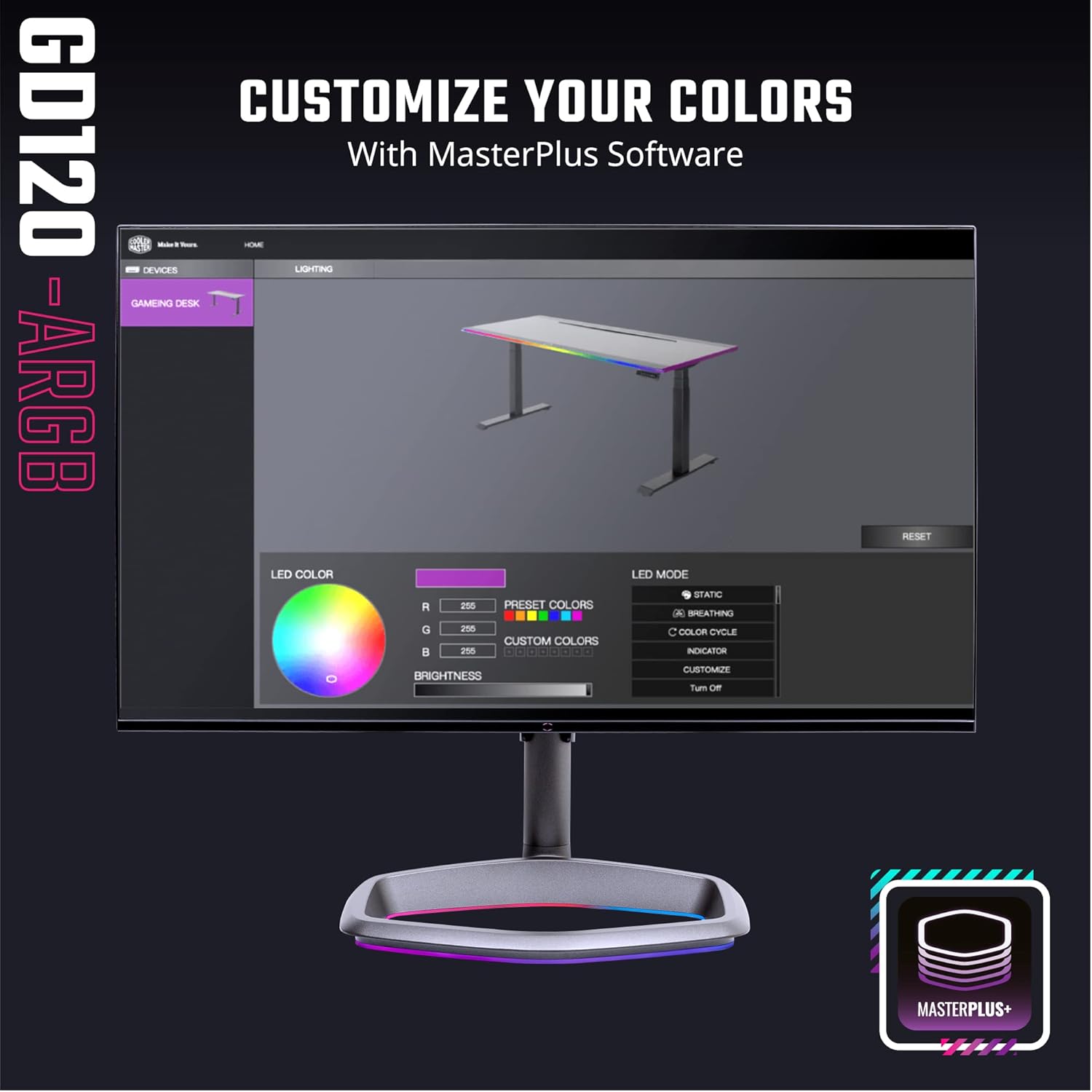
Image 3.1: Interface of the MasterPlus Software for customizing ARGB lighting.
Ensure the USB cable from the LED control box is connected to your PC for software control. If not connected to a PC, the lighting may operate on default settings or require a separate USB power source.
3.2. Desk Height
The Cooler Master GD120 ARGB desk has a fixed height of approximately 29.1 inches (74 cm). While some product descriptions may mention 'height levels', this desk does not feature dynamic height adjustment. The height is set during assembly.
4. Konserwacja
4.1. Cleaning the Desk Surface
- Użyj miękkiego, damp cloth with a mild cleaning solution to wipe down the desk surface.
- Avoid abrasive cleaners or harsh chemicals that could damage the finish.
- Dry the surface immediately with a clean, dry cloth to prevent water spots.
4.2. Mousepad Care
The included mousepad is water-repellent. For cleaning:
- Gently wipe spills with a clean cloth.
- For deeper cleaning, use a small amount of mild soap and water, then air dry completely.
- Do not machine wash or tumble dry the mousepad.
4.3. Ogólna opieka
- Regularnie sprawdzaj wszystkie śruby i połączenia, aby mieć pewność, że są dobrze dokręcone.
- Avoid placing excessively heavy items on the desk, adhering to the maximum weight recommendation of 220.5 lbs (100 kg).
- Keep the desk away from direct sunlight and extreme temperatures to prevent material degradation.
5. Rozwiązywanie Problemów
5.1. Desk Stability Issues
If the desk feels wobbly or unstable after assembly:
- Re-check all screw connections, especially those for the legs and connecting frame. Ensure they are fully tightened.
- Verify that the desk is placed on a flat, even surface. Adjust the desk knobs (F) at the bottom of the legs to compensate for minor floor irregularities.
- Ensure the support parts (G) are correctly installed and secured.
5.2. ARGB Lighting Not Functioning
If the ARGB lighting is not working or not responding to software control:
- Check that the Micro to USB cable (C) is securely connected to both the LED control box and a functioning USB port on your PC or power adapter.
- Ensure the LED control box (B) is properly attached and its connections are secure.
- If using the MasterPlus Software, ensure it is installed correctly and updated to the latest version.
- Verify that the ARGB LED strip itself is correctly seated in its channel and connected to the control box. Refer to Video 2.10 for assembly/disassembly of the LED strip.
5.3. Damaged or Misaligned Parts
If you encounter damaged parts or significant misalignment during assembly:
- Do not force parts together. This can cause further damage.
- Contact Cooler Master customer support immediately for assistance or replacement parts.
6. Specyfikacje
| Funkcja | Szczegół |
|---|---|
| Marka | Mistrz chłodnicy |
| Numer modelu | CMI-GD120-RBA30TH |
| Projekt biurka | Biurko komputerowe |
| Kształt | Prostokątny |
| Wymiary produktu (Gł. x Szer. x Wys.) | 29.5" gł. x 47.2" szer. x 29.1" wys. (74.9 cm x 119.9 cm x 73.9 cm) |
| Kolor | Czarny |
| Styl | GD120 ARGB 30th Anniversary |
| Materiał bazowy | Stal stopowa |
| Najlepszy rodzaj materiału | Stal stopowa |
| Rodzaj wykończenia | Stal |
| Funkcja specjalna | Ergonomic |
| Zawarte komponenty | Taca do zarządzania kablami |
| Wymagany montaż | Tak |
| Maksymalna zalecana waga | 220.5 funtów (100 kilogramów) |
| Waga przedmiotu | 60.2 funtów (27.3 kg) |
| Grubość blatu | 25 milimetrów |
| Czy elektryczny | NIE |
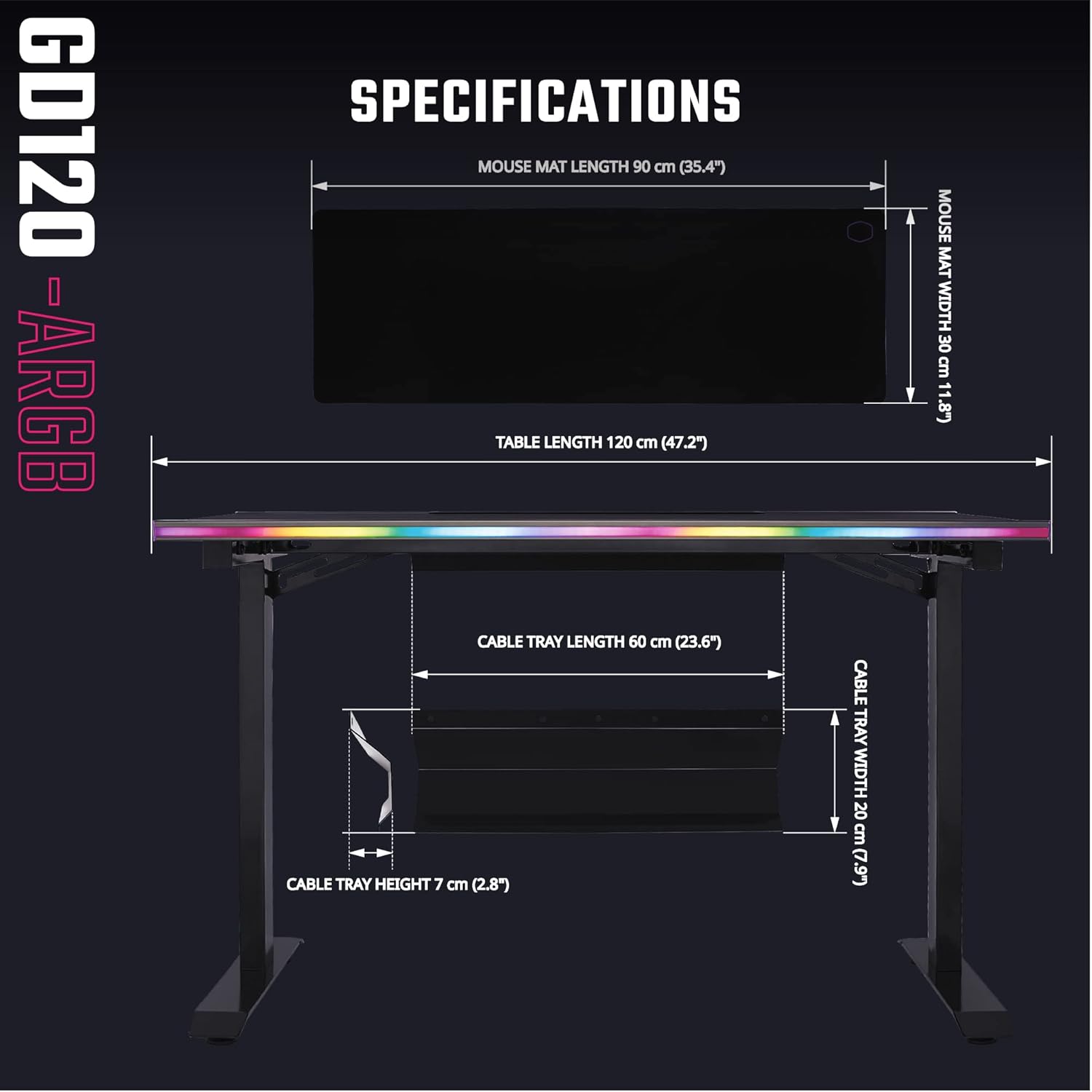
Image 6.1: Detailed dimensions of the GD120 ARGB desk and mouse mat.

Image 6.2: The desk is designed to support up to 100 kg (220.5 lbs).
7. Informacje o gwarancji
The Cooler Master GD120 ARGB 30th Anniversary Gaming Desk comes with a 2-roczna ograniczona gwarancja producentaNiniejsza gwarancja obejmuje wady materiałowe i wykonawcze powstałe w wyniku normalnego użytkowania. Prosimy zachować dowód zakupu na potrzeby roszczeń gwarancyjnych.
8. Obsługa klienta
For further assistance, technical support, or warranty inquiries, please visit the official Cooler Master website or contact their customer service department. You can find contact information and support resources on their webstrona: