
1. Koniec produktuview
The UOGIC Magic Keyboard Case transforms your iPad into a versatile workstation, offering a comfortable typing experience, a precision trackpad, and robust protection. Its floating magnetic design allows for easy attachment and adjustment, making it ideal for various tasks and environments.

Figure 1: UOGIC Magic Keyboard Case with iPad in typing position.

Figure 2: Versatile usage scenarios of the keyboard case.
2. Zgodność
This keyboard case is designed for specific iPad models. Please confirm your iPad model before use.
- iPad Pro 11" (1st, 2nd, 3rd, 4th Generation): A1980, A2013, A1934, A1979, A2228, A2068, A2230, A2231, A2301, A2459, A2460, A2377, A2759, A2435, A2761, A2762
- iPad Air 10.9" (4th, 5th Generation): A2316, A2324, A2325, A2072, A2589, A2591, A2588
Note: This product is NOT compatible with iPad 10th Generation 10.9".

Figure 3: Visual guide for compatible iPad models.
3. Instrukcje konfiguracji
3.1. Ładowanie klawiatury
- Locate the USB-C charging port on the side of the keyboard case.
- Connect the provided USB-C cable to the charging port and plug the other end into a power source (e.g., wall adapter, computer USB port).
- Zaświeci się kontrolka ładowania. Pełne naładowanie trwa zazwyczaj około 3 godzin.
A fully charged keyboard provides up to 70 hours of continuous use or 90 days of standby time.
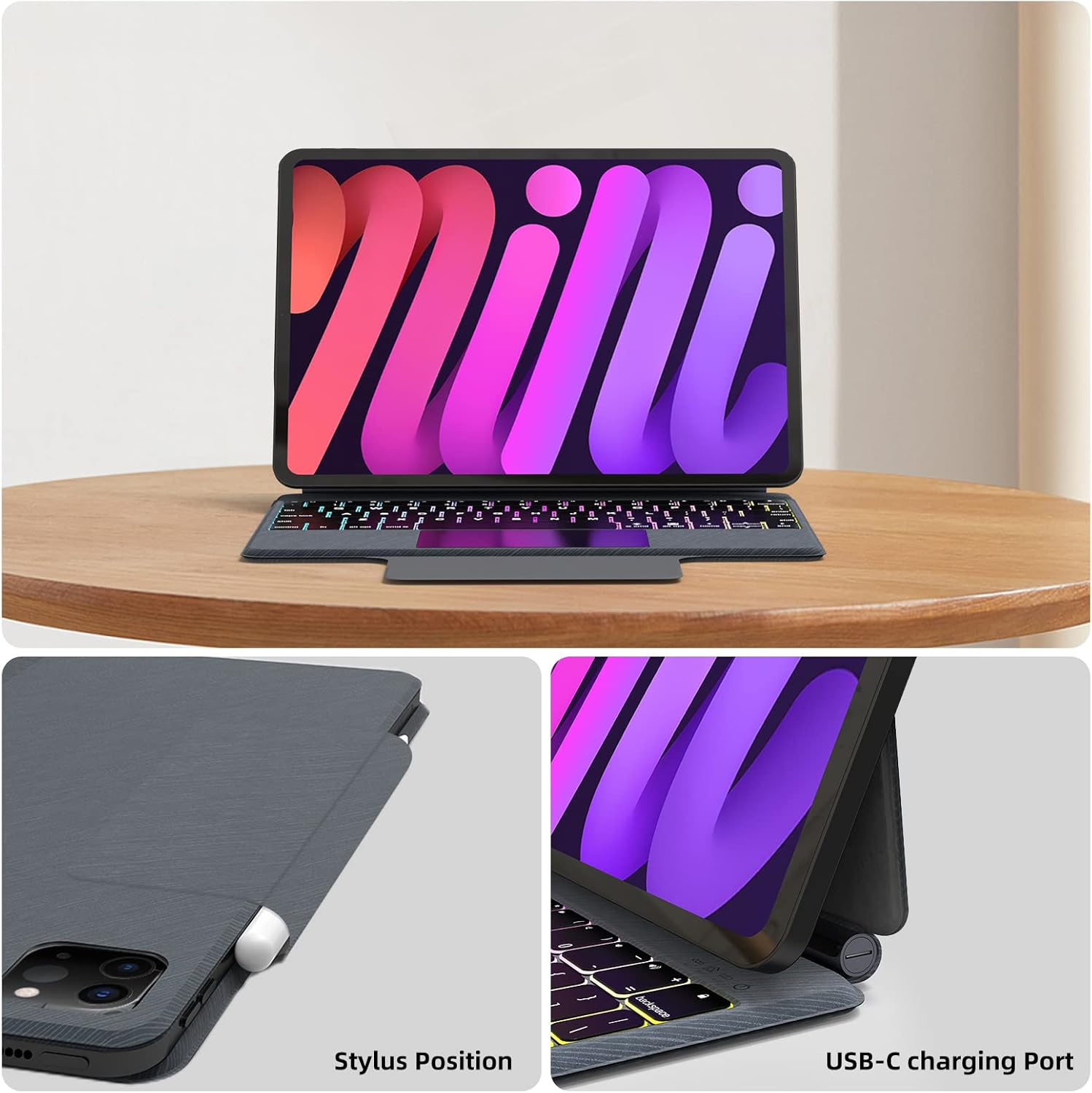
Rysunek 4: Lokalizacja portu ładowania USB-C.
3.2. Podłączanie iPada
- Otwórz obudowę klawiatury.
- Align your compatible iPad with the magnetic back panel of the case. The iPad will magnetically snap into place.
- Dostosuj iPada do swoich potrzeb viewing angle. The floating cantilever stand allows for flexible positioning.
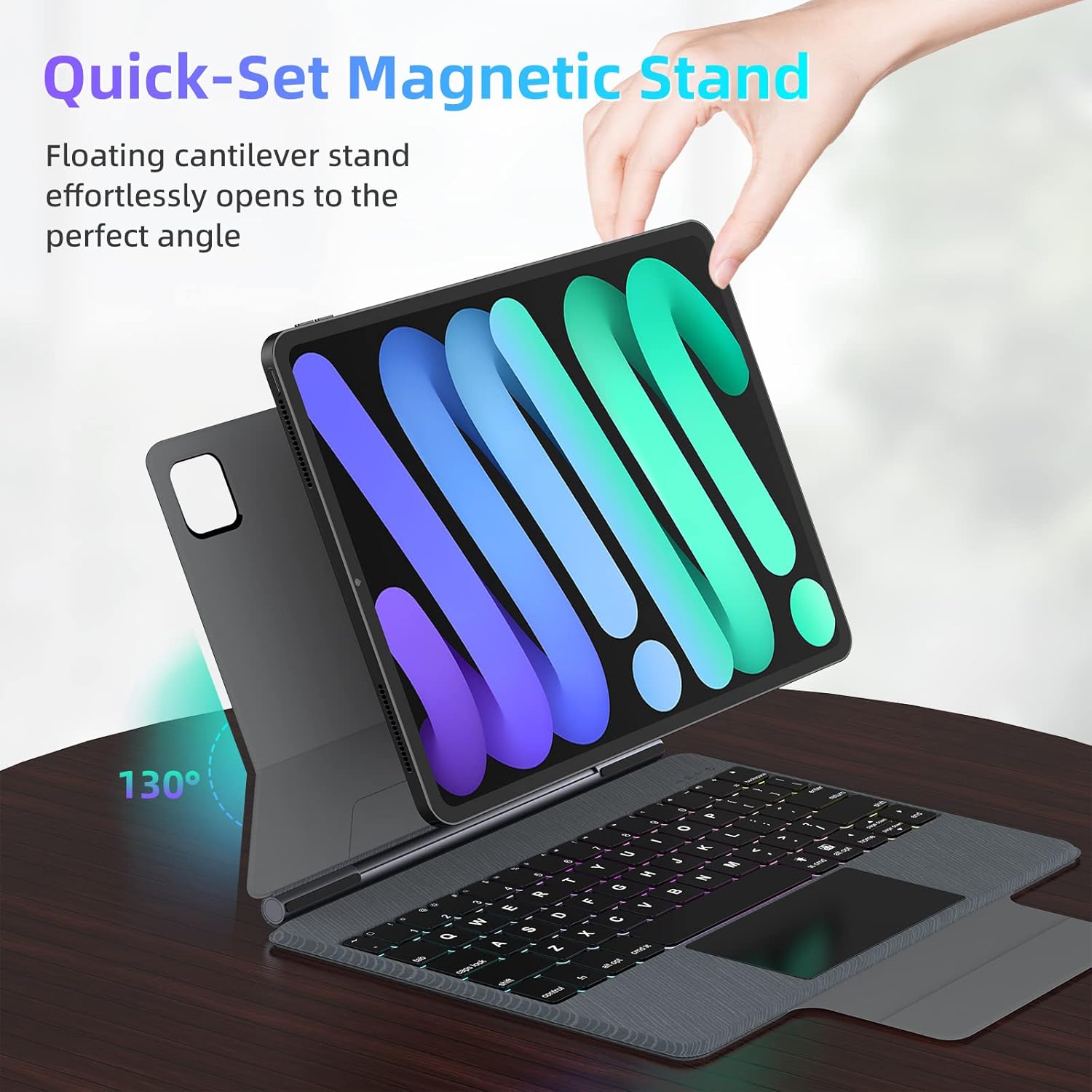
Figure 5: Floating magnetic design and adjustable stand.

Figure 6: Quick-set and folding stand mechanism.
3.3. Parowanie Bluetooth
- Sprawdź, czy klawiatura jest naładowana i włączona.
- Na iPadzie przejdź do Ustawienia > Bluetooth.
- Włącz Bluetooth. Twój iPad wyszuka pobliskie urządzenia.
- Select "UOGIC Keyboard" (or similar name) from the list of available devices.
- Postępuj zgodnie ze wskazówkami wyświetlanymi na ekranie, aby dokończyć proces parowania.
4. Instrukcja obsługi
4.1. Funkcje klawiatury
- Podświetlenie: The keyboard features 7 customizable backlight modes and 3 adjustable brightness levels. Use the dedicated backlight key (often Fn + Light icon) to cycle through modes and adjust brightness.
- Ergonomic Keys: The keys are designed for comfortable and efficient typing.
- Klawisze skrótu: Utilize the top row of keys for quick access to iPadOS functions such as brightness, volume, and media controls.
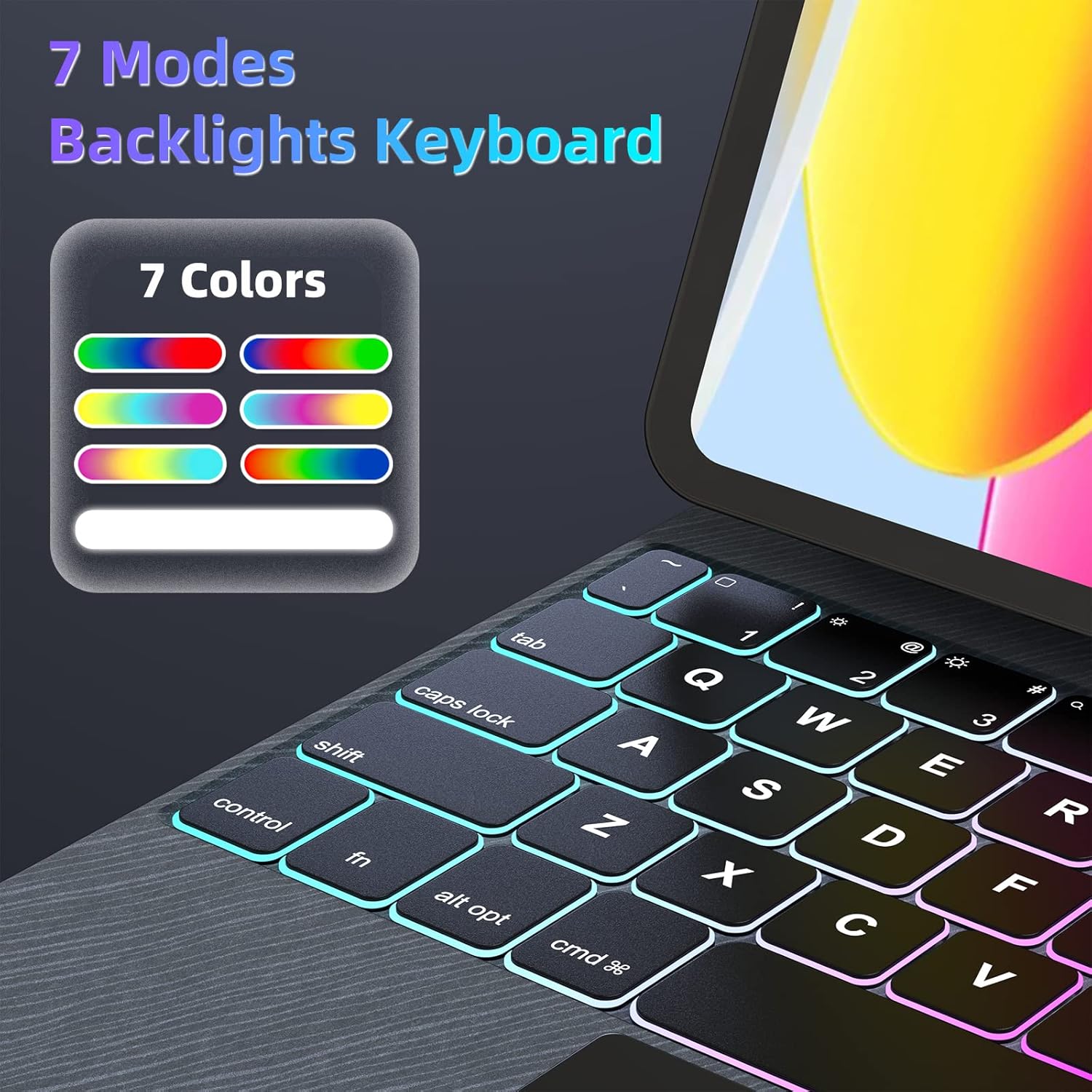
Figure 7: 7-Mode Backlight Keyboard.
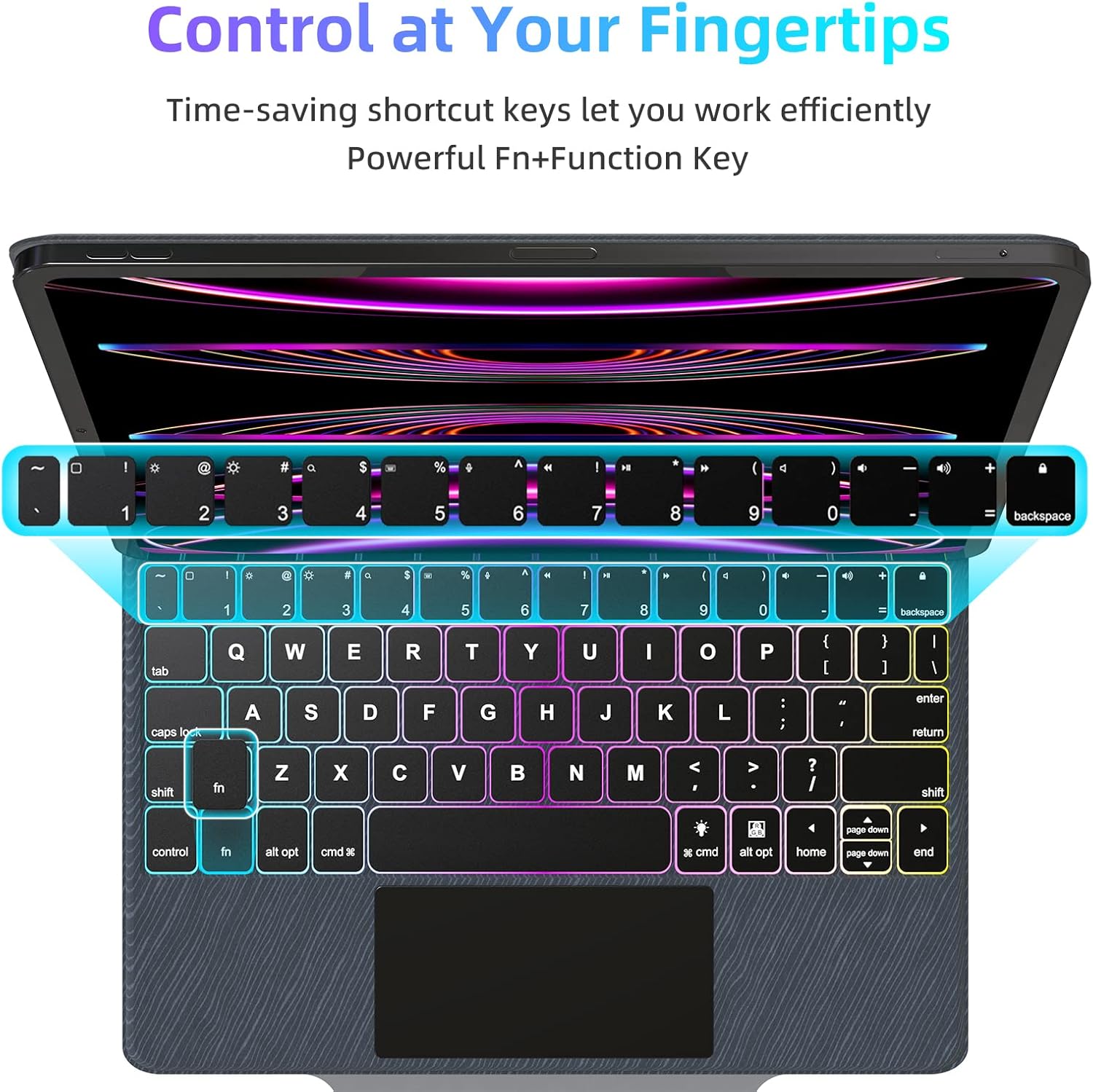
Figure 8: Keyboard shortcut keys for efficient control.

Figure 9: Scissor structure button key for tactile feedback.
4.2. Trackpad Functions
The precision trackpad supports full multi-touch gestures, enhancing navigation and productivity on your iPad.
- Stuknięcie jednym palcem: Kliknij/wybierz.
- Przewijanie dwoma palcami: Przewiń w górę/w dół lub w lewo/w prawo.
- Uszczypnij, aby powiększyć: Powiększ/pomniejsz zawartość.
- Przesunięcie trzema palcami w górę: Przejdź do ekranu głównego.
- Three-Finger Swipe Up and Hold: Otwórz przełącznik aplikacji.
- Przesunięcie trzema palcami w lewo/prawo: Przełączaj się między otwartymi aplikacjami.
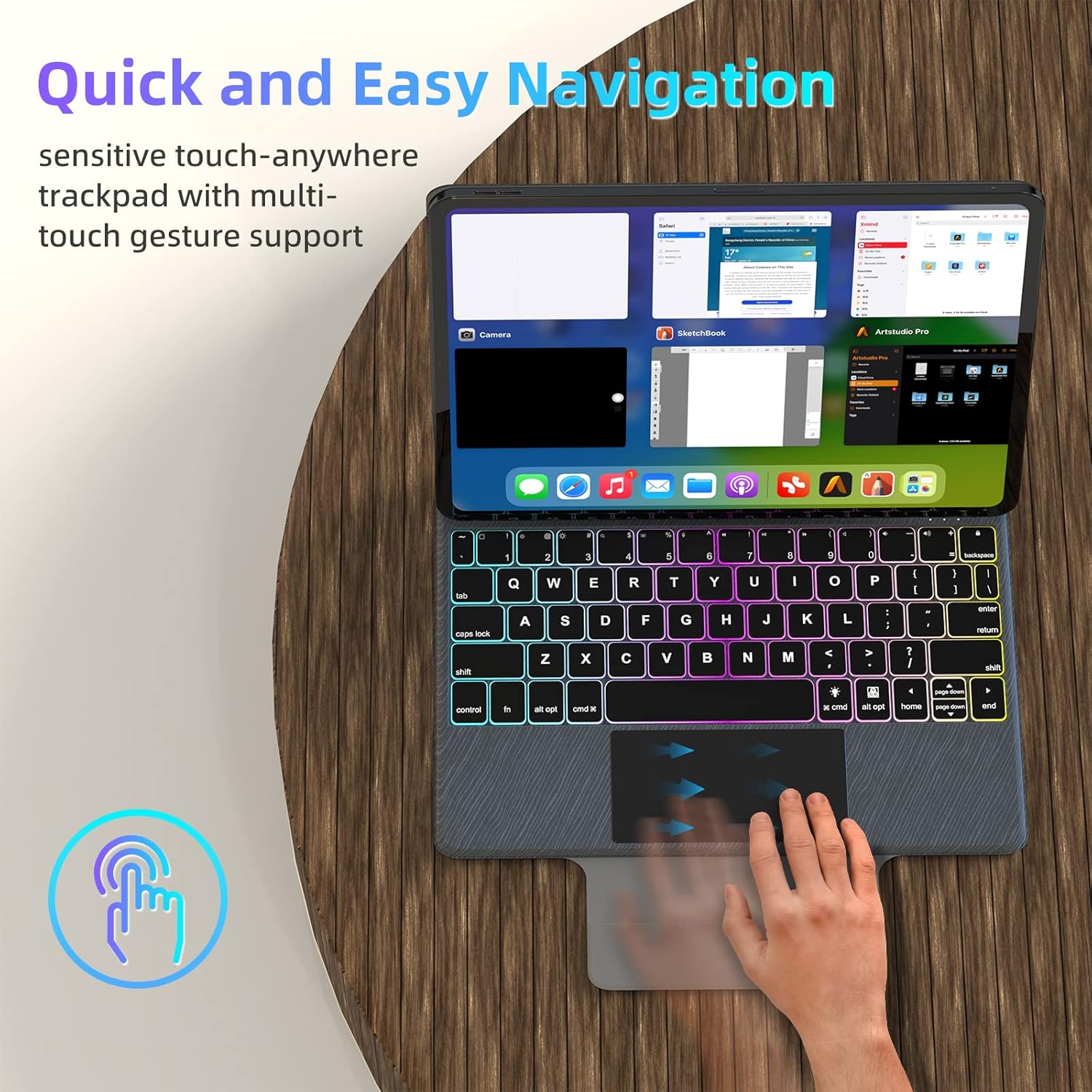
Figure 10: Multi-touch trackpad gestures.
4.3. Zarządzanie energią
To conserve battery life, the keyboard case automatically enters sleep mode after 10 minutes of inactivity. It will wake up when a key is pressed or the trackpad is used.

Figure 11: Auto Sleep/Wake feature.
4.4. Stylus Position
The case includes a designated area for securely holding your stylus, ensuring it is always accessible and protected.

Figure 12: Stylus storage position.
5. Konserwacja
5.1. Czyszczenie
- Gently wipe the keyboard and trackpad surfaces with a soft, lint-free cloth.
- W przypadku uporczywych zabrudzeń, delikatnieampPrzetrzyj szmatkę wodą lub delikatnym, nieściernym środkiem czyszczącym. Unikaj nadmiernej wilgoci.
- Do not spray cleaners directly onto the keyboard or trackpad.
5.2. Przechowywanie
- When not in use, fold the case to protect both the iPad and the keyboard.
- Przechowywać etui w chłodnym, suchym miejscu, z dala od bezpośredniego światła słonecznego i ekstremalnych temperatur.
6. Rozwiązywanie Problemów
6.1. Klawiatura nie łączy się
- Sprawdź, czy klawiatura jest naładowana i włączona.
- Check your iPad's Bluetooth settings to confirm Bluetooth is enabled and the keyboard is listed as 'Connected'. If not, try re-pairing.
- Uruchom ponownie iPada i klawiaturę.
6.2. Klawisze nie reagują
- Sprawdź, czy klawiatura jest podłączona przez Bluetooth.
- Sprawdź, czy klawiatura ma wystarczająco naładowaną baterię.
- Spróbuj rozłączyć i ponownie nawiązać połączenie Bluetooth.
6.3. Trackpad Issues
- Upewnij się, że powierzchnia gładzika jest czysta i wolna od zanieczyszczeń.
- Sprawdź ustawienia iPadOS dotyczące czułości gładzika i konfiguracji gestów.
- If the trackpad is unresponsive, try restarting the keyboard and iPad.
6.4. Podświetlenie nie działa
- Ensure the keyboard has sufficient battery charge, as backlighting consumes more power.
- Press the backlight key (often Fn + Light icon) to cycle through modes and brightness levels.
7. Specyfikacje
| Funkcja | Szczegół |
|---|---|
| Marka | UOGIC |
| Kompatybilne urządzenia | iPad Pro 11" (1st/2nd/3rd/4th Gen), iPad Air 10.9" (4th/5th Gen) |
| Technologia łączności | Bluetooth, USB-C for charging |
| Opis klawiatury | Multi Functional, Scissor Structure Button Key |
| Cechy specjalne | Backlit (7 modes, 3 brightness), Ergonomic, Rechargeable, Multi-Touch Trackpad, Floating Magnetic Design, Auto Sleep/Wake |
| Kolor | Czarny |
| Tworzywo | Akrylonitryl Butadienowo-styrenowy |
| Waga przedmiotu | 2.46 funta |
| Bateria | 1 bateria litowo-jonowa (w zestawie) |
| Żywotność baterii | Up to 70 hours continuous use, 90 days standby |
| Czas ładowania | Około 3 godzin |
8. Gwarancja i wsparcie
UOGIC provides a 1-year warranty covering any quality-related issues with your Magic Keyboard Case.
For any questions or concerns, our 24/7 online customer support is available to assist you. Please refer to the product packaging or the official UOGIC webstrona dla danych kontaktowych.