
1. Wprowadzenie
This manual provides detailed instructions for the installation, operation, and maintenance of your Spedal MINIEYE AC1 Dash Cam. Please read this manual thoroughly before using the device to ensure proper functionality and safety. The MINIEYE AC1 is designed to record your driving journey in high definition and offers advanced features for enhanced road safety.
2. Koniec produktuview
2.1 Główne cechy
- 1944P Ultra Full HD Recording: Nagrywa wyraźne wideo footage with a 140° wide-angle field of view.
- AI ADAS (Advanced Driver-Assistance System): Provides real-time alerts for collision avoidance.
- Wbudowany czujnik G: Automatically detects sudden movements or impacts and locks footage.
- Całodobowy monitoring parkingu: Monitors your vehicle even when parked (requires hardwire kit, sold separately).
- Potężny noktowizor: Ensures clear recordings in low-light conditions.
- Nagrywanie w pętli: Nadpisuje najstarsze footage gdy karta pamięci jest pełna, zapewniając ciągłe nagrywanie.
- Kontrola aplikacji: Zarządzaj ustawieniami, view footage, and download videos via a dedicated mobile application.
2.2 Zawartość opakowania
Sprawdź, czy w przesyłce znajdują się wszystkie wymienione poniżej elementy:
- MINIEYE AC1 Dash Cam Unit
- Ładowarka samochodowa
- Kabel zasilający
- Kabel monitora
- Host Base
- Moduł GPS
- Naklejka elektrostatyczna
- Łom (do prowadzenia kabli)
- Poziomica pęcherzykowa
- Free 32GB TF Card (MicroSD Card)
- Instrukcja obsługi (ten dokument)
2.3 Komponenty urządzenia
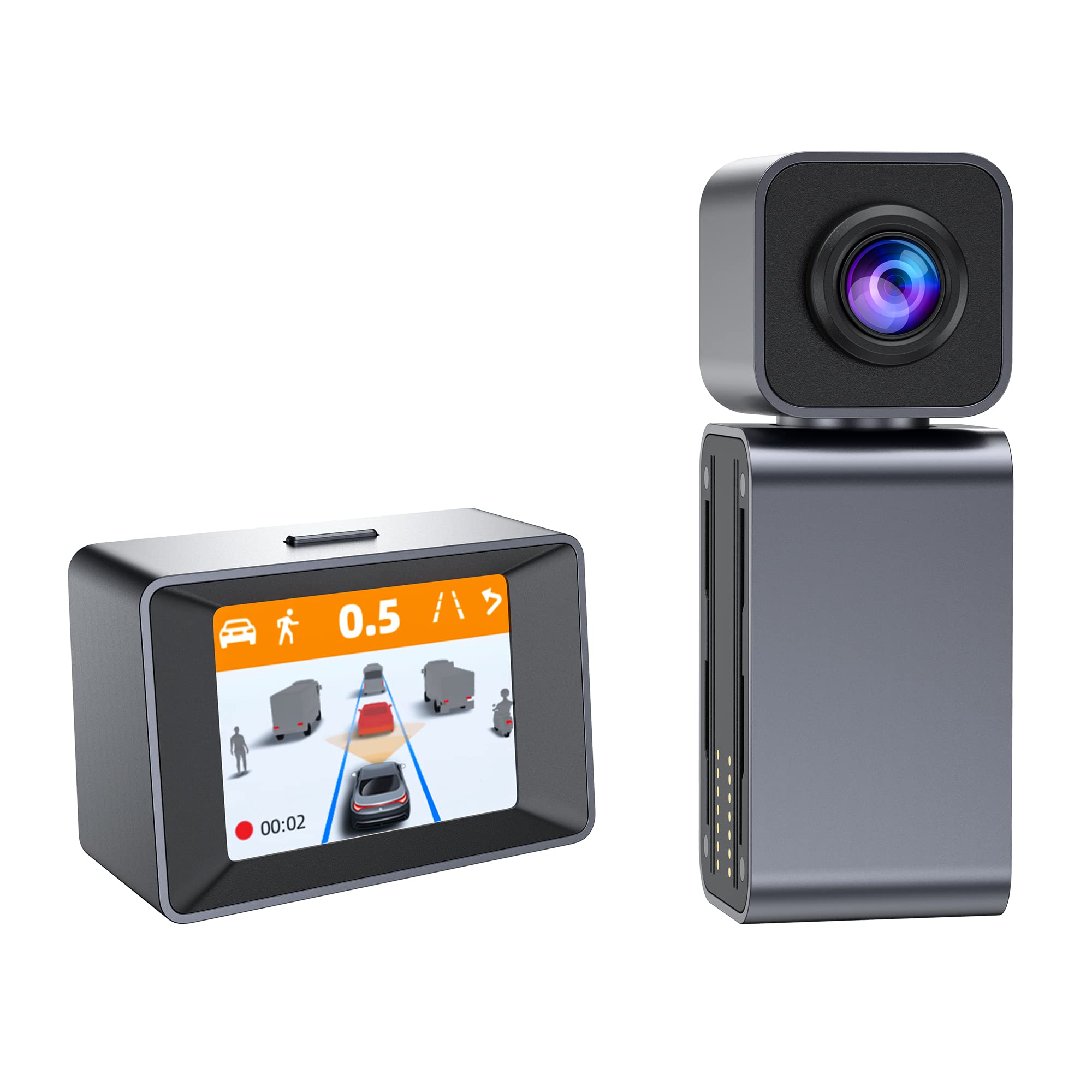
Image: The MINIEYE AC1 Dash Cam showing the main recording unit with its lens and the separate display unit. The display unit shows a simulated traffic scenario with distance warnings, illustrating the ADAS functionality.
3. Konfiguracja
3.1 Instalacja
- Przygotuj przednią szybę: Wyczyść miejsce na przedniej szybie, w którym będzie zamontowana kamera samochodowa. Upewnij się, że jest wolne od kurzu i tłuszczu.
- Zastosuj naklejkę elektrostatyczną: Apply the electrostatic sticker to the cleaned area. This helps in easy removal and prevents residue on the windshield.
- Attach Host Base: Secure the host base to the electrostatic sticker. Use the bubble level to ensure the base is level for optimal camera angle.
- Montaż kamery samochodowej: Attach the MINIEYE AC1 Dash Cam unit to the host base.
- Włóż kartę TF: Insert the provided 32GB TF card into the designated slot on the dash cam. Ensure it is inserted correctly until it clicks into place.
- Podłącz zasilanie: Connect the power cable to the dash cam and route it along the windshield edge and dashboard using the crowbar to tuck it neatly. Plug the car charger into your vehicle's cigarette lighter socket.
- Connect Monitor (if applicable): If using an external monitor, connect it using the monitor cable.
- Connect GPS Module: Attach the GPS module to the dash cam for location and speed data recording.
3.2 Pierwsze włączenie i ustawienia
- Włączanie: Uruchom pojazd. Kamera samochodowa włączy się automatycznie i rozpocznie nagrywanie.
- Sformatuj kartę TF: It is recommended to format the TF card upon first use and periodically thereafter to ensure optimal performance. This can usually be done through the device settings or the mobile app.
- Dostosuj kąt kamery: Adjust the camera lens to ensure it captures the road ahead clearly, covering the desired field of view.
3.3 Konfiguracja kontroli aplikacji
- Pobierz aplikację: Szukaj the "MINIEYE" in your smartphone's app store (iOS or Android) and install it.
- Połącz się z Wi-Fi: Enable Wi-Fi on your smartphone and connect to the dash cam's Wi-Fi network. The network name and password can typically be found in the dash cam's settings or manual.
- Paruj urządzenie: Open the MINIEYE app and follow the on-screen instructions to pair your dash cam.
- Konfiguruj ustawienia: Use the app to adjust recording resolution, G-sensor sensitivity, parking monitoring settings, and other preferences.
4. Instrukcja obsługi
4.1 Podstawowe nagrywanie
Once powered on, the MINIEYE AC1 automatically begins continuous loop recording. Video files are saved in segments (e.g., 1, 3, or 5 minutes) to the TF card. When the card is full, the oldest unprotected files są nadpisywane.
4.2 Czujnik G i nagrywanie awaryjne
The built-in G-Sensor detects sudden impacts or rapid acceleration/deceleration. When triggered, the current video segment is automatically locked and saved to a protected folder, preventing it from being overwritten by loop recording. The sensitivity of the G-Sensor can be adjusted via the mobile app.
4.3 Monitorowanie parkowania
With the optional hardwire kit (not included), the dash cam can monitor your vehicle while parked. If an impact or motion is detected, the dash cam will automatically record a short video segment. Ensure this feature is enabled and configured in the app settings.
4.4 ADAS (Advanced Driver-Assistance System)
The AI ADAS features provide real-time alerts to enhance driving safety:
- Ostrzeżenie przed kolizją czołową (FCW): Alerts you if you are approaching a vehicle ahead too quickly.
- Ostrzeżenie o opuszczeniu pasa ruchu (LDW): Powiadamia Cię, jeśli Twój pojazd zjedzie z pasa ruchu bez sygnalizacji.
- Alarm uruchomienia pojazdu z przodu: Informs you when the vehicle in front of you has started moving after a stop.
These alerts are typically visual on the display and/or audible. Calibration may be required for optimal ADAS performance.
4.5 Viewing i pobieranie Footage
Fujtagmoże być viewed directly on the dash cam's display (if available) or more conveniently through the MINIEYE mobile application. Use the app to browse recorded videos, download important clips to your smartphone, or share them.
5. Konserwacja
- Wyczyść obiektyw: Aby zapewnić doskonałą jakość obrazu wideo, regularnie czyść obiektyw kamery miękką, niepozostawiającą włókien ściereczką.
- Sformatuj kartę TF: Format the TF card every 2-4 weeks to prevent data corruption and maintain optimal recording performance. Back up any important files przed formatowaniem.
- Aktualizacje oprogramowania układowego: Check the MINIEYE app or official website periodically for firmware updates. Keeping your dash cam's firmware updated ensures access to new features and performance improvements.
- Składowanie: Jeśli kamera samochodowa nie będzie używana przez dłuższy czas, należy ją przechowywać w chłodnym, suchym miejscu, z dala od bezpośredniego światła słonecznego.
6. Rozwiązywanie Problemów
- Kamera samochodowa się nie włącza:
- Check the car charger connection and ensure the vehicle's cigarette lighter socket is functioning.
- Sprawdź, czy kabel zasilający jest prawidłowo podłączony do kamery samochodowej.
- Problemy z nagrywaniem (np. zawieszanie się, uszkodzenie filee):
- Sformatuj kartę TF.
- Try a different high-speed (Class 10 or U1/U3) TF card.
- Ensure the TF card is not full of locked files.
- Problemy z połączeniem aplikacji:
- Sprawdź, czy Wi-Fi w kamerze samochodowej jest włączone.
- Uruchom ponownie kamerę samochodową i smartfon.
- Verify you are connecting to the correct Wi-Fi network and using the correct password.
- Alerty ADAS nie działają:
- Ensure ADAS features are enabled in the app settings.
- Perform ADAS calibration if available in the app.
- Upewnij się, że obiektyw aparatu jest czysty i nie ma w nim żadnych przeszkód.
7. Specyfikacje
| Funkcja | Szczegół |
|---|---|
| Nazwa modelu | MINIEYE AC1 |
| Marka | Spedal |
| Rozdzielczość przechwytywania wideo | 1944p |
| Kąt rzeczywisty View | 140 stopni |
| Technologia łączności | USB, Wireless (for App Control) |
| Metoda kontroli | Aplikacja |
| Typ montażu | Przyssawka |
| Typ serwisu pojazdu | Samochód |
| Producent | Shenzhen Youjia Innov Tech Co., Ltd |
8. Gwarancja i wsparcie
For warranty information, technical support, or service inquiries, please refer to the warranty card included with your product or visit the official Spedal website. You may also contact Spedal customer service directly through the contact information provided on their website or within the MINIEYE mobile application.
Proszę zachować dowód zakupu na potrzeby roszczeń gwarancyjnych.