
1. Wprowadzenie
This manual provides essential information for the proper use and care of your Microsoft Surface Go 2 LTE Tablet. Please read these instructions thoroughly before using your device to ensure optimal performance and longevity.
2. Konfiguracja
2.1 Rozpakowanie i wstępna inspekcja
Carefully remove the Surface Go 2 LTE Tablet from its packaging. Inspect the device for any signs of damage. Ensure all components are present.
2.2 Ładowanie urządzenia
Before first use, connect the included power adapter to the charging port on your Surface Go 2 LTE Tablet and then to a power outlet. Allow the device to charge fully. The battery provides up to 9 hours of unplugged power under typical usage conditions.
2.3 Pierwsze włączenie i konfiguracja systemu Windows
Press and hold the power button located on the side of the tablet until the Microsoft logo appears. Follow the on-screen prompts to complete the Windows 10 Pro setup process. This includes selecting your language, connecting to a Wi-Fi network (802.11ac supported), and setting up your user account.
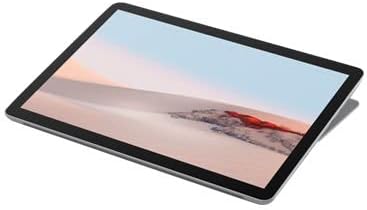
Rysunek 2.3.1: Kątowy view of the Microsoft Surface Go 2 LTE Tablet.
3. Instrukcja obsługi
3.1 Touch Display Interaction
The Surface Go 2 features a 10.5-inch PixelSense 10-Point Touch Display. Use multi-touch gestures for navigation, zooming, and interacting with applications. Refer to Windows 10 documentation for detailed touch gesture information.
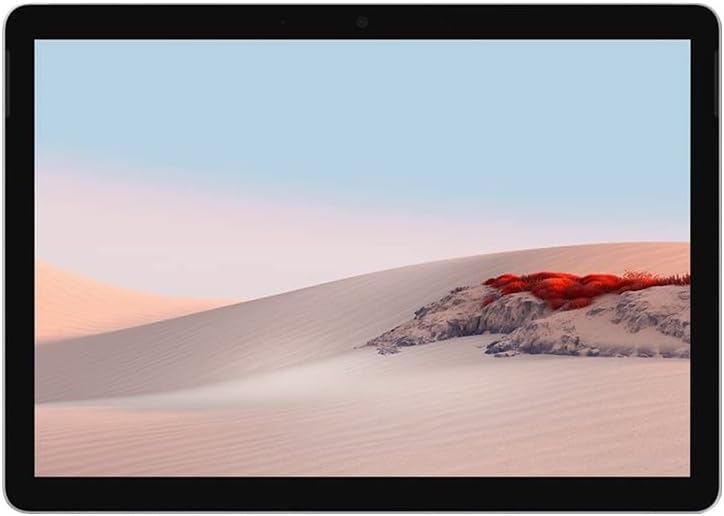
Rycina 3.1.1: Przód view of the Microsoft Surface Go 2 LTE Tablet.
3.2 Korzystanie z kamery
The tablet is equipped with an 8MP rear camera and a 5MP front camera. Access the Camera application in Windows 10 to capture photos and videos or for video conferencing.
3.3 Łączność
- Wi-Fi: Connect to wireless networks using the integrated Wi-Fi 5 (802.11ac) module.
- Bluetooth: Pair with Bluetooth 4.1 compatible devices such as headphones or keyboards.
- LTE: Insert a compatible SIM card to utilize LTE mobile data connectivity.
3.4 portów i rozszerzeń
- USB typu C: For data transfer, charging, and connecting compatible peripherals.
- Gniazdo słuchawkowe 3.5 mm: Do przesyłania dźwięku do słuchawek lub głośników zewnętrznych.
- MicroSD Media Card Reader: Insert a microSD card to expand storage capacity.
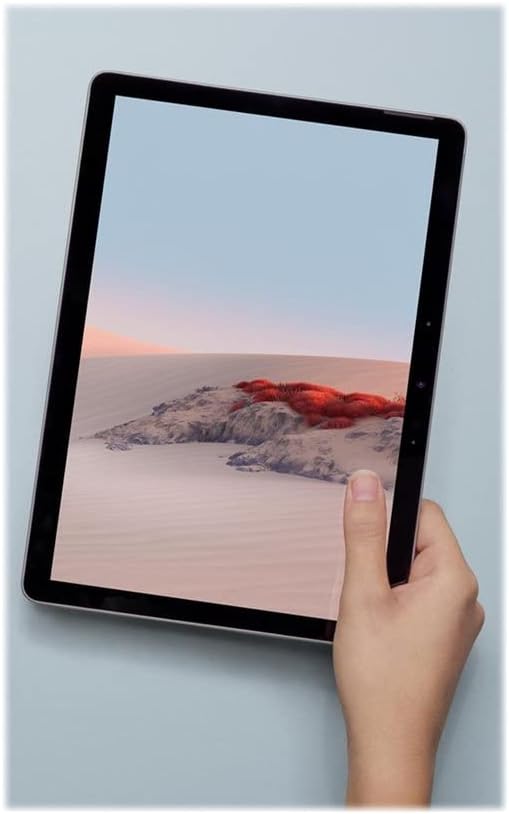
Figure 3.4.1: Microsoft Surface Go 2 LTE Tablet held in hand, demonstrating its portability.
4. Konserwacja
4.1 Czyszczenie urządzenia
To clean your Surface Go 2, use a soft, lint-free cloth slightly dampened with water or an approved screen cleaner. Avoid harsh chemicals, abrasive materials, or excessive moisture. Ensure the device is powered off before cleaning.
4.2 Pielęgnacja baterii
To maximize battery life, avoid exposing the device to extreme temperatures. For long-term storage, charge the battery to approximately 50% and store in a cool, dry place. Regular software updates can also optimize battery performance.
4.3 Aktualizacje oprogramowania
Regularnie sprawdzaj dostępność aktualizacji systemu Windows i instaluj je, aby mieć pewność, że Twoje urządzenie ma najnowsze poprawki zabezpieczeń i usprawnienia wydajności. Przejdź do Ustawienia > Aktualizacja i zabezpieczenia > Windows Update.
5. Rozwiązywanie Problemów
5.1 Urządzenie nie odpowiada
If the device becomes unresponsive, press and hold the power button for approximately 30 seconds to perform a force shutdown. Then, press the power button again to restart the device.
5.2 Niska wydajność
If the tablet is operating slowly, try the following:
- Zamknij niepotrzebne aplikacje działające w tle.
- Uruchom ponownie urządzenie.
- Sprawdź, czy system Windows jest aktualny.
- Sprawdź, czy masz wystarczająco dużo wolnego miejsca.
5.3 Przegrzanie
It is normal for the device to become warm during extended use or when performing intensive tasks. If the device feels excessively hot, close demanding applications, ensure proper ventilation, and allow it to cool down. Avoid using the device on soft surfaces that may block vents.
5.4 Connectivity Issues (Wi-Fi/Bluetooth/LTE)
If you experience issues with Wi-Fi, Bluetooth, or LTE connectivity:
- Toggle the respective wireless feature off and on.
- Uruchom ponownie urządzenie.
- Ensure drivers are up to date via Windows Update or Microsoft's support webstrona.
- For LTE, verify the SIM card is correctly inserted and activated with your carrier.
6. Specyfikacje
| Funkcja | Specyfikacja |
|---|---|
| Rozmiar wyświetlacza | 10.5 Inches PixelSense |
| Rozdzielczość ekranu | 1920 x 1280 Pixels (216 ppi) |
| Edytor | Intel Core m3 M3-8100Y (1.1 GHz) |
| BARAN | 8 GB pamięci LPDDR3 |
| Składowanie | Dysk SSD 128 GB |
| Grafika | Karta graficzna Intel HD 615 |
| System operacyjny | Windows 10 Pro |
| Łączność bezprzewodowa | Wi-Fi 5 (802.11ac), Bluetooth 4.1, LTE |
| Kamery | 8MP tył, 5MP przód |
| Porty | USB Type-C, 3.5 mm Headphone Jack, MicroSD Card Reader |
| Żywotność baterii | Do 9 godzin (średnio) |
| Wymiary (dł. x szer. x wys.) | 9.6 x 6.9 x 1.2 cala |
| Waga | 2 pounds (approx. 1.15 lbs for tablet only) |
| Numer modelu | SUF-00001 |
7. Informacje o gwarancji
The Microsoft Surface Go 2 LTE Tablet is covered by a limited hardware warranty. For specific details regarding the warranty period, coverage, and terms, please refer to the warranty documentation included with your purchase or visit the official Microsoft support website. Warranty claims typically require proof of purchase.
8. Wsparcie
For further assistance, technical support, or to access additional resources, please visit the official Microsoft Support website. You can find comprehensive guides, FAQs, and contact options there.
Wsparcie Microsoft Webstrona: support.microsoft.com
Możesz również odwiedzić Sklep Microsoft Aby uzyskać informacje o produkcie i akcesoriach.


