
KanDao MT0822
KanDao Meeting Pro 360° Video Conference Room Camera User Manual
Model: MT0822
1. Wprowadzenie
The KanDao Meeting Pro is an all-in-one 360° video conference camera designed to enhance your meeting experience. It features dual wide-angle lenses for complete room coverage, AI-powered tracking, an 8-microphone array, and a Hi-Fi speaker for clear audio. With built-in Android OS, it offers versatile operation modes and broad compatibility with popular conferencing platforms.
2. Zawartość opakowania
Przed przystąpieniem do konfiguracji upewnij się, że wszystkie elementy są obecne:
- KanDao Meeting Pro Device
- Zdalne sterowanie
- Osłona obiektywu
- Zasilacz
- Kabel USB-C do USB-C
- Kabel USB-C do USB-A
- Torba do przechowywania
- Other accessories as specified in the product packaging.
3. Przewodnik konfiguracji
3.1 Pro Mode Setup (Standalone Operation)
This mode allows the Meeting Pro to operate independently with a displayer.
- Połączenie kablowe:
Connect the power adapter to the Meeting Pro using the USB-C to USB-C cable. Then, connect the Meeting Pro to a displayer (monitor/TV) using an HDMI cable. Ensure the HDMI cable is securely plugged into both the Meeting Pro's HDMI OUT port and the displayer's HDMI IN port.

Image: KanDao Meeting Pro with power and HDMI cables connected to a displayer.
- Włączanie:
Long-press the power button on the Meeting Pro for approximately 3 seconds until the light ring illuminates. The device will boot up, and the displayer will show a connection page.
If the displayer does not support 1080P 30Hz, long-press the VOL+ and VOL- buttons simultaneously for about 3 seconds to switch the HDMI output resolution to 720P 60Hz.
- Language, Time Zone, and Network Setting:
Use a wired/wireless mouse or keyboard (connected via USB) to navigate the on-screen menu. Select your preferred language and time zone. Connect to a Wi-Fi network or use an Ethernet cable for a wired connection.
- Aktualizacja firmware:
After a successful network connection, if a firmware update notification appears, please download the latest firmware. The Meeting Pro will restart automatically to complete the update. This process may take up to 3 minutes. Wait until the green light remains steady before proceeding.
- Download Conferencing Software:
Navigate to the App Store page on the Meeting Pro's interface. Download and install your preferred conferencing software (e.g., Zoom, Teams, Google Meet) for first-time use.
3.2 USB Mode Setup (Connected to a Computer)
This mode allows the Meeting Pro to function as a USB peripheral (webcam, microphone, speaker) for your computer.
- Połączenie kablowe:
Connect the power adapter to the Meeting Pro using the USB-C to USB-C cable. Then, connect the Meeting Pro to your computer using the USB-C to USB-A cable. Ensure the USB-C end is plugged into the Meeting Pro's USB-C OUT port and the USB-A end into your computer's USB port.
Caution: Pay attention to the power and computer symbols when connecting cables to ensure correct port usage.
- Włączanie:
Long-press the power button on the Meeting Pro to start the device. The steady green light indicates successful power-on.
- Connect Computer to Network:
Ensure your computer is connected to the internet via Wi-Fi or Ethernet.
- Start Conferencing:
Open your preferred conferencing software on your computer. The Meeting Pro should be automatically recognized as the video/audio source. If not, select "KanDao Meeting Pro" as the microphone, camera, and speaker in the software's settings.
- Pair Remote Controller:
Simultaneously press the "OK" and "VOL-" buttons on the remote controller for 3 seconds to pair it with the Meeting Pro. The displayer will show "Controller Connected". The remote can also function as a mouse by pressing the "mouse" button on its upper right.
4. Instrukcja obsługi
The KanDao Meeting Pro offers various smart modes and features to optimize your conference experience.
4.1 Tryby inteligentne
Switch between different modes using the remote control or on-device buttons to suit various meeting styles:
- Tryb dyskusji: Focuses on active speakers in individual frames.
- Tryb globalny: Provides a complete 360° panoramic view sali konferencyjnej.
- Tryb prezentacji: Highlights the presenter and their content.
- Tryb patrolu: Automatically scans the room for active participants.
- Tryb niestandardowy: Allows for personalized view Ustawienia.

Image: A screen showing various conference views (Discussion, Global, Presentation, Patrol, Custom modes) from the KanDao Meeting Pro.
4.2 AI Tracking and View Zamykający
The device utilizes AI face and voice tracking to automatically highlight the active speaker. You can also manually lock the view or zoom in/out on specific content (except in Global Mode) using the remote control.

Image: The KanDao Meeting Pro in a conference room, demonstrating AI-powered speaker tracking by highlighting the active speaker on a large display.
4.3 Nagrywanie lokalne
The Meeting Pro supports local recording of meetings to an SD card (FAT32 format only). Insert an SD card into the device. Press the record button on the remote control or long-press the mute button on the camera to start/stop recording. Recorded videos can be accessed from the DCIM folder on the SD card.
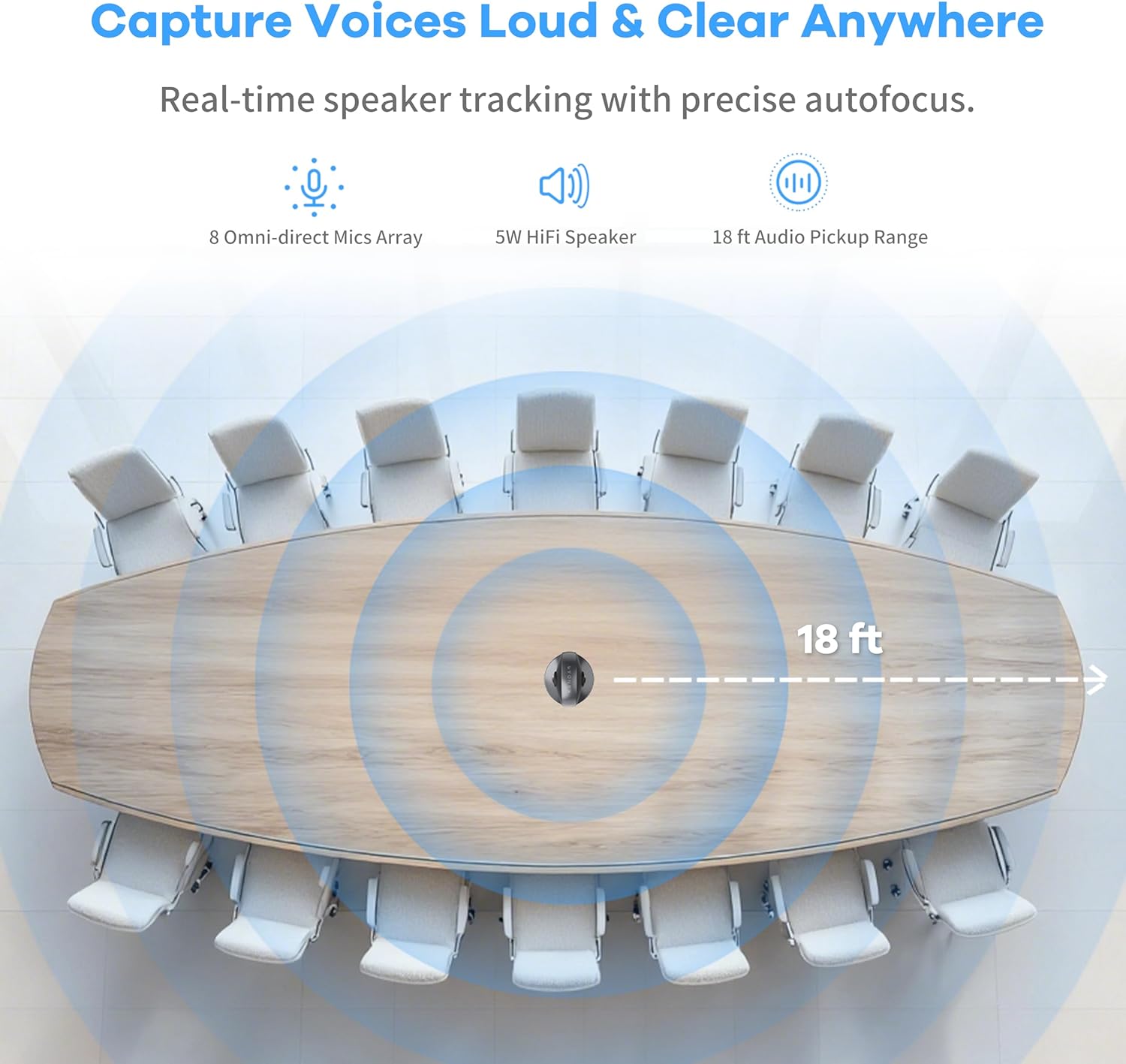
Image: A screen displaying a meeting being recorded locally by the KanDao Meeting Pro, with a remote control visible.
4.4 Udostępnianie ekranu
The device supports one-click wireless screen sharing, compatible with iOS, macOS, Android, and Windows devices using AirPlay and Miracast protocols. This feature eliminates the need for messy wired setups for content sharing.
4.5 Multi-Unit Connection
For larger conference rooms, the KanDao Meeting Pro supports the integration of 2 to 4 units to expand image and voice pickup coverage. This allows for flexible room layouts such as long tables, round tables, U-shaped setups, or even classroom arrangements.

Image: Diagrams illustrating different meeting room configurations (long table, round table, U-shaped, classroom) with multiple KanDao Meeting Pro devices for extended coverage.
4.6 Oficjalne filmy o produktach
For detailed visual instructions and demonstrations of the KanDao Meeting Pro's features and operation, please refer to the official product videos below:
KanDao Meeting Pro - Pro Mode
Description: This video provides a comprehensive guide on setting up and using the KanDao Meeting Pro in Pro Mode, covering cable connections, power-on procedures, network configuration, and software installation.
KanDao Meeting Pro USB Mode
Description: This video demonstrates how to set up and use the KanDao Meeting Pro in USB Mode, connecting it to a computer and configuring it for use with conferencing software. It also covers remote control pairing.
KanDao Meeting Pro - Meeting Perfection
Description: This video showcases the advanced features of the KanDao Meeting Pro, including its 360° coverage, AI tracking, audio capabilities, and various meeting modes for an optimal conferencing experience.
KanDao Meeting Pro Conferencing Management
Description: Learn how to effectively manage your conference using the KanDao Meeting Pro's remote control, including switching modes, adjusting views, and utilizing features like view locking and resolution changes.
How to operate KanDao Meeting Pro Conference Camera
Description: This tutorial provides a step-by-step guide on operating the KanDao Meeting Pro, covering various functionalities and settings to ensure a smooth and efficient conference.
5. Konserwacja
Proper maintenance ensures the longevity and optimal performance of your KanDao Meeting Pro.
- Czyszczenie: Do czyszczenia urządzenia używaj miękkiej, suchej ściereczki. Unikaj płynnych środków czyszczących i aerozoli.
- Pielęgnacja soczewek: Use the provided lens cover when the camera is not in use to protect the lenses from dust and scratches. For cleaning lenses, use a specialized lens cleaning cloth and solution.
- Składowanie: Store the device in a cool, dry place away from direct sunlight and extreme temperatures. Use the provided storage bag for protection during transport.
- Aktualizacje oprogramowania: Regularly check for and install firmware updates to ensure the device has the latest features and performance improvements.
6. Rozwiązywanie Problemów
If you encounter issues with your KanDao Meeting Pro, refer to the following common troubleshooting steps:
- Urządzenie nie włącza się: Ensure the power adapter is correctly connected and the power outlet is functional. Long-press the power button for 3 seconds.
- No Video Output on Displayer (Pro Mode):
- Sprawdź połączenia kabla HDMI.
- Ensure the displayer supports 1080P 30Hz. If not, switch the Meeting Pro's HDMI output resolution to 720P 60Hz by long-pressing VOL+ and VOL- buttons simultaneously for 3 seconds.
- No Video/Audio (USB Mode):
- Verify USB cable connection to your computer.
- In your conferencing software settings, ensure "KanDao Meeting Pro" is selected as the camera, microphone, and speaker.
- Pilot nie odpowiada:
- Ensure the remote control batteries are functional.
- Re-pair the remote control by simultaneously pressing "OK" and "VOL-" buttons for 3 seconds.
- Problemy ze śledzeniem AI: Ensure the room is well-lit and participants are clearly visible to the camera. Avoid rapid movements that might confuse the tracking algorithm.
- Problemy z łącznością sieciową: Check Wi-Fi password or Ethernet cable connection. Restart the device and your router if necessary.
For further assistance, please contact KanDao customer support.
7. Specyfikacje
| Funkcja | Szczegół |
|---|---|
| Numer modelu | MT0822 |
| Wymiary (dł. x szer. x wys.) | 3 x 3 x 11 cala |
| Waga przedmiotu | 3.78 funta (1.72 kilograma) |
| Kolor | Szary |
| Zastosowanie wewnątrz/na zewnątrz | Wnętrz |
| Kompatybilne urządzenia | Computers, Smartphones |
| Typ kontrolera | Android |
| Typ montażu | Tabletop, Wall Mount (via 1/4-inch screw hole) |
| Rozdzielczość przechwytywania wideo | 1080p, 1280*720 |
| Efektywna rozdzielczość wideo | 1080 pikseli |
| Maksymalny WebRozdzielczość obrazu kamery | 4 MP |
| Viewing kąt | 360 Degrees (Dual 195° wide-angle lenses) |
| Number of Channels (Microphones) | 8 (Omnidirectional) |
| Zakres odbioru dźwięku | 18 stóp |
| Wyjście głośnika | Głośnik Hi-Fi 5 W |
| Technologia komunikacji bezprzewodowej | Bluetooth, WiFi |
| Typ pamięci flash | SD (FAT32) |
| Typ fokusu | Autofokus |
| Typ powiększenia | Zoom cyfrowy |
| Międzynarodowa Ocena Ochrony | IP65 |
8. Informacje o gwarancji
The KanDao Meeting Pro comes with a 12-miesięczna / 1-roczna gwarancja from the date of purchase. Please retain your proof of purchase for warranty claims. This warranty covers manufacturing defects and malfunctions under normal use. It does not cover damage caused by misuse, accidents, unauthorized modifications, or natural disasters.
9. Obsługa klienta
For technical assistance, troubleshooting, or any inquiries regarding your KanDao Meeting Pro, please contact our Professional Global Customer Service Team. We offer dedicated technical support to ensure your satisfaction.
- Wsparcie online: Visit the official KanDao website for FAQs, user manuals, and support resources.
- Wsparcie e-mailowe: Zapoznaj się z opakowaniem produktu lub oficjalnym webstrona internetowa zawierająca dedykowany adres e-mail wsparcia.
- Optymalizacja oprogramowania sprzętowego: KanDao regularly provides firmware optimizations to improve product performance and add new features. Ensure your device is updated to the latest firmware.
Ask a question about this manual
Ask about setup, troubleshooting, compatibility, parts, safety, or missing instructions. Manuals+ will review the question and use this page’s manual context to help answer it.