
1. Wprowadzenie i koniecview
This manual provides detailed instructions for the installation, operation, and troubleshooting of your UNITOPSCI Android Car Stereo. Designed specifically for Subaru Outback and Legacy models from 2010 to 2014, this advanced system integrates features such as wireless CarPlay, Android Auto, GPS navigation, and a high-definition touchscreen to significantly enhance your in-car entertainment and connectivity experience.
Please read this manual thoroughly before installation and operation to ensure proper usage and to maximize the benefits of your new car stereo system.

Image 1.1: UNITOPSCI Android Car Stereo main unit.
2. Zawartość opakowania
Po otwarciu opakowania należy sprawdzić, czy znajdują się w nim wszystkie poniższe elementy:
- Jednostka stereo samochodowego z systemem Android
- Kamera cofania
- Kabel zasilający
- Antena GPS
- Kabel wejściowy kamery tylnej
- Kabel RCA
- USB Cable (Dual USB interface)
- Uchwyt montażowy
- Śruby
- Instrukcja obsługi
- Zestaw na deskę rozdzielczą
- Narzędzie instalacyjne

Rysunek 2.1: Szczegółowy view of all included accessories and the main unit dimensions.
3. Zgodność
This UNITOPSCI Android Car Stereo is specifically designed for the following vehicle models:
- Subaru Outback (2010-2014)
- Subaru Legacy (2010-2014)
Ważna uwaga:
Ta jednostka jest niekompatybilny with car models equipped with a Harman Kardon Sound System. If your vehicle has this original sound system, please confirm compatibility with the manufacturer before installation, as an extra wire harness may be required or the unit may not function correctly.

Obraz 3.1: Zgodnośćview for Subaru Outback/Legacy 2010-2014.
4. Główne cechy
The UNITOPSCI Android Car Stereo is equipped with a comprehensive set of features designed for a modern driving experience:
- System operacyjny: Android 13 with Quad-core processor.
- Pamięć: 2GB RAM + 64GB ROM for smooth performance and ample magazyn.
- Wyświetlacz: 9-inch HD capacitive touchscreen with 1024x600 resolution.
- Wyjście audio: 4x45W power output with TDA7388 power ampukład scalony Lifier.
- Połączenie bezprzewodowe: Wbudowany bezprzewodowy Apple CarPlay i Android Auto umożliwiający bezproblemową integrację smartfona.
- Bluetooth 4.2: Supports A2DP, hands-free calling, phone book sync, and Bluetooth music streaming. Includes built-in microphone and external microphone support.
- Nawigacja GPS: Integrated GPS receiver with support for online and offline maps (preloaded with HERE WEGO).
- Wi-Fi: Built-in Wi-Fi for online functions, app downloads, and real-time media streaming.
- Radio: FM/RDS radio with 18 preset stations for news, music, and weather broadcasts.
- Multimedia: Supports various audio (APE/FLAC/WAV/MP3/WMA) and video (MKV/RMVB/AVI/MP4/MDV) formats.
- Wejście kamery cofania: Supports AHD/CVBS reversing input with included backup camera for safer parking.
- Podzielony ekran: Allows displaying two applications simultaneously for enhanced multitasking.
- Sterowanie z kierownicy (SWC): Compatible with your vehicle's steering wheel controls for convenient operation.
- Efekty dźwiękowe: HiFi audio effect settings with customizable equalizer (Classic, Pop, Rock, Jazz, Flat).
- USB: Dual USB interfaces for expanded connectivity.
- Wyjście wideo: Full video output function to connect to external displays (e.g., headrest monitors).
5. Konfiguracja i instalacja
Proper installation is crucial for the optimal performance of your car stereo. It is recommended to have the installation performed by a qualified professional. Refer to the detailed installation instructions provided in the separate "Instruction Manual" included in your package.
5.1 Ogólne kroki instalacji (podsumowanie)
- Ostrożnie wyjmij oryginalne radio samochodowe z deski rozdzielczej.
- Connect the provided power cable, GPS antenna, and other necessary cables to the new UNITOPSCI stereo.
- If installing the backup camera, route the camera cable and connect it to the "CAM IN" port on the stereo. Ensure the trigger wire for the backup camera is correctly connected to the positive power supply of your vehicle's reverse light.
- Secure the new stereo unit using the included mounting bracket and screws.
- Install the dash kit to ensure a seamless fit with your vehicle's interior.
- Przed ponownym montażem deski rozdzielczej należy sprawdzić wszystkie funkcje.

Image 5.1: Before and After Installation view in a compatible Subaru vehicle.
5.2 Installation Troubleshooting Tip: Head Unit Not Turning On
If the head unit does not turn on after installation, check the pink wire in the wiring harness. Sometimes, this wire may block the electricity. Cut this pink wire and leave it disconnected. The car stereo should then function normally.
6. Instrukcja obsługi
The UNITOPSCI Android Car Stereo features an intuitive touchscreen interface similar to a tablet or smartphone. Navigate through menus by tapping icons and swiping across the screen.
6.1 Podstawowa obsługa
- Włączanie/wyłączanie: Naciśnij i przytrzymaj przycisk zasilania (zazwyczaj znajdujący się na panelu przednim lub z boku), aby włączyć lub wyłączyć urządzenie. Krótkie naciśnięcie zazwyczaj wycisza lub włącza dźwięk.
- Regulacja głośności: Adjust volume using the physical buttons on the unit or through the touchscreen interface.
- Ekran główny: Tap the Home icon to return to the main application screen.
- Szuflada aplikacji: Access all installed applications by tapping the "Apps" icon.
- Ustawienia: Customize various system settings, display, audio, and connectivity options via the "Settings" icon.
- Podzielony ekran: To use split screen, open the first application, then long-press the recent apps button or use the split-screen gesture (refer to Android OS specific instructions) to select a second application.

Image 6.1: Split Screen and Steering Wheel Control interface.
6.2 Sterowanie z kierownicy (SWC)
The unit supports your vehicle's original steering wheel controls. You can configure these controls within the system settings to manage functions such as volume, track skipping, and call handling, enhancing driving safety and convenience.
7. Łączność
7.1 Połączenie Bluetooth
The built-in Bluetooth 4.2 module allows for hands-free calling and audio streaming.
- Włącz Bluetooth na swoim smartfonie i wyszukaj dostępne urządzenia.
- Select "UNITOPSCI" or a similar name from the list of devices.
- Confirm the pairing code on both your phone and the car stereo.
- Po nawiązaniu połączenia możesz bezprzewodowo wykonywać i odbierać połączenia oraz odtwarzać muzykę.
The unit includes a built-in microphone for calls. For improved call quality, an external microphone can be connected (not included).
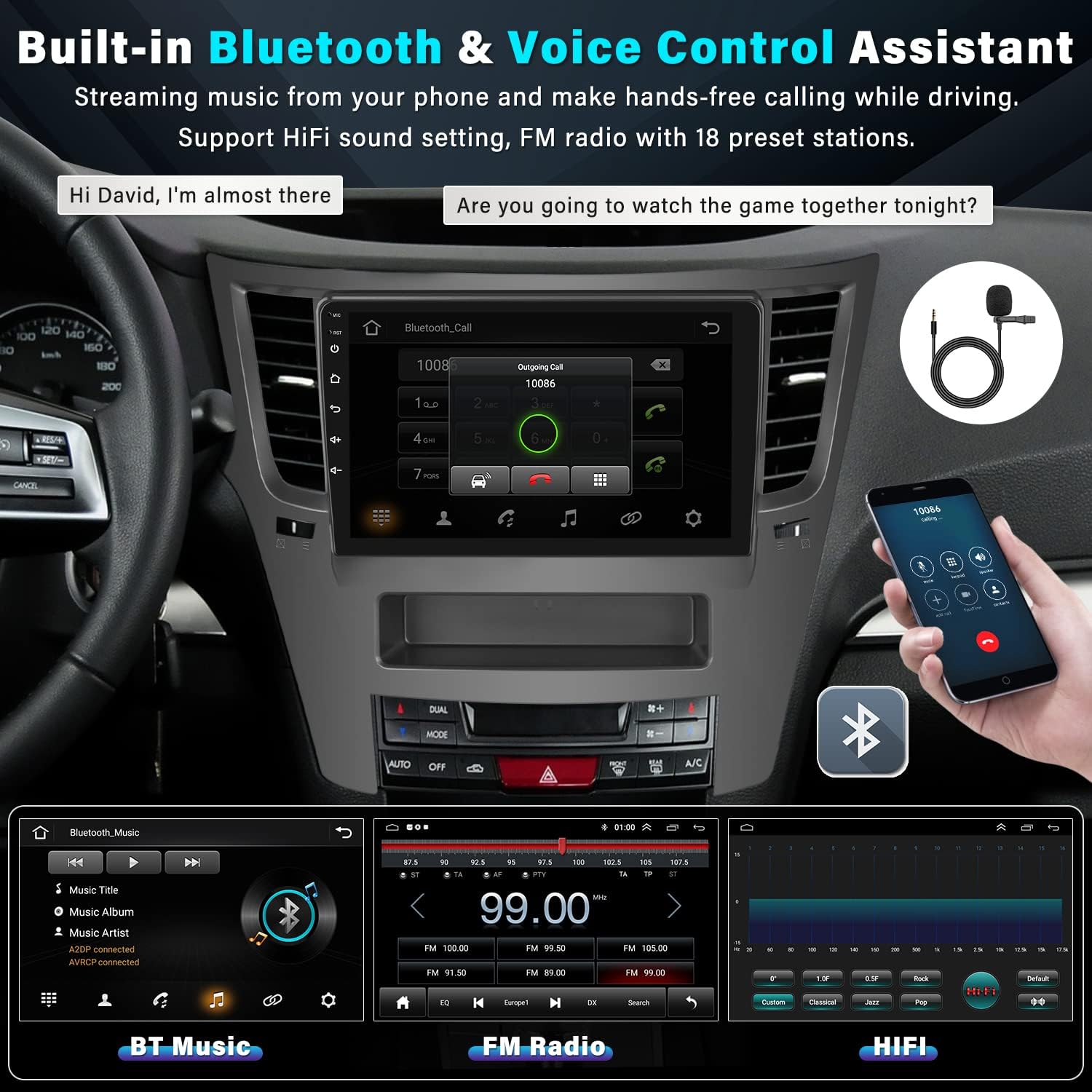
Image 7.1: Bluetooth and Audio Features.
7.2 Bezprzewodowy CarPlay i Android Auto
Enjoy seamless integration with your smartphone using wireless CarPlay (for iOS) and Android Auto (for Android devices). This allows you to access navigation, music, calls, and messages directly from the stereo's touchscreen or via voice commands (Siri/Google Assistant).
- Upewnij się, że Bluetooth i Wi-Fi są włączone zarówno w telefonie, jak i w samochodowym radiu.
- For wireless connection, pair your phone via Bluetooth first. The system will then prompt you to connect via Wi-Fi for CarPlay/Android Auto functionality.
- For wired connection, simply connect your phone to one of the USB ports using a compatible USB cable.
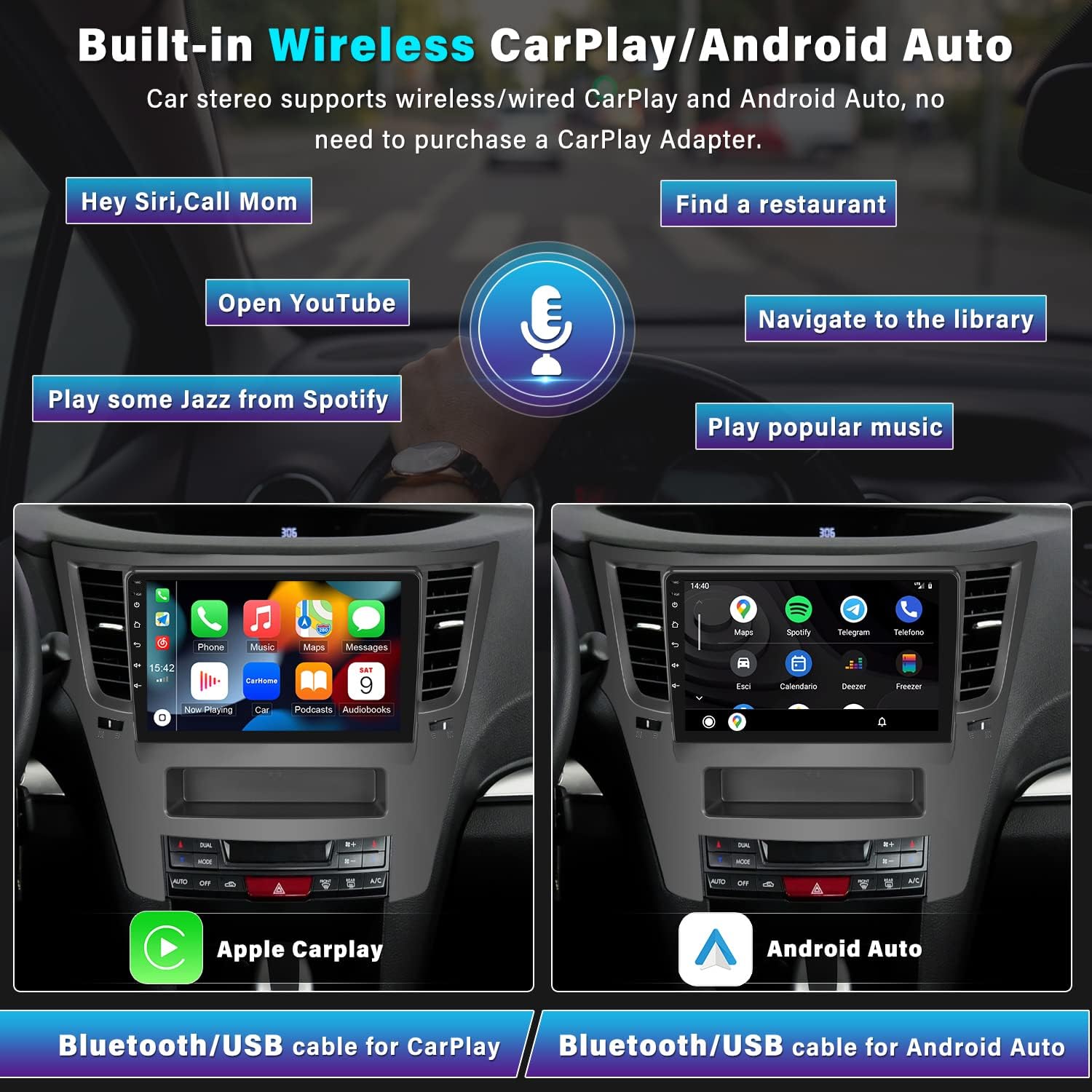
Ilustracja 7.2: Funkcjonalność bezprzewodowego CarPlay i Android Auto.
7.3 Połączenie Wi-Fi
Connect the car stereo to a Wi-Fi hotspot (e.g., from your smartphone) to access online features.
- Go to "Settings" on the stereo and select "Wi-Fi".
- Włącz sieć Wi-Fi i wybierz żądaną sieć z listy.
- Jeśli zostaniesz o to poproszony, wprowadź hasło.
Once connected, you can browse the internet, stream online videos and music, and download applications from the Google Play Store.
8. Nawigacja GPS
The car stereo features a built-in GPS receiver for accurate navigation. It supports both online and offline maps.
- Mapy offline: The unit comes preloaded with the HERE WEGO application. To download offline map data for your region, connect to Wi-Fi and follow the instructions within the HERE WEGO app.
- Mapy online: With an active Wi-Fi connection, you can use popular online navigation apps like Google Maps, Waze, etc., downloaded from the Play Store.
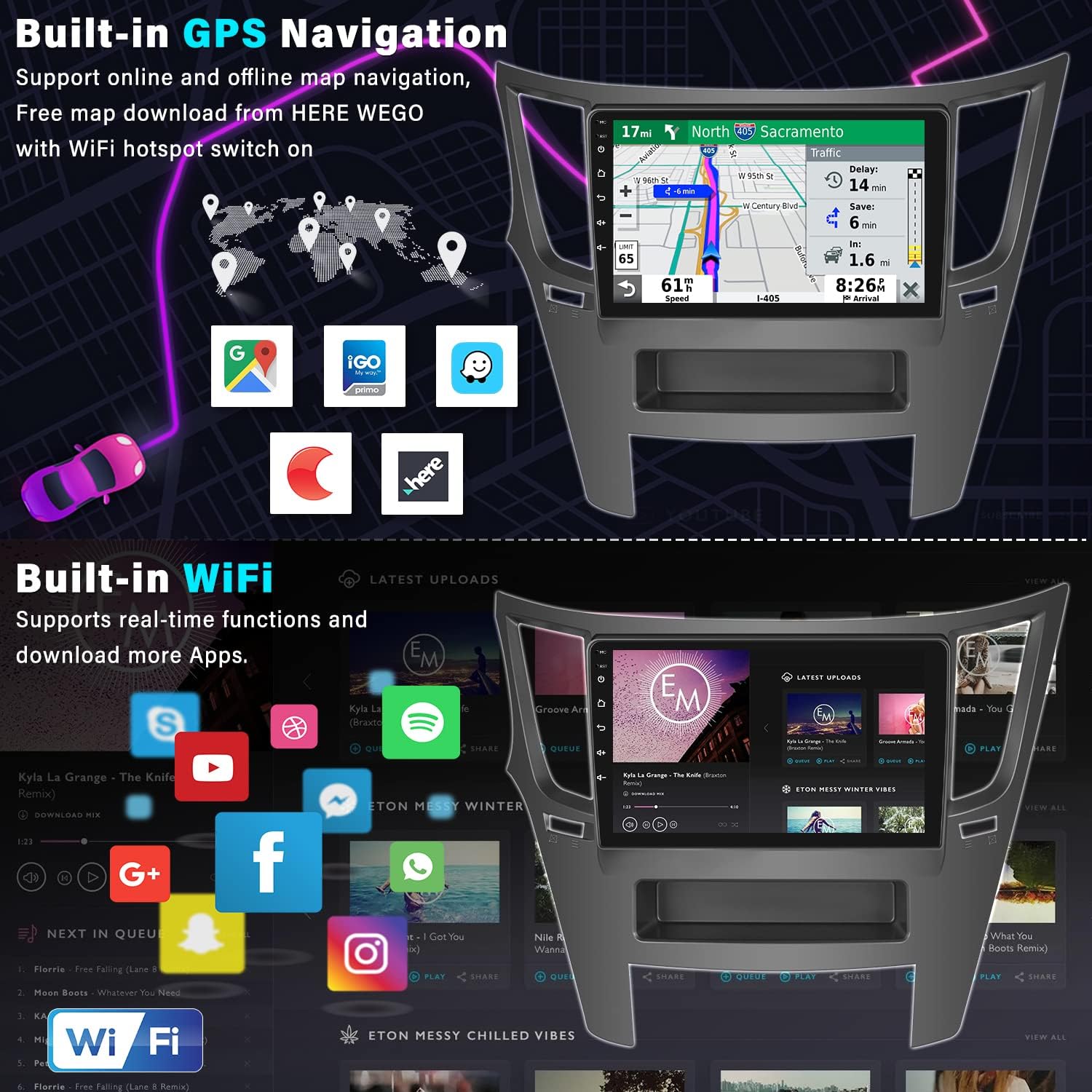
Image 8.1: GPS Navigation and Wi-Fi features.
9. Funkcjonalność kamery cofania
Dołączona kamera cofania AHD zapewnia wyraźny obraz view of the area behind your vehicle, making parking safer and easier. The 9-inch touchscreen will automatically display the reverse image when you shift your car into reverse gear.
- Cechy: AHD (Analog High Definition) image quality, waterproof design, 170° wide viewing angle, and enhanced night vision.
- Automatyczny wyświetlacz: The carplay stereo will suspend other functions (like radio or music) when in reverse mode to ensure your full attention is on parking.
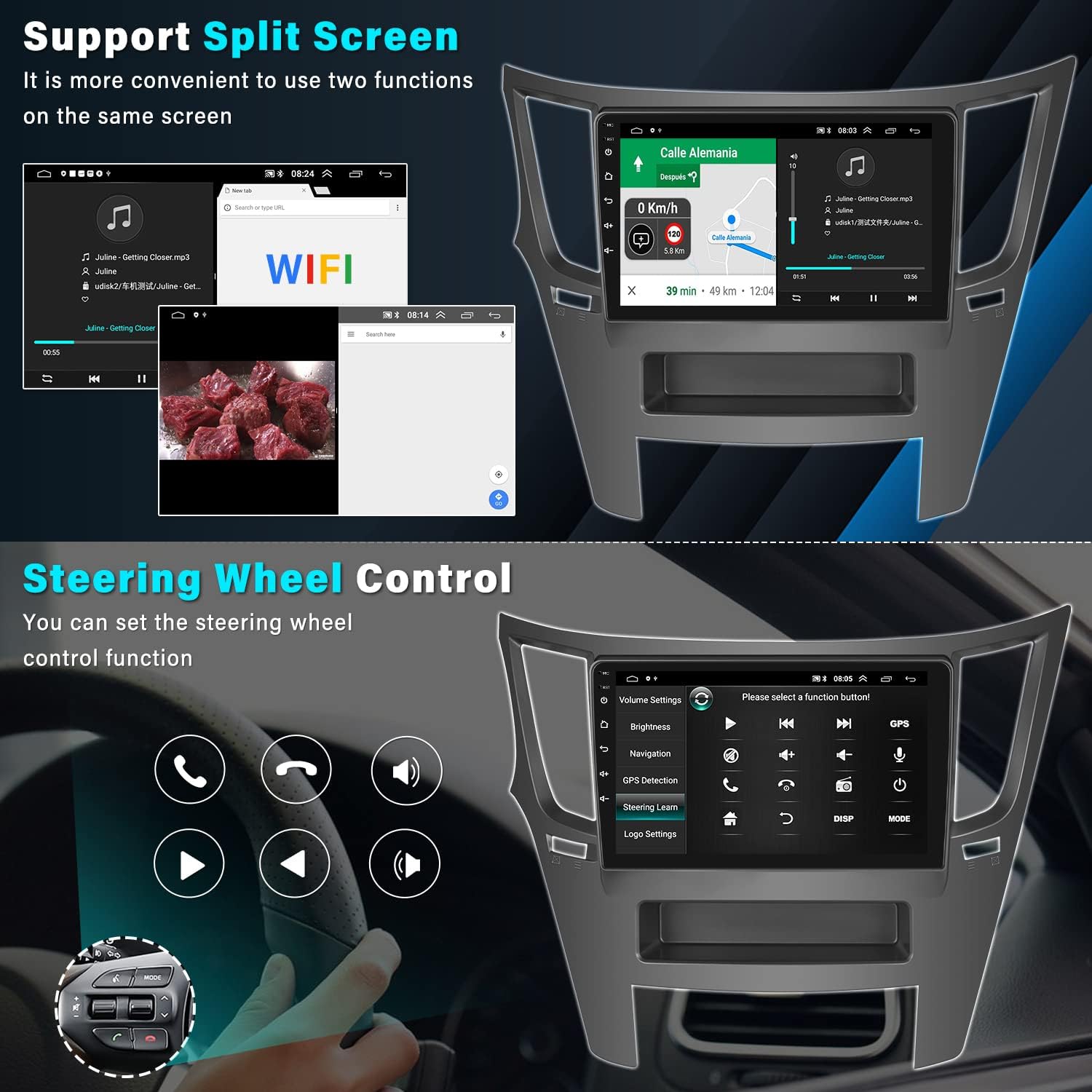
Image 9.1: Backup Camera Input and features.
9.1 Schemat okablowania kamery cofania
For correct installation of the backup camera, follow these wiring instructions:
- Moc aparatu: The red wire of the camera power cable connects to the positive (+) back battery supply. The black wire connects to the negative (-) battery supply (ground).
- Wejście wideo: The yellow RCA video input cable from the camera connects to the "CAM IN" port on the rear of the car radio.
- Przewód spustowy: Locate the wire labeled "BACK" or "REVERSE" on the car radio's wire harness. This wire needs to connect to the positive power supply of your vehicle's reverse light. This signal tells the stereo to switch to the camera view gdy włączony jest bieg wsteczny.
Notatka:
If the camera lights up but the reversing image does not appear on the head unit, please double-check the connection of the trigger wire for the backup camera.

Obraz 9.2: Tył View Schemat okablowania kamery.
10. Ustawienia dźwięku
The UNITOPSCI car stereo offers advanced audio customization options to enhance your listening experience.
- HiFi Audio Effect Setting: Access the audio settings to adjust the sound balance and choose from various preset sound styles such as Classic, Pop, Rock, Jazz, and Flat. You can also customize your own sound profile.
- Radio FM/RDS: Tune into your favorite FM radio stations. The RDS (Radio Data System) feature displays station information where available. You can save up to 18 preset stations for quick access.
11. Rozwiązywanie Problemów
This section addresses common issues you might encounter with your UNITOPSCI Android Car Stereo.
11.1 Screen Goes Black
If the car stereo screen goes black, follow these steps:
- Sprawdź kabel taśmowy: Open the rear cover of the unit and locate the screen ribbon cable (a thin cable connecting the screen to the motherboard). Unplug it and then securely reconnect it.
- Reset or Restart: Turn off the car stereo. Unplug the power cord from the unit, wait for 5 minutes, then plug it back in and turn it on.
- Force Firmware Update: If the issue persists, try a forced firmware update. Refer to the user manual for specific instructions on how to perform this, or contact customer support for guidance.
- Sprawdź wyjście audio: Play audio to determine if sound is working even if the screen is black. This helps to ascertain if the device is truly faulty or if it's solely a display issue.
If the problem remains unresolved after these steps, please refer to the product label for the model number and contact UNITOPSCI customer support for further assistance.
11.2 Head Unit Not Turning On (Post-Installation)
As mentioned in the installation section, if the head unit does not power on after initial installation, check for a pink wire in the wiring harness that might be blocking the electrical current. Cutting this wire and leaving it disconnected often resolves this issue.
12. Specyfikacje
Detailed technical specifications for the UNITOPSCI Android Car Stereo (Model A7321A3018A4):
| Funkcja | Specyfikacja |
|---|---|
| System operacyjny | Android 13 |
| Zestaw układów scalonych | 8227L-DEMO (Quad-core) |
| BARAN | 2 GB |
| ROM | 64 GB |
| Rozmiar ekranu | 9 cali |
| Rozdzielczość ekranu | 1024x600 |
| Moc wyjściowa | 4*45W |
| Moc Ampukład scalony | TDA7388 |
| Układ radiowy | MT6625 |
| Wersja Bluetooth | 4.2 |
| Pasmo radiowe | FM/RDS (87.5-108 MHz) |
| GPS | GPS Enabled (Supports online/offline maps) |
| Wi-Fi | Wbudowane Wi-Fi |
| Interfejs USB | Podwójne USB |
| Wejście odwrotne | AHD/CVBS |
| Temperatura pracy | -20°C do 75°C (-4°F do 167°F) |
| Wymiary produktu | 0.39 x 0.39 x 0.39 inches (Unit only, without frame) |
| Waga przedmiotu | 3.83 funta |
| Numer modelu | A7321A3018A4 |
13. Gwarancja i wsparcie
UNITOPSCI is committed to providing high-quality products and excellent customer service. Your car stereo comes with the following support and warranty:
- Wymiana: Available within 24 months of purchase.
- Zwroty: 60-day no-worry return policy.
- Wsparcie techniczne: Dożywotnie konsultacje posprzedażowe i wsparcie techniczne.
- Czas reakcji: Szybka odpowiedź na zapytania w ciągu 16 godzin.
For any questions, technical assistance, or warranty claims, please contact us directly:
E-mail: UNITOPSCI@126.com

Image 13.1: UNITOPSCI Customer Support Information.


