
1. Wprowadzenie
This manual provides detailed instructions for the RisoPhy Wireless Mechanical Keyboard. This keyboard offers versatile connectivity options, customizable RGB backlighting, and programmable keys, designed for both gaming and everyday use. Please read this manual thoroughly to ensure proper setup and operation of your device.
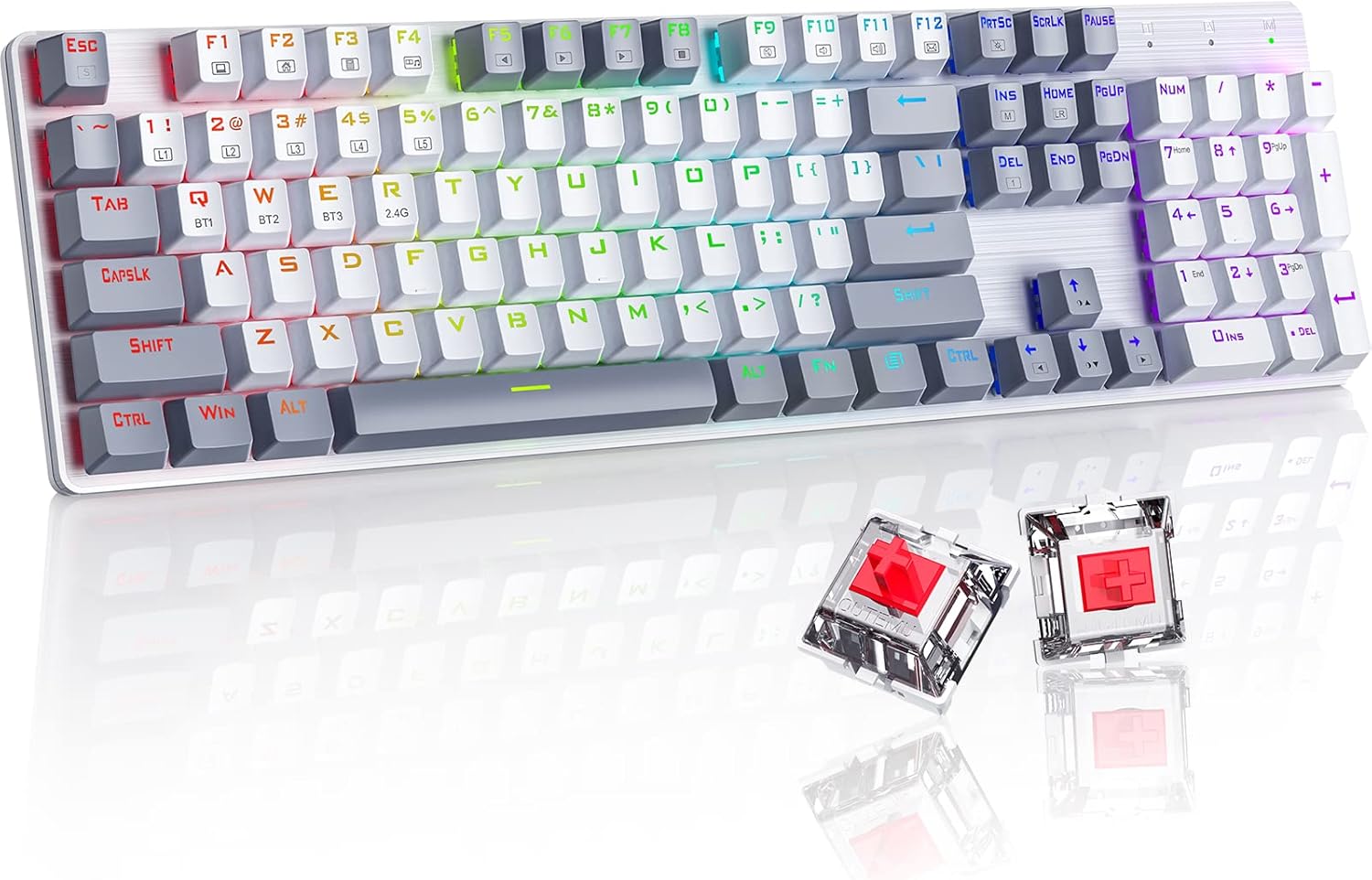
Image: The RisoPhy Wireless Mechanical Keyboard, showcasing its full 104-key layout, RGB backlighting, and two red mechanical switches detached for display.
2. Zawartość opakowania
Sprawdź, czy w przesyłce znajdują się wszystkie elementy:
- 1 x RisoPhy Wireless Mechanical Keyboard
- 1 x kabel USB typu C
- 1 odbiornik USB 2.4 GHz
- 1 x Instrukcja obsługi (ten dokument)
- 1 x narzędzie do zdejmowania nasadek klawiszy

Image: A visual representation of the package contents, including the keyboard, USB-C cable, 2.4GHz receiver, user manual, and keycap puller.
3. Konfiguracja i łączność
The RisoPhy keyboard supports three connection modes: Wired (USB-C), 2.4GHz Wireless, and Bluetooth. You can connect up to 5 devices simultaneously (1 via 2.4G, 3 via Bluetooth, 1 via Wired).

Image: An illustration demonstrating the three connectivity modes: Bluetooth 5.0, 2.4G Wireless, and Wired Mode, with the keyboard connected to a PC, laptop, and tablet.
3.1 Tryb przewodowy
- Podłącz dołączony kabel USB typu C do portu klawiatury, a drugi jego koniec do portu USB komputera.
- Klawiatura zostanie automatycznie rozpoznana i będzie gotowa do użycia.
3.2 Tryb bezprzewodowy 2.4 GHz
- Locate the 2.4GHz USB receiver in the keyboard's storage compartment (usually on the underside).
- Podłącz odbiornik USB do dostępnego portu USB w komputerze.
- Switch the keyboard's mode selector to 2.4G. The keyboard will connect automatically.
3.3 Tryb Bluetooth
Klawiatura obsługuje do trzech urządzeń Bluetooth (BT1, BT2, BT3).
- Przełącz przełącznik trybu klawiatury na Bluetooth.
- To pair a new device, press and hold FN + Q (BT1), FN + W (BT2), Lub FN + E (BT3) for 3-5 seconds until the corresponding key (Q, W, or E) flashes rapidly. This indicates pairing mode.
- Na swoim urządzeniu (komputerze, laptopie, tablecie, telefonie) włącz Bluetooth i wyszukaj nowe urządzenia.
- Select "RisoPhy Keyboard" (or similar name) from the list of available devices to complete pairing.
- Po sparowaniu przycisk (Q, W lub E) przestanie migać i zacznie świecić światłem ciągłym.
3.4 Przełączanie między podłączonymi urządzeniami
To switch between paired Bluetooth devices or the 2.4G connection:
- For Bluetooth devices: Briefly press FN + P, FN+W, Lub FN + E to switch to the corresponding paired device.
- For 2.4G Wireless: Ensure the mode selector is set to 2.4G.
4. Funkcje operacyjne
4.1 Sterowanie podświetleniem RGB
The keyboard features 20 RGB backlight modes, 16.8 million colors, and 5 brightness levels. Use the following FN key combinations to control the backlighting:
- FN + IN: Switch Backlight Mode (cycle through 20 modes).
- FN +: Increase Backlight Brightness.
- FN +: Decrease Backlight Brightness.
- FN +: Speed Down Backlight Effect.
- FN + →: Speed Up Backlight Effect.
- FN + DEL: Switch Backlight Color (for modes that support color changes).
- FN + PRTSC: Turn On/Off Backlight.

Image: A close-up of the keyboard's right side, highlighting the FN key combinations for controlling RGB backlight modes, brightness, speed, and color.
4.2 Custom Lighting Modes
The keyboard offers 5 custom lighting modes (FN+1 to FN+5).
- Naciskać FN + 1~5 to enter one of the custom lighting modes.
- While in a custom mode, press FN + Dom to begin customizing the light.
- Press each key you wish to customize to set its light to your preferred color.
- After customization, press FN + Dom again to save the settings for that custom mode.
4.3 Programowalne klawisze i makra
All 104 keys can be reassigned, and macros can be created using the dedicated driver software. This allows for personalized key functions and complex command sequences for enhanced productivity or gaming.
- Download the RisoPhy keyboard driver software from the official webstrona.
- Zainstaluj oprogramowanie na swoim komputerze.
- Use the software interface to remap keys, create macros, and fine-tune RGB lighting effects.

Image: A screenshot of the RisoPhy keyboard's software interface, showing options for backlight customization, programmable key settings, and macro creation.
4.4 Klawisze multimedialne i funkcyjne
The keyboard includes dedicated FN key combinations for multimedia control and system functions:
| Kombinacja klawiszy | Funkcjonować |
|---|---|
| FN+F1 | Mój komputer |
| FN+F2 | Strona główna |
| FN+F3 | Kalkulator |
| FN+F4 | Odtwarzacz multimedialny |
| FN+F5 | Poprzednia piosenka |
| FN+F6 | Następna piosenka |
| FN+F7 | Odtwórz/Pauza |
| FN+F8 | Zatrzymać odtwarzanie |
| FN+F9 | Niemy |
| FN+F10 | Zmniejsz głośność |
| FN+F11 | Zwiększ głośność |
| FN+F12 |

Image: A visual guide to the FN key combinations (F1-F12) and their corresponding multimedia and system functions.
5. Konserwacja
5.1 Czyszczenie klawiatury
Regularne czyszczenie pomaga zachować wydajność i wygląd klawiatury.
- Przed czyszczeniem odłącz klawiaturę od wszystkich źródeł zasilania.
- Użyj miękkiej, niestrzępiącej się ściereczki, lekko wyczyśćampPrzetrzyj klawisze i obudowę wodą lub łagodnym środkiem czyszczącym.
- Do usuwania kurzu i zanieczyszczeń spomiędzy klawiszy należy użyć sprężonego powietrza.
- Unikaj stosowania silnych środków chemicznych i materiałów ściernych.
5.2 Demontaż i wymiana nakładek klawiszy
The keyboard features durable PBT keycaps. You can remove them for deeper cleaning or customization using the provided keycap puller.
- Gently attach the keycap puller to the keycap you wish to remove.
- Pull upwards with steady, even pressure until the keycap detaches from the switch stem.
- Aby wymienić klawisz, należy dopasować go do trzpienia przełącznika i mocno docisnąć, aż zatrzaśnie się na swoim miejscu.

Image: A close-up showing keycaps removed from the keyboard, revealing the mechanical switches underneath, alongside a keycap puller tool.
6. Rozwiązywanie Problemów
If you encounter issues with your RisoPhy keyboard, refer to the following common solutions:
| Problem | Możliwe rozwiązanie |
|---|---|
| Klawiatura nie reaguje w trybie bezprzewodowym. | Ensure the keyboard is charged. Check if the 2.4G receiver is properly plugged in or if Bluetooth is paired. Switch to wired mode to confirm basic functionality. |
| Problemy z połączeniem Bluetooth. | Ensure the keyboard is in Bluetooth mode and the correct BT channel (Q, W, or E) is selected. Forget the device on your computer/phone and re-pair. Ensure your device's Bluetooth is enabled. |
| Backlighting not working or incorrect. | Naciskać FN + PRTSC to toggle backlighting. Adjust brightness with Naciśnij przycisk FN + ↑/↓. Tryby cyklu z FN + IN. |
| Klawisze nie reagują na podwójne naciśnięcie lub nie działają. | Clean under the keycaps. If the issue persists, it might indicate a switch problem. Contact customer support if under warranty. |
| Klawiatura się nie ładuje. | Ensure the USB Type-C cable is securely connected to both the keyboard and a working USB port. Try a different cable or USB port. |
7. Specyfikacje
- Model: RisoPhy
- Łączność: Łączność bezprzewodowa 2.4G, Bluetooth 5.0, przewodowy port USB-C
- Liczba kluczy: 104 klucze
- Typ przełącznika: Mechaniczne czerwone przełączniki
- Nasadki klawiszy: Bicolor PBT Keycaps
- Podświetlenie: RGB (20 modes, 16.8 million colors, 5 brightness levels)
- Programowalność: All keys programmable, macro support via driver
- Ochrona przed duchami: N-Key Rollover
- Zgodne urządzenia: PC, Laptop, Gaming Console, Phone, Tablet
- Tworzywo: Akrylonitryl-butadien-styren (ABS)
- Waga przedmiotu: Około 2.01 funta (0.91 kg)
- Wymiary opakowania: 17.68 x 5.91 x 2.17 cala (44.9 x 15 x 5.5 cm)

Image: A close-up of the mechanical red switches, detailing their specifications such as 80 million click life, 40g force, and 2.0mm distance, along with a force-travel diagram.
8. Gwarancja i wsparcie
RisoPhy products are designed for reliability and performance. For warranty information, please refer to the documentation included with your purchase or visit the official RisoPhy website. If you require technical assistance or have questions not covered in this manual, please contact RisoPhy customer support.
Więcej informacji i danych kontaktowych znajdziesz na stronie RisoPhy Store.

Zdjęcie: Przedstawiciel obsługi klienta noszący zestaw słuchawkowy symbolizujący dostępną pomoc w przypadku pytań dotyczących produktu.