
1. Wprowadzenie
This manual provides essential information for the proper installation, operation, and maintenance of your SUNMI T2s Lite 15.6-inch Android Point of Sale (POS) system. Please read this manual thoroughly before using the device to ensure optimal performance and safety. Keep this manual for future reference.
2. Informacje dotyczące bezpieczeństwa
- Nie wystawiaj urządzenia na działanie ekstremalnych temperatur, wilgoci ani bezpośredniego światła słonecznego.
- Unikaj upuszczania i narażania urządzenia na silne uderzenia.
- Używaj wyłącznie zasilacza dołączonego do urządzenia. Użycie niewłaściwego zasilacza może spowodować uszkodzenie urządzenia lub pożar.
- Nie próbuj samodzielnie demontować ani naprawiać urządzenia. Skontaktuj się z wykwalifikowanym personelem serwisowym.
- Trzymaj urządzenie z dala od wody i innych płynów.
- Podczas pracy urządzenia należy zapewnić odpowiednią wentylację.
3. Zawartość opakowania
Sprawdź, czy w opakowaniu znajdują się wszystkie elementy:
- SUNMI T2s Lite POS Terminal
- Zasilacz
- Kabel zasilający
- Szybki przewodnik (jeśli dotyczy)
- Karta gwarancyjna (jeśli dotyczy)
Jeśli brakuje jakiegokolwiek elementu lub jest on uszkodzony, prosimy o natychmiastowy kontakt ze sprzedawcą.
4. Koniec produktuview
The SUNMI T2s Lite is an integrated Android-based POS system designed for retail environments. It features a 15.6-inch capacitive touchscreen display and various connectivity options.
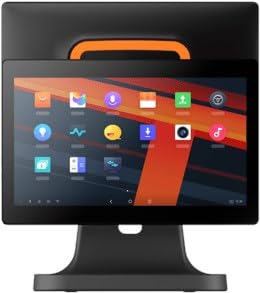
Rysunek 4.1: Przód view of the SUNMI T2s Lite POS system. This image displays the main 15.6-inch touchscreen, which is the primary interface for operating the device. The design is compact and suitable for various retail settings.
4.1 Kluczowe komponenty
- 15.6-calowy wyświetlacz dotykowy: High-resolution (1920x1080) capacitive touch interface.
- Przycisk zasilania: Located typically on the side or rear for turning the device on/off.
- Porty USB: For connecting peripherals such as barcode scanners, external printers, or cash drawers.
- Port Ethernet: Do przewodowego połączenia sieciowego.
- Pobór mocy: Do podłączenia zasilacza.
- Przednia kamera: For specific applications requiring image capture.
5. Konfiguracja
5.1 Rozpakowywanie i umieszczanie
- Ostrożnie wyjmij urządzenie i wszystkie akcesoria z opakowania.
- Place the POS terminal on a stable, flat surface in a well-ventilated area.
- Ensure there is sufficient space around the device for cable connections and heat dissipation.
5.2 Podłączanie zasilania
- Podłącz kabel zasilający do zasilacza.
- Plug the power adapter into the power input port on the back of the SUNMI T2s Lite.
- Podłącz drugi koniec kabla zasilającego do uziemionego gniazdka elektrycznego.
5.3 Initial Boot and Network Connection
- Press and hold the power button until the screen lights up. The device will boot into the Android operating system.
- Postępuj zgodnie z instrukcjami wyświetlanymi na ekranie, aby dokonać wstępnej konfiguracji, obejmującej m.in. wybór języka i strefy czasowej.
- Połączenie Wi-Fi: Idź do Ustawienia > Sieć i internet > Wi-Fi, wybierz swoją sieć i wprowadź hasło.
- Połączenie Ethernet: Connect an Ethernet cable from your router/switch to the Ethernet port on the device. The device should automatically connect to the wired network.
5.4 Podłączanie urządzeń peryferyjnych
- Urządzenia USB: Plug USB peripherals (e.g., barcode scanner, external printer, cash drawer) into the available USB ports. The system will typically recognize them automatically.
- Urządzenia Bluetooth: Idź do Ustawienia > Podłączone urządzenia > Bluetooth, enable Bluetooth, and pair with your desired device.
6. Instrukcja obsługi
6.1 Włączanie/wyłączanie
- Włączanie: Naciśnij i przytrzymaj przycisk zasilania, aż ekran się zaświeci.
- Aby wyłączyć: Press and hold the power button until a power menu appears. Select "Power off" and confirm. Alternatively, a short press of the power button will put the device to sleep.
6.2 Korzystanie z ekranu dotykowego
- Uzyskiwać: Aby wybrać element lub aktywować przycisk.
- Naciśnij i przytrzymaj: Aby otworzyć menu kontekstowe lub przeciągnąć elementy.
- Trzepnąć: To scroll through lists or navigate between screens.
- Powiększanie za pomocą szczypania: Aby powiększyć lub pomniejszyć obrazy lub web stron.
6.3 Nawigacja w systemie operacyjnym Android
- Ekran główny: The central hub for your applications and widgets.
- Szuflada aplikacji: Uzyskaj dostęp do wszystkich zainstalowanych aplikacji.
- Panel powiadomień: Przesuń palcem w dół od góry ekranu do view powiadomienia i szybkie ustawienia.
- Ustawienia: Configure Wi-Fi, Bluetooth, display, sound, and other system options.
6.4 Basic POS Functions
The specific POS functions will depend on the software application installed on your device. Refer to the documentation provided with your POS software for detailed instructions. Generally, you will:
- Launch your POS application from the home screen or app drawer.
- Zaloguj się przy użyciu poświadczeń użytkownika.
- Process transactions using the touchscreen and connected peripherals (e.g., scanning items, accepting payments).
- Print receipts if an external or integrated printer is configured.
7. Konserwacja
7.1 Czyszczenie urządzenia
- Zawsze wyłączaj urządzenie i odłączaj je od zasilania przed czyszczeniem.
- Użyj miękkiej, niestrzępiącej się ściereczki, lekko wyczyśćampened with water or a mild, non-abrasive cleaner to wipe the screen and exterior surfaces.
- Nie rozpylaj płynów bezpośrednio na urządzenie.
- Unikaj stosowania silnych środków chemicznych, rozpuszczalników i materiałów ściernych.
7.2 Aktualizacje oprogramowania
Regularly check for and install system and application updates to ensure optimal performance, security, and access to new features. You can usually find system updates in Ustawienia > System > Aktualizacja systemu.
7.3 Przechowywanie
When not in use for extended periods, store the device in a cool, dry place, away from direct sunlight and extreme temperatures. If storing for a long time, ensure the battery is charged to about 50% to prolong its lifespan.
8. Rozwiązywanie Problemów
W tej sekcji omówiono typowe problemy, z którymi możesz się spotkać. W przypadku bardziej złożonych problemów skontaktuj się z obsługą klienta.
- Urządzenie nie włącza się:
- Sprawdź, czy zasilacz jest prawidłowo podłączony do urządzenia i do działającego gniazdka elektrycznego.
- Sprawdź, czy gniazdko elektryczne jest sprawne.
- Spróbuj przytrzymać przycisk zasilania przez 10–15 sekund, aby wymusić ponowne uruchomienie.
- Touchscreen is unresponsive:
- Uruchom ponownie urządzenie.
- Upewnij się, że ekran jest czysty i wolny od zanieczyszczeń lub płynów.
- Network connection issues (Wi-Fi/Ethernet):
- Check if the Wi-Fi is enabled and you are connected to the correct network with the right password.
- For Ethernet, ensure the cable is properly connected and your router/switch is working.
- Uruchom ponownie router/modem.
- Peripherals (e.g., printer, scanner) not working:
- Sprawdź, czy urządzenie peryferyjne jest prawidłowo podłączone do właściwego portu.
- Check if the peripheral has its own power supply and is turned on.
- Verify that the necessary drivers or software for the peripheral are installed and configured within your POS application.
9. Specyfikacje
The following are key technical specifications for the SUNMI T2s Lite:
| Funkcja | Specyfikacja |
|---|---|
| Marka | SUNMI |
| Producent | Sunmi |
| Natywna rozdzielczość wyświetlania | 1920x1080 pikseli |
| Technologia łączności | Bluetooth, Ethernet, USB, WLAN |
| Opis aparatu | Czołowy |
| ASIN | B0B53FLFT8 |
10. Gwarancja i wsparcie
The SUNMI T2s Lite POS system comes with a standard manufacturer's warranty. Please refer to the warranty card included in your package for specific terms and conditions, including warranty period and coverage details.
For technical support, service, or warranty claims, please contact your authorized SUNMI dealer or the customer support channel specified in your purchase documentation. Ensure you have your product model number (T2s Lite) and ASIN (B0B53FLFT8) ready when contacting support.