
DUODUOGO S7
DUODUOGO 5G WiFi Android 11 Tablet S7 User Manual
Model: S7
Marka: DUODUOGO
1. Wprowadzenie
This user manual provides comprehensive instructions for the DUODUOGO 5G WiFi Android 11 Tablet S7. It covers product features, setup, operation, maintenance, and troubleshooting to ensure optimal use of your device. Please read this manual thoroughly before using the tablet.
2. Co znajduje się w pudełku
- DUODUOGO 5G WiFi Android 11 Tablet (10.4 Inch)
- Odłączana klawiatura
- Kabel USB typu C.
- Zasilacz
- Instrukcja obsługi (ten dokument)
3. Koniec produktuview
The DUODUOGO S7 tablet features a 10.4-inch touchscreen display, powered by Android 11, and includes a detachable keyboard for enhanced productivity. It supports dual-band Wi-Fi (2.4G and 5G) and offers ample storage with 4GB RAM and 64GB internal storage, expandable up to 256GB.

Image: The DUODUOGO S7 tablet in blue, shown with its detachable keyboard and a hand interacting with the touchpad. The tablet screen displays "Android 11". A smaller inset image shows the tablet from the rear with its kickstand extended.
Główne cechy:
- System operacyjny: Android 11
- Wyświetlacz: 10.4-inch IPS Touchscreen (1280 x 800 resolution)
- Pamięć: 4 GB pamięci RAM
- Składowanie: 64GB ROM (expandable up to 256GB)
- Kamery: Tył 8MP, przód 5MP
- Łączność: Dual WiFi (2.4G/5G), Bluetooth, OTG, Type-C
- Bateria: 6500mAh

Image: A stylized depiction of the Android 11 system, with a robotic hand reaching out from a tablet screen towards a small Android mascot holding the number 11. Text reads "Android 11 System" and "Visit your favorite apps, music, movies, books, etc".
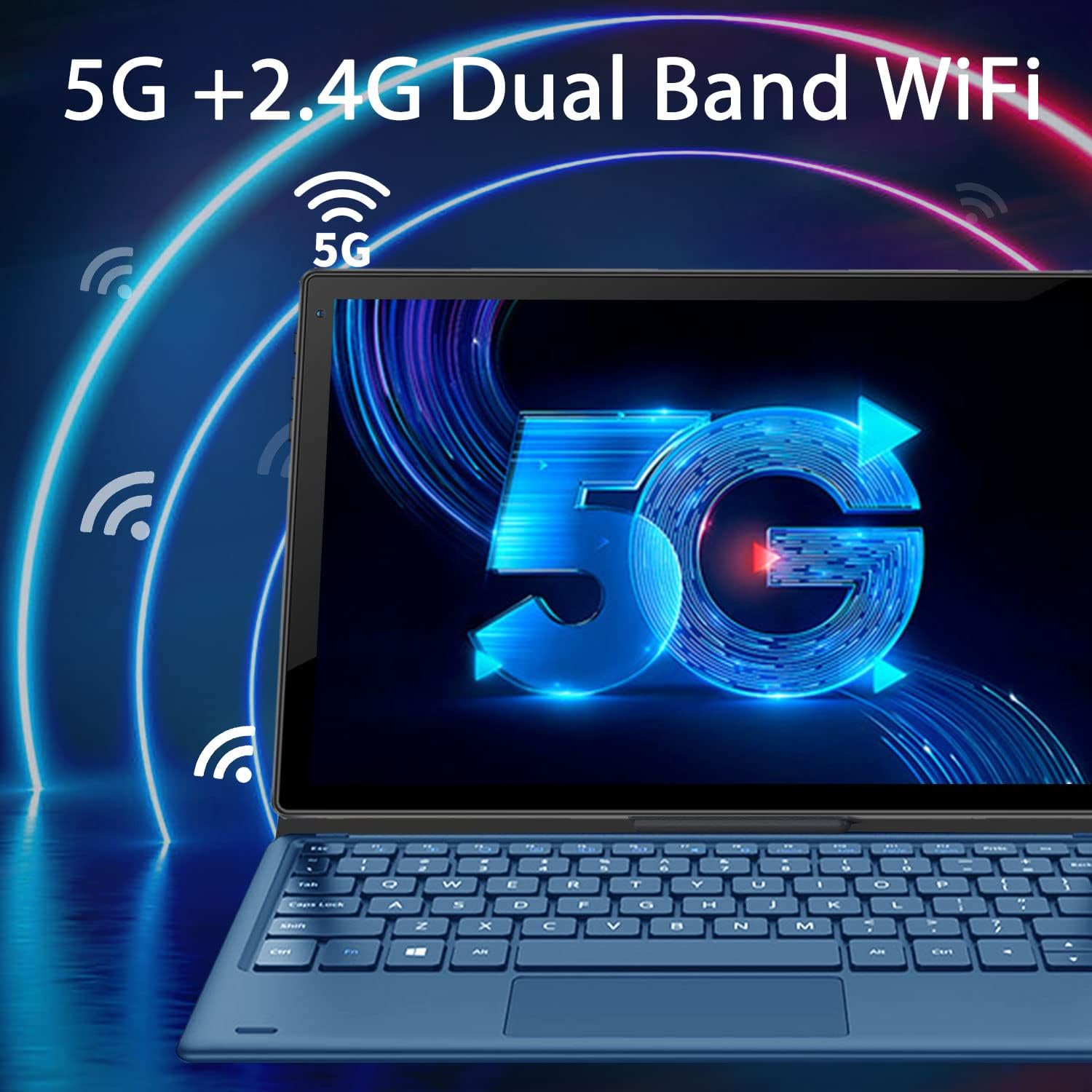
Image: The tablet screen displaying a large "5G" logo with Wi-Fi signals emanating from it, indicating dual-band 5G and 2.4G Wi-Fi connectivity. Text reads "5G + 2.4G Dual Band WiFi".

Image: Three tablets shown from the back, with the middle tablet displaying a photo gallery. Icons and text indicate "Large Capacity Battery", "4GB RAM", "64GB ROM", and "256GB Expand".
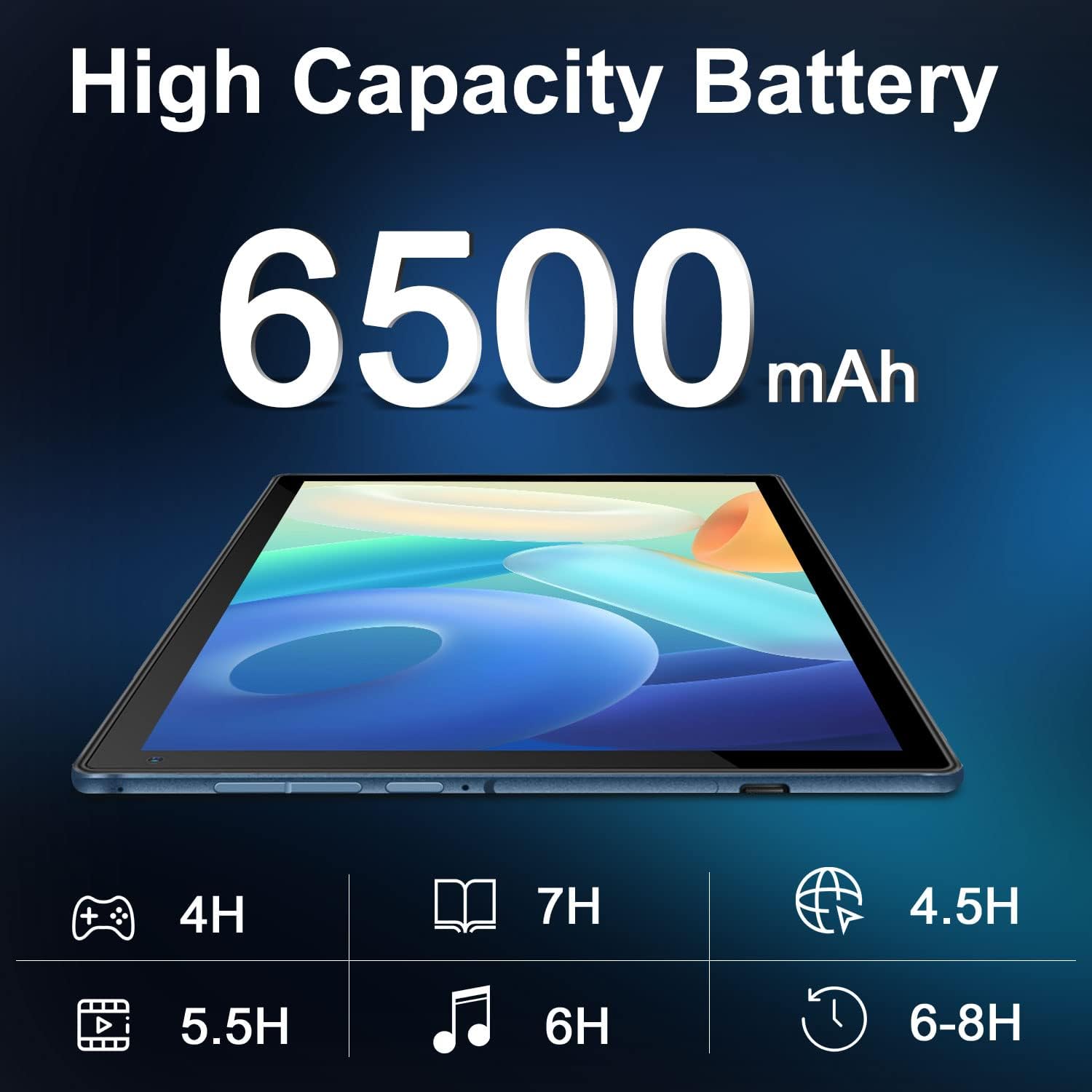
Image: A tablet lying flat, with a large "6500mAh" text overlay, indicating its high capacity battery. Below are icons and estimated usage times for various activities like gaming, reading, video playback, music, web browsing, and general use.

Image: A collage showing the tablet's camera capabilities (people on a beach, family on a boat) and its 10.4-inch IPS display quality (a surfer on a wave). Text highlights "Front 5MP Rear 8MP" and "10.4" IPS Display".

Image: A four-panel collage demonstrating different usage modes: a person using the tablet with keyboard, a child and adult using the tablet with a stand, and a child interacting with a learning app on the tablet. Text reads "Enjoy Different Mode".
4. Konfiguracja
4.1 Ładowanie tabletu
Before first use, fully charge the tablet. Connect the USB Type-C cable to the tablet's charging port and the other end to the power adapter. Plug the adapter into a wall outlet. The charging indicator will show the charging status. A full charge typically takes 3-4 hours.
4.2 Włączanie/wyłączanie zasilania
- Włączanie: Press and hold the Power button (usually located on the side or top edge) for a few seconds until the DUODUOGO logo appears on the screen.
- Aby wyłączyć: Naciśnij i przytrzymaj przycisk zasilania, aż pojawi się menu wyłączania. Wybierz opcję „Wyłącz” lub „Zamknij”.
- Zrestartować: Z menu wyłączania wybierz opcję „Uruchom ponownie”.
4.3 Kreator konfiguracji początkowej
Po pierwszym uruchomieniu kreator konfiguracji systemu Android 11 przeprowadzi Cię przez najważniejsze czynności konfiguracyjne:
- Wybierz preferowany język.
- Połącz się z siecią Wi-Fi.
- Sign in with your Google account or create a new one. This is necessary to download apps from Google Play Store.
- Ustaw blokadę ekranu (PIN, wzór, hasło).
- Review i zaakceptuj warunki korzystania z usług Google.
4.4 Podłączanie klawiatury
The detachable keyboard connects magnetically to the tablet. Align the magnetic connector on the keyboard with the corresponding pins on the tablet's bottom edge. The keyboard will snap into place and connect automatically. No separate pairing is required.
5. Instrukcja obsługi
5.1 Nawigacja w systemie Android 11
- Ekran główny: Przesuń palcem w lewo lub w prawo, aby uzyskać dostęp do różnych ekranów głównych.
- Szuflada aplikacji: Przesuń palcem w górę od dołu ekranu do view wszystkie zainstalowane aplikacje.
- Powiadomienia i szybkie ustawienia: Swipe down from the top of the screen to access notifications and quick settings toggles (Wi-Fi, Bluetooth, Brightness, etc.).
- Wielozadaniowość: Swipe up from the bottom and hold, then release to see recent apps. Tap an app to switch, or swipe it away to close.
5.2 Łączność Wi-Fi
Aby połączyć się z siecią Wi-Fi:
- Idź do Ustawienia > Sieć i internet > Wi-Fi.
- Przełącz Wi-Fi On.
- Wybierz interesującą Cię sieć z listy.
- Wprowadź hasło, jeśli zostaniesz o to poproszony, a następnie stuknij Łączyć.
5.3 Korzystanie z kamer
Tablet ma przednią kamerę 5 MP i tylną kamerę 8 MP.
- Otwórz Kamera aplikację z ekranu głównego lub szuflady aplikacji.
- Kliknij ikonę przełączania aparatu, aby przełączać się między aparatem przednim i tylnym.
- Naciśnij przycisk migawki, aby zrobić zdjęcie lub rozpocząć/zatrzymać nagrywanie wideo.
5.4 Zarządzanie magazynem
The tablet comes with 64GB of internal storage. You can expand this using a microSD card (up to 256GB).
- Wkładanie karty MicroSD: Locate the microSD card slot (usually on the side of the tablet). Gently insert the card until it clicks into place.
- Zarządzanie pamięcią masową: Idź do Ustawienia > Składowanie Do view wykorzystanie pamięci masowej i zarządzanie nią files.
6. Konserwacja
- Czyszczenie: Do czyszczenia ekranu i obudowy tabletu należy używać miękkiej, niepozostawiającej włókien ściereczki. Nie należy używać płynów czyszczących ani aerozoli bezpośrednio na urządzeniu.
- Pielęgnacja baterii: Unikaj ekstremalnych temperatur. Nie dopuszczaj do częstego całkowitego rozładowania akumulatora. W przypadku długotrwałego przechowywania naładuj akumulator do około 50%.
- Aktualizacje oprogramowania: Okresowo sprawdzaj dostępność aktualizacji systemu Ustawienia > System > Aktualizacja systemu aby zapewnić optymalną wydajność i bezpieczeństwo.
- Ochrona: Use the provided keyboard case to protect the tablet from scratches and minor impacts.
7. Rozwiązywanie Problemów
7.1 Tablet się nie włącza
- Upewnij się, że tablet jest wystarczająco naładowany. Podłącz go do ładowarki na co najmniej 30 minut.
- Naciśnij i przytrzymaj przycisk zasilania przez 10–15 sekund, aby wymusić ponowne uruchomienie.
7.2 Problemy z połączeniem Wi-Fi
- Check if Wi-Fi is enabled in Quick Settings or Network & internet settings.
- Uruchom ponownie router Wi-Fi.
- Zapomnij o sieci w ustawieniach tabletu i połącz się ponownie.
- Upewnij się, że znajdujesz się w zasięgu sygnału Wi-Fi.
7.3 Klawiatura nie odpowiada
- Ensure the keyboard is properly aligned and connected to the magnetic pins on the tablet.
- Gently clean the magnetic pins on both the tablet and keyboard to ensure good contact.
- Uruchom ponownie tablet.
7.4 Aplikacje ulegają awarii lub zawieszają się
- Zamknij aplikację i otwórz ją ponownie.
- Wyczyść pamięć podręczną i dane aplikacji w Ustawienia > Aplikacje i powiadomienia > [Nazwa aplikacji] > Pamięć masowa i pamięć podręczna.
- Ensure the app is updated to its latest version from Google Play Store.
- Uruchom ponownie tablet.
8. Specyfikacje
| Funkcja | Specyfikacja |
|---|---|
| Marka | DUODUOGO |
| Numer modelu | S7 |
| System operacyjny | Android 11 |
| Rozmiar ekranu | 10.4 cali |
| Rozdzielczość ekranu | 1280x800 |
| BARAN | 4 GB |
| Pamięć wewnętrzna | 64 GB |
| Możliwość rozbudowy pamięci masowej | Do 256 GB (MicroSD) |
| Kamera tylna | 8 MP |
| Przednia kamera | 5 MP |
| Pojemność baterii | 6500 mAh |
| Łączność | Dual WiFi (2.4G/5G), Bluetooth, OTG, Type-C |
| Wymiary produktu (dł. x szer. x wys.) | 9.5 x 6.4 x 0.35 cala |
9. Gwarancja i wsparcie
DUODUOGO provides comprehensive support for its products. For any issues or inquiries regarding your DUODUOGO S7 Tablet, please refer to the following:
- Gwarancja: The product comes with a one-month free replacement policy and 365 days of free repair in case of non-human damage.
- Obsługa klienta: If you encounter any problems using your DUODUOGO device, you can contact us through Amazon. Our support team aims to reply to your message and resolve your problem within 12 hours until you are satisfied.
- Software & Apps: The DUODUOGO Device is GMS certified, allowing you to download applications directly from Google Play Store.
Ask a question about this manual
Ask about setup, troubleshooting, compatibility, parts, safety, or missing instructions. Manuals+ will review the question and use this page’s manual context to help answer it.