
1. Wprowadzenie
Thank you for choosing the AUN AKEY6S Native Full HD 1080p Projector. This manual provides essential information for setting up, operating, maintaining, and troubleshooting your projector. Please read this manual thoroughly before use to ensure optimal performance and longevity of your device.
The AUN AKEY6S projector features native 1920x1080p resolution with 4K support, 8000 lumens brightness, a 12000:1 contrast ratio, and runs on Android 9.0. It offers versatile connectivity options including WiFi (2.4G/5G) and Bluetooth 5.2, making it suitable for various home cinema and presentation needs.
2. Konfiguracja
2.1 Rozpakowanie i zawartość opakowania
Ostrożnie wyjmij wszystkie elementy z opakowania. Upewnij się, że wszystkie wymienione poniżej elementy są obecne:
- 1x AUN AKEY6S Projector
- 1x Pilot zdalnego sterowania
- 1x Instrukcja obsługi (ten dokument)
- Zasilacz 1x
2.2 Umiejscowienie projektora
Position the projector on a stable, flat surface or mount it securely. Ensure there is adequate ventilation around the device. The optimal projection distance and screen size are as follows:
- Rozmiar projekcji: 50 do 300 cala
- Odległość projekcji: Approximately 1.5 meters (50 inches) to 6.2 meters (300 inches)

Image: Illustration of the AUN AKEY6S projector demonstrating adjustable projection sizes from 50 to 300 inches based on distance from the screen.
2.3 Połączenie zasilania
Connect the provided power supply cable to the projector's power input port and then plug it into a standard electrical outlet.
2.4 Pierwsze włączenie zasilania
Press the power button on the projector or the remote control to turn on the device. The projector will boot up and display the Android 9.0 interface.
2.5 Regulacja ostrości i zniekształcenia trapezowego
- Centrum: Obróć pierścień ostrości na obiektywie projektora, aż wyświetlany obraz będzie wyraźny i ostry.
- Korekcja Keystone'a: The AKEY6S features an electronic keystone correction of ±40°. Access this setting through the projector's menu to adjust the image shape if it appears trapezoidal.
2.6 Opcje montażu
The projector supports multiple mounting configurations:
- Montaż na pulpicie: Umieść projektor na płaskiej powierzchni.
- Montaż sufitowy: Secure the projector to the ceiling using a compatible projector mount (not included). Ensure the image orientation is adjusted in the projector settings if mounted upside down.

Image: Visual representation of various mounting options for the AUN AKEY6S projector, including ceiling and desktop placements.
3. Instrukcja obsługi
3.1 User Interface Navigation (Android 9.0)
Navigate the Android 9.0 interface using the remote control. Use the directional buttons to move between icons and options, and the OK button to select. The Back button returns to the previous screen, and the Home button returns to the main menu.
3.2 Podłączanie urządzeń zewnętrznych
The AKEY6S projector offers multiple ports for connecting various devices:

Obraz: Szczegółowy view of the AUN AKEY6S projector's rear panel, highlighting all available input and output ports for connectivity.
- HDMI (HD-IN): Connect devices like laptops, gaming consoles (X-BOX, PS4), TV sticks, or set-top boxes using an HDMI cable. Select the corresponding HDMI input source from the projector's menu.
- USB (USB-IN): Włóż dysk flash USB, aby odtwarzać multimedia files (videos, photos, music) directly.
- AV (AV-IN): Podłącz starsze urządzenia za pomocą kabla AV.
- SD Card (SD Card-IN): Włóż kartę SD, aby uzyskać dostęp do multimediów files.
- Wyjście audio 3.5 mm: Podłącz zewnętrzne głośniki lub słuchawki.
- RJ45 (LAN): For wired internet connection (Android version only).
- VGA (VGA-IN): Connect computers or laptops using a VGA cable.
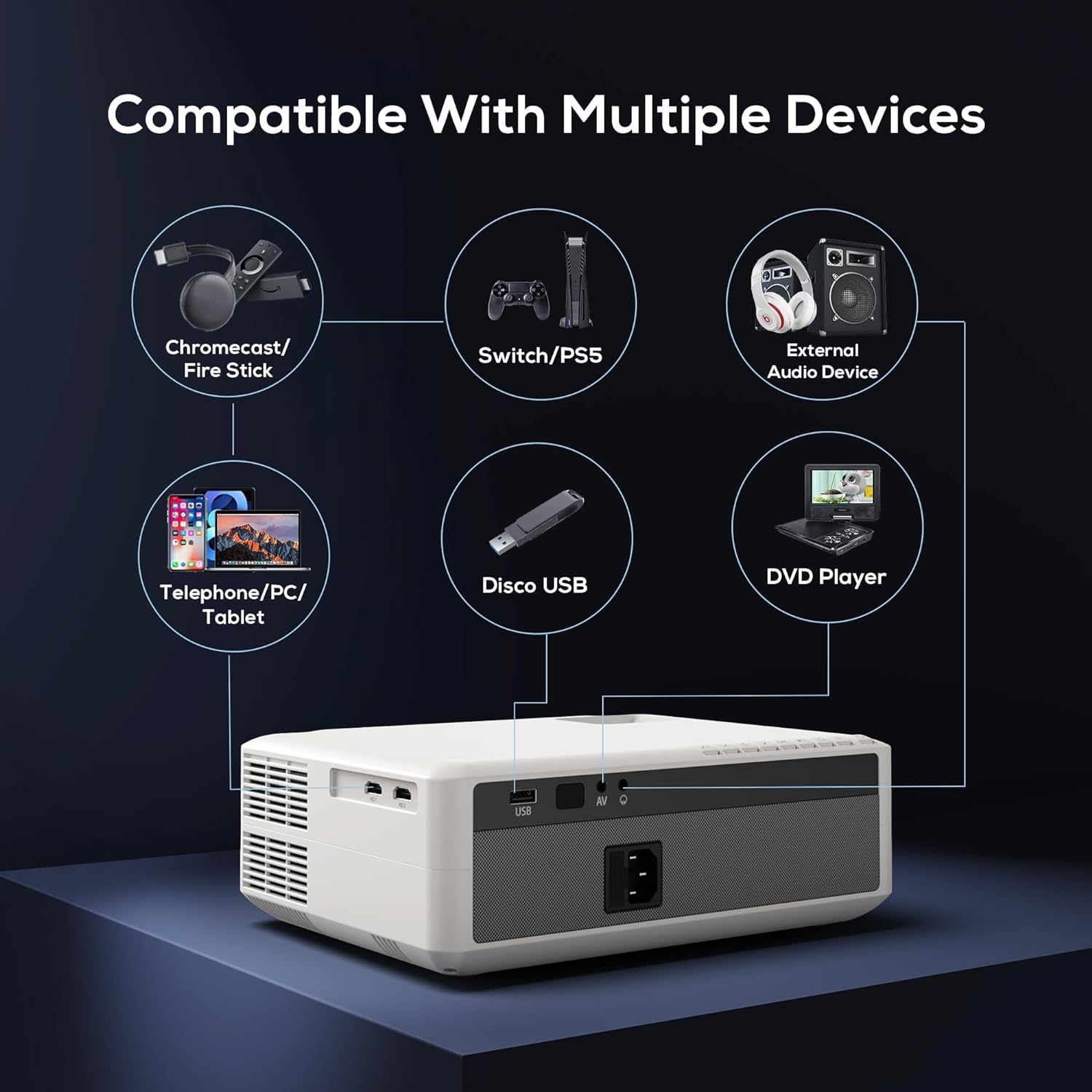
Image: Diagram illustrating the AUN AKEY6S projector's compatibility with a wide range of external devices such as streaming sticks, gaming consoles, audio systems, mobile devices, USB drives, and DVD players.
3.3 Wireless Connectivity (WiFi)
Aby połączyć się z siecią bezprzewodową:
- Przejdź do menu ustawień projektora.
- Wybierać Sieć i Internet.
- Włączyć coś Wi-Fi and select your desired 2.4G or 5G network from the list.
- Jeśli zostaniesz o to poproszony, wpisz hasło i połącz się.
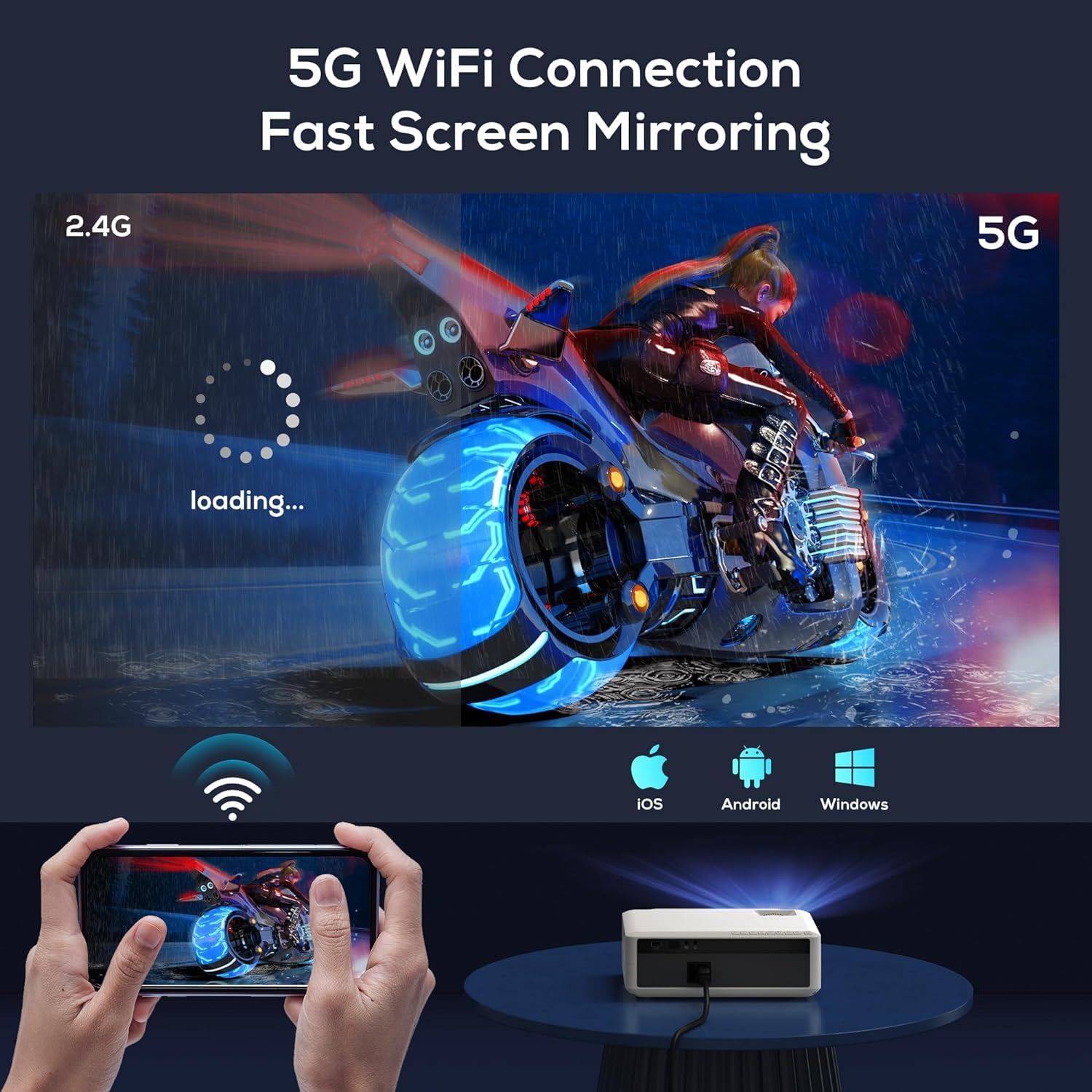
Image: The AUN AKEY6S projector displaying a loading screen, illustrating its 5G WiFi capability for fast screen mirroring from a mobile device.
3.4 Połączenie audio Bluetooth
Pair Bluetooth speakers or headphones for enhanced audio:
- Przejdź do menu ustawień projektora.
- Wybierać Podłączone urządzenia or Bluetooth.
- Turn on Bluetooth and put your audio device into pairing mode.
- Wybierz urządzenie z listy, aby je połączyć.
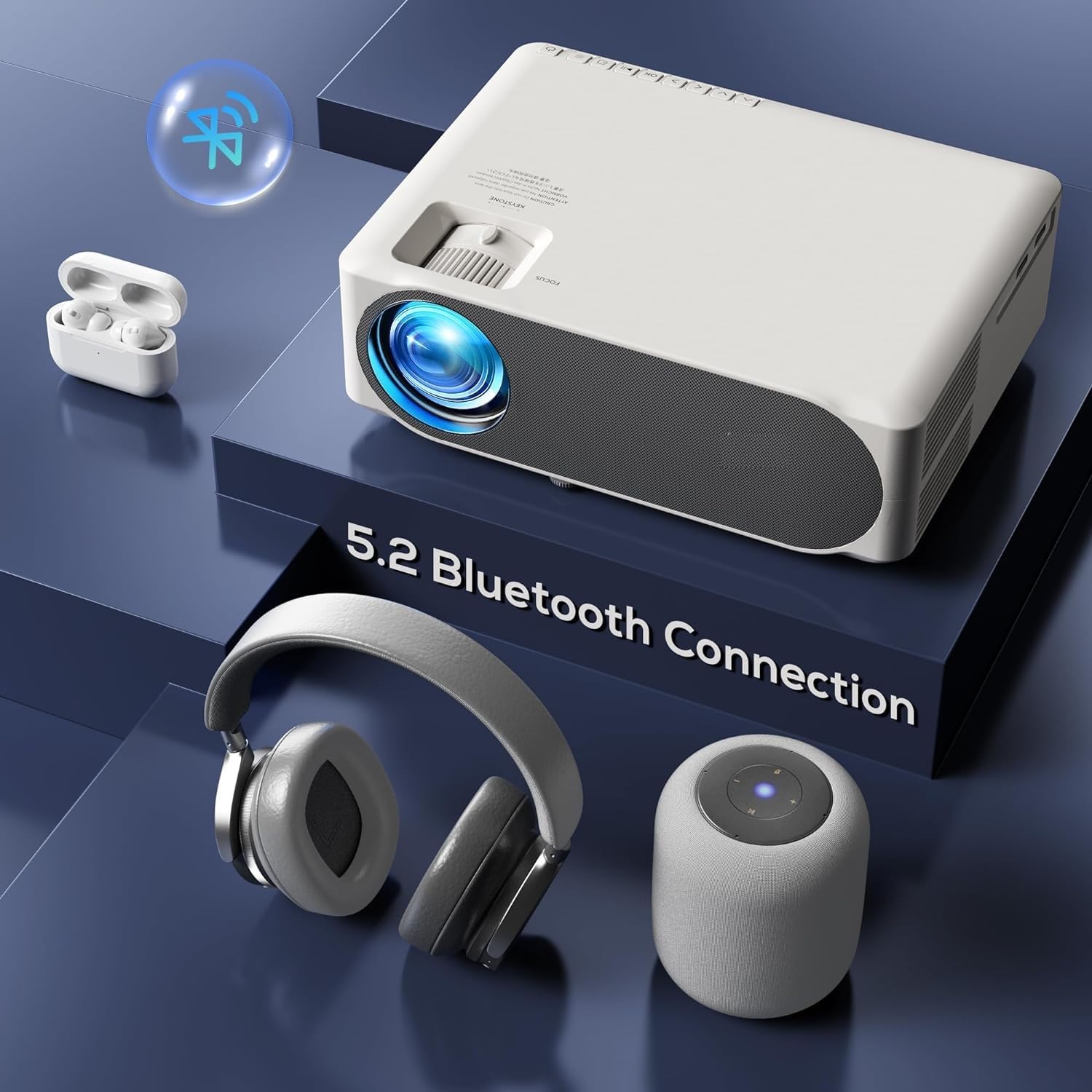
Image: The AUN AKEY6S projector shown with various Bluetooth audio devices, highlighting its Bluetooth 5.2 connectivity for wireless sound.
3.5 Kopiowanie ekranu
The projector supports screen mirroring from iOS, Android, and Windows devices via WiFi. Refer to the specific screen mirroring application or setting on your device and follow the on-screen instructions to connect to the projector.
3.6 Zarządzanie aplikacjami
The AKEY6S comes with Android 9.0 and pre-installed applications. You can also install more apps:
- Zainstalowane aplikacje: YouTube, Netflix, Hotstar, Prime Video.
- Instalowanie nowych aplikacji:
- The projector supports Google Play Store and APK installation.
- To install Aptoide TV App Store: Open the browser, search for "Aptoide TV APK", download the APK, then open File Manager and install.
- Download other apps like Netflix, Hotstar, Prime Video from Aptoide TV App Store if not pre-installed or if updates are needed.
4. Konserwacja
4.1 Czyszczenie
- Obiektyw: Używaj miękkiej, niepozostawiającej włókien ściereczki przeznaczonej specjalnie do soczewek optycznych. Nie używaj środków ściernych ani nadmiernej siły.
- Korpus projektora: Wipe the exterior with a soft, dry cloth. For stubborn dirt, slightly dampi szmatkę z wodą.
- Wentylatory: Regularly check and clean the ventilation openings to prevent dust buildup, which can affect cooling performance. Use a soft brush or compressed air.
4.2 Ochrona przed kurzem
The AUN AKEY6S projector features an advanced dustproof design to minimize dust ingress and maintain image quality over time. Regular cleaning of external vents is still recommended.
4.3 Przechowywanie
When not in use for extended periods, store the projector in a cool, dry place, away from direct sunlight and extreme temperatures. Cover the lens with its cap to protect it from dust and scratches.
5. Rozwiązywanie Problemów
If you encounter issues with your AUN AKEY6S projector, refer to the following common problems and solutions:
5.1 Brak zasilania
- Upewnij się, że kabel zasilający jest solidnie podłączony zarówno do projektora, jak i do gniazdka elektrycznego.
- Sprawdź, czy gniazdko elektryczne działa prawidłowo, podłączając do niego inne urządzenie.
- Sprawdź, czy kontrolka zasilania na projektorze świeci się.
5.2 Brak obrazu lub obraz rozmazany
- Wyreguluj pierścień ostrości na obiektywie, aż obraz będzie ostry.
- Check the keystone correction settings if the image is trapezoidal.
- Ensure the input source is correctly selected (e.g., HDMI 1, USB).
- Verify that the connected source device (laptop, TV stick) is powered on and outputting a signal.
- Wyczyść soczewkę projektora, jeśli wydaje się brudna.
5.3 Brak dźwięku
- Zwiększ głośność projektora i podłączonego urządzenia źródłowego.
- Sprawdź, czy zewnętrzne głośniki lub słuchawki są prawidłowo podłączone lub sparowane przez Bluetooth.
- Sprawdź, czy ustawienia wyjścia audio w projektorze są prawidłowe.
- Verify that the source video/audio file is not muted or corrupted.
5.4 Pilot zdalnego sterowania nie odpowiada
- Wymień baterie w pilocie.
- Upewnij się, że nie ma żadnych przeszkód między pilotem zdalnego sterowania a odbiornikiem podczerwieni projektora.
- Skieruj pilota bezpośrednio na odbiornik podczerwieni projektora.
5.5 WiFi or Bluetooth Connectivity Issues
- Sprawdź, czy w ustawieniach projektora włączono WiFi/Bluetooth.
- Uruchom ponownie projektor i router/urządzenie Bluetooth.
- Check if the WiFi password is entered correctly.
- Move the projector closer to the WiFi router or Bluetooth device to improve signal strength.
5.6 App Installation Issues
For issues related to app installation, refer to the following:
- How to Install YouTube? The projector comes with a preinstalled YouTube App.
- How to install Aptoide TV App Store?
- Open the Browser.
- Type for Aptoide TV APK.
- Download the APK to the Projector.
- Otwórz File Manager and Install the Aptoide TV App Store.
- How to download Netflix, Hotstar, Prime Video Apps?
- Projector comes with preinstalled Netflix, Hotstar, Prime Video Apps.
- Otherwise, download the apps from Aptoide TV App Store.
6. Specyfikacje
| Funkcja | Szczegół |
|---|---|
| Marka | AUN |
| Model | AKEY6S |
| Rozdzielczość natywna | 1920 x 1080p Full HD |
| Obsługa 4K | Tak |
| Jasność | 8000 lumenów |
| Współczynnik kontrastu | 12000:1 |
| Rozmiar projekcji | 50 - 300 cali |
| Proporcje obrazu | 16:9 |
| Lamp Życie | 30,000 godzin |
| System operacyjny | Android 9.0 |
| Pamięć (RAM / ROM) | 1 GB pamięci RAM / 8 GB pamięci ROM |
| Procesor | 4-Cores ARM 64 |
| Procesor graficzny | ARM A35 GPU |
| Wi-Fi | 2.4G / 5G |
| Bluetooth | Bluetooth 5.2 |
| Łączność | 2x HDMI, AV, USB, SD Card, 3.5mm Audio Out, RJ45, VGA |
| Elektroniczny klucz | ±40° |
| Wymiary produktu | Wymiary 30 x 25 x 8 cm |
| Waga przedmiotu | 2 kilogramów |
| Cotage | 150 watów |
| Częstotliwość odświeżania | 60 Hz |
Notatka: Dane techniczne mogą ulec zmianie bez wcześniejszego powiadomienia w celu ulepszenia produktu.
7. Gwarancja i wsparcie
7.1 Gwarancja na produkt
The AUN AKEY6S Projector comes with a 1-letnia gwarancja from the date of purchase. This warranty covers manufacturing defects and workmanship under normal use. Please retain your purchase receipt as proof of purchase.
7.2 Obsługa klienta
For technical assistance, warranty claims, or any product-related inquiries, please contact Megaa Electronics, the authorized support provider:
- E-mail: wsparcie@megaaelectronics.com or megaaelectronics@gmail.com
- WhatsApp: 8328671337
Please provide your product model (AKEY6S) and purchase details when contacting support to facilitate a quicker resolution.