
1. Wprowadzenie
Welcome to the HyperX Armada 25 Gaming Monitor user manual. This document provides essential information for setting up, operating, maintaining, and troubleshooting your new monitor. The HyperX Armada 25 is designed for competitive gaming, featuring a 24.5-inch Full HD (1920x1080) IPS panel, a 240Hz refresh rate, and a 1ms response time, ensuring smooth and responsive visuals. It also includes NVIDIA G-SYNC compatibility to eliminate screen tearing and minimize input latency. A desk mount is included for convenient setup and to maximize desk space.
Główne cechy:
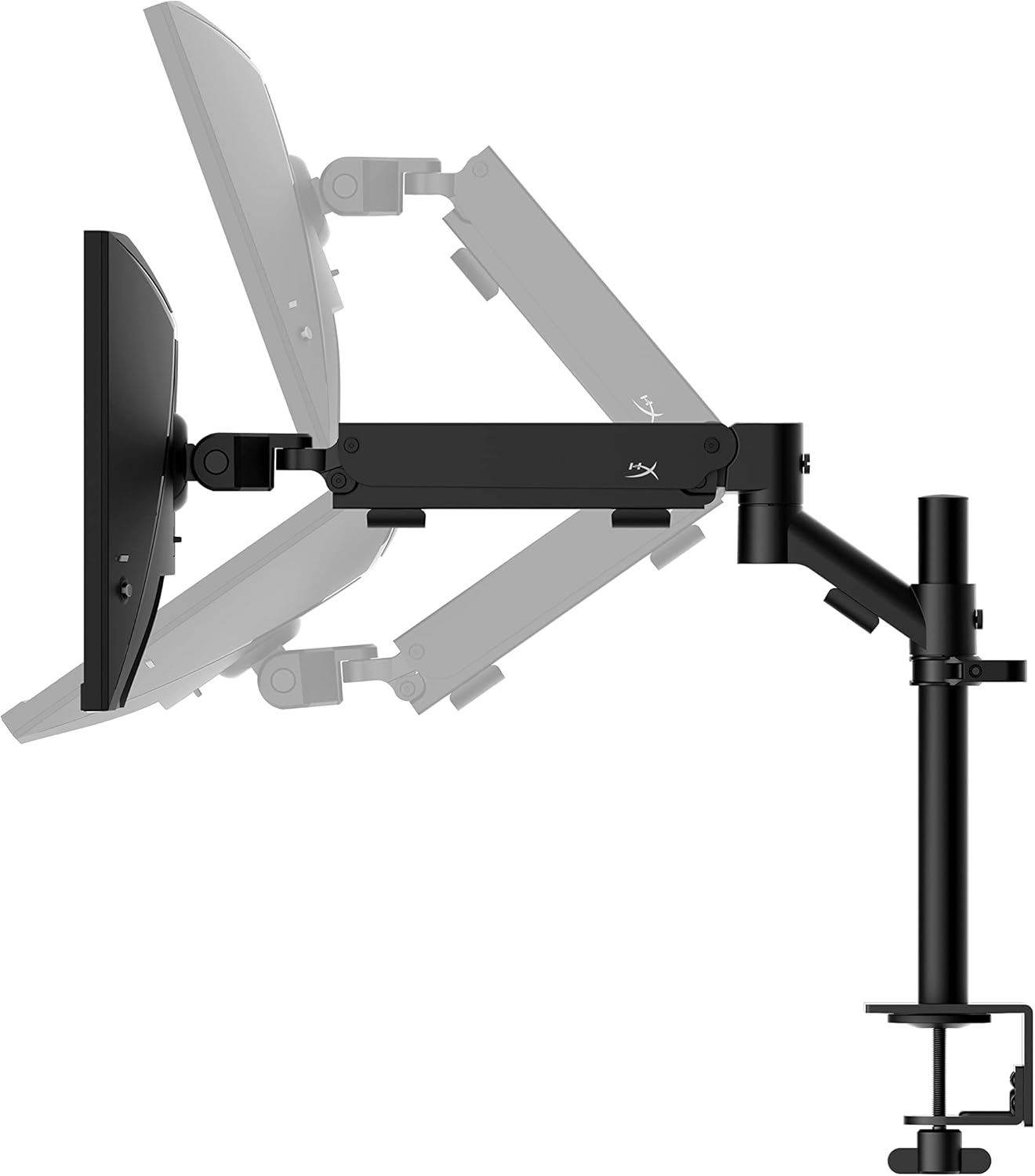
- Pakiet All-in-One: Includes an ergonomic arm and desk mount for easy setup and space-saving.
- Wysoka częstotliwość odświeżania i czas reakcji: 240Hz refresh rate and 1ms response time for ultra-smooth gaming.
- Vibrant IPS Panel: 24.5-inch Full HD (1920x1080) IPS panel delivers stunning visuals with accurate colors and wide viewkąty.
- Zgodność z NVIDIA G-SYNC: Eliminates screen tearing and reduces stuttering for a fluid gaming experience.

Oficjalny film o produkcie:
2. Konfiguracja
This section guides you through the initial setup of your HyperX Armada 25 Gaming Monitor, including assembly and connection to your computer.
2.1. Assembling the Desk Mount
The HyperX Armada 25 comes with an integrated ergonomic desk mount. Follow the instructions provided in the separate quick start guide for detailed assembly steps. The monitor head easily snaps into the arm, allowing for quick and secure installation.

2.2. Podłączanie monitora
Connect the monitor to your computer using the appropriate cables. The HyperX Armada 25 supports both HDMI and DisplayPort connections.
- Podłącz jeden koniec kabla HDMI lub DisplayPort do odpowiedniego portu karty graficznej komputera.
- Connect the other end of the cable to an available HDMI 2.0 or DisplayPort 1.4 port on the back of your monitor.
- Connect the power cord to the monitor and then to a power outlet.
- Naciśnij przycisk zasilania na monitorze, aby go włączyć.

3. Obsługa monitora
This section covers basic operation and navigation of the monitor's On-Screen Display (OSD) menu.
3.1. Nawigacja za pomocą wyświetlacza ekranowego (OSD)
The OSD menu is controlled using a joystick located on the back of the monitor. This joystick allows you to power on/off the monitor and navigate through various settings.
- Naciśnij joystick: Aby otworzyć menu OSD lub potwierdzić wybór.
- Move the joystick Up/Down/Left/Right: To navigate through menu options and adjust settings.
- Hold the joystick: To power off the monitor.

3.2. Regulacja położenia monitora
The ergonomic desk mount allows for flexible positioning of your monitor. You can adjust the height, tilt, swivel, and pivot to find your optimal viewkąt.

4. Konserwacja
Proper maintenance ensures the longevity and optimal performance of your HyperX Armada 25 Gaming Monitor.
- Czyszczenie ekranu: Delikatnie użyj miękkiej, niestrzępiącej się szmatki dampened with water or a specialized screen cleaner. Avoid using harsh chemicals, abrasive materials, or direct spraying onto the screen.
- Czyszczenie Casing: Wytrzyj monitor casinmiękką, suchą szmatką.
- Wentylacja: Aby zapobiec przegrzaniu, upewnij się, że otwory wentylacyjne monitora nie są zablokowane.
- Wyłączanie, gdy nie jest używane: Wyłączaj monitor, jeśli nie używasz go przez dłuższy czas, aby oszczędzać energię i przedłużyć jego żywotność.
5. Rozwiązywanie Problemów
If you encounter issues with your monitor, refer to the following common troubleshooting steps.
- Brak zasilania:
- Sprawdź, czy kabel zasilający jest prawidłowo podłączony do monitora i gniazdka elektrycznego.
- Sprawdź, czy gniazdko elektryczne działa prawidłowo.
- Naciśnij przycisk zasilania na monitorze.
- Brak sygnału:
- Verify that the HDMI or DisplayPort cable is securely connected to both the monitor and your computer.
- Upewnij się, że komputer jest włączony i nie znajduje się w trybie uśpienia.
- Wybierz właściwe źródło sygnału wejściowego za pomocą menu OSD.
- Flickering Screen or Image Issues:
- Check the display cable for damage or loose connections.
- Upewnij się, że sterowniki Twojej karty graficznej są aktualne.
- Dostosuj częstotliwość odświeżania w ustawieniach wyświetlania komputera.
- If G-SYNC is enabled, try disabling it temporarily to see if the issue persists.
- Buttons Not Responding (OSD Joystick):
- Sprawdź, czy monitor jest włączony.
- Try restarting the monitor by unplugging and replugging the power cable.
- Clean around the joystick to ensure no debris is obstructing its movement.
6. Specyfikacje
Detailed technical specifications for the HyperX Armada 25 Gaming Monitor.
| Funkcja | Szczegół |
|---|---|
| Wymiary produktu | 21.94 x 25.79 x 31.12 cala; 16.98 funta |
| Numer modelu przedmiotu | HyperX Armada 25 |
| Data pierwszej dostępności | 24 sierpnia 2022 r. |
| Producent | HP Inc. |
| ASIN | B0B2C1G356 |
| Rozmiar wyświetlacza | 24.5-calowa przekątna |
| Rezolucja | FHD (1920x1080) |
| Częstotliwość odświeżania | 240 Hz |
| Typ panelu | panel IPS |
| Czas reakcji | 1 ms |
| Technologia synchronizacji | Kompatybilny z NVIDIA® G-SYNC® |
| Included Mount | Desk Mount Included |
| Łączność | HDMI and Display Port |
7. Gwarancja i wsparcie
For warranty information, technical support, or to access additional resources, please visit the official HyperX webwitryny lub skontaktuj się z obsługą klienta.
- Official HyperX Webstrona: www.hyperx.com
- Strona pomocy technicznej produktu: Refer to the support section on the HyperX webwitrynę dla Twojego konkretnego modelu.