
Wstęp
This user manual provides essential information and instructions for the safe and efficient operation of your DUODUOGO S9 10-inch Android 11 Tablet. Please read this manual thoroughly before using your device to ensure proper setup and functionality. Keep this manual for future reference.
1. Konfiguracja
1.1 Zawartość opakowania
Sprawdź, czy w opakowaniu znajdują się wszystkie elementy:
- DUODUOGO S9 Tablet
- Zasilacz
- Kabel USB
- Quick Guide (refer to this manual for detailed instructions)
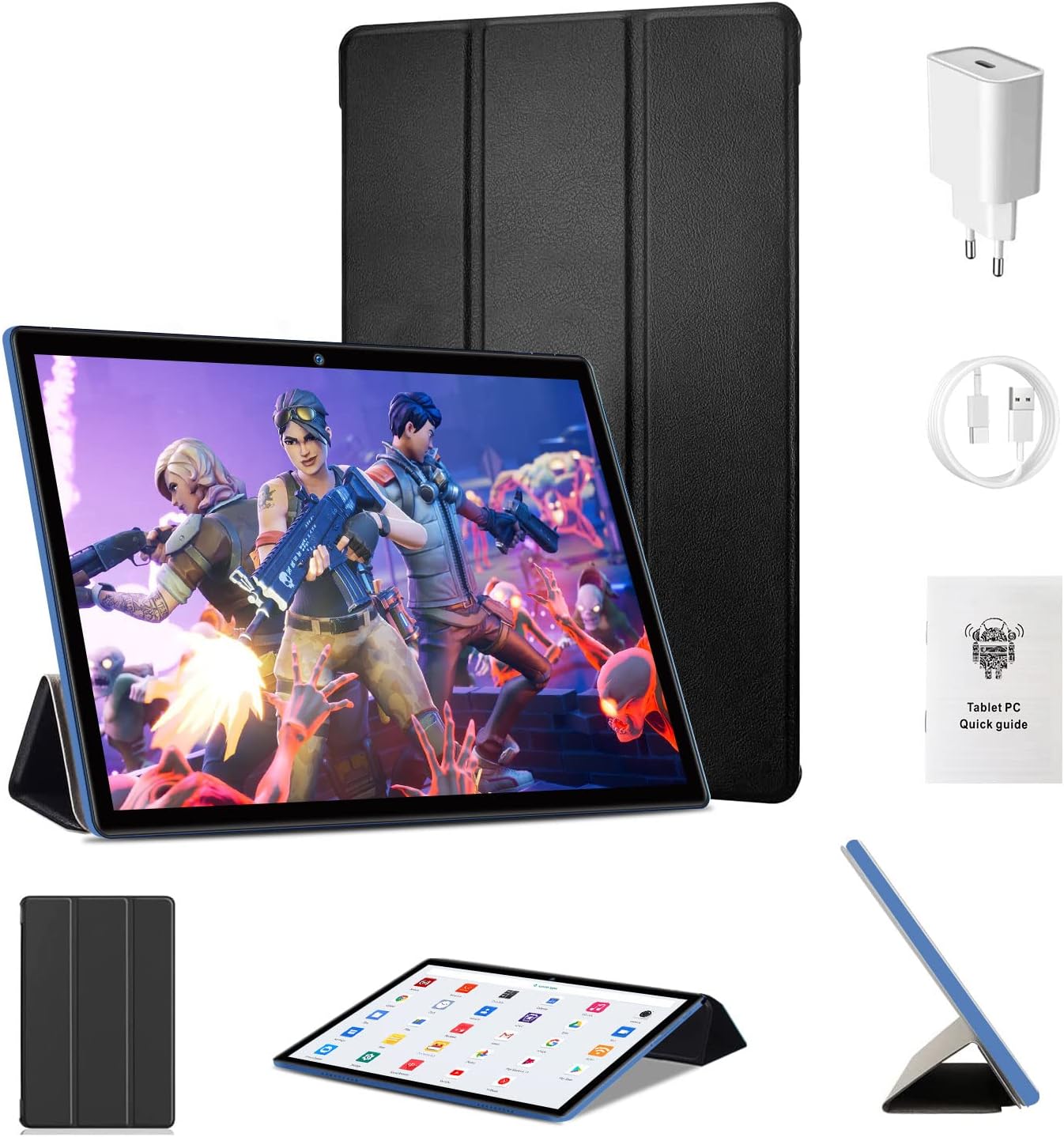
Image: DUODUOGO S9 Tablet with included accessories.
1.2 Pierwsze ładowanie
Before first use, fully charge the tablet. Connect the USB cable to the tablet's charging port and the power adapter, then plug the adapter into a wall outlet. The battery indicator on the screen will show charging status.
1.3 Włączanie/wyłączanie
- Włączanie: Press and hold the Power button until the DUODUOGO logo appears.
- Aby wyłączyć: Press and hold the Power button until the power options appear, then select "Power Off".
- Zrestartować: Naciśnij i przytrzymaj przycisk zasilania, aż pojawią się opcje zasilania, a następnie wybierz opcję „Uruchom ponownie”.
1.4 Kreator konfiguracji początkowej
Po pierwszym uruchomieniu tablet przeprowadzi Cię przez proces początkowej konfiguracji:
- Wybierz preferowany język.
- Połącz się z siecią Wi-Fi.
- Skonfiguruj swoje konto Google (opcjonalne, ale zalecane w przypadku pobierania aplikacji).
- Review i zaakceptuj regulamin.
- Ustaw blokadę ekranu (kod PIN, wzór lub hasło).

Image: The Android 11 interface with various applications.
1.5 Wkładanie karty Micro SD
Tablet obsługuje karty Micro SD o pojemności do 256 GB, co pozwala na rozszerzenie pamięci.
- Znajdź gniazdo karty Micro SD z boku tabletu.
- Ostrożnie wsuń kartę Micro SD do gniazda, aż usłyszysz kliknięcie.
- Aby wyjąć kartę, delikatnie wciśnij ją, aż wysunie się.

Image: Illustration of the TF (Micro SD) card slot and Wi-Fi connectivity.
2. Instrukcja obsługi
2.1 Podstawowa nawigacja
- Uzyskiwać: Wybierz element lub otwórz aplikację.
- Dotknij i przytrzymaj: Uzyskaj dostęp do menu kontekstowych i przenieś ikony.
- Trzepnąć: Przewijaj ekrany lub listy.
- Szczypta: Powiększaj lub pomniejszaj obrazy i web stron.
2.2 Połączenie Wi-Fi
The tablet supports dual-band Wi-Fi (2.4 GHz and 5 GHz) for fast internet access.
- Idź do Ustawienia > Sieć i internet > Wi-Fi.
- Przełącz Wi-Fi On.
- Wybierz żądaną sieć z listy i wpisz hasło, jeśli zostaniesz o to poproszony.
2.3 parowanie Bluetooth
Connect to Bluetooth 5.0 devices such as headphones or speakers.
- Idź do Ustawienia > Podłączone urządzenia > Bluetooth.
- Przełącz Bluetooth On.
- Upewnij się, że Twoje urządzenie Bluetooth jest w trybie parowania.
- Select the device from the "Available devices" list to pair.
2.4 Korzystanie z aparatu
Tablet ma przednią kamerę 2 MP i tylną kamerę 5 MP.
- Otwórz Kamera aplikacja.
- Stuknij przycisk migawki, aby zrobić zdjęcie.
- Przełączaj się między przednim i tylnym aparatem za pomocą ikony aparatu.

Image: Tablet display showcasing camera and screen specifications.
2.5 Zarządzanie aplikacjami
- Pobieranie aplikacji: Otwórz Sklep Google Play app, search for your desired app, and tap "Install".
- Odinstalowywanie aplikacji: Dotknij i przytrzymaj ikonę aplikacji na ekranie głównym lub w szufladzie aplikacji, a następnie przeciągnij ją do „Odinstaluj” lub wybierz „Informacje o aplikacji”, a następnie „Odinstaluj”. Możesz też przejść do Ustawienia > Aplikacje i powiadomienia, wybierz aplikację i kliknij „Odinstaluj”.
3. Konserwacja
3.1 Czyszczenie tabletu
Use a soft, lint-free cloth to clean the screen and body of the tablet. Do not use liquid cleaners or aerosols directly on the tablet.
3.2 Pielęgnacja baterii
- Unikaj wystawiania tabletu na działanie ekstremalnych temperatur.
- Nie należy dopuszczać do częstego całkowitego rozładowania akumulatora.
- Należy używać wyłącznie dołączonej ładowarki lub certyfikowanej, kompatybilnej ładowarki.
3.3 Aktualizacje oprogramowania
The tablet runs on Android 11. Software updates may be released periodically to improve performance and security. You can check for updates in Ustawienia > System > Aktualizacja systemu. Please note that information regarding guaranteed software updates is not available.
3.4 Optymalizacja pamięci masowej
Aby zachować optymalną wydajność, regularnie zarządzaj pamięcią masową tabletu:
- Usuń niepotrzebne aplikacje i files.
- Wyczyść dane pamięci podręcznej dla aplikacji w Ustawienia > Aplikacje i powiadomienia > (select app) > Pamięć masowa i pamięć podręczna.
- Utilize the Micro SD card for storing media files.

Obraz: Wizualna reprezentacja pamięci i możliwości przechowywania danych tabletu.
4. Rozwiązywanie Problemów
Jeśli masz problemy z tabletem, zapoznaj się z poniższymi typowymi rozwiązaniami:
| Problem | Rozwiązanie |
|---|---|
| Tablet się nie włącza | Ensure the tablet is charged. Connect it to the charger for at least 30 minutes. Press and hold the Power button for 10-15 seconds. |
| Nie można połączyć się z siecią Wi-Fi | Check if Wi-Fi is enabled in Settings. Restart your Wi-Fi router. Forget the network and reconnect. |
| Aplikacje ulegają awarii lub działają wolno | Clear the app's cache (Settings > Apps & notifications > [App Name] > Storage & cache). Restart the tablet. Ensure sufficient storage space. |
| Tablet nie reaguje | Perform a force restart by pressing and holding the Power button for approximately 10 seconds. |
| Bateria szybko się rozładowuje | Reduce screen brightness. Close unused apps. Disable Wi-Fi/Bluetooth when not in use. Check battery usage in Settings to identify power-hungry apps. |
Jeśli po wypróbowaniu tych kroków problem nadal występuje, skontaktuj się z obsługą klienta.
5. Specyfikacje
Key technical specifications for the DUODUOGO S9 Tablet:
| Funkcja | Szczegół |
|---|---|
| Marka | DUODUOGO |
| Model | S9 |
| System operacyjny | Android 11 |
| Edytor | Czterordzeniowy 1.8 GHz |
| BARAN | 4 GB |
| Pamięć wewnętrzna | 64 GB |
| Możliwość rozbudowy pamięci masowej | Micro SD do 256 GB |
| Rozmiar ekranu | 10 cali |
| Rozdzielczość ekranu | 1280 x 800 pixels IPS |
| Przednia kamera | 2 MP |
| Kamera tylna | 5 MP |
| Pojemność baterii | 6000 mAh |
| Łączność | Wi-Fi (2.4G & 5G), Bluetooth 5.0 |
| Wymiary | Wymiary 26.7 x 19.6 x 5.3 cm |
| Waga | 890 gramów |

Image: Summary of DUODUOGO S9 tablet key features.
6. Gwarancja i wsparcie
For warranty information, please refer to the documentation provided at the time of purchase. Information regarding spare parts availability and guaranteed software updates is not available for this product.
If you require further assistance or encounter issues not covered in this manual, please contact DUODUOGO customer support through your retailer or the official brand webstrona.