
Wstęp
This manual provides instructions for the Belkin 5-in-1 Multiport Hub Adapter, Model INC008btBK. This adapter is designed to expand connectivity for Chromebook and Chrome OS devices, offering ports for 4K video output, power delivery, USB peripherals, and a wired internet connection. It supports fast charging up to 86W and video resolutions up to 4K at 60Hz via its HDMI port. The hub includes two USB-A 3.1 Gen 1 ports and a Gigabit Ethernet port. It is Works With Chromebook certified, ensuring compatibility with Chrome OS.

The Belkin 5-in-1 Multiport Hub Adapter, a compact black device with an integrated USB-C cable.
Cechy produktu
- Chromebook optimized adapter provides automatic firmware updates directly through Chrome OS.
- Certified to meet Google's compatibility standards for Chrome OS devices.
- Features 2x USB-A 3.1 Gen 1 ports for connecting peripherals.
- Includes a Gigabit Ethernet port for a stable wired internet connection.
- Equipped with a 4K HDMI port supporting resolutions up to 4K at 60Hz.
- USB-C port supports pass-through charging up to 100W (minus 15W for adapter operation), delivering up to 86W to connected devices.
- Tethered USB-C cable for easy connection to your Chromebook.
Zawartość opakowania
- Belkin 5-in-1 Multiport Hub Adapter (Model INC008btBK)
Instrukcje konfiguracji
Follow these steps to set up your Belkin 5-in-1 Multiport Hub Adapter:
- Connect to your Chromebook: Plug the integrated USB-C cable from the hub into an available USB-C port on your Chromebook or compatible device.
- Podłącz zasilanie (opcjonalnie): For charging your Chromebook and connected devices, connect a USB-C power adapter (minimum 65W recommended) to the USB-C Power Delivery (PD) port on the hub. This port supports up to 100W pass-through charging.
- Connect HDMI Display (Optional): Use an HDMI cable to connect your external monitor or display to the HDMI port on the hub. Ensure your display is set to the correct input source.
- Podłącz urządzenia peryferyjne USB (opcjonalnie): Plug your USB-A devices, such as a mouse, keyboard, or external storage, into the two USB-A 3.1 Gen 1 ports on the hub.
- Podłącz Ethernet (opcjonalnie): Aby uzyskać przewodowe połączenie z Internetem, podłącz kabel Ethernet routera lub modemu do portu Gigabit Ethernet w koncentratorze.
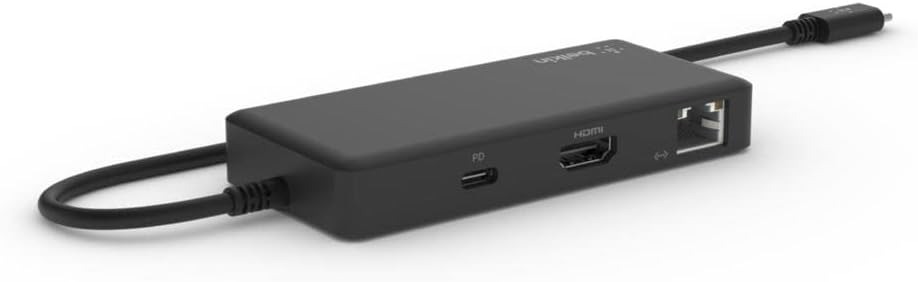
A view of the Belkin Multiport Hub's side, displaying the HDMI, USB-C Power Delivery, and Gigabit Ethernet ports.
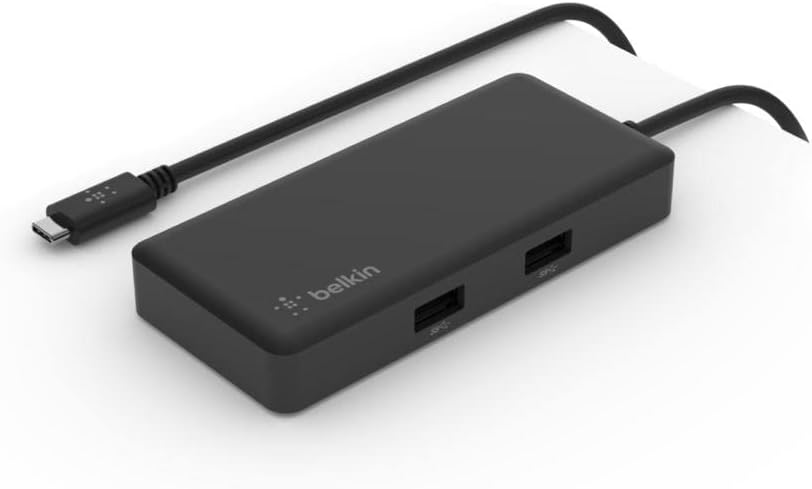
Kątowy view of the Belkin Multiport Hub, highlighting the two USB-A 3.1 Gen 1 ports on its top surface.
Instrukcja obsługi
Once connected, the Belkin 5-in-1 Multiport Hub Adapter operates automatically with your Chromebook. Chrome OS will detect connected devices and displays.
- Wyjście wyświetlacza: Your Chromebook should automatically extend or mirror its display to the connected HDMI monitor. Adjust display settings in Chrome OS if needed.
- Urządzenia USB: USB-A peripherals will function as soon as they are plugged into the hub.
- Łączność sieciowa: The Gigabit Ethernet port provides a stable wired network connection, which will be prioritized over Wi-Fi when connected.
- Dostawa energii: Ensure your external USB-C power adapter meets the recommended wattage for optimal charging performance, especially when using multiple hub functions.

The Belkin Multiport Hub connected to a laptop, demonstrating its use with an external monitor (via HDMI) and other USB peripherals.
Konserwacja
To ensure the longevity and optimal performance of your Belkin Multiport Hub:
- Keep the adapter clean by wiping it with a soft, dry cloth. Avoid liquid cleaners.
- Przechowywać adapter w chłodnym i suchym miejscu, z dala od bezpośredniego światła słonecznego i ekstremalnych temperatur.
- Avoid bending or stressing the integrated USB-C cable excessively.
Rozwiązywanie problemów
- Brak obrazu na monitorze zewnętrznym:
- Sprawdź, czy kabel HDMI jest prawidłowo podłączony zarówno do koncentratora, jak i do monitora.
- Verify the monitor's input source is set to HDMI.
- Check your Chromebook's display settings to ensure the external display is detected and configured correctly.
- Jeśli to możliwe, wypróbuj inny kabel HDMI lub monitor.
- Urządzenia USB nie działają:
- Ensure the USB-A devices are fully inserted into the hub's ports.
- Test the USB device by connecting it directly to your Chromebook (if possible) to rule out device issues.
- If using high-power USB devices, ensure the hub is connected to a power adapter.
- Brak połączenia internetowego przez Ethernet:
- Sprawdź, czy kabel Ethernet jest prawidłowo podłączony do koncentratora i routera/modemu.
- Check the network status on your Chromebook.
- Sprawdź, czy router/modem działa prawidłowo.
- Chromebook Not Charging:
- Ensure a USB-C power adapter is connected to the hub's USB-C PD port.
- Sprawdź, czy zasilacz działa i zapewnia wystarczającą moc.tage (minimum 65W recommended for optimal pass-through charging).
- Check the charging indicator on your Chromebook.
Specyfikacje
| Marka | Belkin |
| Numer modelu | INC008btBK |
| Interfejs sprzętowy | Ethernet, USB-C, HDMI, USB-A |
| Liczba portów | 5 (2x USB-A, 1x HDMI, 1x USB-C PD, 1x Ethernet) |
| Porty USB-A | 2x USB 3.1 Gen 1 |
| Wyjście HDMI | Do 4K przy 60 Hz |
| Dostarczanie zasilania przez USB-C | Up to 86W to host (100W pass-through minus 15W for adapter) |
| Sieć Ethernetowa | Gigabit Ethernet (1 Gbps) |
| Kompatybilne urządzenia | Laptops (Chromebooks, Chrome OS devices) |
| System operacyjny | System operacyjny Chrome |
| Tworzywo | Plastikowy |
| Pozycja Wymiary (dł. x szer. x wys.) | 5.91" x 0.50" x 30.31" (approximate, based on provided data) |
| Waga przedmiotu | 0.12 kilograma |
Gwarancja i wsparcie
Aby uzyskać informacje o gwarancji i pomocy technicznej, odwiedź oficjalną stronę internetową firmy Belkin website or contact Belkin customer service. Product registration may be available for extended warranty benefits.
Więcej informacji i zasobów pomocy znajdziesz na stronie Belkin Store.