
Combrite WGM-400
Combrite XS Pro Wireless Mouse User Manual
Model: WGM-400 / XS Pro
1. Wprowadzenie
Thank you for choosing the Combrite XS Pro Wireless Mouse. This user manual provides detailed instructions on how to set up, operate, and maintain your new mouse. The Combrite XS Pro is designed for both intense gaming and daily productivity, offering versatile connectivity and ergonomic comfort.

Image: The Combrite XS Pro Wireless Mouse shown with its accompanying USB receiver, highlighting its sleek design and wireless capability.
2. Zawartość opakowania
Sprawdź zawartość paczki, aby upewnić się, że znajdują się w niej wszystkie elementy:
- 1 x Combrite XS Pro Wireless Mouse
- 1 x USB Receiver (stored in the bottom of the mouse)
- 1 x kabel ładujący typu C (70 cm)
- 1 x Instrukcja obsługi
3. Funkcje produktu
The Combrite XS Pro Wireless Mouse offers a range of features designed for optimal performance and user comfort:
- Dual Wireless Mode: Seamlessly switch between 2.4 GHz RF and Bluetooth 5.0 connectivity.
- Akumulator: Built-in 750 mAh Li-on battery with convenient USB-C charging.
- Ergonomiczna konstrukcja: Lightweight, ambidextrous design with a rubber-coated surface for a comfortable and secure grip during extended use.
- Regulowane DPI: Cycle through 800, 1200, and 1600 DPI settings for precise control.
- Oświetlenie RGB: Features 10 different RGB lighting modes to personalize your setup.
- Przyciski programowalne: Equipped with 6 programmable buttons for enhanced functionality.
- Trwałe przełączniki: Designed for a lifespan of 10 million clicks.

Obraz: widok z góry view of the mouse illustrating its key features such as dual wireless mode, USB-C charging, high-capacity battery, high-precision optical sensor, and adjustable DPI settings.

Image: A hand comfortably gripping the Combrite XS Pro mouse, demonstrating its ergonomic design and comfortable fit for prolonged use.
4. Konfiguracja
4.1 Ładowanie myszy
Przed pierwszym użyciem zaleca się pełne naładowanie myszy.
- Znajdź port ładowania USB-C z przodu myszy.
- Podłącz dołączony kabel ładujący typu C do myszy, a drugi jego koniec do źródła zasilania USB (np. portu USB komputera, zasilacza ściennego USB).
- The LED indicator on the mouse will show charging status. Once fully charged, the indicator will change or turn off.
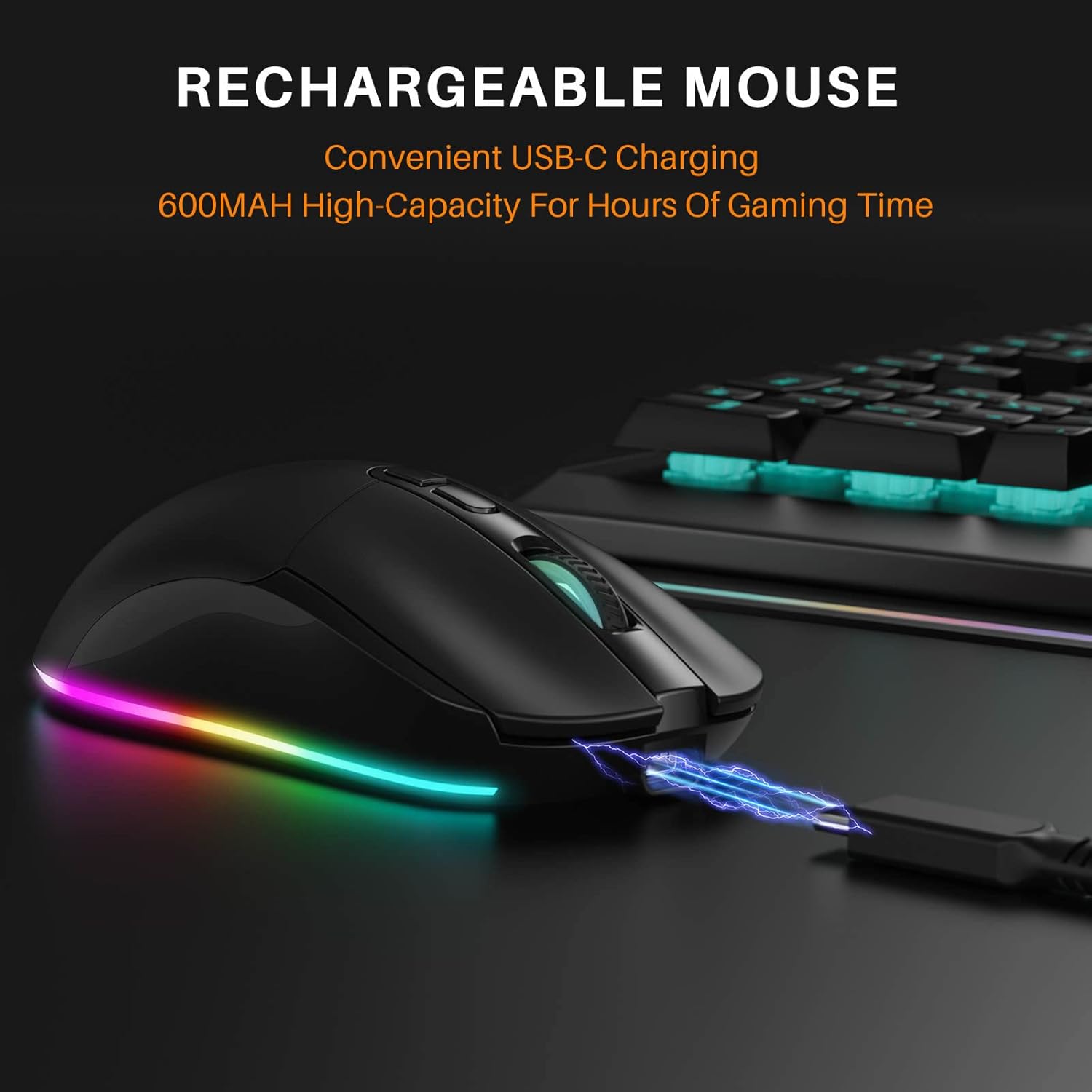
Image: The Combrite XS Pro mouse connected to a charging cable via its USB-C port, illustrating the charging process next to a keyboard.
4.2 Connecting via 2.4 GHz Wireless (USB Receiver)
This mode provides a stable and fast wireless connection.
- Remove the USB receiver from its storage slot at the bottom of the mouse.
- Podłącz odbiornik USB do dostępnego portu USB w komputerze.
- Włącz mysz za pomocą wyłącznika zasilania znajdującego się na spodzie urządzenia.
- The mouse should automatically connect to your computer. No drivers are typically required.
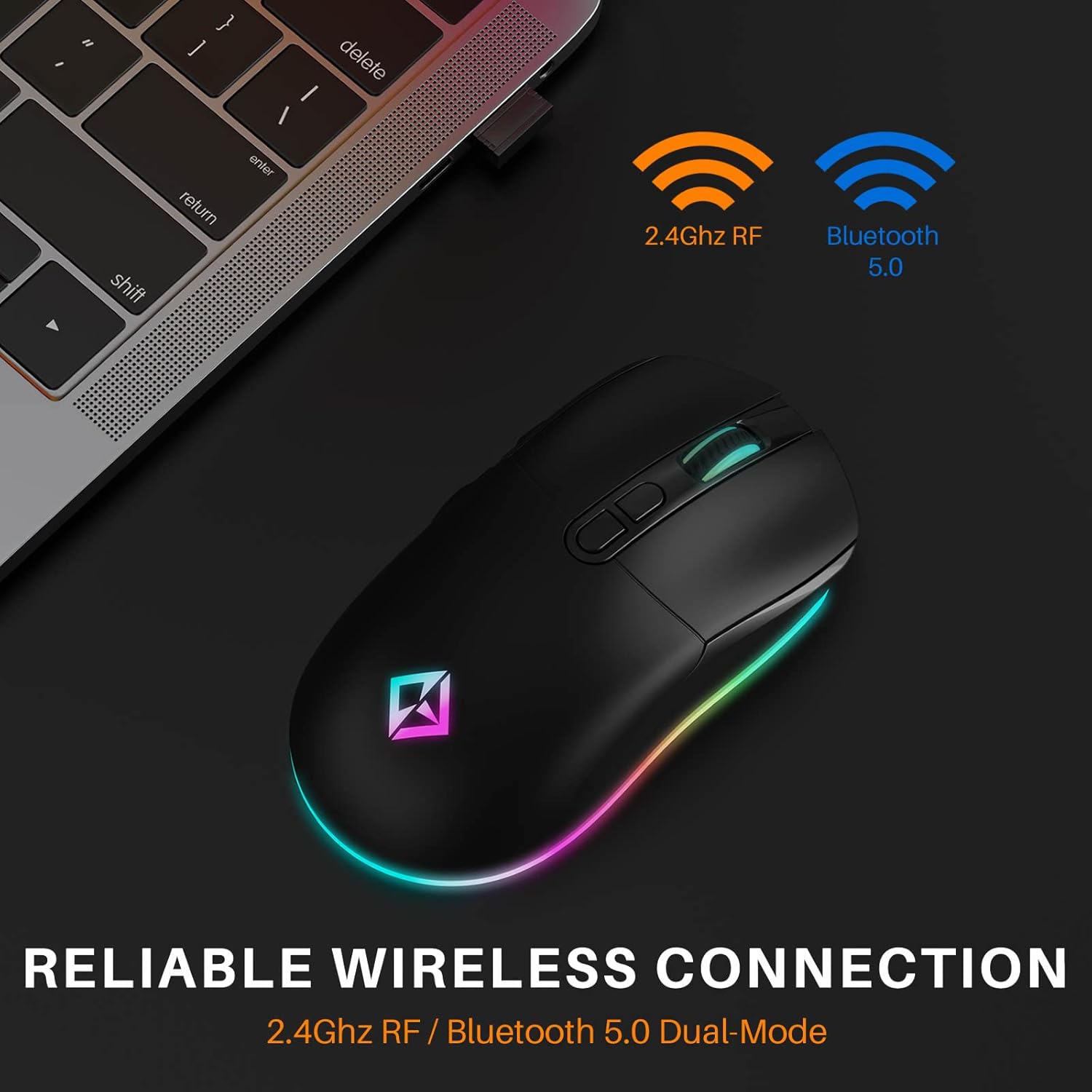
Image: The Combrite XS Pro mouse positioned next to a laptop, indicating its reliable wireless connection via 2.4GHz RF.
4.3 Łączenie przez Bluetooth 5.0
Ten tryb umożliwia połączenie z urządzeniami obsługującymi technologię Bluetooth bez konieczności używania odbiornika USB.
- Upewnij się, że mysz jest włączona.
- Switch the connection mode on the bottom of the mouse to Bluetooth.
- Na komputerze lub urządzeniu przejdź do ustawień Bluetooth i włącz Bluetooth.
- Szukaj new devices. The mouse should appear as "Combrite XS Pro" or similar.
- Select the mouse to pair. Follow any on-screen prompts if necessary.
Wskazówka: The dual wireless design allows you to connect the USB receiver to one device (e.g., desktop) and use Bluetooth for another (e.g., laptop), enabling easy switching between devices.
5. Instrukcja obsługi
5.1 Regulacja DPI
The mouse features a dedicated DPI button to adjust cursor sensitivity.
- Press the DPI button (located behind the scroll wheel) to cycle through the available DPI settings: 800, 1200, and 1600.
- Each press will change the sensitivity, allowing you to find the optimal speed for your tasks.
5.2 trybów oświetlenia RGB
Customize the aesthetic of your mouse with various RGB lighting effects.
- Press the LED Mode Button (located on the top, near the left click button) to cycle through the 10 available RGB lighting modes.
- Continue pressing to find your preferred lighting effect.
- To turn off the RGB lighting, cycle through all modes until the lights are off. This is useful for office or meeting environments.

Obraz: Zbliżenie view of the Combrite XS Pro mouse, highlighting the LED Mode Button and the vibrant RGB lighting effects around its base.
5.3 programowalne przyciski
The mouse features 6 programmable buttons (Left Click, Right Click, Scroll Wheel Click, DPI Button, Forward Button, Backward Button).
- The functionality of the forward and backward buttons (side buttons) can often be customized through your operating system's mouse settings or third-party software, if available.
- Refer to your operating system's documentation for advanced button customization.
6. Konserwacja
6.1 Czyszczenie
- Aby wyczyścić mysz, użyj miękkiej, suchej ściereczki.
- W przypadku uporczywych zabrudzeń, delikatnieamppl szmatkę wodą lub łagodnym środkiem czyszczącym.
- Nie należy używać silnych środków chemicznych ani materiałów ściernych, gdyż mogą uszkodzić powierzchnię.
- Unikaj dostania się wilgoci do otworów.
6.2 Przechowywanie
- When not in use for extended periods, turn off the mouse to conserve battery life.
- Store the USB receiver in its designated slot at the bottom of the mouse to prevent loss.
- Keep the mouse in a cool, dry place away from direct sunlight and extreme temperatures.
7. Rozwiązywanie Problemów
| Problem | Możliwe rozwiązanie |
|---|---|
| Mouse not responding (2.4 GHz) |
|
| Mysz nie reaguje (Bluetooth) |
|
| Ruch kursora jest nieregularny lub skokowy |
|
| RGB lights are off or not cycling |
|
| Mysz się nie ładuje |
|
8. Specyfikacje
| Funkcja | Szczegół |
|---|---|
| Model | WGM-400 / XS Pro |
| Łączność | 2.4 GHz Wireless, Bluetooth 5.0, USB-C (for charging) |
| Typ zasilania | Możliwość ładowania |
| Bateria | Li-on, 750 mAh |
| Liczba kluczy | 7 (including scroll click and DPI) |
| Zmień żywotność | 10 milionów kliknięć |
| Oświetlenie | 10 trybów oświetlenia RGB |
| Zasięg bezprzewodowej | Do 10 m |
| Ustawienia DPI | 800-1200-1600 |
| Znamionowa objętośćtage | 3.7 V / 15 mA |
| Waga produktu | 95 gramów |
| Wymiary produktu | 13.5 x 7 x 4 cm (ok. 5.3 x 2.7 x 1.6 cala) |
| Tworzywo | Rubber (coating) |
| Orientacja dłoni | Oburęczny |

Obraz: Wnętrze view of the Combrite XS Pro mouse, revealing its high-precision optical sensor and internal circuitry, which contribute to accurate tracking and smooth movement.
9. Gwarancja i wsparcie
Combrite products are manufactured to the highest quality standards. For information regarding warranty coverage, technical support, or service inquiries, please refer to the contact information provided on the product packaging or visit the official Combrite webstrona.
Proszę zachować dowód zakupu na potrzeby roszczeń gwarancyjnych.
Ask a question about this manual
Ask about setup, troubleshooting, compatibility, parts, safety, or missing instructions. Manuals+ will review the question and use this page’s manual context to help answer it.