
1. Koniec produktuview
The VisionTek VT8000 is a versatile USB-C docking station designed to expand your laptop's connectivity and display capabilities. It supports up to four 4K displays simultaneously via HDMI or DisplayPort, making it suitable for complex multi-monitor setups. This docking station connects to your host system using a single USB-C or USB-A connection and provides 100W of Power Delivery to compatible laptops.
Główne cechy obejmują:
- Quad 4K Display Compatibility: Connects four 4K displays (3840 x 2160 @ 60Hz) simultaneously through HDMI or DisplayPort.
- Różnorodne opcje połączeń: Features 4x HDMI, 4x DisplayPort, 4x USB-A (5Gbps), 1x USB-C PD (30W for peripherals), Audio/Mic combo, SD/Micro SD card readers, 2.5 Gigabit Ethernet, and a Kensington Lock slot.
- Robust 100W USB-C Power Delivery: Delivers up to 100W of power to charge your connected laptop (power supply included).
- Universal Device Support: Compatible with USB 3.0, USB-C, and M1 Mac systems, as well as Windows, macOS, and ChromeOS.
- Advanced Enterprise Features: Includes Wake on LAN, MAC Address Pass-Through, and PXE Boot.

Image 1.1: The VisionTek VT8000 USB-C 4X Monitor Docking Station, showcasindzięki kompaktowej konstrukcji i wielu portom.
2. Zawartość opakowania
Sprawdź, czy w przesyłce znajdują się wszystkie elementy:
- VisionTek VT8000 Docking Station
- 180W DC 20V/9A Power Adapter
- Kabel USB-C do USB-C (1 m)
- Przejściówka USB-C na USB-A
- Instrukcja obsługi (ten dokument)
3. Instrukcje konfiguracji
Follow these steps to set up your VisionTek VT8000 docking station:
3.1. Instalacja sterownika
The VT8000 utilizes DisplayLink technology for multi-monitor support. Before connecting the docking station, it is recommended to install the latest DisplayLink drivers for your operating system. Visit the official DisplayLink website or VisionTek support page to download the appropriate drivers.
- Download the latest DisplayLink drivers for Windows, macOS, or ChromeOS.
- Install the drivers by following the on-screen instructions. Restart your computer if prompted.
3.2. Podłączanie stacji dokującej
- Podłącz zasilanie: Plug the 180W power adapter into the DC 20V port on the rear of the docking station, then plug the adapter into a power outlet. The power LED on the front of the dock will illuminate.
- Połącz się z systemem hosta: Use the provided USB-C to USB-C cable to connect the docking station's 'COMPUTER' port to your laptop's USB-C port. If your laptop only has USB-A ports, use the included USB-C to USB-A adapter with the USB-C cable.
- Podłącz wyświetlacze: Connect your monitors to the available HDMI or DisplayPort outputs on the rear of the docking station. The VT8000 supports up to four displays.
- Podłącz urządzenia peryferyjne: Plug your USB devices (keyboard, mouse, external drives) into the USB-A ports. Connect your headset or speakers to the Audio/Mic combo jack. For wired network access, connect an Ethernet cable to the 2.5 Gigabit Ethernet port.

Rysunek 3.1: Szczegółowy view of the VisionTek VT8000 docking station ports, including HDMI, DisplayPort, USB-A, USB-C, Ethernet, and audio jacks.

Image 3.2: Front and rear port layout of the VT8000, illustrating connections for additional devices, displays, and networking.
4. Obsługa stacji dokującej
4.1. Konfiguracja wyświetlacza
Once connected, your operating system should detect the external displays. You may need to configure display settings (resolution, orientation, extension/mirroring) within your OS display settings.
- Okna: Right-click on the desktop, select 'Display settings'.
- MacOS: Go to System Settings (or System Preferences) > Displays.
The VT8000 supports various display configurations:
| System hosta | 1 Wyświetlacz | 2 Wyświetlacze | 3 Wyświetlacze | 4 Wyświetlacze |
|---|---|---|---|---|
| Okna | 5120 x 2880 @ 60Hz (DP Stream 1+2) or 4096 x 2160 @ 60Hz (HDMI) | 5120 x 2880 @ 60Hz (DP Stream 1+2) or 4096 x 2160 @ 60Hz (HDMI) | Display 1-2: 5120 x 2880 @ 60Hz, Display 3-4: 4096 x 2160 @ 60Hz | 4096x2160 przy 60 Hz |
| macOS | 4096x2160 przy 60 Hz | 4096x2160 przy 60 Hz | 4096x2160 przy 60 Hz | 4096x2160 przy 60 Hz |
| ChromeOS | 4096x2160 przy 60 Hz | 4096x2160 przy 60 Hz | 4096x2160 przy 60 Hz | 4096x2160 przy 60 Hz |

Image 4.1: Visual representation of the VT8000's ability to extend up to four displays, with resolution details for different operating systems.
4.2. Dostarczanie mocy
The VT8000 provides up to 100W of Power Delivery to your host laptop via the USB-C connection, ensuring your device remains charged while connected. The dedicated USB-C PD (30W) port on the front is for charging mobile devices or other low-power peripherals.
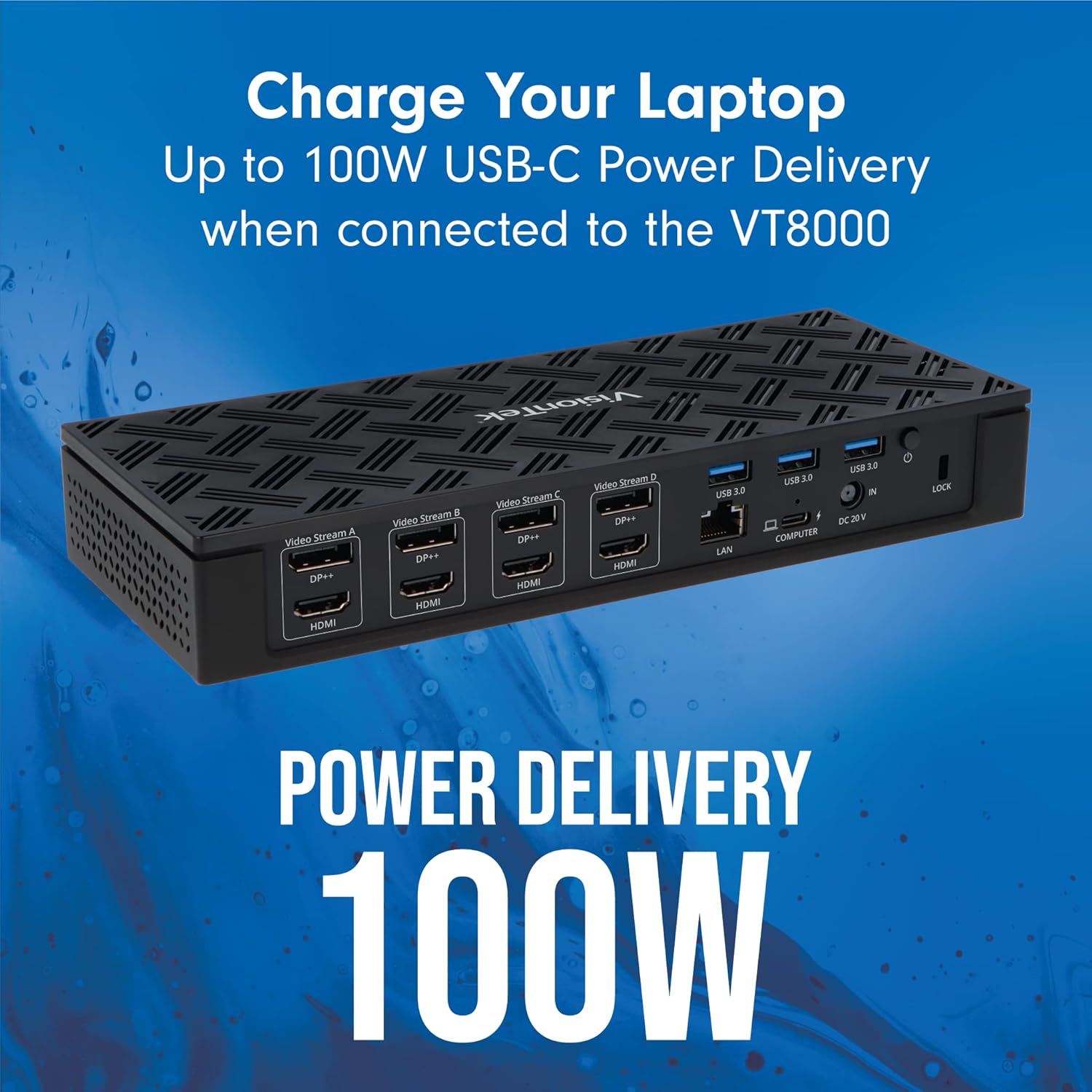
Image 4.2: The VT8000 docking station providing 100W USB-C Power Delivery to a connected laptop.
4.3. Uniwersalna kompatybilność
The docking station is designed for broad compatibility with Windows, macOS (including M1 Macs), and ChromeOS systems that have a USB-C or USB-A port (USB 3.0 or higher recommended for optimal performance).

Image 4.3: A laptop connected to the VT8000, illustrating its universal compatibility with various operating systems.
5. Konserwacja
To ensure the longevity and optimal performance of your VisionTek VT8000 docking station, follow these maintenance guidelines:
- Czyszczenie: Use a soft, dry, anti-static cloth to clean the exterior of the docking station. Avoid using liquid cleaners or aerosol sprays, which can damage the device.
- Wentylacja: Ensure the docking station is placed in a well-ventilated area to prevent overheating. Do not block the ventilation openings.
- Zarządzanie kablami: Utrzymuj kable w porządku, unikając zagięć i nadmiernego zginania, aby zapobiec uszkodzeniom kabli i portów.
- Składowanie: Jeśli stacja dokująca nie będzie używana przez dłuższy czas, należy odłączyć zasilacz i przechowywać ją w chłodnym, suchym miejscu.
6. Rozwiązywanie Problemów
If you encounter issues with your VT8000 docking station, refer to the following troubleshooting steps:
6.1. Brak wyjścia wyświetlacza
- Sprawdź połączenia: Ensure all display cables (HDMI/DisplayPort) are securely connected to both the docking station and the monitors.
- Sprawdź połączenie z hostem: Confirm the USB-C cable connecting the dock to your laptop is firmly seated.
- Cykl zasilania: Disconnect the power adapter from the docking station, wait 10 seconds, then reconnect it. Restart your computer.
- Kontrola sterownika: Ensure the latest DisplayLink drivers are installed and updated. Reinstall if necessary.
- Wejście monitora: Verify your monitors are set to the correct input source (HDMI or DisplayPort).
6.2. Intermittent Display or Device Disconnections
- Integralność kabla: Inspect all cables for damage. Try using different cables if available.
- Zasilanie: Ensure the 180W power adapter is correctly connected and providing stable power.
- Driver Stability: Outdated or corrupted DisplayLink drivers can cause instability. Update or reinstall drivers.
- MacBook Sleep Issues: Some users report display disconnection after a MacBook enters sleep mode. Restarting the MacBook often resolves this. Ensure your macOS is updated and DisplayLink drivers are current. Adjust power settings to prevent deep sleep if this issue persists.
6.3. No Power Delivery to Laptop
- Sprawdź zasilacz: Confirm the 180W power adapter is fully connected to the dock and a working power outlet.
- Kabel USB-C: Ensure you are using the provided USB-C to USB-C cable, which supports Power Delivery.
- Kompatybilność laptopa: Sprawdź, czy Twój laptop obsługuje technologię USB-C Power Delivery.
6.4. Problemy z łącznością sieciową
- Kabel Ethernet: Sprawdź połączenie kabla Ethernet zarówno ze stacją dokującą, jak i z routerem/modemem.
- Kontrola sterownika: Sprawdź, czy sterowniki sieciowe są poprawnie zainstalowane.
- Router/Modem: Uruchom ponownie sprzęt sieciowy.
7. Specyfikacje
| Funkcja | Specyfikacja |
|---|---|
| Numer modelu | VT8000 |
| Marka | VisionTek |
| Połączenie hosta | USB-C or USB-A (via adapter) |
| Wyjścia wideo | 4x HDMI, 4x DisplayPort (supports up to 4 displays simultaneously) |
| Maksymalna rozdzielczość | 4096 x 2160 @ 60Hz (Quad Display), 5120 x 2880 @ 60Hz (Dual Display on Windows) |
| Porty USB-A | 4x USB 3.0 (5 Gb/s) |
| Porty USB-C | 1x USB-C PD (30W for peripherals) |
| Dostarczanie mocy | Do 100 W do obsługi laptopa |
| Sieć Ethernetowa | 2.5 gigabitowy Ethernet |
| Audio | 1x Audio/Mic Combo Jack |
| Czytnik kart | Czytnik kart SD/Micro SD |
| Bezpieczeństwo | Gniazdo blokady Kensington |
| Systemy operacyjne | Windows 11, 10, 8.1, 7 | macOS 10.10 and later | ChromeOS |
| Wymiary (dł. x szer. x wys.) | 3.86 x 2.5 x 1.5 cala |
| Waga | 1 funt |
8. Gwarancja i wsparcie
8.1. Informacje o gwarancji
VisionTek products are covered by a manufacturer's warranty. For specific details regarding the warranty period and terms for your VT8000 docking station, please refer to the warranty card included with your product or visit the official VisionTek webZachowaj dowód zakupu na wypadek roszczeń gwarancyjnych.
8.2. Wsparcie techniczne
If you require technical assistance or have questions not covered in this manual, please contact VisionTek customer support. Support resources, including FAQs and contact information, can be found on the official VisionTek webstrona:
VisionTek Webstrona: www.visiontek.pl
When contacting support, please have your product model number (VT8000) and a detailed description of your issue ready.