
1. Wprowadzenie
Thank you for choosing the iPega PG-P4008 Wireless Game Controller. This manual provides detailed instructions on how to set up, operate, and maintain your controller. The PG-P4008 offers broad compatibility with PS4, PS3, Android (10.0+), iOS (13.0+), and Windows PC, connecting wirelessly via Bluetooth for an enhanced gaming experience.
2. Koniec produktuview
The iPega PG-P4008 is designed for versatile gaming across multiple platforms. It features a comfortable ergonomic design, responsive controls, and several advanced functionalities to immerse you in your games.
Główne cechy:
- Wireless Bluetooth connectivity (BT2.1+EDR) with up to 8 meters range.
- No driver installation required for connection.
- Integrated colored LED light indicator for operational status.
- Dual motors for realistic vibration feedback during gameplay.
- Built-in three-dimensional acceleration sensor and gyroscope sensor with six-axis induction.
- Integrated speaker and 3.5mm earphone jack for game audio.
- Dual-point capacitive touchpad for enhanced control.
- Compatible with PS4, PS3, Android (10.0+), iOS (13.0+), and Windows PC.
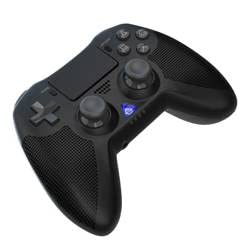
Obraz 1: Przód view of the iPega PG-P4008 Wireless Game Controller. This image displays the controller's ergonomic design, dual analog sticks, D-pad, action buttons, touchpad, and the central LED indicator.
3. Konfiguracja i połączenie
The PG-P4008 controller connects wirelessly via Bluetooth. Follow these steps to pair your controller with your device:
- Włączanie: Ensure the controller is charged. Press and hold the Przycisk PS (or equivalent power button) to turn on the controller.
- Tryb parowania:
- For PS4/PS3: Connect the controller to the console using a USB cable. Once recognized, you can disconnect the cable for wireless play. The connection method is similar to the official P4 controller.
- For Android/iOS: Activate Bluetooth on your mobile device. On the controller, press and hold the SHARE button + PS button simultaneously until the LED indicator flashes rapidly, indicating pairing mode. Select "PG-P4008" (or similar) from your device's Bluetooth list to connect.
- For Windows PC: Ensure your PC has Bluetooth capability. On the controller, press and hold the PS button + OPTIONS button simultaneously until the LED indicator flashes rapidly. On your PC, go to Bluetooth settings, add a new device, and select "PG-P4008" (or similar) to pair.
- Udane połączenie: Once connected, the LED indicator on the controller will change to a solid color, indicating a successful pairing.
Notatka: No additional driver software is required for operation. The controller supports a stable connection up to 8 meters.
4. Instrukcja obsługi
Wskaźnik LED:
The built-in colored LED light indicates the controller's operational status and player assignment, similar to the official PS4 controller. Different colors will signify different stages or player numbers.
Wibracje:
The controller features dual motors embedded in the handles, providing tactile vibration feedback to enhance your gaming immersion. This feedback will vary based on in-game events.
Panel dotykowy:
The dual-point capacitive touchpad allows for intuitive control in games that support touch input, offering an additional layer of interaction.
Audio Functionality:
Connect your 3.5mm earphones to the integrated jack on the controller to experience game audio directly, providing a private and immersive sound experience.
5. Konserwacja
- Keep the controller dry and away from moisture to prevent damage to internal components.
- Regularnie czyść kontroler miękką, suchą ściereczką. Unikaj stosowania silnych środków chemicznych i materiałów ściernych.
- Jeśli kontroler nie jest używany, przechowuj go w chłodnym i suchym miejscu.
- Unikaj wystawiania kontrolera na działanie ekstremalnych temperatur i bezpośredniego światła słonecznego.
- Do not attempt to disassemble or modify the controller, as this will void any potential warranty and may cause damage.
6. Rozwiązywanie Problemów
- Kontroler nie łączy się:
- Sprawdź, czy kontroler jest całkowicie naładowany.
- Sprawdź, czy Bluetooth jest włączony w Twoim urządzeniu.
- Upewnij się, że kontroler jest w odpowiednim trybie parowania dla Twojego urządzenia (patrz Rozdział 3).
- Spróbuj ponownie uruchomić kontroler i urządzenie.
- Usuń poprzednie sparowania z listy Bluetooth swojego urządzenia i spróbuj sparować ponownie.
- Opóźnienie lub rozłączenie sygnału wejściowego:
- Upewnij się, że znajdujesz się w promieniu 8 metrów.
- Zminimalizuj zakłócenia ze strony innych urządzeń bezprzewodowych.
- Check for any physical obstructions between the controller and the device.
- Wibracje nie działają:
- Upewnij się, że gra, w którą grasz, obsługuje funkcję wibracji.
- Sprawdź ustawienia gry i upewnij się, że wibracje są włączone.
- Audio not working via 3.5mm jack:
- Ensure your earphones are properly plugged in.
- Check the volume settings on your device and in-game.
- Test with another pair of earphones to rule out earphone issues.
7. Specyfikacje
| Numer modelu | PG-P4008 |
| Marka | iPega |
| Łączność | Bluetooth (BT2.1+EDR) |
| Zasięg bezprzewodowej | Do 8 metrów |
| Kompatybilne urządzenia | PS4, PS3, Android (10.0+), iOS (13.0+), Windows PC |
| Cechy specjalne | Wireless, Touchpad, Vibration, 6-axis Gyroscope, Built-in Speaker, 3.5mm Audio Jack |
| Ilość przycisków | 17 |
| Źródło zasilania | Zasilany bateryjnie |
8. Gwarancja i wsparcie
Informacje dotyczące gwarancji produktu i obsługi klienta nie znajdują się w niniejszej instrukcji. Prosimy o zapoznanie się z opakowaniem produktu lub informacjami u sprzedawcy. webWięcej szczegółów na temat zakresu gwarancji oraz sposobu kontaktowania się z obsługą klienta w celu uzyskania pomocy znajdziesz na tej stronie.