
1. Wprowadzenie
This manual provides comprehensive instructions for the HP LaserJet MFP M140w, a compact multifunction monochrome laser printer designed for efficient printing, scanning, and copying. It features Wi-Fi, Wi-Fi Direct, and USB 2.0 connectivity, offering a print speed of up to 20 pages per minute (ppm).

Obraz 1.1: Przód view of the HP LaserJet MFP M140w printer.
2. Informacje dotyczące bezpieczeństwa
Przed użyciem drukarki należy przeczytać wszystkie instrukcje bezpieczeństwa, aby zapobiec uszkodzeniom lub obrażeniom. Zachowaj tę instrukcję na przyszłość.
- Drukarkę należy ustawić na stabilnej i równej powierzchni.
- Należy zapewnić odpowiednią wentylację wokół drukarki.
- Używaj wyłącznie przewodu zasilającego dołączonego do drukarki.
- Nie wystawiaj drukarki na działanie wody ani nadmiernej wilgotności.
- Podczas pracy trzymaj ręce z dala od ruchomych części.
- Only use original HP toner cartridges to ensure optimal performance and avoid potential damage.
3. Zawartość opakowania
Sprawdź, czy w opakowaniu znajdują się wszystkie elementy:
- Drukarka HP LaserJet MFP M140w
- Original HP Toner Cartridge
- Przewód zasilający
- Przewodnik po konfiguracji
4. Konfiguracja
4.1 Rozpakowywanie i umieszczanie
- Wyjmij drukarkę z opakowania i usuń wszystkie taśmy ochronne oraz materiały opakowaniowe.
- Umieść drukarkę na płaskiej, stabilnej powierzchni.
4.2 Instalacja wkładu z tonerem
- Otwórz drzwiczki dostępu do tonera.
- Remove the new toner cartridge from its packaging and gently shake it to distribute the toner.
- Insert the cartridge into the printer until it clicks into place.
- Zamknij drzwiczki dostępu do tonera.
4.3 Ładowanie papieru
- Wyciągnij zasobnik wejściowy.
- Adjust the paper guides to the correct paper size (e.g., A4).
- Load up to 150 sheets of paper into the input tray.
- Wsuń podajnik wejściowy z powrotem do drukarki.

Image 4.1: The printer with paper loaded and ready for use.
4.4 Połączenie zasilania
- Podłącz przewód zasilający do drukarki, a następnie do gniazdka ściennego.
- Naciśnij przycisk zasilania, aby włączyć drukarkę.
4.5 Instalacja oprogramowania i łączność
For full functionality, install the HP Smart App on your computer or mobile device. The app guides you through connecting the printer to your network.
- Łączność Wi-Fi: The printer supports dual-band Wi-Fi with automatic reset. Follow the on-screen instructions in the HP Smart App to connect to your wireless network.
- Wi-Fi Direct: This feature allows direct connection from your mobile device to the printer without a router. Consult the HP Smart App for setup.
- USB 2.0: Podłącz drukarkę bezpośrednio do komputera za pomocą kabla USB 2.0 (nie jest dołączony do zestawu).
- Bluetooth: The printer supports Bluetooth connectivity for certain functions.
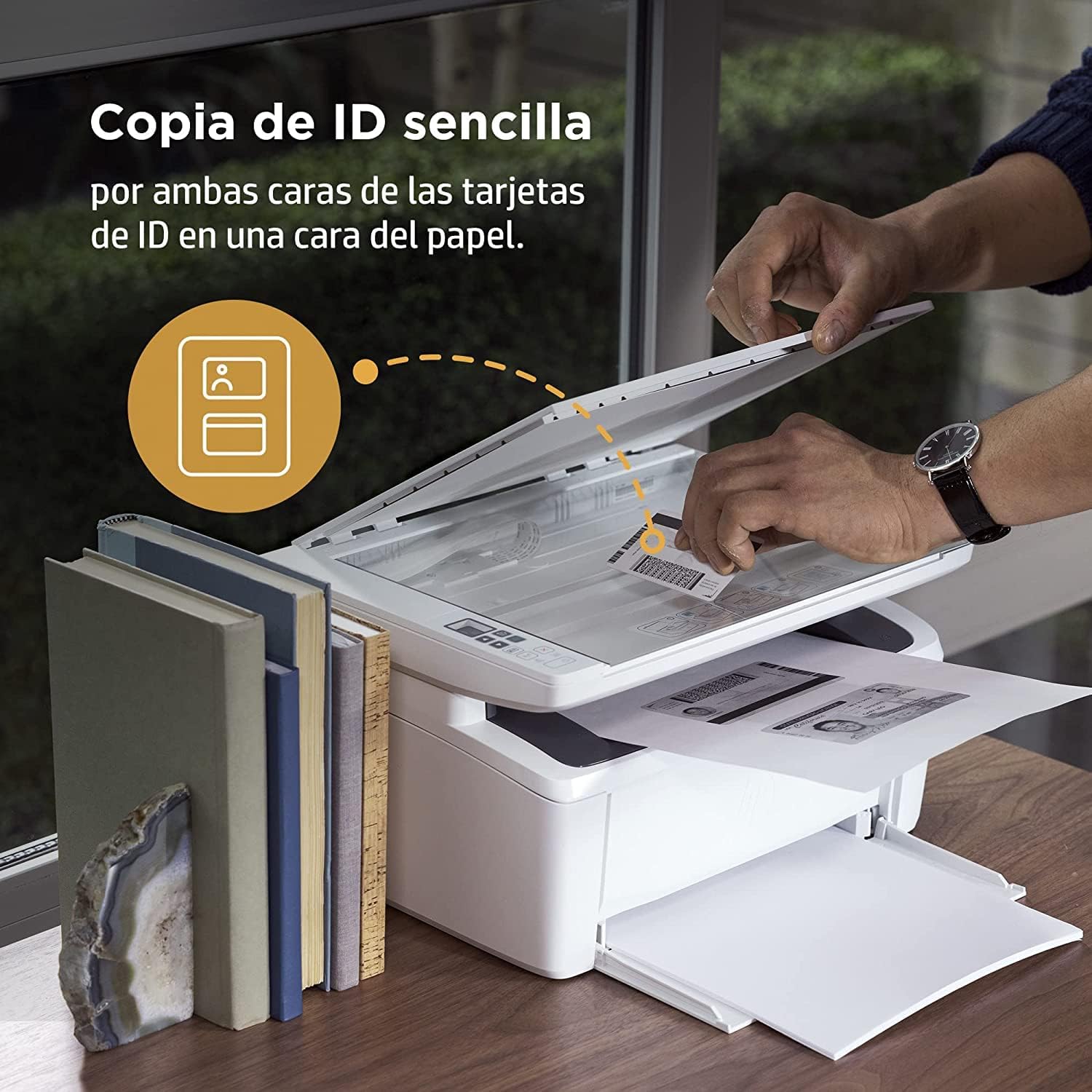
Image 4.2: The compact HP LaserJet MFP M140w printer with a mobile device displaying the HP Smart App interface.
5. Instrukcja obsługi
5.1 Drukowanie
The HP LaserJet MFP M140w prints at speeds up to 20 ppm in monochrome. It supports A4 paper size.
- Z komputera: Select the HP LaserJet MFP M140w from your printer list in any application. Adjust print settings as needed (e.g., paper size, quality).
- Z urządzenia mobilnego (aplikacja HP Smart): Use the HP Smart App to easily print documents and photos directly from your smartphone or tablet.
- Ręczne drukowanie dwustronne: For two-sided printing, the printer supports manual duplex. Follow the prompts on your computer or the HP Smart App to reinsert the paper to print the second side.
5.2 Skanowanie
The printer features a flatbed scanner for digitizing documents and images.
- Podnieś pokrywę skanera.
- Place the document face down on the scanner glass, aligning it with the guides.
- Zamknij pokrywę skanera.
- Initiate the scan from your computer or the HP Smart App. You can choose scan settings such as resolution and file format.
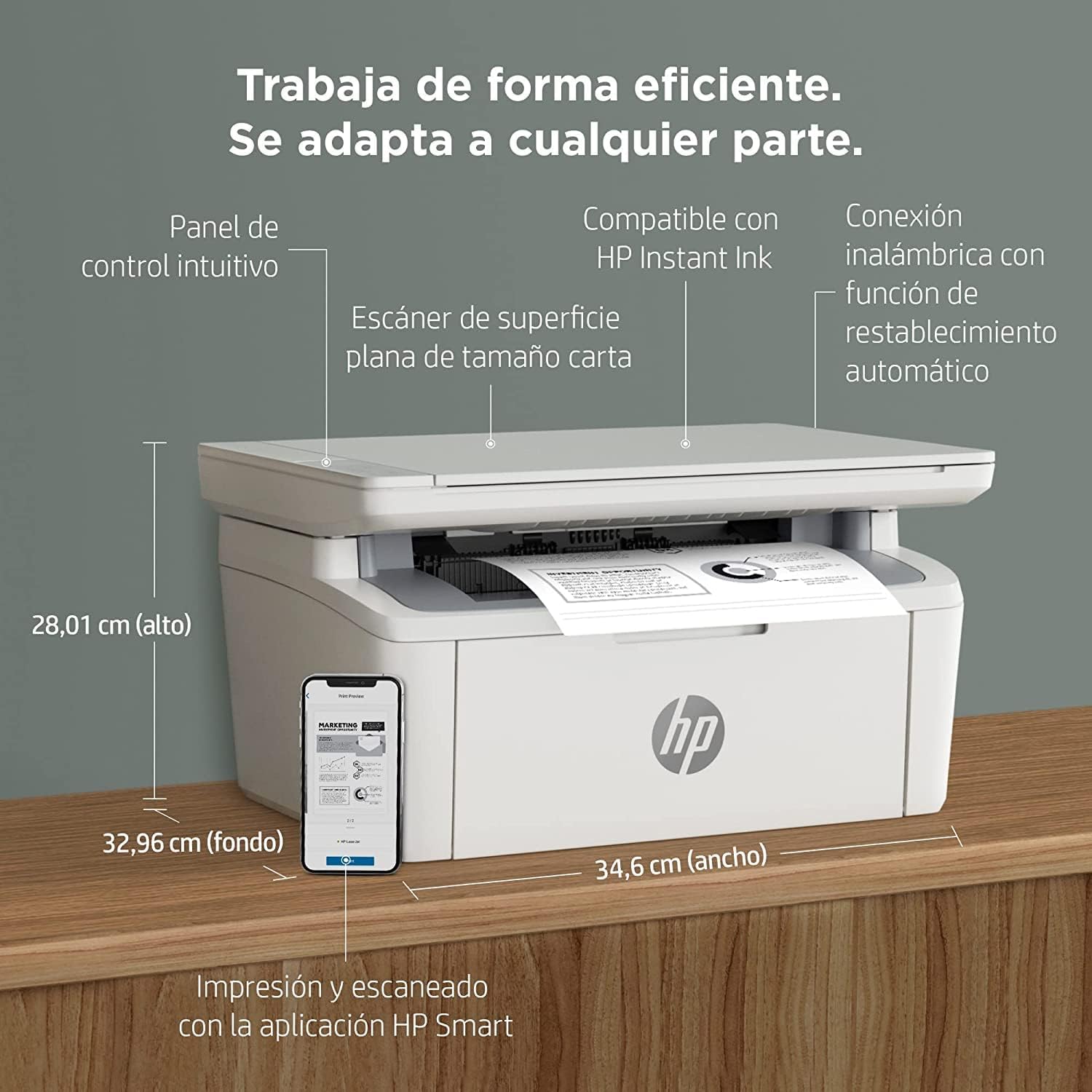
Image 5.1: Using the scanner for ID card copying.
5.3 Kopiowanie
The printer can make up to 150 copies per job.
- Umieść oryginalny dokument na szybie skanera.
- Use the control panel on the printer or the HP Smart App to select the number of copies and start the copying process.
- ID Copy Function: This feature allows you to copy both sides of an ID card onto a single side of paper. Follow the instructions on the printer's control panel or the HP Smart App.
6. Konserwacja
6.1 Wymiana wkładu z tonerem
When the toner level is low, replace the cartridge with an original HP 142A Black (W1420A) toner cartridge. Using non-HP cartridges may void your warranty and affect print quality.
- Otwórz drzwiczki dostępu do tonera.
- Remove the old toner cartridge.
- Unpack the new HP 142A toner cartridge and gently shake it.
- Włóż nowy wkład, aż zatrzaśnie się na miejscu.
- Zamknij drzwiczki dostępu do tonera.
6.2 Czyszczenie drukarki
Regularne czyszczenie pomaga zachować jakość druku i wydłuża żywotność drukarki.
- Przetrzyj zewnętrzną część drukarki miękką, niepozostawiającą włókien ściereczką.
- Wyczyść szybę skanera miękką ściereczką.ampPrzemyć płynem do czyszczenia szyb (środek nanosić na ściereczkę, nie bezpośrednio na szkło).
- Refer to the HP Smart App or HP support website for specific cleaning instructions for internal components.
6.3 aktualizacji oprogramowania sprzętowego
HP periodically releases firmware updates to improve printer performance and security. Ensure your printer is connected to the internet and check for updates via the HP Smart App or the printer's embedded web serwer.
7. Rozwiązywanie Problemów
W tej sekcji opisano typowe problemy, jakie mogą wystąpić podczas korzystania z drukarki HP LaserJet MFP M140w.
7.1 Problemy z łącznością
- Drukarka nie została znaleziona w sieci: Ensure the printer is powered on and connected to the correct Wi-Fi network. Use the HP Smart App's troubleshooting tools or try resetting the Wi-Fi connection on the printer.
- Wi-Fi connection drops: The printer features dual-band Wi-Fi with automatic reset. If issues persist, ensure your router is functioning correctly and the printer is within range.
- USB connection not recognized: Verify the USB cable is securely connected to both the printer and the computer. Try a different USB port or cable.
7.2 Problemy z drukowaniem
- Brak wydruku: Check if the printer is online and there are no error messages. Ensure paper is loaded correctly and the toner cartridge is installed.
- Słaba jakość wydruku: Replace the toner cartridge if it's low. Ensure you are using original HP toner. Clean the printer if necessary.
- Zacięcia papieru: Follow the instructions on the printer's display or in the HP Smart App to clear any jammed paper. Ensure paper is loaded correctly and not overfilled.
7.3 Scanning/Copying Issues
- Skaner nie odpowiada: Ensure the scanner lid is fully closed and the document is placed correctly. Restart the printer and your computer/mobile device.
- Poor scan/copy quality: Clean the scanner glass. Ensure the original document is clean and flat.
7.4 Toner Cartridge Issues
The printer is designed to work exclusively with original HP toner cartridges. Firmware updates may affect the functionality of non-HP cartridges. If you experience issues with a non-HP cartridge, replace it with an original HP cartridge.
8. Specyfikacje
| Funkcja | Specyfikacja |
|---|---|
| Nazwa modelu | M140w |
| Numer modelu produktu | 7MD72F |
| Funkcje | Drukowanie, skanowanie, kopiowanie |
| Technologia druku | Laser |
| Wyjście druku | Monochromia |
| Prędkość drukowania (monochromatyczna) | Do 20 ppm |
| Maksymalna rozdzielczość druku (monochromatyczny) | 1200 dpi |
| Drukowanie dwustronne | Podręcznik |
| Typ skanera | Platforma |
| Maksymalna pojemność arkuszy wejściowych | 150 arkuszy |
| Max Copies per Run | 150 |
| Łączność | Wi-Fi (Dual-band, auto-reset), Wi-Fi Direct, USB 2.0, Bluetooth |
| Prędkość procesora | 500MHz |
| Pamięć | 64 MB |
| Kompatybilne systemy operacyjne | Mac OS 10.15 Catalina (and later), Android |
| Wymiary (szer. x gł. x wys.) | 34.6 x 32.96 x 28.01 cm (w przybliżeniu) |
| Waga | 5.4 kilogramów |
| Pobór mocy | 60 Kilowatts (operating), 3600.0 Watts (peak) |
| Kompatybilny toner | HP 142A Black (W1420A) |
9. Gwarancja i wsparcie
9.1 Informacje o gwarancji
The product includes a 2-year availability of spare parts in the EU. For specific warranty terms and conditions, please refer to the documentation provided with your printer or visit the official HP support webstrona.
9.2 Aktualizacje oprogramowania
Software updates are guaranteed until April 13, 2030. These updates ensure continued functionality and security for your printer.
9.3 Obsługa klienta
Aby uzyskać dalszą pomoc, wsparcie techniczne lub dostęp do dodatkowych zasobów, odwiedź oficjalną stronę pomocy technicznej HP website or use the HP Smart App. The HP Smart App provides guided troubleshooting and access to support documentation.
Więcej informacji i wsparcia znajdziesz na stronie Wsparcie HP Webstrona.