
Wstęp
The ACASIS 10-in-1 USB C Hub with NVMe Enclosure is a versatile multiport adapter designed to expand the connectivity and storage capabilities of your USB-C enabled devices. This manual provides detailed instructions for setup, operation, and maintenance to ensure optimal performance.
Zawartość opakowania
- 10-in-1 USB C Hub with SSD Enclosure
- Kabel typu C
- Pokrywa silikonowa
- Podkładka termiczna
- Gumowa przelotka
- Instrukcja obsługi
Produkt ponadview
The ACASIS 10-in-1 hub integrates multiple essential ports and an M.2 SSD enclosure into a compact device. It supports various operating systems including Windows, Mac OS, Linux, and Chromebook OS.
Główne cechy:
- Obudowa dysku SSD M.2 NVMe/SATA: Compatible with M.2 NVMe and SATA SSDs (2230, 2242, 2260, 2280 sizes) up to 8TB storage, offering up to 1000MB/s transfer speeds.
- Wyjście HDMI: Supports 4K@60Hz external display.
- Gigabit Ethernet: Provides stable 1000Mbps network connectivity.
- Porty USB: Includes 1x USB 3.1 (10Gbps), 1x USB 3.0 (5Gbps), and 1x Type-C 3.1 (10Gbps) data transfer port.
- Dostarczanie mocy (PD): Up to 100W fast charging for your host device.
- Czytniki kart: Dedicated SD and Micro SD (TF) card slots.
- Port audio: 3.5mm audio and microphone 2-in-1 jack.

Rysunek 1: Koniecview of the ACASIS 10-in-1 USB C Hub with all ports labeled, including HDMI 4K60Hz, Gigabit Ethernet, M.2 NVMe/SATA SSD slot, TF/SD Card readers, 3.5mm Audio, Type-C 3.1 (10Gbps), USB 3.1 (10Gbps), USB 3.0 (5Gbps), PD 100W, and PC Type-C host connection.
Video 1: ACASIS: Swappable Hi-Speed SSD Storage & 10-In-1 Hub. This video showcases the key features of the ACASIS hub, including its SSD enclosure, various ports, and compact design.
Organizować coś
M.2 SSD Installation (Tool-Free)
- Detach the Lid: Slide the lid of the SSD enclosure through the groove to open it.
- Załóż podkładkę termiczną: Stick the thermal pad onto the top of your M.2 SSD.
- Włóż dysk SSD: At a 45-degree angle, slide your SSD into the slot until it is fully seated and aligned with the edge.
- Bezpieczny dysk SSD: Fix the SSD with the provided rubber grommet.
- Załóż ponownie pokrywę: Slide the lid back onto the SSD enclosure until it clicks into place.
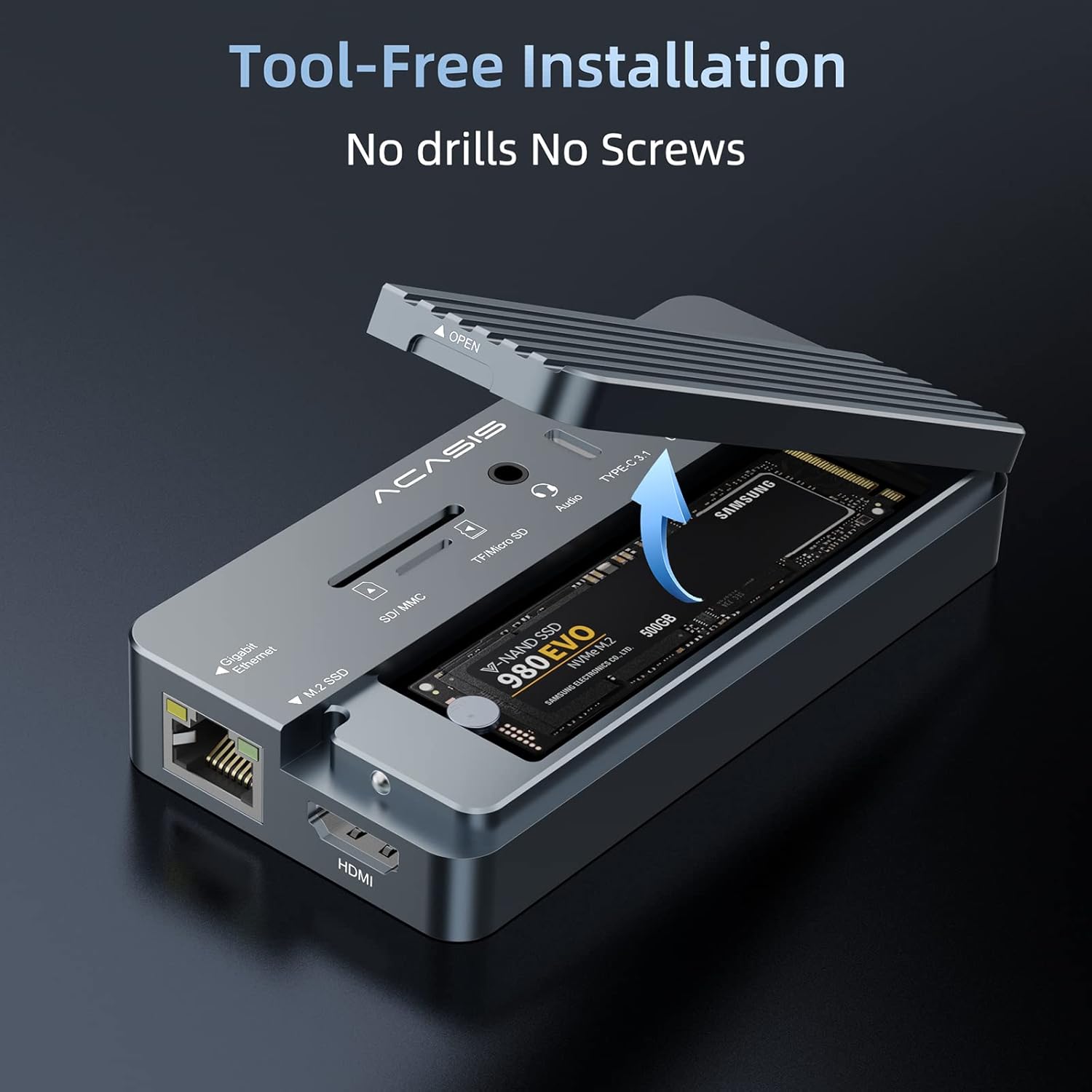
Figure 2: Step-by-step guide for installing an M.2 SSD into the enclosure, highlighting the groove for lid removal, thermal pad application, SSD insertion, and securing with a rubber grommet.
Connecting to Your Host Device
- Connect the "PC" USB-C port of the hub to your computer (laptop, Mac, iPad, etc.) using the accessory USB-C to C data cable.
- For large power consumption devices connected to the hub (e.g., multiple external hard drives, high-power SSDs), please plug a power adapter (up to 100W Max) into the "PD" port. This ensures stable operation and prevents instability. A phone/laptop charger can be used for this purpose.
- For HDMI functionality, ensure your laptop's USB-C 3.1 Gen 2 / USB-C 3.2 / Thunderbolt 3 port supports DisplayPort Alt Mode.

Figure 3: The ACASIS hub connected to a laptop, demonstrating its use as a central docking station for multiple peripherals and an external display.
Instrukcja obsługi
Korzystanie z portów
- USB Ports (USB 3.1, USB 3.0, Type-C 3.1): Connect your USB peripherals such as keyboards, mice, printers, and external drives. Ensure proper port selection for optimal speed (10Gbps for USB 3.1/Type-C 3.1, 5Gbps for USB 3.0).
- Port HDMI: Connect an HDMI cable from the hub to an external monitor or TV for 4K@60Hz video output.
- Port Gigabit Ethernet: Connect an Ethernet cable for a stable and fast wired network connection (up to 1000Mbps).
- Gniazda kart SD/TF: Insert SD or Micro SD cards to read and transfer data. The hub supports simultaneous reading of both card types.
- Port audio 3.5 mm: Podłącz słuchawki, głośniki lub mikrofon.
Przesyłanie danych
The integrated M.2 SSD enclosure and USB 3.1 ports offer high-speed data transfer. For example, 10GB files can be transferred in approximately 10 seconds with compatible SSDs and host connections.

Figure 4: The ACASIS hub illustrating its high-speed data transfer capabilities, reaching up to 10Gbps.
Dostarczanie mocy
The PD port supports up to 100W power delivery, allowing you to charge your laptop or other compatible devices while using the hub. This is crucial when connecting multiple power-hungry peripherals.

Figure 5: The ACASIS hub connected to a laptop and a 100W power adapter, demonstrating its Power Delivery feature.
Zgodność
The ACASIS 10-in-1 USB C Hub is widely compatible with various operating systems and devices:
- Windows 10 i nowsze
- Mac OS 10.3 i nowsze
- Linux
- Chromebook OS
- Android

Figure 6: The ACASIS hub demonstrating universal compatibility with various operating systems and devices.
Konserwacja
- Keep the device in a dry environment and avoid exposure to extreme temperatures.
- Czyść zewnętrzną część miękką, suchą ściereczką. Unikaj płynnych środków czyszczących.
- When transporting, use the provided silicone cover to protect the hub from scratches and impacts.
Rozwiązywanie problemów
- Unstable Operation/SSD Issues: If the hub or connected SSDs operate unstably, ensure an external power adapter (up to 100W) is plugged into the "PD" port. High-power consumption devices may require additional power.
- HDMI Display Not Working: Sprawdź, czy port USB-C Twojego laptopa obsługuje tryb DisplayPort Alt Mode.
- Dysk SSD nie został rozpoznany: Ensure the SSD is correctly installed and seated in the enclosure. Check if the SSD is properly formatted for your operating system.
- Powolny transfer danych: Ensure you are using USB 3.1/Type-C 3.1 compatible ports and cables for maximum speed. Older USB standards will result in slower transfers.
- Przegrzanie: Aluminium casing is designed for heat dissipation. Ensure the thermal pad is correctly installed on the SSD. If overheating persists, reduce the load or ensure adequate ventilation.
Video 2: ACASIS 10-IN-1 USB HUB with SSD Enclosure. This video provides a quick overview of the product's features and demonstrates its compact design and various ports, which can be helpful for visual troubleshooting.
Specyfikacje
| Nazwa produktu | 10-in-1 USB C Hub with SSD Enclosure |
| Numer modelu | AC-CM073 |
| Interfejs hosta | Typ C |
| Tworzywo | Stop aluminium |
| Wymiary produktu | 4.41" dł. x 2.2" szer. x 0.75" wys. (113*56*19 mm) |
| Waga przedmiotu | 5.1 uncji (145 grama) |
| Obsługiwane dyski SSD | NVMe (M Key), SATA (B/B&M Key) | Sizes: 22*30/22*42/22*60/22*80mm |
| Obsługiwane systemy | Windows 10, Linux, Mac OS 10.3 or higher |
| Łączna liczba portów USB | 5 (including Type-C data port) |
| Wszystkie porty HDMI | 1 |
| Cotage (PD) | 100W Max |
Gwarancja i wsparcie
ACASIS offers a 365-day money-back guarantee for this product. For any inquiries, technical assistance, or support, please contact ACASIS customer service:
- E-mail: wsparcie@acasis.com
- Webstrona: www.acasis.com