Wstęp
The Logitech Signature M650 Wireless Mouse is designed for enhanced productivity and comfort. Featuring an adaptive SmartWheel for precise and fast scrolling, silent clicks with SilentTouch technology, and customizable side buttons, it offers a versatile and quiet user experience. This mouse connects wirelessly via Bluetooth Low Energy or the Logi Bolt USB receiver, making it compatible with a wide range of operating systems including PC, Mac, and Chromebook.
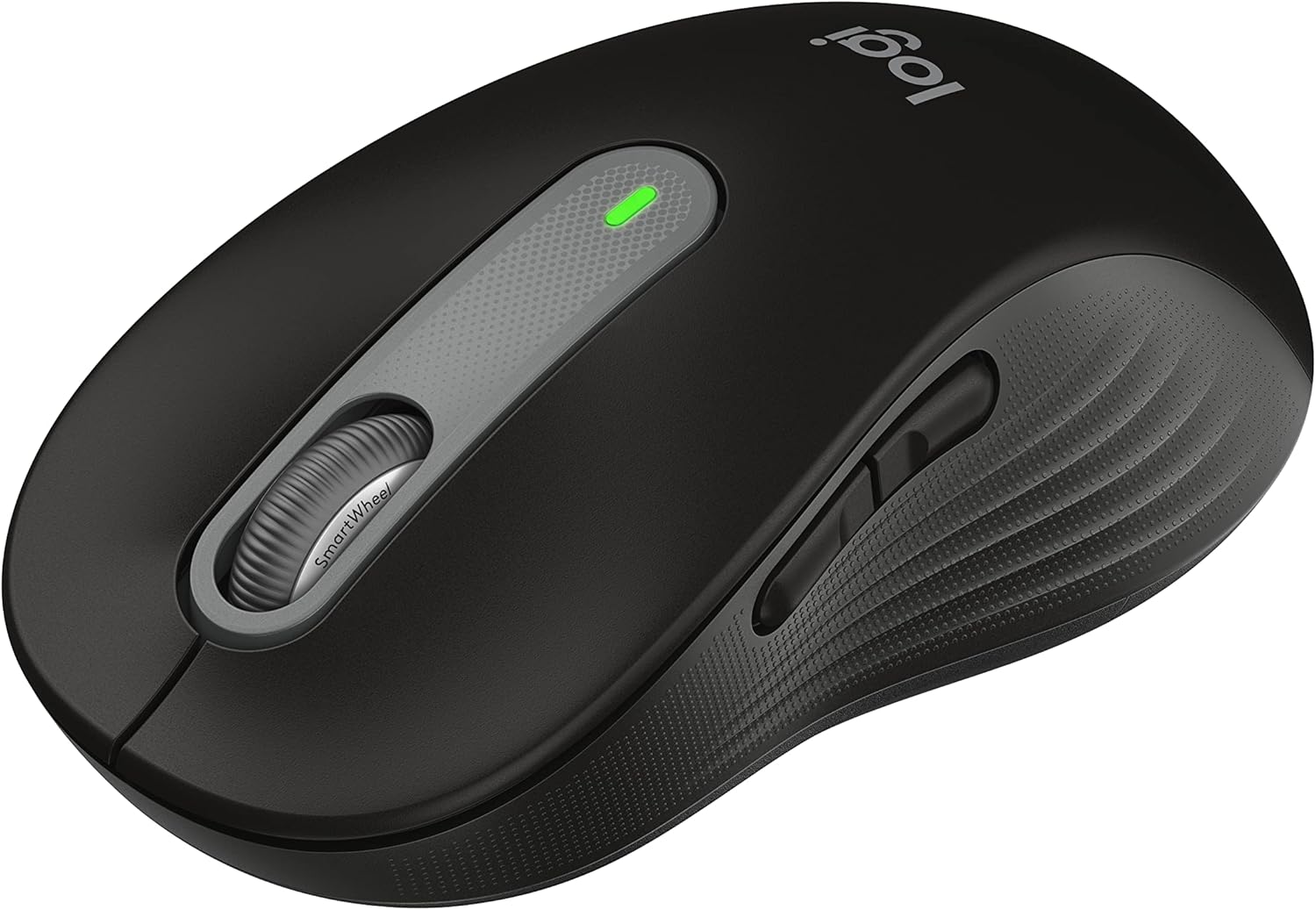
Figure 1: Logitech Signature M650 Wireless Mouse (Black)
Organizować coś
1. Rozpakowanie i wstępna inspekcja
Carefully remove all components from the packaging. Ensure the mouse and the Logi Bolt USB receiver are present. The mouse comes with a pre-installed battery.

Figure 2: Logitech Signature M650 Packaging
2. Podłączanie myszy
The Signature M650 offers two connection methods: Logi Bolt USB receiver or Bluetooth Low Energy.
Option A: Logi Bolt USB Receiver
- Remove the Logi Bolt USB receiver from the mouse's battery compartment.
- Podłącz odbiornik USB Logi Bolt do wolnego portu USB w komputerze.
- Turn on the mouse using the power switch located on the bottom. The LED indicator should turn solid green, indicating a successful connection.
Option B: Bluetooth Low Energy
- Włącz mysz za pomocą wyłącznika zasilania znajdującego się na spodzie urządzenia.
- Press and hold the connect button on the bottom of the mouse until the LED indicator starts blinking rapidly, indicating pairing mode.
- On your computer, open Bluetooth settings and select the Logitech Signature M650 from the list of available devices to pair.

Figure 3: Connect via Bluetooth or Logi Bolt USB receiver
3. Installing Logitech Options+ Software
To unlock the full potential of your Signature M650, including customizable buttons and advanced SmartWheel settings, download and install the Logitech Options+ software from the official Logitech webStrona (www.logitech.com/optionsplus). This software is available for Windows and macOS.
Instrukcja obsługi
1. Podstawowe funkcje myszy
- Lewy przycisk myszy: Podstawowa akcja: selekcja.
- Kliknij prawym przyciskiem myszy: Menu kontekstowe.
- Kółko przewijania: Przewijanie w pionie.
2. SmartWheel Scrolling
The SmartWheel automatically switches between two modes:
- Dokładność wiersz po wierszu: Ideal for detailed work and navigating documents.
- Super-Fast Free Spin: For quickly scrolling through long web pages or spreadsheets. Simply flick the wheel to activate.

Figure 4: Precision and speed scrolling with SmartWheel
3. Dostosowywalne przyciski boczne
The two side buttons on your Signature M650 can be customized using the Logitech Options+ software. You can assign them to various shortcuts such as back/forward navigation, copy/paste, or other functions to enhance your workflow.

Figure 5: Customize buttons to your favorite shortcuts
4. SilentTouch Technology
The Signature M650 features SilentTouch technology, which reduces clicking noise by 90% compared to traditional mice. This allows for a quieter work environment, minimizing distractions for you and those around you.

Figure 6: 90% less clicking noise with SilentTouch technology
5. Ergonomics and Sizing
The mouse is designed for comfort during long hours of use, featuring a contoured shape, soft thumb area, and rubber side grips. The M650 is available in different sizes to accommodate various hand sizes, ensuring an optimal fit.

Figure 7: Designed for small-to-medium sized hands

Figure 8: Comfort shape and feel with rubber side grips

Figure 9: Available in two sizes (M650 and M650 L)
Konserwacja
1. Wymiana baterii
The Logitech Signature M650 boasts a 24-month battery life, which may vary based on usage. When the battery is low, the LED indicator on the mouse will turn red. To replace the battery:
- Znajdź komorę baterii na spodzie myszy.
- Otwórz pokrywę komory.
- Wyjmij starą baterię AA.
- Włóż nową baterię AA, zwracając uwagę na prawidłową biegunowość.
- Dokładnie zamknij pokrywę komory baterii.
2. Instrukcje czyszczenia
Aby zachować optymalną wydajność i wygląd myszy, należy ją regularnie czyścić:
- Użyj miękkiej, niestrzępiącej się szmatki dampwodą lub łagodnym roztworem czyszczącym.
- Unikaj stosowania silnych środków chemicznych, ściernych środków czyszczących i rozpuszczalników.
- Nie zanurzaj myszy w wodzie ani żadnym płynie.
- Clean the optical sensor on the bottom of the mouse with a dry cotton swab to ensure accurate tracking.
Rozwiązywanie problemów
| Problem | Możliwa przyczyna | Rozwiązanie |
|---|---|---|
| Mysz nie reaguje | Low battery; Receiver unplugged; Bluetooth not paired. | Replace battery; Re-insert Logi Bolt receiver; Re-pair Bluetooth connection. |
| Nieregularny ruch kursora | Zabrudzony czujnik optyczny; Nieodpowiednia powierzchnia. | Clean optical sensor; Use on a clean, non-reflective surface or mouse pad. |
| Przyciski boczne nie działają | Logitech Options+ not installed or configured. | Install Logitech Options+ software and customize button assignments. |
For further assistance, please refer to the official Logitech support website or the User Guide PDF.
Wideo 1: Produkt w całościview Wideo. Ten film przedstawia ogólny przeglądview of the Logitech Signature M650 Wireless Mouse, demonstrating its key features and design.
Specyfikacje
- Model: M650 (910-006268)
- Łączność: Bluetooth Low Energy, Logi Bolt USB Receiver (Radio Frequency)
- Technologia wykrywania ruchu: Optyczny
- Czas pracy baterii: Up to 24 months (may vary based on user and computing conditions)
- Źródło zasilania: 1 baterie AA (w zestawie)
- Ciche kliknięcia: Yes, with SilentTouch Technology (90% less click noise)
- Konfigurowalne przyciski: Yes, via Logitech Options+ software
- SmartWheel: Yes, adaptive scroll
- Ergonomia: Contoured shape, soft thumb area, rubber side grips
- Wymiary (dł. x szer. x wys.): 4.22 x 2.43 x 0.1 inches (approximate, for Small-Medium size)
- Waga: 3.57 uncji (w przybliżeniu)
- Zgodność platformy sprzętowej: PC, Linux, Mac
- Zgodność z systemem operacyjnym: Linux, Chrome OS, Windows, macOS
- Tworzywo: Made with recycled plastic (specific percentage may vary by color/model)
- Kraj pochodzenia: Chiny
- Pierwsza dostępna: 11 stycznia 2022 r.
Gwarancja i wsparcie
Produkty Logitech zazwyczaj objęte są ograniczoną gwarancją na sprzęt. Aby uzyskać szczegółowe informacje na temat gwarancji, rejestracji i pomocy technicznej, odwiedź oficjalną stronę pomocy technicznej Logitech. webodwiedź witrynę lub zapoznaj się z dokumentacją dołączoną do produktu.
You can also download the full User Guide in PDF format from the following link: Logitech Signature M650 User Guide (PDF)
For software downloads and advanced customization, visit: Opcje Logitech+