
TERIOS TERIOS 5S
Instrukcja obsługi kontrolera bezprzewodowego TERIOS
Model: TERIOS 5S (ASIN: B09KLR5DCZ)
Wstęp
This user manual provides comprehensive instructions for the TERIOS Wireless Controller, designed for an enhanced gaming experience. This controller is compatible with PlayStation 4, PS4 Pro, and PS4 Slim consoles.

Obraz: Przód view of the green TERIOS Wireless Controller, showcasinze względu na ergonomiczną konstrukcję i układ przycisków.
Co jest w pudełku
Po otwarciu opakowania należy sprawdzić, czy znajdują się w nim wszystkie poniższe elementy:
- 1 x TERIOS Wireless Controller
- 1 x kabel ładujący USB
- 1 x Controller User Manual (this document)

Image: The TERIOS Wireless Controller, USB charging cable, and user manual laid out, representing the package contents.
Cechy produktu
The TERIOS Wireless Controller is equipped with several features designed to enhance your gaming experience:
- Połączenie bezprzewodowe: Connects wirelessly to your PS4 console via Bluetooth 4.2 for a stable connection up to 8 meters.
- Built-in Speaker & Headset Jack: Features an integrated speaker and a 3.5mm stereo headset jack for immersive audio.
- Multitouch Pad: A central multitouch pad expands gaming possibilities and interaction.
- Przycisk udostępniania: Allows for live-streaming and sharing gameplay moments without interrupting your session.
- Podwójne gałki analogowe: Provides pinpoint accuracy and enhanced sensitivity for precise control.
- Double Shock Vibration: Integrated motors provide haptic feedback for an immersive gaming experience.
- Funkcja Turbo: Enables rapid-fire functionality for certain in-game actions.
- Akumulator: Equipped with a 1000mAh lithium battery, offering 10-12 hours of continuous use on a single charge.
- Ergonomiczna konstrukcja: Conforms to the palm structure for comfortable extended gaming sessions.

Obraz: Zbliżenie views highlighting the built-in speaker, share button, and multitouch pad functionalities of the controller.

Image: Visuals illustrating the Bluetooth 4.2 connection, ergonomic design for comfortable grip, and the placement of advanced gaming buttons.

Image: The controller with a visual emphasis on its dual analog sticks, indicating their role in providing a better gaming experience.
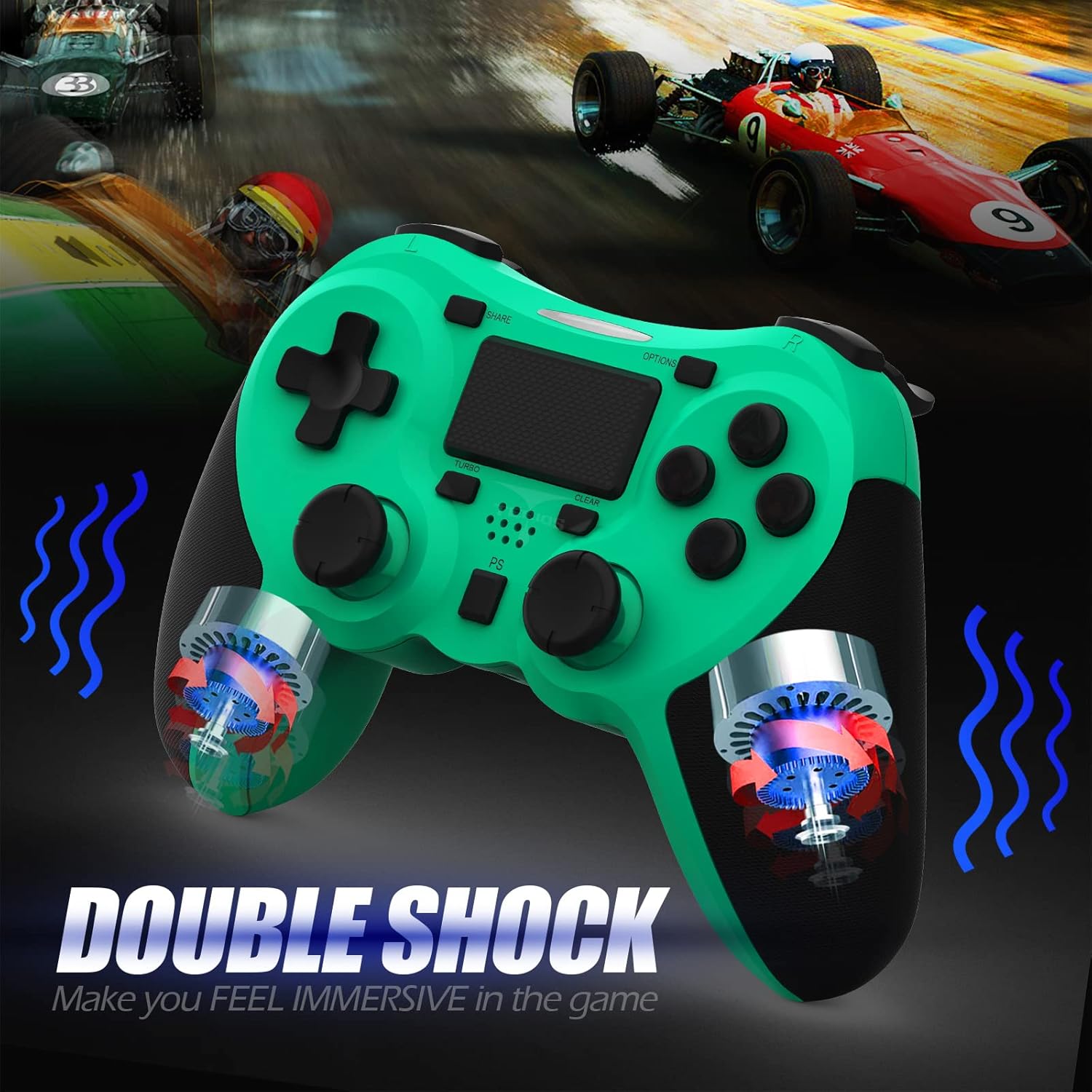
Obraz: Wnętrze view of the controller highlighting the double shock vibration motors, designed to provide immersive haptic feedback.
Przewodnik po konfiguracji
1. Ładowanie początkowe
Before first use, fully charge the controller. Connect the supplied USB charging cable to the controller's micro USB port and the other end to a USB port on your PlayStation 4 console or a compatible USB wall adapter.
- Czas ładowania: Pełne naładowanie zajmuje około 2–3 godzin.
- Battery Life: Up to 10-12 hours of continuous gameplay.
- Czas czuwania: do 30 dni.
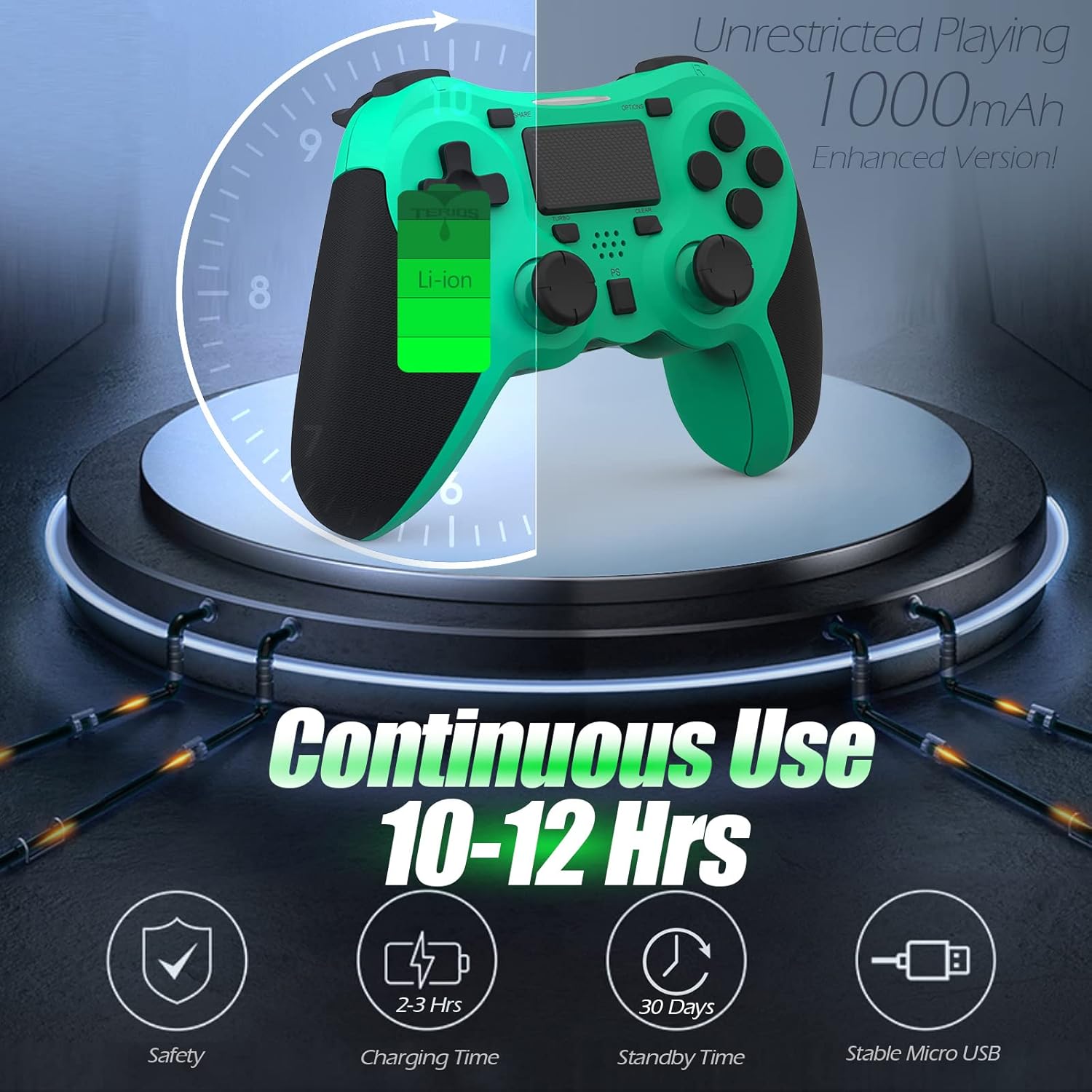
Image: A visual representation of the controller's 1000mAh battery, indicating 10-12 hours of continuous use, 2-3 hours charging time, and 30 days standby time.
2. Parowanie z PlayStation 4
Aby sparować kontroler z konsolą PS4:
- Sprawdź, czy konsola PS4 jest włączona.
- Podłącz kontroler do konsoli PS4 za pomocą kabla ładującego USB.
- Naciśnij Przycisk PS (located in the center of the controller). The light bar on the controller will flash, then glow a solid color, indicating successful pairing.
- Po sparowaniu możesz odłączyć kabel USB i rozpocząć odtwarzanie bezprzewodowe.
Notatka: If the controller does not pair, ensure it is charged and try connecting it to a different USB port on the console. For persistent issues, refer to the Troubleshooting section.
Instrukcja obsługi
Podstawowe sterowanie
| Część | Funkcjonować |
|---|---|
| Przycisk PS | Powers on the controller, accesses the PS4 home screen, switches users, or turns off the console (long press). |
| Przycisk UDOSTĘPNIJ | Accesses the Share menu to capture screenshots, record video clips, or broadcast gameplay. |
| Przycisk OPCJE | Pauses games, accesses in-game menus, or confirms selections. |
| Directional Buttons (D-Pad) | Navigates menus and provides directional input in games. |
| Action Buttons (Triangle, Circle, Cross, Square) | Performs in-game actions, confirms, or cancels selections. |
| Left/Right Sticks (L3/R3) | Controls character movement, camera, or other analog inputs. Pressing down on the sticks activates L3/R3 buttons. |
| L1/R1 Buttons | Trigger various in-game actions, often for aiming or secondary functions. |
| Wyzwalacze L2/R2 | Analog triggers for actions like accelerating, braking, or firing weapons. |
| Multitouch Pad | Provides touch input for specific game interactions or navigation. |
| Gniazdo słuchawkowe 3.5 mm | Connects compatible headsets for game audio and voice chat. |
Funkcje specjalne
Funkcja Turbo
The Turbo feature allows for rapid, continuous input of a button press, useful for actions like rapid firing in games.
- Naciśnij i przytrzymaj Przycisk TURBO (located below the touchpad).
- While holding TURBO, press the action button you wish to apply the rapid-fire function to (e.g., Square, Cross, Circle, Triangle, L1, R1, L2, R2).
- Release both buttons. The selected action button will now continuously register presses as long as it is held down.
- To disable Turbo for a specific button, repeat the process: hold TURBO and press the button again.
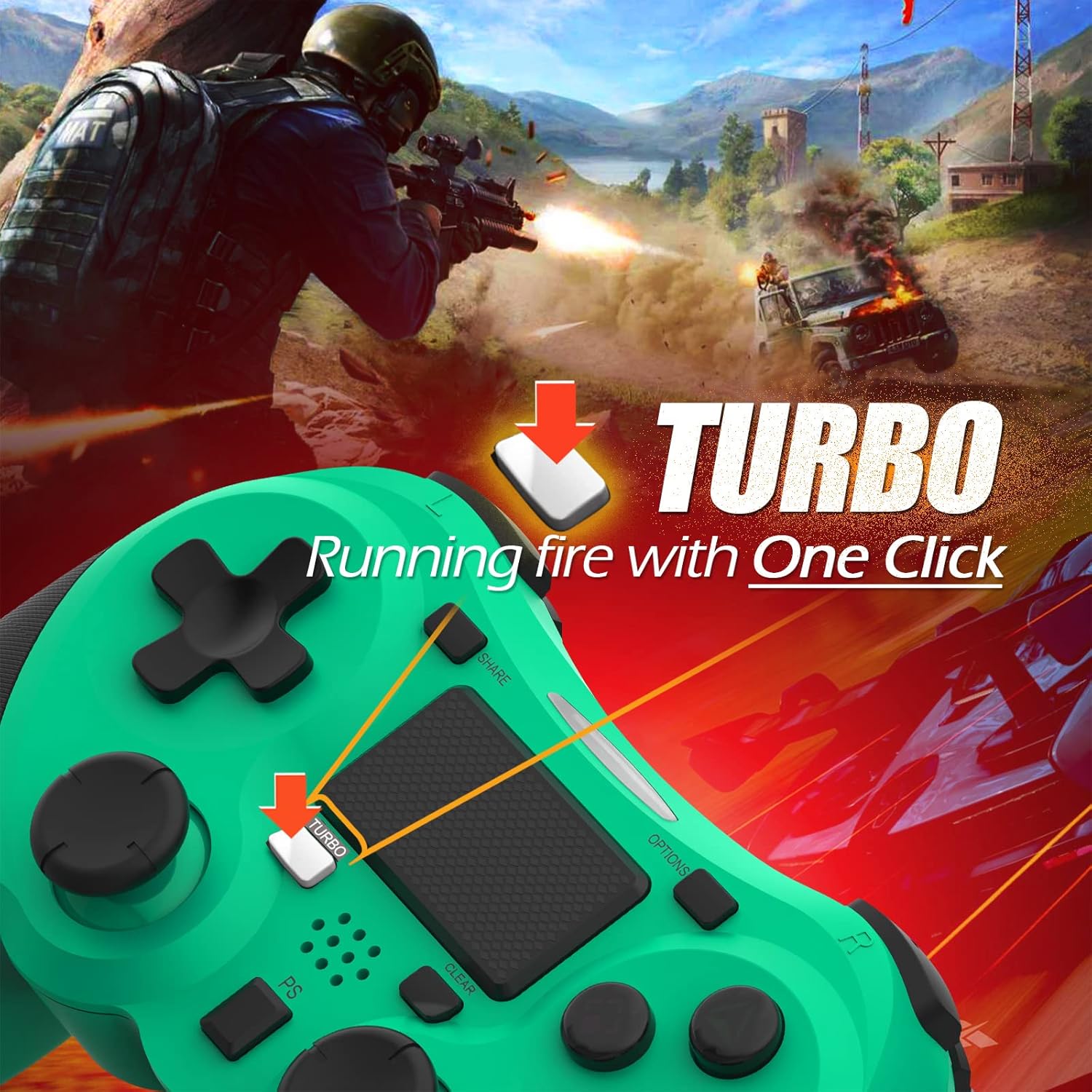
Image: A visual guide demonstrating how to activate the Turbo feature on the controller for rapid-fire actions.
Share Button Functionality
The SHARE button provides quick access to PS4's sharing features:
- Pojedyncze naciśnięcie: Opens the Share menu, allowing you to save a screenshot, save a video clip, or start a broadcast.
- Długie naciśnięcie: Takes a screenshot directly.
- Podwójne naciśnięcie: Rozpoczyna/zatrzymuje nagrywanie wideo.
Konserwacja
Proper maintenance ensures the longevity and optimal performance of your TERIOS Wireless Controller.
Czyszczenie
- Do przecierania powierzchni kontrolera należy używać miękkiej, suchej ściereczki.
- W przypadku uporczywych zabrudzeń, delikatnieampPrzetrzyj szmatkę wodą lub delikatnym, nieściernym środkiem czyszczącym. Unikaj nadmiernej wilgoci.
- Do not use harsh chemicals, solvents, or abrasive materials, as these can damage the controller's finish and internal components.
Składowanie
- Przechowuj kontroler w chłodnym i suchym miejscu, z dala od bezpośredniego światła słonecznego, ekstremalnych temperatur i wysokiej wilgotności.
- Avoid placing heavy objects on the controller to prevent damage to buttons or analog sticks.
Pielęgnacja baterii
- To preserve battery life, avoid fully discharging the controller frequently.
- Jeśli akumulator będzie przechowywany przez dłuższy okres, przed schowaniem należy go naładować do około 50%.
- Recharge the controller at least once every three months if not in use to prevent deep discharge.
Rozwiązywanie problemów
If you encounter issues with your TERIOS Wireless Controller, please refer to the following common solutions:
Kontroler nie łączy się/nie paruje
- Sprawdź baterię: Ensure the controller is sufficiently charged. Connect it to the PS4 via USB cable to charge.
- Naprawa: Connect the controller to the PS4 with the USB cable and press the PS button to re-establish the connection.
- Zresetuj kontroler: Locate the small reset button hole on the underside of the controller (near the L2 button). Use a straightened paperclip or a similar thin object to press and hold the button for 3-5 seconds. This will reset the controller. After resetting, attempt to re-pair it with the PS4.
- Ingerencja: Move closer to the PS4 console to rule out wireless interference.
Buttons or Sticks Unresponsive/Lagging
- Zresetuj kontroler: Wykonaj twardy reset, jak opisano powyżej.
- Czysty: Ensure no debris is lodged around the buttons or sticks. Clean the controller as per the Maintenance section.
- Oprogramowanie sprzętowe: Upewnij się, że oprogramowanie systemu PS4 jest aktualne.
Nadmierne wibracje
- Zresetuj kontroler: A reset can often resolve unexpected vibration issues.
- Ustawienia gry: Check in-game settings for vibration intensity.
Specyfikacje
| Atrybut | Szczegół |
|---|---|
| Model | TERIOS 5S |
| ASIN | B09KLR5DCZ |
| Zgodność | PlayStation 4, PS4 Pro, PS4 Slim |
| Łączność | Wireless (Bluetooth 4.2), USB |
| Typ baterii | Litowo-polimerowy (1 w zestawie) |
| Pojemność baterii | 1000mAh |
| Ciągły czas użytkowania | 10-12 godzin |
| Czas ładowania | 2-3 godzin |
| Czas czuwania | Do 30 dni |
| Waga przedmiotu | 10.8 uncji (około 306 gramów) |
| Wymiary opakowania | 6.69 x 5.24 x 2.72 cala |
| Producent | TERIOSY |
| Data pierwszej dostępności | 28 października 2021 r. |
Gwarancja i wsparcie
TERIOS stands behind the quality of its products. This controller comes with a 1-letnia gwarancja od daty zakupu, obejmując wady produkcyjne.
For customer support, technical assistance, or warranty claims, please contact TERIOS customer service through the platform where you purchased the product or visit the official TERIOS store page for contact information.
We are committed to providing premium customer support and ensuring your satisfaction with our products.