
1. Wprowadzenie
The DOBE TY-1793 Wireless Controller is a versatile gaming accessory designed for multi-platform compatibility. It offers seamless connectivity with Nintendo Switch, Android phones, Android TV boxes, and personal computers (PC). This controller integrates advanced features such as Bluetooth wireless technology, a wired USB connection option, Turbo function keys, a dedicated camera button, 6-axis motion sensing, and immersive motor vibration feedback. Its ergonomic design ensures a comfortable and responsive gaming experience.
2. Informacje dotyczące bezpieczeństwa
- Trzymaj kontroler z dala od wody, wilgoci i ekstremalnych temperatur.
- Unikaj upuszczania kontrolera i narażania go na silne uderzenia.
- Nie należy podejmować prób demontażu ani modyfikacji kontrolera. Może to spowodować unieważnienie gwarancji i uszkodzenie.
- Należy używać wyłącznie dołączonego lub zalecanego kabla ładującego.
- Store the controller in a clean, dry place when not in use.
3. Zawartość opakowania
Proszę sprawdzić zawartość opakowania po otwarciu. Jeśli brakuje któregokolwiek elementu lub jest on uszkodzony, prosimy o kontakt ze sprzedawcą.
- DOBE TY-1793 Wireless Controller
- Kabel ładujący USB
- Instrukcja obsługi
4. Układ kontrolera
Familiarize yourself with the buttons and features of your DOBE TY-1793 Wireless Controller.
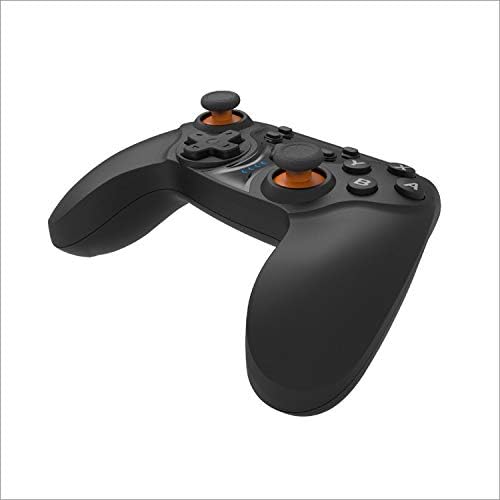
Rysunek 4.1: Przód view of the DOBE TY-1793 Wireless Controller, showing the dual analog sticks, D-pad, action buttons (A, B, X, Y), and central function buttons.

Rysunek 4.2: Strona view of the DOBE TY-1793 Wireless Controller, highlighting the USB charging/connection port located at the front edge.

Rysunek 4.3: Z powrotem view of the DOBE TY-1793 Wireless Controller, showing the ergonomic grips and battery compartment area.
Opis przycisków:
- Lewy/prawy drążek analogowy: Do precyzyjnego ruchu w zakresie 360 stopni.
- D-Pad (pad kierunkowy): Do wprowadzania danych kierunkowych.
- Przyciski akcji (A, B, X, Y): Podstawowe przyciski interakcji z grą.
- L1/R1 (Przyciski na ramionach): Top trigger buttons.
- L2/R2 (Trigger Buttons): Bottom trigger buttons.
- Przycisk DOMOWY: Powrót do ekranu głównego systemu.
- Przycisk SELECT/MINUS: Używane zazwyczaj do nawigacji po menu lub korzystania z określonych funkcji gry.
- Przycisk START/PLUS: Typically used for pausing or menu access.
- Przycisk TURBO: Włącza/wyłącza funkcję turbo dla przypisanych przycisków.
- Przycisk CAMERA: Captures screenshots or video clips (functionality may vary by platform).
- Port USB-C: Do ładowania i przewodowego połączenia.
5. Konfiguracja
5.1 Ładowanie Kontrolera
- Connect the small end of the USB charging cable to the USB-C port on the controller.
- Connect the large end of the USB charging cable to a USB power source (e.g., PC, USB wall adapter, game console).
- The LED indicator on the controller will show charging status. It will typically turn off or change color once fully charged.
- Pełne ładowanie zajmuje około 2-3 godzin.
5.2 Connecting to Nintendo Switch (Bluetooth)
- Na konsoli Nintendo Switch przejdź do menu HOME.
- Wybierz „Kontrolery” > „Zmień uchwyt/kolejność”.
- Press and hold the HOME button on the DOBE TY-1793 controller for 3-5 seconds until the LED indicators start flashing rapidly.
- The Switch will detect the controller. Once connected, the corresponding player LED on the controller will light up solid.
5.3 Connecting to Android Devices (Bluetooth)
- Ensure Bluetooth is enabled on your Android phone or TV box.
- Przejdź do ustawień Bluetooth i wyszukaj nowe urządzenia.
- Press and hold the HOME button on the DOBE TY-1793 controller for 3-5 seconds until the LED indicators start flashing rapidly.
- Select 'TY-1793' or a similar name from the list of available devices to pair.
- Po sparowaniu wskaźnik LED zacznie świecić światłem ciągłym.
5.4 Connecting to PC (Wired USB & Bluetooth)
Połączenie przewodowe:
- Connect the USB charging cable to the controller's USB-C port.
- Connect the other end of the USB cable to an available USB port on your PC.
- The PC should automatically detect and install the necessary drivers. The controller will be ready for use.
Połączenie Bluetooth:
- Upewnij się, że Twój komputer ma włączoną funkcję Bluetooth.
- Przejdź do „Ustawienia” > „Urządzenia” > „Bluetooth i inne urządzenia”, a następnie kliknij „Dodaj urządzenie Bluetooth lub inne”.
- Wybierz „Bluetooth”.
- Press and hold the HOME button on the DOBE TY-1793 controller for 3-5 seconds until the LED indicators start flashing rapidly.
- Select 'TY-1793' or a similar name from the list of available devices to pair.
- Po sparowaniu wskaźnik LED zacznie świecić światłem ciągłym.
6. Instrukcja obsługi
6.1 Włączanie/wyłączanie zasilania
- Włączanie: Press the HOME button once. The controller will attempt to connect to the last paired device.
- Wyłączone: Press and hold the HOME button for approximately 5 seconds until the LED indicators turn off. The controller will also power off automatically after a period of inactivity.
6.2 Funkcja Turbo
The Turbo function allows a button to be pressed repeatedly as long as it is held down, which can be useful in certain games.
- Aby ustawić Turbo: Press and hold the button you wish to assign Turbo to (e.g., A button), then press the TURBO button once. Release both buttons. The assigned button will now have Turbo functionality.
- To Clear Turbo: Press and hold the button with Turbo assigned, then press the TURBO button once. Release both buttons. The Turbo function will be removed from that button.
- To Clear All Turbo: Press and hold the TURBO button for 3 seconds. All Turbo settings will be cleared.
6.3 Sprzężenie zwrotne wibracji
The controller features built-in motor vibrators to provide immersive haptic feedback during gameplay. Vibration intensity is typically controlled by the game or system settings.
6.4 Żyroskop 6-osiowy
The integrated 6-axis gyroscope provides precise motion control, enhancing gameplay in titles that support motion sensing. This feature is automatically active when connected to compatible platforms like the Nintendo Switch.
6.5 Przycisk aparatu
The dedicated camera button allows for quick capture of screenshots or video clips during gameplay on supported platforms. Functionality may vary depending on the connected device and game.
7. Konserwacja
- Czyszczenie: Do czyszczenia kontrolera używaj miękkiej, suchej ściereczki. Nie używaj silnych środków chemicznych ani materiałów ściernych.
- Składowanie: Przechowuj kontroler w chłodnym i suchym miejscu, z dala od bezpośredniego światła słonecznego i ekstremalnych temperatur.
- Pielęgnacja baterii: Aby przedłużyć żywotność baterii, unikaj częstego całkowitego rozładowywania kontrolera. Ładuj go regularnie, nawet jeśli nie jest używany regularnie.
8. Rozwiązywanie Problemów
8.1 Controller Will Not Power On
- Ensure the controller is charged. Connect it to a power source using the USB cable and allow it to charge for at least 30 minutes.
- Try pressing the HOME button firmly.
8.2 Controller Will Not Connect/Pair
- Sprawdź, czy kontroler jest całkowicie naładowany.
- Verify that Bluetooth is enabled on your device (Switch, Android, PC).
- Upewnij się, że kontroler jest w trybie parowania (diody LED migają szybko).
- Move the controller closer to the device.
- Remove any previous pairings of the controller from your device's Bluetooth settings and try pairing again.
- Uruchom ponownie kontroler i urządzenie, z którym próbujesz się połączyć.
- For PC, try a wired USB connection to confirm functionality.
8.3 Buttons or Joysticks Are Unresponsive
- Ensure the controller is properly connected and paired.
- Test the controller with another game or application to determine if the issue is specific to one title.
- Uruchom ponownie kontroler i podłączone urządzenie.
- Jeśli korzystasz z połączenia przewodowego, wypróbuj inny port USB lub kabel.
9. Specyfikacje
| Model: | TY-1793 |
| Łączność: | Bluetooth, Wired USB |
| Zgodność: | Nintendo Switch, Android (Phones, TV Boxes), PC |
| Typ baterii: | Akumulator litowo-polimerowy wielokrotnego ładowania |
| Pojemność baterii: | 400mAh, 3.7V |
| Cechy szczególne: | Turbo Function, Camera Button, 6-Axis Gyroscope, Motor Vibration |
10. Gwarancja i wsparcie
This product comes with a standard manufacturer's warranty. Please refer to the warranty card included in your package or contact your retailer for specific warranty terms and conditions. For technical support or further assistance, please reach out to the customer service provided by your point of purchase.