
Wstęp
This manual provides detailed instructions for the BINIZE Portable Carplay Screen Navigation system. It covers setup, operation, and maintenance to ensure optimal performance and user experience.
Informacje dotyczące bezpieczeństwa
- Upewnij się, że urządzenie jest bezpiecznie zamontowane i nie przeszkadza. view lub zakłócać sterowanie pojazdem.
- Connect the power cord only to a 12V cigarette lighter port.
- Nie próbuj demontować ani modyfikować urządzenia.
- Zawsze priorytetem jest bezpieczna jazda. Nie obsługuj urządzenia w sposób odwracający uwagę od drogi.
Zawartość opakowania
Sprawdź, czy w opakowaniu znajdują się wszystkie elementy:
- BINIZE Portable Carplay Screen Navigation Unit
- Kabel zasilający do zapalniczki
- Przedłużacz kabla USB
- Kabel wyjściowy audio (RCA)
- Mounting Bracket with 3M Adhesive
- Zdalne sterowanie
- Instrukcja obsługi (ten dokument)
Organizować coś
1. Montaż urządzenia
Wybierz odpowiednie miejsce na pulpicie, które nie będzie Ci przeszkadzać. view lub elementów sterujących pojazdem.

The base of the mounting bracket comes with 3M adhesive. Clean the dashboard surface thoroughly before attaching the base. Securely attach the unit to the bracket.

Dostosuj kąt ekranu, aby uzyskać optymalny viewing.
2. Podłączenie zasilania
Connect the cigarette lighter power cable to the device and insert it into your vehicle's 12V cigarette lighter port. The device will power on automatically.

Upewnij się, że pojemność pojazdutage wynosi od 12 V do 14 V.
This video demonstrates the initial power-up sequence of the BINIZE Portable Carplay Screen Navigation unit by connecting it to a cigarette lighter port. It shows the "welcome" screen appearing upon successful power-on.
Instrukcja obsługi
1. Konfiguracja początkowa i wybór języka
Upon first power-on, the device will display the home screen. Navigate to the "Settings" menu to select your preferred language.

2. Opcje wyjścia audio
The monitor itself does not have internal speakers. Sound is routed through your original car audio system.
Nadajnik FM
To use the FM transmitter, set the device's FM frequency to match an unused FM channel on your car's stereo.

Ensure both the device and your car stereo are tuned to the same FM frequency for audio output.
Wyjście audio RCA
For additional audio requirements, such as connecting to a subwoofer or amplifier, use the two RCA ports (White: Audio Out Left, Red: Audio Out Right).
3. Apple CarPlay Connection
To use Apple CarPlay, connect your iPhone to the device using an original Apple data cable via the USB port on the right side of the player.
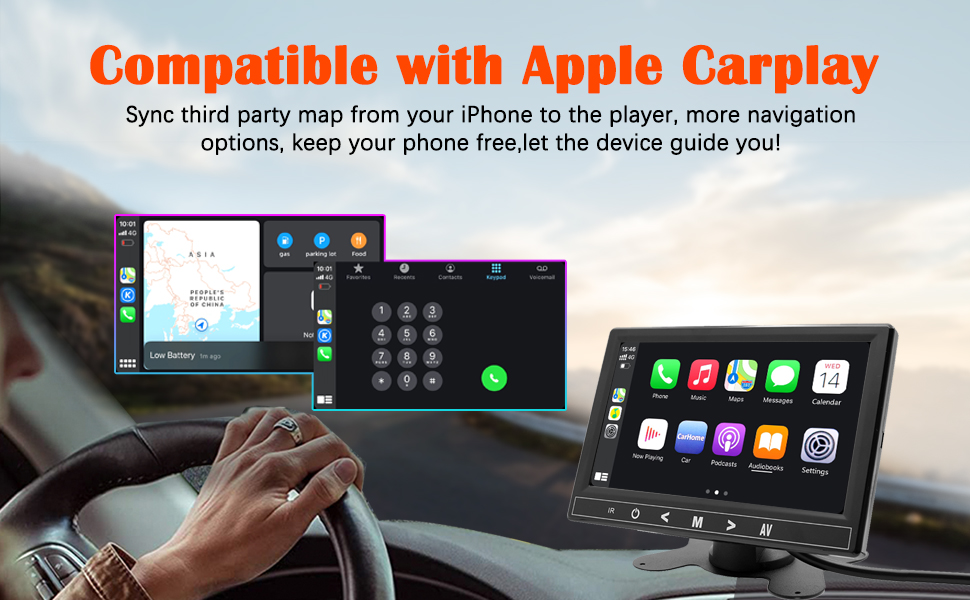
Select "i-Play" in the device settings. Grant any necessary permissions on your iPhone.
This video demonstrates how to connect an iPhone to the BINIZE Portable Carplay Screen Navigation for Apple CarPlay functionality. It shows the steps to select "i-Play" in settings and connect the original data cable.
4. Automatyczne połączenie z systemem Android
To use Android Auto, connect your Android phone to the device using an original data cable via the USB port on the right side of the player.

Select "A-Auto" in the device settings. Grant any necessary permissions on your Android phone.
This video illustrates the process of connecting an Android phone to the BINIZE Portable Carplay Screen Navigation for Android Auto. It guides the user to select "A-Auto" in settings and connect the data cable.
5. MirrorLink (iPhone)
To mirror your iPhone screen, connect your iPhone to the device using an original Apple data cable via the USB port on the right side of the player.
Select "i-Mirror" in the device settings. Grant permissions on your iPhone. The iPhone screen will be projected onto the player's screen.
This video demonstrates the MirrorLink function for iPhone, showing how to connect the device and mirror the phone's display.
6. MirrorLink (Android Phone)
To mirror your Android phone screen, connect your Android phone to the device using an original data cable via the USB port on the right side of the player.
Select "A-Link" in the device settings. Grant permissions on your Android phone. The Android phone screen will be projected onto the player's screen.
This video demonstrates the MirrorLink function for Android phones, showing how to connect the device and mirror the phone's display.
7. USB Flash Drive Reading
Insert a USB flash drive into the USB extension cable to play music or videos. The device supports various media formats.
8. Ładowanie telefonu
The USB extension cable can also be used to charge your mobile phone.
Konserwacja
- Utrzymuj ekran w czystości, używając miękkiej, suchej ściereczki. Unikaj środków czyszczących o właściwościach ściernych.
- Upewnij się, że wszystkie połączenia kablowe są bezpieczne.
- Unikaj wystawiania urządzenia na działanie ekstremalnych temperatur lub bezpośredniego światła słonecznego przez dłuższy czas.
Rozwiązywanie problemów
| Problem | Możliwa przyczyna | Rozwiązanie |
|---|---|---|
| Urządzenie nie włącza się. | No power from cigarette lighter. | Check vehicle's 12V port. Ensure power cable is securely connected. |
| Brak dźwięku. | FM frequency not synchronized or incorrect RCA connection. | Match FM frequency on device and car stereo. Verify RCA cable connections. |
| CarPlay/Android Auto nie łączy się. | Non-original data cable, incorrect settings, or phone permissions. | Use original data cable. Check "i-Play" or "A-Auto" settings. Grant all necessary phone permissions. |
| MirrorLink not working. | Incorrect settings or phone permissions. | Check "i-Mirror" or "A-Link" settings. Grant all necessary phone permissions. |
| Ekran zawiesza się lub nie reaguje. | Tymczasowy błąd oprogramowania. | Uruchom ponownie urządzenie, odłączając i ponownie podłączając kabel zasilający. |
For further assistance, please contact BINIZE customer support.
Specyfikacje
| Funkcja | Szczegół |
|---|---|
| Marka | BINIZE |
| Numer modelu | B09DSMJ59X |
| Technologia łączności | Bluetooth, RCA, USB |
| Typ kontrolera | Android, Asystent Google |
| Funkcja specjalna | Ekran dotykowy |
| Kompatybilne urządzenia | Smartfon |
| Tryb wyjścia audio | Stereofoniczny |
| Liczba kanałów | 4 |
| Kodowanie wideo | H.264, H.265/HEVC |
| Metoda kontroli | Dotykać |
| Technologia bezprzewodowa | Bluetooth |
| Moc wejściowa | 12V (przez zapalniczkę samochodową) |
Uwaga: Dane techniczne mogą ulec zmianie bez wcześniejszego powiadomienia.
Gwarancja i wsparcie
BINIZE products come with a standard manufacturer's warranty. Please refer to the warranty card included in your package for specific terms and conditions.
For technical support, warranty claims, or any other inquiries, please visit the official BINIZE webwitryny lub skontaktuj się z zespołem obsługi klienta.