
Wstęp
This manual provides comprehensive instructions for the Acer Aspire 5 laptop, equipped with an 11th Gen Intel Core i3-1115G4 processor, 8GB DDR4 RAM, and a 512GB NVMe SSD. It covers initial setup, operational guidelines, maintenance procedures, and troubleshooting common issues to ensure optimal performance and longevity of your device.
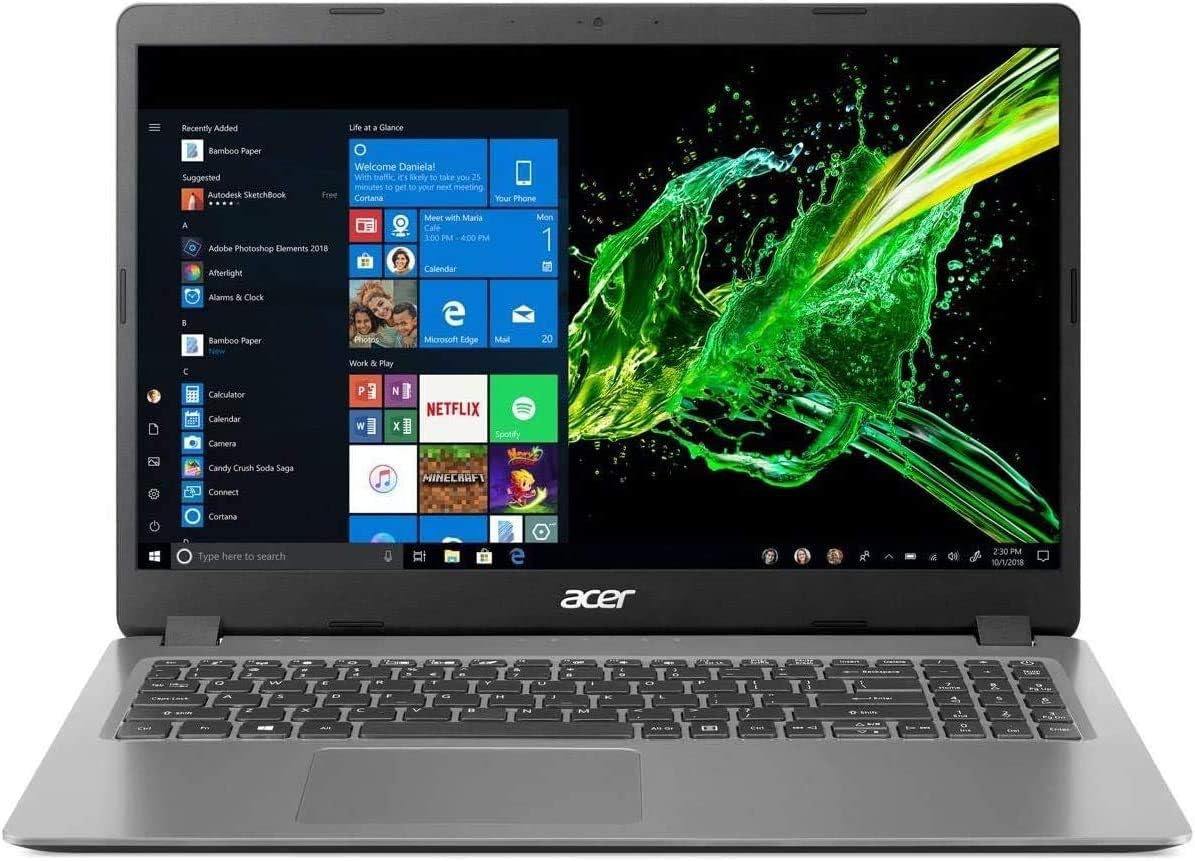
Obraz: Przód view of the Acer Aspire 5 laptop with the screen powered on, showing the Windows 10 interface.
1. Konfiguracja
1.1 Rozpakowanie i wstępna kontrola
- Ostrożnie wyjmij laptopa i wszystkie akcesoria z opakowania.
- Verify that all components are present: Acer Aspire 5 laptop, AC power adapter, and HDMI cable.
- Sprawdź laptopa pod kątem uszkodzeń fizycznych. W przypadku stwierdzenia uszkodzeń skontaktuj się natychmiast ze sprzedawcą.
1.2 Podłączanie zasilacza
- Connect the AC adapter cable to the power input port on the side of the laptop.
- Plug the AC adapter into a grounded electrical outlet.
- Zaświeci się kontrolka akumulatora, co oznacza, że laptop się ładuje.
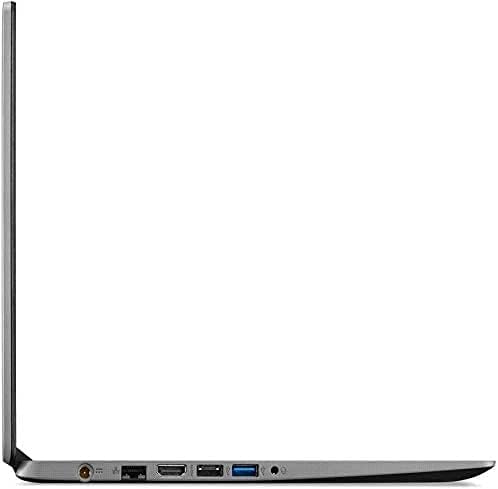
Image: Right side of the Acer Aspire 5 laptop, highlighting the power input port, USB 2.0 port, and security lock slot.
1.3 Pierwsze włączenie i konfiguracja systemu Windows
- Otwórz pokrywę laptopa i naciśnij przycisk zasilania znajdujący się na klawiaturze.
- Follow the on-screen instructions to complete the Windows 10 Home (S Mode) setup process. This includes selecting your region, keyboard layout, connecting to a Wi-Fi network, and creating a user account.
- Ensure you have an active internet connection for Windows activation and updates. The laptop supports Wi-Fi 6 (802.11ax) for fast wireless connectivity.
2. Korzystanie z laptopa
2.1 Korzystanie z klawiatury i touchpada
The Acer Aspire 5 features a standard keyboard and a precision touchpad for navigation. Familiarize yourself with the function keys (F1-F12) which often have secondary actions (e.g., volume control, screen brightness) when pressed with the Fn klawisz.

Obraz: widok z góry view of the Acer Aspire 5 laptop's keyboard and touchpad layout.
2.2 Understanding Windows 10 Home (S Mode)
- Windows 10 Home in S Mode is a version of Windows designed for security and performance, exclusively running apps from the Microsoft Store.
- You can switch out of S Mode to standard Windows 10 Home at any time, but you cannot switch back. Refer to Microsoft's official documentation for detailed instructions on switching out of S Mode.
2.3 Podłączanie urządzeń zewnętrznych
Twój laptop jest wyposażony w różne porty umożliwiające podłączanie urządzeń peryferyjnych:
- USB 3.2 typu C: Do szybkiego przesyłu danych i podłączania zgodnych urządzeń USB-C.
- USB 3.2 Gen 1 (x2): For connecting USB devices, one port supports power-off charging.
- USB 2.0: Do standardowych urządzeń USB.
- HDMI 2.0: For connecting to external displays or projectors, supporting HDCP. An HDMI cable is included.
- Ethernet (RJ-45): Do przewodowych połączeń sieciowych.
- Headphone/Speaker/Line-out Jack: Do wyjścia audio.
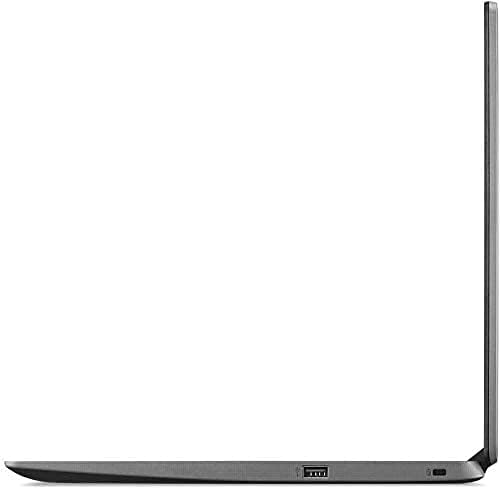
Image: Left side of the Acer Aspire 5 laptop, showing the USB Type-C, HDMI, and USB 3.2 ports.
2.4 Funkcje audio
The laptop is designed and certified to work with Cortana, Microsoft's voice assistant. It also features Acer True Harmony for enhanced sound quality through its integrated speakers or connected headphones.
3. Konserwacja
3.1 Pielęgnacja baterii
- The laptop's battery provides up to 8.5 hours of average standby life.
- To prolong battery lifespan, avoid fully discharging the battery frequently.
- Jeśli laptop nie będzie używany przez dłuższy czas, należy go przechowywać w chłodnym i suchym miejscu.
3.2 Instrukcje dotyczące czyszczenia
- Use a soft, lint-free cloth to clean the screen. For stubborn smudges, dampDelikatnie przetrzyj szmatkę wodą lub płynem do czyszczenia ekranów.
- Wipe the keyboard and chassis with a soft, dry cloth. Avoid using harsh chemicals or abrasive materials.
- Periodically clean the ventilation openings to prevent dust buildup, which can affect cooling performance.
3.3 Aktualizacje oprogramowania
Regularly check for and install Windows updates to ensure your system has the latest security patches and performance improvements. You can access Windows Update through the Settings menu.
3.4 Zarządzanie magazynem
Your laptop comes with a 512GB PCIe SSD. To maintain optimal performance, periodically review i usuń niepotrzebne fileodinstaluj nieużywane aplikacje i rozważ użycie pamięci masowej w chmurze do dużych zadań files.
4. Rozwiązywanie Problemów
W tej sekcji omówiono typowe problemy, które mogą wystąpić w przypadku laptopa Acer Aspire 5.
4.1 Problemy z zasilaniem
- Laptop się nie włącza: Ensure the AC adapter is securely connected to both the laptop and a working power outlet. Check if the power indicator light is on. Try pressing and holding the power button for 10-15 seconds to perform a hard reset.
- Bateria nie ładuje się: Verify the AC adapter connection. If the issue persists, the adapter or battery may require service.
4.2 Problemy z wyświetlaniem
- Brak obrazu na ekranie: Connect an external monitor via the HDMI port to check if the display output is working. If the external monitor works, the laptop's internal display may have an issue.
- Przyciemnij ekran: Adjust the screen brightness using the function keys (usually F3/F4 or similar icons).
4.3 Problemy z łącznością
- Brak połączenia Wi-Fi: Upewnij się, że Wi-Fi jest włączone w ustawieniach systemu Windows. Uruchom ponownie router i laptopa. Sprawdź dostępność zaktualizowanych sterowników Wi-Fi.
- Urządzenie Bluetooth nie łączy się: Upewnij się, że Bluetooth jest włączony zarówno na laptopie, jak i na urządzeniu. Umieść urządzenia blisko siebie i spróbuj sparować ponownie.
4.4 Ogólna niereagowalność systemu
- If the system becomes unresponsive, press Ctrl + Alt + Delete to open Task Manager and close unresponsive applications.
- If the system remains unresponsive, perform a hard shutdown by pressing and holding the power button until the laptop turns off. Wait a few seconds, then restart.
5. Specyfikacje
| Funkcja | Specyfikacja |
|---|---|
| Marka | klon |
| Nazwa modelu | Acer Aspire 5 |
| Edytor | Intel Core i3-1115G4 11. generacji (do 4.1 GHz) |
| BARAN | 8 GB DDR4 |
| Składowanie | 512 GB NVMe PCIe SSD |
| System operacyjny | Windows 10 Home (tryb S) |
| Wyświetlacz | 15.6" Full HD (1920 x 1080) Widescreen LED-backlit IPS Display |
| Grafika | Karta graficzna Intel UHD (zintegrowana) |
| Łączność bezprzewodowa | Wi-Fi 6 (802.11ax), Bluetooth |
| Porty | 1x USB 3.2 Type-C, 2x USB 3.2 Gen 1 (1 with Power-off Charging), 1x USB 2.0, 1x HDMI 2.0, 1x Ethernet (RJ-45), 1x Headphone/Speaker/Line-out Jack |
| Żywotność baterii | Up to 8.5 Hours (Average Standby) |
| Waga | 4.19 funtów |
| Kolor | Srebrny |
6. Gwarancja i wsparcie
6.1 Informacje o gwarancji
This product includes a standard manufacturer's warranty. Additionally, a 1-year standard warranty is provided on upgraded RAM/SSD components. Please retain your proof of purchase for warranty claims.
6.2 Wsparcie techniczne
Aby uzyskać pomoc techniczną, pobrać sterowniki lub uzyskać dalsze wsparcie, odwiedź oficjalną stronę pomocy technicznej firmy Acer website. You will need your laptop's serial number, typically found on a label on the underside of the device.