
1. Wprowadzenie
This manual provides comprehensive instructions for the setup, operation, and maintenance of your DIGITUS 2D Barcode Scanner (Model: DA-81002). This device is designed for efficient and accurate scanning of 1D and 2D barcodes, including QR codes, supporting bi-directional scanning at 200 scans/sec. Please read this manual thoroughly before using the scanner to ensure proper functionality and longevity.
2. Co znajduje się w pudełku
Po otwarciu opakowania należy sprawdzić, czy wszystkie elementy są obecne i nieuszkodzone:
- 1 x 2D barcode hand scanner, QR code compatible
- 1 x scanner holder
- 1 x cable, USB - RJ45, 2 m
- 1 x Skrócona instrukcja instalacji (QIG)
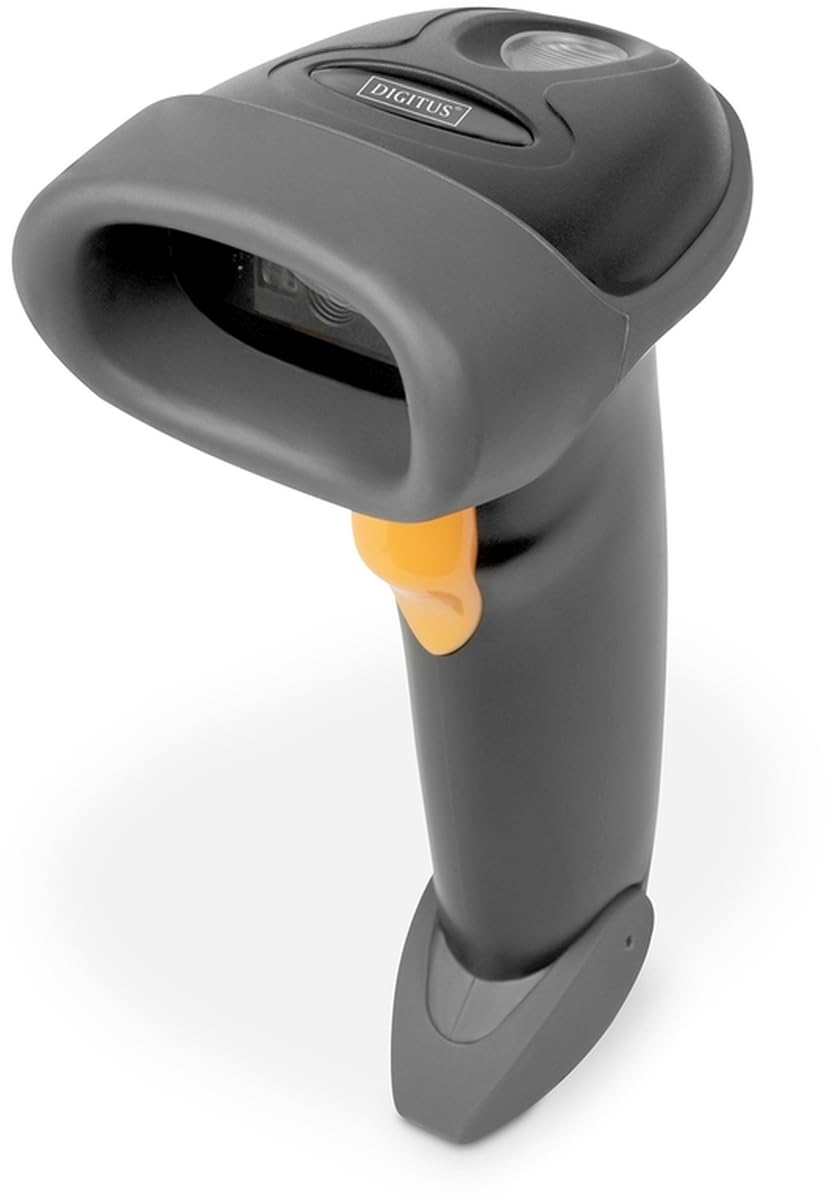
Image: The DIGITUS 2D Barcode Scanner, shown with its included stand and USB-RJ45 cable. The scanner is dark grey with an orange trigger button.
3. Konfiguracja
- Podłącz kabel: Insert the RJ45 end of the provided cable into the port at the base of the barcode scanner. Ensure it clicks securely into place.
- Połącz z urządzeniem hosta: Plug the USB end of the cable into an available USB port on your computer or point-of-sale (POS) system.
- Instalacja sterownika (Plug & Play): The scanner is typically plug-and-play and should be recognized automatically by most operating systems (Windows, macOS, Linux). No specific driver installation is usually required. If prompted, allow the system to install necessary drivers.
- Pozycja skanera: Place the scanner in its holder for hands-free operation, or hold it comfortably for handheld scanning.
- Skanowanie testowe: Open a text editor (e.g., Notepad, Word) or a compatible application. Scan a known barcode. The data should appear in the open application.
4. Instrukcja obsługi
The DIGITUS 2D Barcode Scanner is designed for ease of use. Follow these steps for effective scanning:
- Włączanie: The scanner powers on automatically when connected to a powered USB port. A successful power-on is usually indicated by a short beep and/or a light indicator.
- Cel: Point the scanning window towards the barcode you wish to scan. Ensure the entire barcode is within the scanner's field of view.
- Łów: Press and hold the trigger button (orange button on the handle). A red aiming beam or illumination light will appear. Position the scanner so the aiming beam crosses the center of the barcode.
- Pomyślne skanowanie: Upon a successful scan, the scanner will emit a short beep and/or the indicator light will flash. The scanned data will be transmitted to your connected device as if typed via a keyboard.
- Bi-Directional Scanning: The scanner supports bi-directional scanning, meaning it can read barcodes regardless of their orientation, improving scanning efficiency.
- QR Code Compatibility: This scanner is fully compatible with QR codes, allowing for versatile data capture.
5. Konserwacja
Właściwa konserwacja gwarantuje długowieczność i optymalną wydajność skanera kodów kreskowych:
- Czyszczenie okna skanowania: Regularnie czyść okno skanowania miękką, niepozostawiającą włókien ściereczką. W przypadku uporczywych plam delikatnie przetrzyj.ampPrzetrzyj szmatkę wodą lub delikatnym, nieściernym środkiem czyszczącym. Unikaj silnych środków chemicznych i materiałów ściernych, które mogłyby zarysować szybę.
- Ogólne sprzątanie: Wipe the exterior of the scanner with a soft, dry cloth to remove dust and dirt.
- Pielęgnacja kabli: Unikaj nadmiernego zginania lub skręcania kabla USB, ponieważ może to spowodować uszkodzenie wewnętrznych przewodów.
- Składowanie: Gdy skaner nie jest używany, należy przechowywać go w czystym i suchym miejscu, z dala od ekstremalnych temperatur i bezpośredniego światła słonecznego.
- Unikaj kropli: While designed for durability, avoid dropping the scanner, as impact can damage internal components.
6. Rozwiązywanie Problemów
If you encounter issues with your DIGITUS 2D Barcode Scanner, refer to the following common problems and solutions:
| Problem | Możliwa przyczyna | Rozwiązanie |
|---|---|---|
| Skaner się nie włącza. | No power from USB port; loose cable connection. | Ensure USB cable is securely connected to both scanner and host device. Try a different USB port or host device. |
| Skaner nie odczytuje kodów kreskowych. | Barcode damaged/unreadable; incorrect aiming; scanner not configured for barcode type. | Ensure barcode is clear and undamaged. Aim the scanner correctly. Refer to the QIG for advanced configuration options if specific barcode types are not recognized. |
| Zeskanowane dane są nieprawidłowe lub niekompletne. | Partial scan; software/application issue. | Ensure the entire barcode is within the scanning area. Test with a simple text editor to rule out application-specific issues. |
| Skaner wydaje sygnał dźwiękowy, ale nie pojawiają się żadne dane. | Host device not receiving data; application not in focus. | Ensure the cursor is active in the target input field. Restart the application or host device. |
7. Specyfikacje
Key technical specifications for the DIGITUS 2D Barcode Scanner (Model: DA-81002):
- Wymiary produktu: 1.1 x 9.7 x 6.5 cala
- Waga przedmiotu: 3.88 uncji
- Numer modelu przedmiotu: DA-81002
- Producent: Digitus
- Zgodne urządzenia: Scanner (general purpose)
- Źródło zasilania: Elektryczny przewodowy (przez USB)
- Technologia łączności: Kabel USB
- Częstotliwość skanowania: 200 fps (klatek na sekundę)
- Kompatybilność kodów kreskowych: 1D and 2D barcodes, including QR Code
- Długość kabla: 2 meters (USB - RJ45)
8. Gwarancja i wsparcie
For warranty information and technical support, please refer to the Quick Installation Guide (QIG) included in your product package or visit the official Digitus webZachowaj paragon jako dowód zakupu na wypadek reklamacji.
For further assistance, you may contact Digitus customer support through their official channels. Details are typically provided in the product documentation or on the manufacturer's webstrona.