
1. Wprowadzenie
The Gsou W20 1080P Webcam is designed to provide high-definition video and clear audio for various communication needs, including online meetings, live streaming, and video calls. Featuring automatic low-light correction, manual focus, and integrated Bluetooth 5.0 for audio device connectivity, this webcam offers a versatile and user-friendly experience. A privacy cover is included for enhanced security.
2. Co znajduje się w pudełku
- 1 x Gsou W20 1080P Webkrzywka
- 1 x Instrukcja obsługi
3. Instrukcje konfiguracji
3.1 połączenie fizyczne
- Umieszczenie: Pozycja webcam on top of your monitor, laptop screen, or a flat surface. The adjustable clip allows for secure attachment.
- Podłącz USB: Podłącz kabel USB do webpodłącz kamerę do wolnego portu USB w komputerze. webKamera jest oparta na technologii Plug&Play i nie wymaga żadnych dodatkowych sterowników do korzystania z podstawowych funkcji.

Obraz: webcam connected via USB to a laptop, illustrating the plug-and-play setup.
3.2 Initial Software Recognition and Browser Permissions
After connecting, your operating system should automatically recognize the webcam. For applications and web browsers to use the webcam and its microphone, you may need to grant permissions.
- System operacyjny: Ensure your OS privacy settings allow applications to access the camera and microphone.
- Web Przeglądarka: Jeśli używasz webcam with a web-based application (e.g., Google Meet, Zoom in browser), check your browser's site settings to ensure camera and microphone access is allowed for the specific website. This is typically found near the address bar.
Video: This video demonstrates how to test your webcam and microphone, and how to adjust browser settings to grant necessary permissions for camera and microphone access.
4. Instrukcja obsługi
4.1 Połączenie audio Bluetooth
The Gsou W20 webcam features a built-in Bluetooth 5.0 audio transmitter, allowing you to connect Bluetooth earphones, headsets, or speakerphones directly to the webcam for clear audio input and output.
- Włącz Bluetooth: Locate the Bluetooth ON/OFF switch on the webcam and slide it to the 'ON' position.
- Wejdź w tryb parowania: Press and hold the 'PAIR' button on the webcam until the indicator light flashes, indicating it is in pairing mode.
- Paruj urządzenie: Put your Bluetooth earphone, headset, or speakerphone into its pairing mode. Select the webcam from your audio device's Bluetooth menu if prompted, or allow it to connect automatically.
- Potwierdzenie: Once successfully paired, the indicator light on the webcam will typically show a solid blue light.

Obraz: Zbliżenie webcam's controls, highlighting the ON/OFF and PAIR buttons for Bluetooth audio connection.

Image: Diagram illustrating the webcam's ability to connect to various Bluetooth audio devices like earphones and speakerphones.

Obraz: Wizualna reprezentacja webcam's 33ft Bluetooth connection range, showing a user with a headset connected to the webcam on a monitor.
4.2 Korzystanie z osłony prywatności
The integrated privacy cover provides physical security, preventing unauthorized access to your camera feed when not in use.
- To Cover: Slide the privacy cover over the lens when the webkrzywka nie jest używana.
- To Uncover: Slide the privacy cover away from the lens before starting a video call or recording.

Obraz: webcam shown with its privacy cover in both open and closed positions, demonstrating its function.
4.3 Adjusting Focus and Angle
- Ręczne ustawianie ostrości: Rotate the lens ring left or right to achieve a sharp and clear image.
- View Kąt: Ten webcam features a 90° view kąt.
- Regulowana podstawa: Ten webcam's base allows for 360° horizontal rotation and 180° vertical adjustment, enabling you to position the camera at the desired angle. It also includes a bracket hole for tripod mounting.
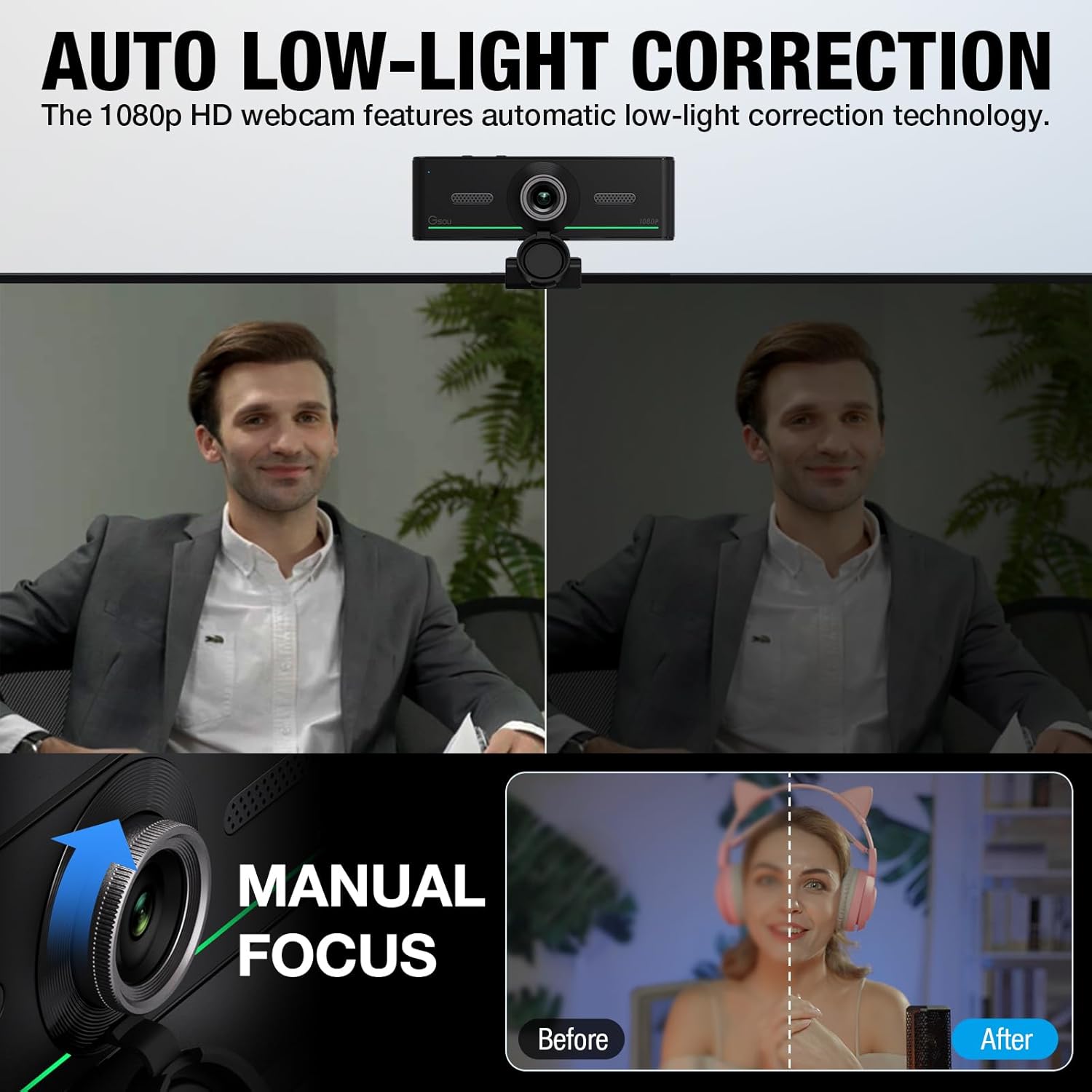
Obraz: Zbliżenie webcam lens with an arrow indicating the rotation for manual focus adjustment.

Image: An illustration showing the 90-degree view angle of the webcam in a meeting room setting.

Obraz: strona A view z webcam's adjustable base, showing its 360-degree rotation and 180-degree tilt capabilities, along with the tripod bracket hole.
5. Funkcje
- Wideo w jakości Full HD 1080P: Captures video at 1920x1080 resolution at 30 frames per second (FPS) for clear and smooth visuals.
- Auto Low-Light Correction: Automatically adjusts image settings to compensate for dim lighting conditions, ensuring you appear well-lit.
- Wbudowany Bluetooth 5.0: Enables wireless connection to Bluetooth earphones, headsets, and speakerphones for enhanced audio privacy and clarity.
- Ręczne ustawianie ostrości: Allows precise adjustment of the lens for optimal image sharpness.
- Zintegrowana osłona prywatności: Provides a physical barrier to protect your privacy when the camera is not in use.
- USB Plug&Play: Simple setup with no additional drivers required for most operating systems.
- Szeroka kompatybilność: Works with Windows XP SP3/2000/7/8/10, Mac OS, Chrome OS, Android V 5.0+, and Ubuntu Linux 10.04+. Compatible with major video calling applications like Zoom, Skype, Google Meet, Microsoft Teams, and more.

Image: A comparison showing the effect of auto low-light correction, with a 'Before' (dim) and 'After' (brightened) image.

Image: A graphic displaying the wide range of compatible operating systems (Windows, Chrome OS, Mac OS, Android, Ubuntu, Linux) and popular video conferencing applications.
6. Specyfikacje
| Marka | Gsou |
| Numer modelu | W20 |
| Rozdzielczość przechwytywania wideo | 1080p (Pełna rozdzielczość HD) |
| Technologia czujnika fotograficznego | CMOS |
| Technologia łączności | USB (Plug&Play) |
| Cechy specjalne | Auto Light Correction, Manual Focus, Privacy Cover, Built-in Bluetooth 5.0 |
| Waga przedmiotu | 7 uncji |
| Wymiary opakowania | 4.72 x 4.57 x 2.72 cala |
7. Rozwiązywanie Problemów
7.1 Webcam Not Detected / No Video
- Sprawdź połączenie USB: Upewnij się, że kabel USB jest prawidłowo podłączony do obu urządzeń. webkamerą a komputerem. Spróbuj użyć innego portu USB.
- Restart komputera: Często proste ponowne uruchomienie może rozwiązać problemy z wykrywaniem.
- Check Privacy Settings: Verify that your operating system and browser (if applicable) have granted permission for applications to access the camera.
- Przetestuj na innym urządzeniu: Jeśli to możliwe, przetestuj webcam on another computer to determine if the issue is with the webcam or your primary device.
7.2 Brak dźwięku / słaba jakość dźwięku
- Check Microphone Settings: Ensure the Gsou W20 webcam's microphone is selected as the default input device in your computer's sound settings and within your video conferencing application.
- Połączenie Bluetooth: If using a Bluetooth audio device, ensure it is properly paired with the webcam and selected as the audio output/input. Check the Bluetooth ON/OFF switch on the webkamera
- Poziomy głośności: Verify that microphone input volume is not muted or set too low in your system settings and application.
- Hałas środowiskowy: Reduce background noise for better microphone performance.
7.3 Obraz jest rozmazany
- Adjust Manual Focus: Rotate the lens ring on the webcam until the image becomes clear and sharp.
- Wyczyść obiektyw: Delikatnie wyczyść websoczewkę kamery miękką, niepozostawiającą włókien ściereczką.
8. Konserwacja
- Czyszczenie: Do czyszczenia należy używać miękkiej, suchej ściereczki. webcam's exterior. For the lens, use a lens cleaning cloth and avoid harsh chemicals.
- Składowanie: Gdy nie jest używany, przechowuj webcam in a clean, dry place. Use the privacy cover to protect the lens from dust and scratches.
- Pielęgnacja kabli: Aby zapobiec uszkodzeniom, nie należy nadmiernie zginać ani skręcać kabla USB.
9. Gwarancja i wsparcie
For warranty information and technical support, please refer to the documentation provided at the time of purchase or visit the official Gsou webZachowaj paragon jako dowód zakupu na wypadek reklamacji.