
1. Wprowadzenie
The Arduino Nano RP2040 Connect is a compact and powerful development board designed for a wide range of embedded projects. It integrates the Raspberry Pi RP2040 microcontroller with a u-blox NINA-W102 radio module, providing Wi-Fi and Bluetooth connectivity. This board also includes a built-in microphone and a six-axis Inertial Measurement Unit (IMU) with AI capabilities, making it suitable for sound activation, audio control, AI voice recognition, fall sensing, and double-tap activation.
With 16MB of external flash memory, the Nano RP2040 Connect offers ample space for code and data storage. It supports the entire RP2040 software ecosystem, including MicroPython, providing flexibility for developers.
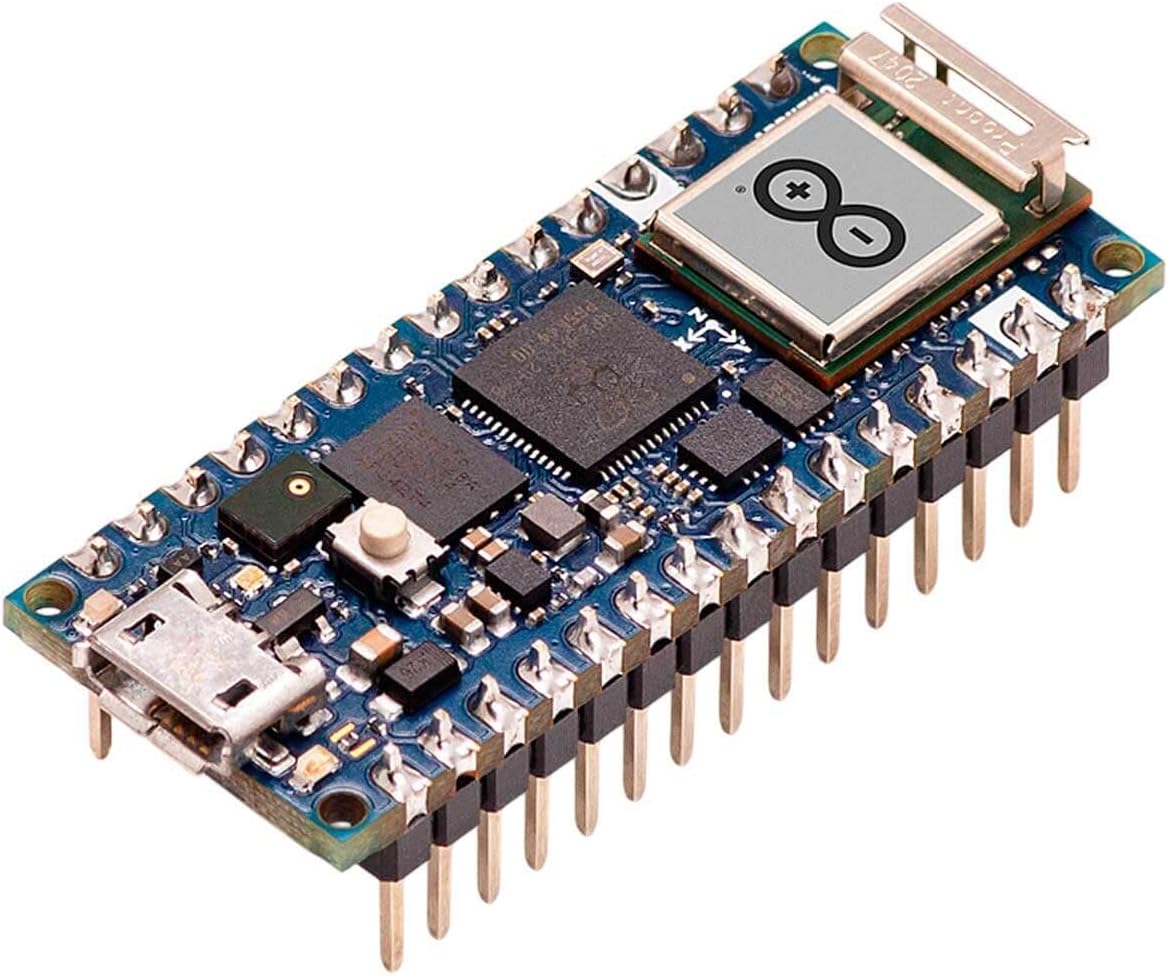
Rysunek 1.1: Przód view of the Arduino Nano RP2040 Connect board with pre-soldered headers.
2. Konfiguracja
To begin using your Arduino Nano RP2040 Connect, follow these steps:
- Zainstaluj Arduino IDE: Pobierz i zainstaluj najnowszą wersję Arduino IDE z oficjalnej strony Arduino webStrona (arduino.cc/en/software).
- Add Board Support: Open the Arduino IDE. Go to Narzędzia > Tablica > Menedżer tablic... Szukaj "Arduino Mbed OS RP2040 Boards" and install it.
- Podłącz płytkę: Connect the Arduino Nano RP2040 Connect to your computer using a micro-USB cable. Ensure the cable is data-capable.
- Wybierz deskę i port: W środowisku Arduino IDE przejdź do Tools > Board > Arduino Mbed OS RP2040 Boards and select "Arduino Nano RP2040 Connect". Then, go to Narzędzia > Port i wybierz port szeregowy odpowiadający podłączonej płytce.
- First Upload (Blink Sketch): Open the "Blink" exampszkic z File > Byłyamples > 01.Basics > Blink. Click the "Upload" button (right arrow icon) to compile and upload the sketch to your board. The onboard LED should start blinking.
- MicroPython Setup (Optional): For MicroPython development, refer to the official Arduino documentation for instructions on flashing the MicroPython firmware and using a compatible IDE or serial terminal.

Rysunek 2.1: Strona view of the board, highlighting the micro-USB port for connection.
3. Obsługa zarządu
The Arduino Nano RP2040 Connect can be powered via the micro-USB port or through the VIN pin (4.5-21V). Once powered and programmed, the board operates autonomously based on the uploaded sketch.
3.1. Łączność Wi-Fi i Bluetooth
The integrated u-blox NINA-W102 module provides Wi-Fi (802.11b/g/n) and Bluetooth/BLE v4.2 capabilities. Libraries are available in the Arduino IDE to enable network communication, connect to Wi-Fi networks, and establish Bluetooth connections for various IoT applications.
3.2. Onboard Sensors
- Mikrofon: The built-in microphone can be used for sound detection, audio processing, and voice recognition projects.
- Six-axis IMU: The Inertial Measurement Unit provides accelerometer and gyroscope data, enabling motion sensing, orientation tracking, fall detection, and gesture recognition.
3.3. Digital and Analog Pins
The board features 22 digital pins (20 with PWM support) and 8 analog pins. These pins can be configured as inputs or outputs to interface with external components such as LEDs, sensors, motors, and other modules.

Rysunek 3.1: The Arduino Nano RP2040 Connect in an active development environment.
4. Konserwacja
The Arduino Nano RP2040 Connect is a robust electronic device, but proper care ensures its longevity and reliable operation:
- Zachowaj ostrożność: Unikaj upuszczania deski i narażania jej na nadmierne obciążenia fizyczne.
- Wyładowanie statyczne: Always handle the board by its edges and avoid touching the electronic components directly to prevent damage from electrostatic discharge.
- Czystość: Keep the board free from dust, dirt, and moisture. Use a soft, dry brush or compressed air for cleaning if necessary.
- Zasilanie: Ensure you use a stable power supply within the specified voltage range (5V via USB, 4.5-21V via VIN). Incorrect voltagmoże uszkodzić płytę.
- Składowanie: Store the board in an anti-static bag or a protective enclosure when not in use.
5. Rozwiązywanie Problemów
If you encounter issues with your Arduino Nano RP2040 Connect, consider the following troubleshooting steps:
5.1. Board Not Recognized by Computer
- Sprawdź kabel USB: Ensure the micro-USB cable is a data-capable cable, not just a charging cable. Try a different cable.
- Sprawdź port USB: Spróbuj podłączyć do innego portu USB w komputerze.
- Instalacja sterownika: Verify that the necessary drivers are installed. The Arduino IDE installation typically handles this, but manual installation might be needed on some systems.
- Przycisk resetowania: Double-tap the reset button on the board quickly. This often puts the board into bootloader mode, making it discoverable by the computer.
5.2. Code Upload Failure
- Correct Board and Port: Confirm that the correct board type and serial port are selected in the Arduino IDE (Narzędzia > Tablica I Narzędzia > Port).
- Tryb bootloadera: If uploads consistently fail, try putting the board into bootloader mode by double-tapping the reset button before attempting to upload.
- Błędy składniowe: Check your code for any syntax errors that might prevent compilation.
5.3. Flimsy USB Connector
Some users have reported issues with the micro-USB connector being fragile. To minimize stress on the connector:
- Delikatne obchodzenie się: Always insert and remove the USB cable gently and without force.
- Bezpieczne połączenie: If possible, secure the board to a breadboard or enclosure to prevent movement that could strain the connector.
6. Specyfikacje
Below are the technical specifications for the Arduino Nano RP2040 Connect:

Rysunek 6.1: Packaging detail showing key specifications.
| Funkcja | Szczegół |
|---|---|
| Edytor | Dual-core ARM Cortex M0+ (RP2040) |
| Prędkość zegara | 133MHz |
| BARAN | 264 KB pamięci SRAM |
| Pamięć Flash | 16 MB (external) |
| Łączność bezprzewodowa | Wi-Fi 802.11b/g/n, Bluetooth & BLE v4.2 (u-blox NINA-W102) |
| Czujniki pokładowe | Microphone, 6-axis IMU |
| Cyfrowe wejścia / wyjścia Pins | 22 (20 with PWM) |
| Szpilki wejściowe analogowe | 8 |
| Objętość operacyjnatage | 3.3 V |
| Wejście Voltage (VIN) | 4.5-21 V |
| Wejście Voltage (USB) | 5V |
| Wymiary (dł. x szer. x wys.) | 3.15 x 2.28 x 0.91 cala (ok. 80 x 58 x 23 mm) |
| Waga | 0.6 uncji (około 17 gramów) |
| Numer modelu przedmiotu | ABX00053 |
7. Gwarancja i wsparcie
For information regarding product warranty, returns, and technical support, please refer to the official Arduino website or contact Arduino customer service directly. Specific warranty terms may vary by region and retailer.
Official Arduino Webstrona: www.arduino.cc
Community Forums: The Arduino community forums are an excellent resource for project ideas, troubleshooting, and peer support.