
1. Konfiguracja i instalacja
1.1 Zawartość pudełka
Przed rozpoczęciem instalacji należy sprawdzić, czy wszystkie komponenty są obecne:
- 1 x 8MP PTZ Camera
- 1 x Skrócona instrukcja obsługi
- 1 x zasilacz prądu stałego 12 V
- 1 x wspornik montażowy
- Lifetime Technical Support Information
1.2 Fizyczna instalacja
The VIKYLIN PTZ camera is designed for outdoor use and can be wall-mounted. Ensure the mounting location provides a clear field of view i znajduje się w zasięgu zasilania i połączeń sieciowych.

The camera supports Power over Ethernet (PoE), allowing both power and data transmission through a single Ethernet cable. If your router or switch does not support PoE, use the included DC 12V power adapter.

1.3 Network and Initial Web Konfiguracja interfejsu
This video demonstrates the process of connecting the camera to your network and configuring its basic settings via a computer's web interface. It covers connecting the camera to a router or switch, finding the camera's IP address, modifying network settings, and accessing various camera functions.
Key steps covered in the video:
- Connect the camera to a router or network switch using an Ethernet cable.
- Connect the router/switch to your computer.
- Install the AjDevTools configuration software on your computer.
- Open the software to find the camera's IP address.
- Access your computer's Network and Internet settings to view its IPv4 Address and Gateway.
- Modify the camera's IP address to be on the same network segment as your computer, ensuring no IP conflicts.
- Enter the camera's web login interface using a web browser. The default username is 'admin' and the default password is '123456'.
- Download and install any required browser plugins dla pełnej funkcjonalności.
- Adjust camera image basic parameters, video parameters (Encode Mode, Resolution, FPS, Video Quality, Bit Rate), and audio settings.
- Configure TCP/IP settings and P2P functions for remote access.
- Enable and set up Motion Detection, including scheduling and defining detection areas.
- Manage user accounts and modify the camera's date and time settings.
- Perform firmware upgrades and configure auto-maintenance settings.
1.4 Konfiguracja aplikacji mobilnej
The camera can be easily added to your mobile phone via the Videolink APP. This allows for real-time video viewing, playback, snapshots, and motion alerts. You can also share real-time video with others.

2. Instrukcja obsługi
2.1 Sterowanie obrotem, pochyleniem i powiększeniem (PTZ)
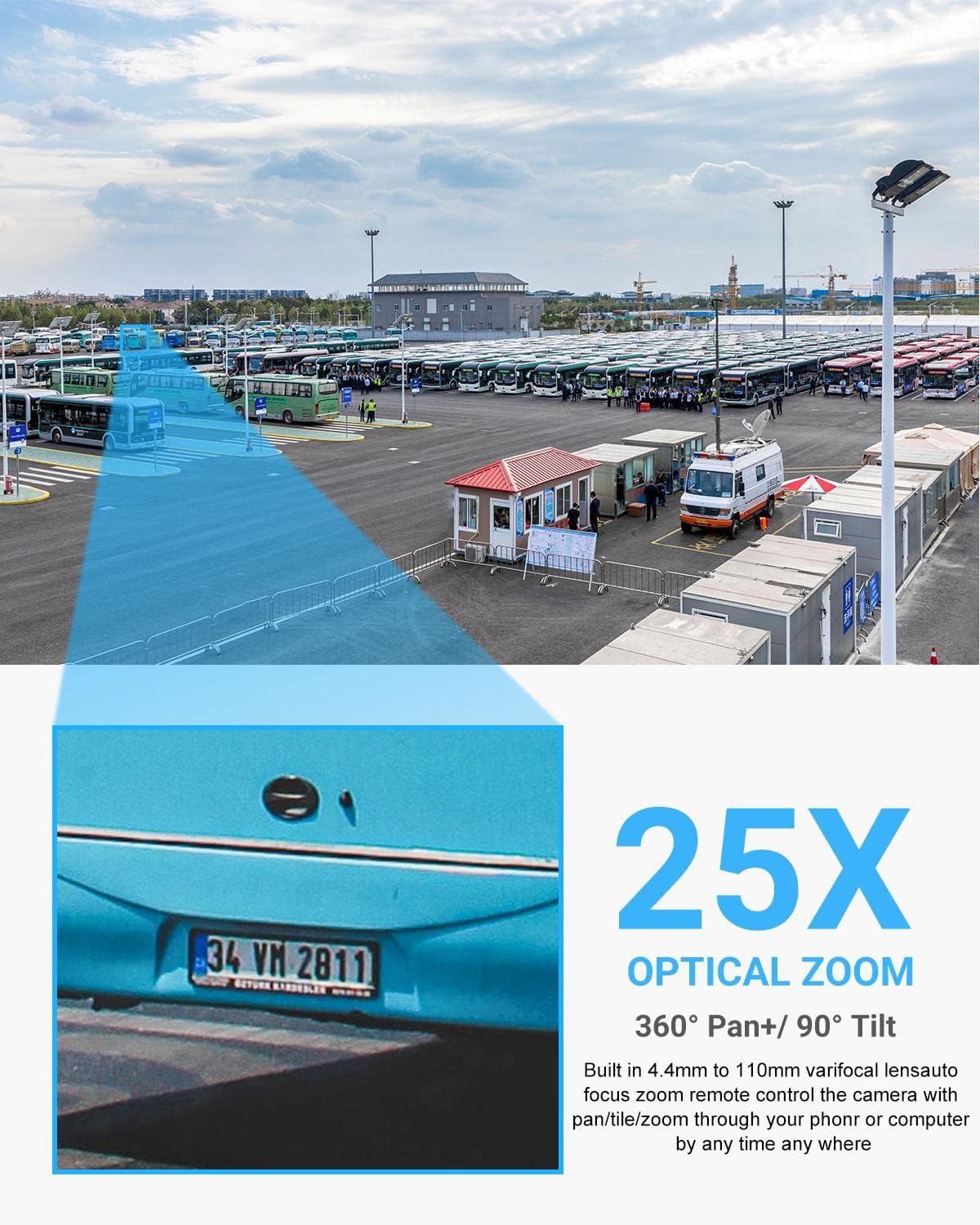
The camera offers extensive movement capabilities with 0° to 360° pan and 0° to 90° tilt. Its 25x optical zoom (4.4mm-110mm motorized lens) allows you to view distant objects in detail without compromising image quality.
2.2 Auto-Tracking and Human/Vehicle Detection
The camera features professional auto-tracking and human/vehicle detection. When a person or vehicle enters the monitored area, the camera automatically tracks their movement and sends real-time video or snapshots to your mobile device. Detection areas and sensitivity can be adjusted to minimize false alarms.


2.3 Dźwięk dwukierunkowy
Equipped with a built-in microphone and speakers, the camera supports two-way audio communication. This allows for real-time conversations with visitors or the ability to issue audible warnings to intruders directly through the camera.

2.4 Widzenie nocne
The camera is equipped with 8 IR LEDs, providing up to 328ft (100 meters) of ultra-long night vision distance. This ensures clear image capture in low light or complete darkness.

2.5 Auto Cruise
Configure up to 8 groups of cruising routes, with each route supporting up to 16 preset positions. The camera will cyclically check these preset positions, providing continuous surveillance of your property.

2.6 Opcje nagrywania
The camera supports multiple recording options without additional monthly fees. It can record to a Micro SD card (up to 512GB, not included), work with a PoE NVR (such as VIKYLIN NVR ASIN: B0DKXFQYQJ), or utilize FTP for storage.

3. Konserwacja
3.1 Odporność na warunki atmosferyczne
The camera is certified with an IP66 protection rating, indicating its resistance to dust and water immersion. It is designed to operate reliably in various outdoor weather conditions, with a wide operating temperature range.
3.2 Firmware Updates and Auto Maintenance
Regular firmware updates ensure optimal performance and access to new features. The camera's web interface allows for easy firmware upgrades and configuration of auto-maintenance schedules. Refer to Section 1.3 for detailed steps on accessing and navigating the web interface for these settings.
4. Rozwiązywanie Problemów
- Problemy z łącznością sieciową: If the camera is not connecting to the network, ensure the Ethernet cable is securely connected and that your router/switch is functioning correctly. Verify the camera's IP address is on the same network segment as your computer, as detailed in Section 1.3.
- Problemy z połączeniem aplikacji mobilnej: If you are unable to connect via the Videolink APP, check your P2P settings in the web interface (Section 1.3) to ensure it is enabled and the QR code is correctly scanned. Ensure your mobile device has a stable internet connection.
- Detekcja ruchu nie jest aktywowana: Review the motion detection settings in the web interface (Section 1.3). Confirm that motion detection is enabled, the detection area is correctly defined, and sensitivity/thresholds are appropriately set.
- Problemy z jakością obrazu: Check the camera's image and video parameters in the web interface (Section 1.3) to ensure resolution, frame rate, and quality settings are optimized for your network and storage capacity.
- Brak dźwięku lub słaba jakość dźwięku: Verify audio settings in the web interface (Section 1.3), ensuring audio input/output volumes are correctly adjusted and the audio encode type is suitable.
- Ogólne problemy z wydajnością: Consider performing a factory reset via the web interface (Section 1.3) if persistent issues occur. Always back up configurations before a reset. Ensure the camera's firmware is up to date.
Aby uzyskać dalszą pomoc, odwiedź stronę VIKYLIN Official Store lub skontaktuj się z obsługą klienta.
5. Specyfikacje
| Funkcja | Szczegół |
|---|---|
| Numer modelu | VK-GK4825 PTZ (PTZ-4825-IS2) |
| Rezolucja | 8MP (4K) @ 20fps, 4MP @ 30fps |
| Czujnik obrazu | 1 / 2.8 "Progressive Scan CMOS |
| Zoom optyczny | 25x (4.4-110mm Motorized Lens) |
| Zoom cyfrowy | 30x |
| Pan Range | 0° do 360° |
| Zakres pochylenia | 0° do 90° |
| Zakres noktowizora | Up to 328ft (100m) with 8 IR LEDs |
| Audio | Built-in Microphone and Speakers (Two-Way Audio) |
| Wykrywanie | AI Human/Vehicle Detection, Auto Tracking |
| Łączność | PoE (802.3af), Ethernet, ONVIF, RTSP |
| Składowanie | Micro SD Card (up to 512GB), NVR, FTP |
| Odporność na warunki atmosferyczne | Wodoodporność IP66 |
| Źródło zasilania | 12V DC lub PoE |
| Tworzywo | Metal |
| Wymiary | 10 x 6.5 x 6.5 cala |
| Waga | 4.3 funta |
6. Gwarancja i wsparcie
VIKYLIN is committed to providing reliable security solutions. This product includes:
- 2-letnia ograniczona gwarancja: Obejmuje wady produkcyjne i usterki powstałe w trakcie normalnego użytkowania.
- 30-dniowa gwarancja zwrotu pieniędzy: Allows for returns within 30 days of purchase for a full refund.
- Dożywotnie wsparcie techniczne: Access to expert assistance for any questions or issues you may encounter.
For warranty claims, technical support, or additional product information, please visit the VIKYLIN Official Store on Amazon lub skorzystaj z danych kontaktowych znajdujących się na opakowaniu produktu.