
1. Wprowadzenie
The Rapoo MT550 is a versatile multi-device wireless mouse designed for enhanced productivity and comfort. This manual provides detailed instructions for setting up, operating, and maintaining your MT550 mouse, ensuring optimal performance across various devices.
Główne cechy obejmują:
- Multi-device connectivity (Bluetooth 3.0, Bluetooth 4.0, and 2.4G wireless)
- Adjustable DPI settings (600/1000/1300/1600)
- Ergonomiczna konstrukcja zapewniająca wygodę użytkowania
- Long battery life of up to 12 months
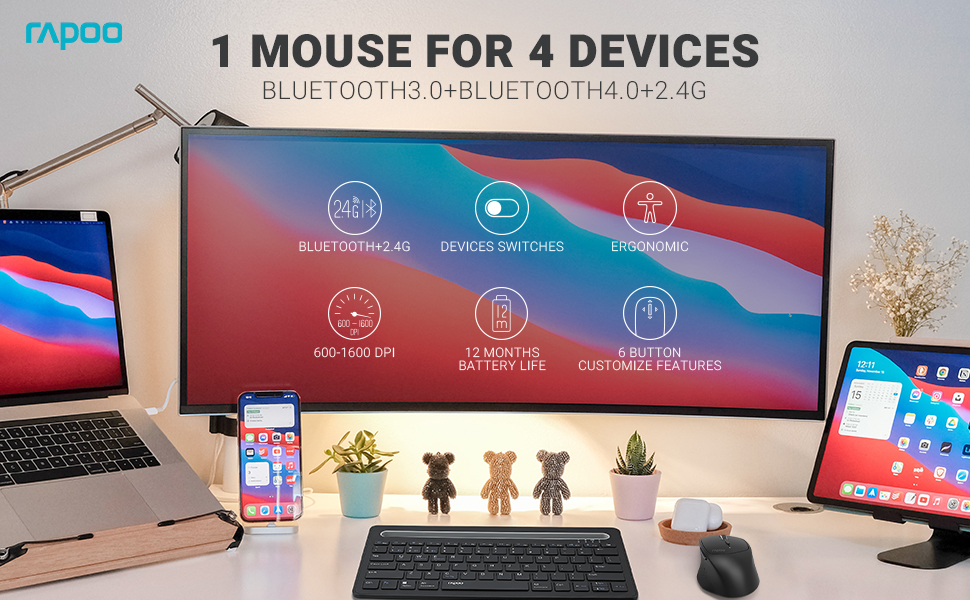
Image: The Rapoo MT550 mouse, highlighting its design for endurance, versatility, and comfort.
2. Konfiguracja
2.1. Instalacja baterii
The Rapoo MT550 mouse requires two AA batteries (included). To install:
- Znajdź pokrywę komory baterii na spodzie myszy.
- Otwórz pokrywę.
- Włóż dwie baterie AA, zwracając uwagę na prawidłową biegunowość (+/-).
- Zamknij pokrywę komory baterii.
2.2. Łączenie przez sieć bezprzewodową 2.4G (odbiornik USB)
For a 2.4G wireless connection:
- Włącz mysz za pomocą przełącznika ON/OFF znajdującego się na spodzie urządzenia.
- Locate the USB receiver stored in the battery compartment.
- Podłącz odbiornik USB do wolnego portu USB w komputerze.
- The mouse should automatically connect. If not, press the device switch button until the indicator for channel 4 (usually indicated by a specific light pattern or number) is active.
2.3. Łączenie przez Bluetooth
The Rapoo MT550 supports up to three Bluetooth connections. To connect:
- Włącz mysz za pomocą przełącznika ON/OFF.
- Short press the device switch button to select a Bluetooth channel (1, 2, or 3). The corresponding indicator light will illuminate.
- Press and hold the Bluetooth pairing button (often located near the device switch button) for approximately 3 seconds until the indicator light for the selected channel starts flashing rapidly. This indicates the mouse is in pairing mode.
- Na swoim urządzeniu (komputerze, laptopie, tablecie, telefonie) włącz Bluetooth i wyszukaj nowe urządzenia.
- Select "Rapoo MT550" from the list of available devices to complete the pairing process.
- Repeat these steps to pair with up to two additional Bluetooth devices on channels 2 and 3.

Image: Labeled diagram of the Rapoo MT550 mouse, indicating the location of the ON/OFF switch, Bluetooth button, device switch button, battery slot, USB receiver, DPI button, scroller, and other buttons.
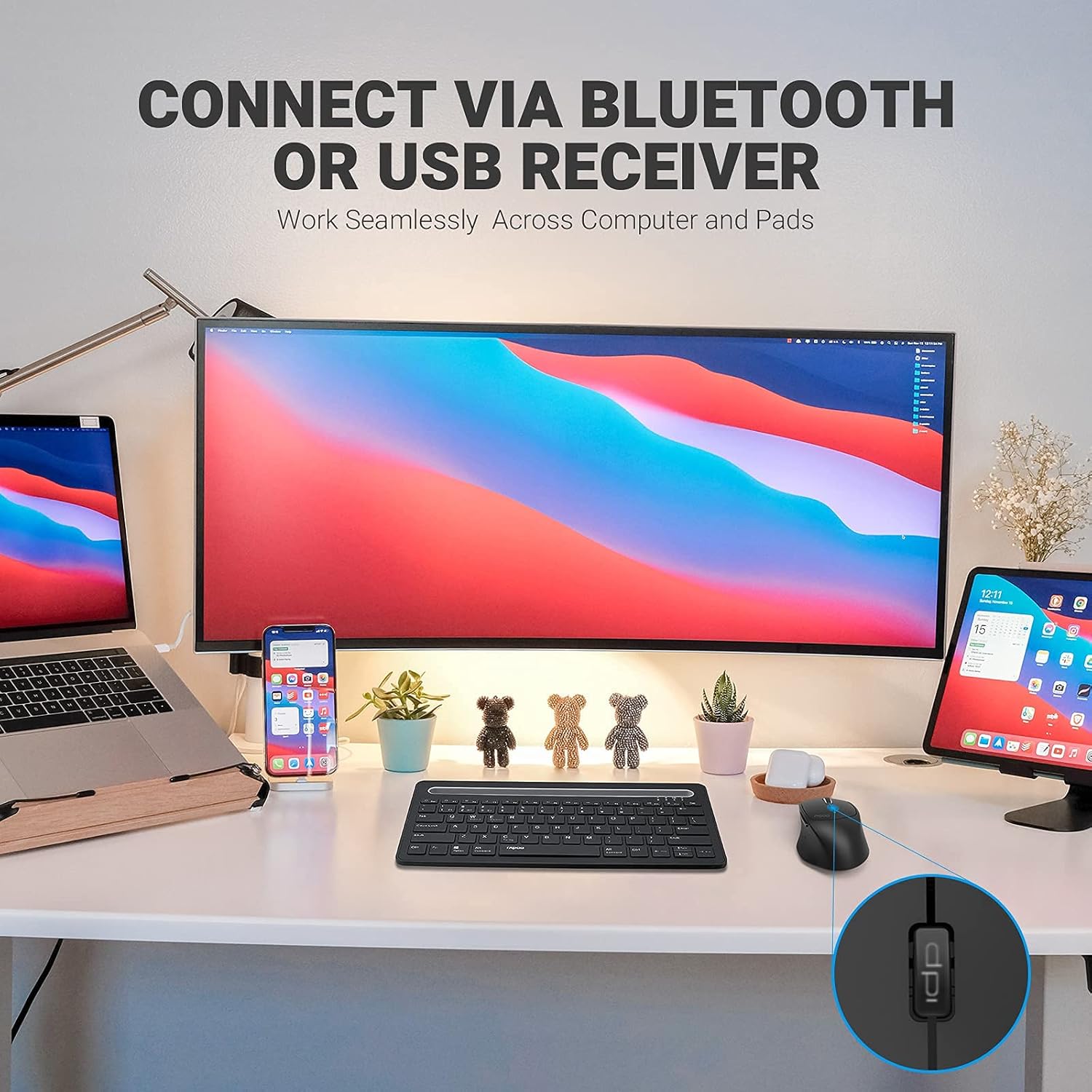
Image: A workstation demonstrating the Rapoo MT550 mouse connecting to multiple devices via Bluetooth or USB receiver.
3. Instrukcja obsługi
3.1. Przełączanie między urządzeniami
Aby przełączać się między podłączonymi urządzeniami:
- Short press the device switch button located on the underside of the mouse.
- Each press will cycle through the connected channels (1, 2, 3 for Bluetooth, 4 for 2.4G USB receiver). The corresponding indicator light will show the active channel.
3.2. Regulacja DPI (czułości)
The MT550 mouse features four adjustable DPI settings for precise control:
- Press the DPI button, located behind the scroll wheel, to cycle through the available settings: 600, 1000, 1300, and 1600 DPI.
- The indicator light will briefly change to reflect the selected DPI level.

Obraz: Zbliżenie view of the DPI button on the Rapoo MT550 mouse, with the indicator light showing the current DPI setting.
3.3. Using Forward/Back Buttons
The two thumb buttons on the side of the mouse provide quick navigation:
- The forward button advances to the next page or folder.
- The back button returns to the previous page or folder.
4. Konserwacja
4.1. Czyszczenie
To maintain the appearance and functionality of your mouse:
- Do czyszczenia powierzchni myszy należy używać miękkiej, suchej ściereczki.
- Unikaj stosowania silnych środków chemicznych, ściernych środków czyszczących i rozpuszczalników, gdyż mogą one uszkodzić wykończenie.
4.2. Wymiana baterii
When the low battery indicator appears or the mouse becomes unresponsive, it's time to replace the batteries:
- Postępuj zgodnie z instrukcjami instalacji baterii podanymi w rozdziale 2.1.
- Ensure you use two fresh AA batteries and insert them with the correct polarity.
4.3. Przechowywanie
When not in use for extended periods, store the mouse in a dry, cool environment away from direct sunlight and extreme temperatures.
5. Rozwiązywanie Problemów
If you encounter issues with your Rapoo MT550 mouse, refer to the following troubleshooting steps:
5.1. Mysz nie odpowiada
- Sprawdź moc: Ensure the mouse is turned on using the ON/OFF switch.
- Sprawdź baterie: Sprawdź, czy baterie są prawidłowo zainstalowane i wystarczająco naładowane. W razie potrzeby wymień je.
- Odbiornik 2.4G: For 2.4G connection, ensure the USB receiver is securely plugged into a working USB port on your computer. Try a different USB port.
- Połączenie Bluetooth: For Bluetooth, ensure Bluetooth is enabled on your device and the mouse is paired to the correct channel. Try re-pairing the mouse if the connection is lost.
5.2. Przerywane połączenie lub opóźnienie
- Bliskość: Move the mouse closer to your computer or device to ensure a strong signal.
- Ingerencja: Avoid using the mouse near other wireless devices (e.g., Wi-Fi routers, cordless phones) that might cause interference.
- Powierzchnia: Ensure you are using the mouse on a suitable surface. While the MT550 is designed for various surfaces, extreme textures or reflective surfaces can affect tracking.
5.3. DPI nie zmienia się
- Ensure you are pressing the dedicated DPI button, not another button.
- Jeśli problem nadal występuje, spróbuj wyłączyć mysz i włączyć ją ponownie.
6. Specyfikacje
| Wymiary produktu | 3.93 x 2.55 x 1.57 cala |
| Waga przedmiotu | 5.3 uncji |
| Baterie | 2 baterie AA (w zestawie) |
| Technologia łączności | Bluetooth (3.0/4.0) and 2.4G Wireless |
| Technologia wykrywania ruchu | Optyczny |
| Regulowane DPI | 600 / 1000 / 1300 / 1600 |
| Liczba przycisków | 6 (lewo, prawo, przewijanie, DPI, do przodu, do tyłu) |
| Żywotność baterii | Do 12 miesięcy (w normalnych warunkach) |
7. Gwarancja i wsparcie
Rapoo provides the following coverage for your MT550 Multi-Device Wireless Mouse:
- Gwarancja: 3-year worry-free warranty.
- Zasady zwrotu: 180-dniowa gwarancja zwrotu pieniędzy.
For further assistance, technical support, or warranty claims, please visit the official Rapoo webstronie lub skontaktuj się z działem obsługi klienta.