
DIHOOM Wireless Security Camera NVR (Recorder Unit)
DIHOOM Wireless Security Camera NVR Instruction Manual
Model: Wireless Security Camera NVR (Recorder Unit Only)
Marka: DIHOOM
1. Wprowadzenie
This instruction manual provides detailed information on the setup, operation, and maintenance of your DIHOOM Wireless Security Camera NVR. This NVR (Network Video Recorder) unit is designed to work with DIHOOM wireless surveillance cameras, supporting up to 8 cameras with 5-megapixel resolution. It features H.265+ compression for efficient storage and supports both local and remote monitoring via smartphone or PC.

Obraz: Przód view of the DIHOOM Wireless Security Camera NVR unit, showing its compact design and two antennas.
2. Koniec produktuview i komponenty
Familiarize yourself with the various ports and indicators on your NVR unit.

Image: Diagram illustrating the components and ports of the DIHOOM NVR. Key components include: (1) Power Lamp, (2) HDD Lamp, (3) RUN Lamp, (4) Antennas, (5) USB Port, (6) VGA Port, (7) Switch Button, (8) Power Port, (9) LAN Port, (10) HDMI Port.
- Moc Lamp: Wskazuje stan zasilania urządzenia.
- HDD Lamp: Indicates the status of the hard disk drive.
- URUCHOM Lamp: Indicates the operational status of the NVR.
- Anteny: Do bezprzewodowej komunikacji z kamerami.
- Port USB: For connecting a mouse or external storage.
- Port VGA: For connecting to a monitor via VGA cable.
- Przycisk przełącznika: Włącznik/wyłącznik zasilania.
- Port zasilania: Do podłączenia zasilacza.
- Port LAN: For wired network connection to a router.
- Port HDMI: For connecting to a monitor via HDMI cable.
3. Przewodnik konfiguracji
The DIHOOM NVR is designed for easy setup with minimal configuration required for wireless cameras.

Image: Visual guide for NVR setup. Steps include: 1. Powering on the camera and connecting the NVR to a router. 2. Downloading the mobile application. 3. Vieww nagraniach.
3.1 Initial Wireless Connection
- Włącz kamery: Ensure all DIHOOM wireless cameras are powered on and within range of the NVR.
- Włącz NVR: Connect the power adapter to the NVR's power port and plug it into an electrical outlet. The NVR will power on automatically.
- Połącz z wyświetlaczem: Connect the NVR to a monitor or TV using either the HDMI or VGA port.
- Automatyczne parowanie: The NVR will automatically detect and pair with powered-on DIHOOM wireless cameras. Live feeds should appear on the connected display.
3.2 Połączenie przewodowe (opcjonalnie)
For improved signal strength or specific network configurations, individual cameras can be connected to the NVR via an Ethernet cable.
- Connect one end of an Ethernet cable to the camera's LAN port.
- Connect the other end of the Ethernet cable to an available LAN port on the NVR.
- The NVR will automatically switch the camera's connection to wired mode.
3.3 Remote Monitoring Setup
Aby włączyć zdalne viewing via smartphone or PC, the NVR must be connected to your home network.
- Podłącz NVR do routera: Use an Ethernet cable to connect the NVR's LAN port to an available port on your internet router.
- Pobierz aplikację: Download the official DIHOOM monitoring application from your smartphone's app store (App Store for iOS, Google Play for Android).
- Zarejestruj się/Zaloguj: Follow the in-app instructions to register an account and add your NVR device using its unique ID or QR code.
- Klient PC: For PC monitoring, download the dedicated client software from the official DIHOOM webstrona.
4. Obsługa rejestratora NVR
4.1 Na żywo View and Playback (Local Operation)
When connected to a display, you can perform real-time viewing, playback, and system settings directly on the NVR using a USB mouse.
- W czasie rzeczywistym Viewing: Displays live feeds from all connected cameras.
- Odtwarzanie nagranego dźwięku: Uzyskaj dostęp do nagranego pliku footage stored on the installed HDD.
- Ustawienia: Configure various NVR parameters, including recording modes, network settings, and user management.
4.2 Tryby nagrywania
The NVR supports three primary recording modes to suit different surveillance needs.
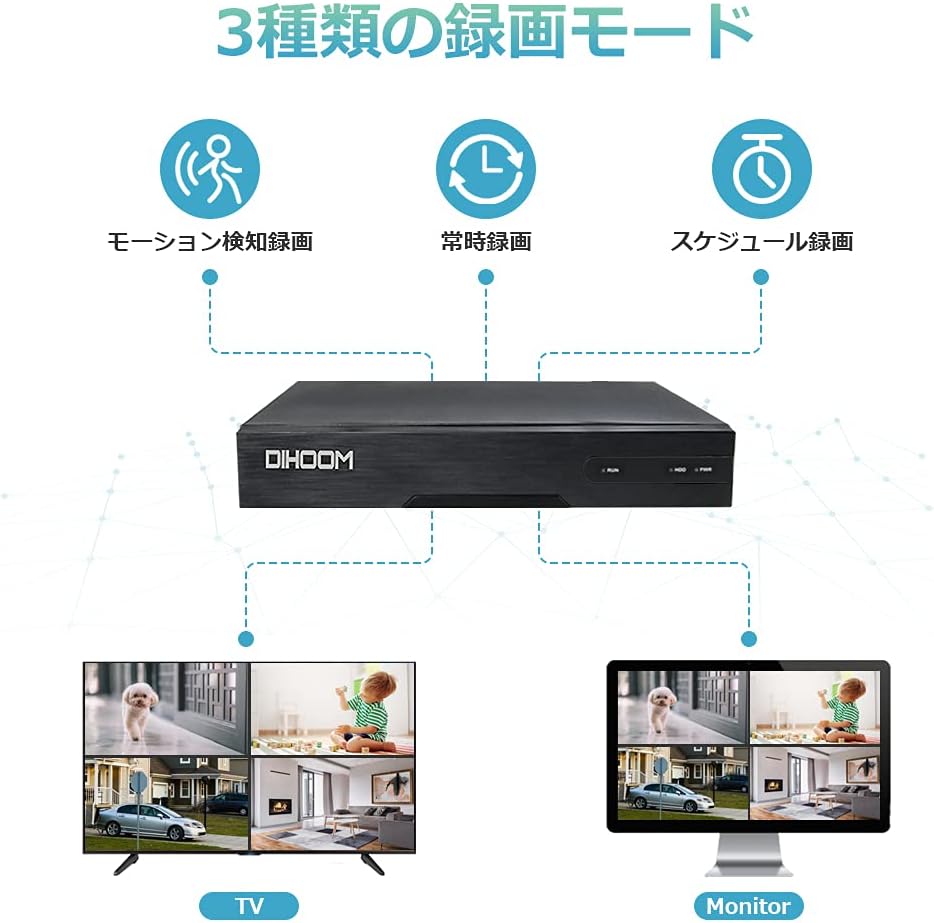
Image: Diagram illustrating the three recording modes: Motion Detection Recording, Continuous Recording, and Schedule Recording. Below are examples of multi-camera views on a TV and a monitor.
- Ciągłe nagrywanie: Nagrywa 24/7 bez przerwy.
- Zaplanuj nagrywanie: Allows you to set specific times for recording.
- Nagrywanie z wykrywaniem ruchu: Records only when motion is detected, saving storage space. When abnormal movement is detected, the NVR will trigger a buzzer alarm and send notifications to your smartphone.

Image: Illustration of the motion detection feature, showing a camera detecting human movement and the NVR unit emitting an alarm sound.
5. Główne cechy
- 5 Megapixel Resolution Support: The NVR's default resolution is 5MP (2560x1920), providing clear and detailed images. It supports five different resolution settings for monitoring systems.
- H.265+ High Compression Technology: Adopting H.265+ compression technology, this NVR saves approximately half the HDD capacity compared to conventional H.264. This also reduces bandwidth usage, resulting in smoother video playback.

Image: Comparison of H.264, H.265, and H.265+ compression, showing H.265+ offers significantly longer recording times for the same storage capacity (e.g., 27 days vs. 9 days for 1TB HDD).
- Supports up to 8 Cameras: This NVR can be expanded to support up to 8 wireless security cameras, allowing for comprehensive surveillance coverage.
- Local and Remote Operation: The NVR supports local operation (real-time viewing, playback, settings) without an internet connection when connected to a display. For remote monitoring via smartphone or PC, a wired LAN connection to a router is required.
6. Konserwacja
Proper maintenance ensures the longevity and optimal performance of your DIHOOM NVR.
- Czyszczenie: Regularly wipe the NVR unit with a soft, dry cloth. Do not use liquid cleaners or aerosols.
- Wentylacja: Upewnij się, że rejestrator NVR znajduje się w dobrze wentylowanym pomieszczeniu, aby zapobiec przegrzaniu. Nie blokuj otworów wentylacyjnych.
- Aktualizacje oprogramowania układowego: Periodically check the DIHOOM official webwitryna z aktualizacjami oprogramowania sprzętowego, dzięki której masz pewność, że Twój system ma najnowsze funkcje i poprawki zabezpieczeń.
- Stan dysku twardego: If an HDD is installed, monitor its health through the NVR's system settings to prevent data loss.
7. Rozwiązywanie Problemów
This section addresses common issues you might encounter with your DIHOOM NVR.
| Problem | Możliwa przyczyna | Rozwiązanie |
|---|---|---|
| Brak obrazu na wyświetlaczu. | Luźne połączenie kablowe, nieprawidłowe źródło sygnału wejściowego na monitorze, niewłączony rejestrator NVR. | Check HDMI/VGA cable connection. Ensure monitor input is set correctly. Verify NVR power lamp jest włączony. |
| Kamery się nie wyświetlają. | Cameras not powered on, out of range, interference, or not paired. | Ensure cameras are powered. Reduce distance between NVR and cameras. Try wired connection for problematic cameras. Re-pair cameras if necessary (refer to NVR settings). |
| Zdalny viewnie działa. | NVR not connected to router, network issues, incorrect app settings. | Verify NVR is connected to router via LAN cable. Check router's internet connection. Ensure correct device ID/QR code is entered in the app. |
| Recording not happening. | No HDD installed, HDD full, incorrect recording schedule, motion detection not triggered. | Install a compatible HDD (up to 6TB). Check HDD status and free space. Verify recording schedule or motion detection settings. |
8. Specyfikacje
| Funkcja | Szczegół |
|---|---|
| Marka | DIHOOM |
| Typ modelu | Wireless Security Camera NVR (Recorder Unit) |
| ASIN | B09362BY11 |
| UPC | 631851245137 |
| Technologia łączności | Wi-Fi (Wireless), Ethernet (Wired) |
| Liczba kanałów | 8 (obsługuje do 8 kamer) |
| Maksymalna rozdzielczość | 5 megapikseli (2560x1920) |
| Kompresja wideo | H.265 + |
| Obsługa dysków twardych | Do 6TB (dysk twardy nie jest dołączony) |
| Wymiary opakowania | Wymiary 50 x 46 x 39 cm |
| Waga paczki | 13.6 kilogramów |
9. Gwarancja i wsparcie
DIHOOM is committed to providing high-quality products and excellent customer support.


Image: Left: DIHOOM customer support representatives ready to assist. Right: DIHOOM's quality control process, ensuring each product is inspected before shipment.
- Zapewnienie jakości: Products undergo rigorous inspection before shipment.
- Wsparcie techniczne: Professional technical support is available for assistance with product setup, operation, and troubleshooting.
- Informacje kontaktowe: For support inquiries, please refer to the contact details provided on the DIHOOM official webwitryny lub dokumentacji zakupu.
Ask a question about this manual
Ask about setup, troubleshooting, compatibility, parts, safety, or missing instructions. Manuals+ will review the question and use this page’s manual context to help answer it.