
Unbranded DP-KK99
Unbranded DP-KK99 WiFi Panoramic Security Camera User Manual
Model: DP-KK99
1. Wprowadzenie
This manual provides detailed instructions for the installation, operation, and maintenance of your Unbranded DP-KK99 WiFi Panoramic Security Camera. Please read this manual thoroughly before using the product to ensure proper functionality and safety. This camera offers 360-degree panoramic surveillance, motion detection, night vision, and two-way audio communication for comprehensive home monitoring.
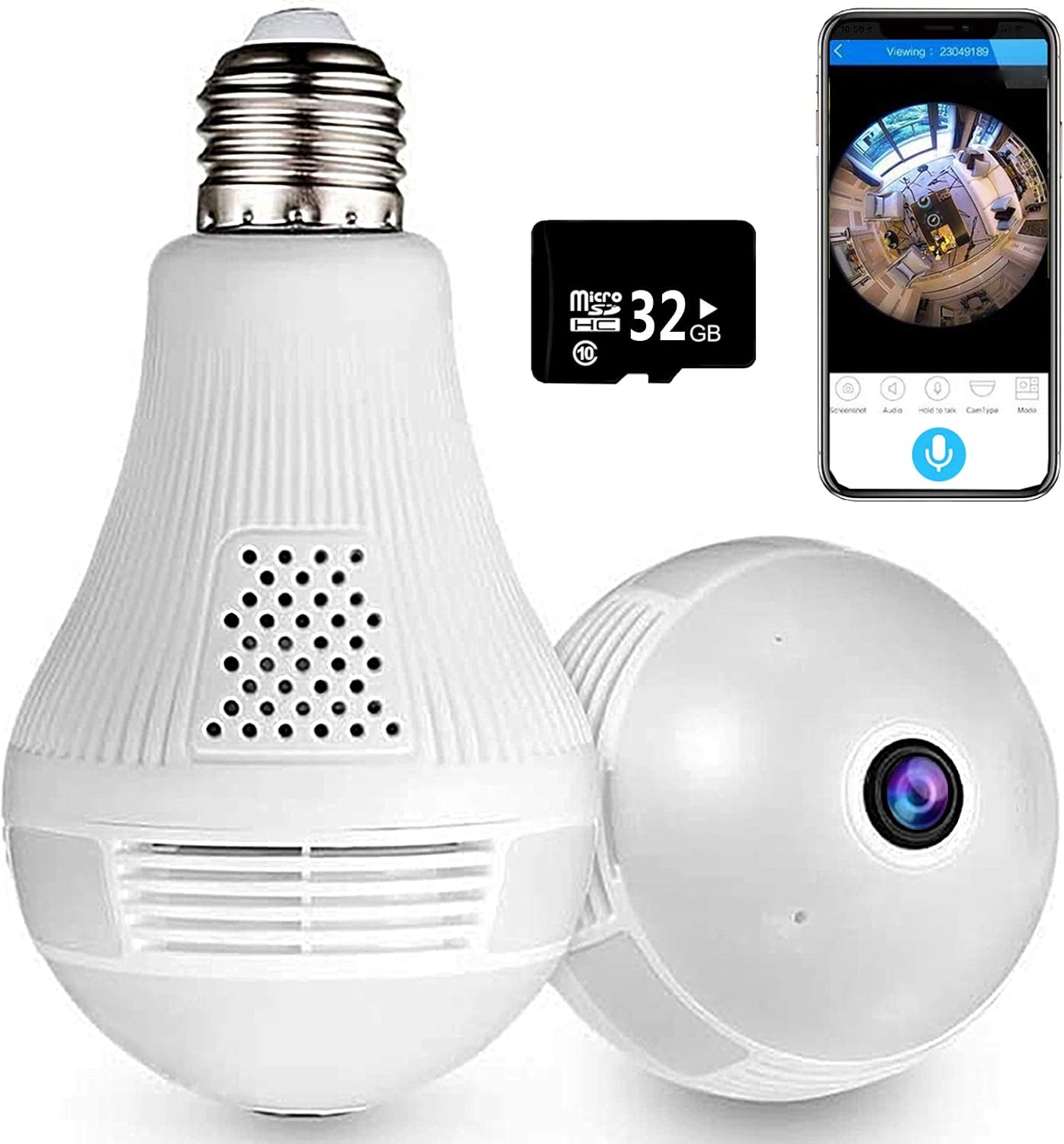
Image 1.1: The Unbranded DP-KK99 WiFi Panoramic Security Camera, showing its bulb-like design, a 32GB Micro SD card, and a smartphone displaying the camera's panoramic view.
2. Zawartość opakowania
Prosimy o sprawdzenie zawartości przesyłki po jej otrzymaniu. Jeśli brakuje któregokolwiek z elementów lub jest on uszkodzony, prosimy o kontakt ze sprzedawcą.
- Unbranded DP-KK99 WiFi Panoramic Security Camera
- Karta Micro SD 32 GB (wstępnie zainstalowana lub dołączona osobno)
- Uchwyt montażowy
- Instrukcja obsługi (ten dokument)
3. Przewodnik konfiguracji
3.1 Instalacja
The camera is designed for easy installation into a standard E27 lamp opierać.
- Ensure the power to the E27 lamp base is turned off before installation.
- Screw the camera firmly into the E27 lamp opierać.
- Turn on the power to the lamp base. The camera will power on and begin its startup sequence.

Image 3.1: Visual guide for screwing the camera into a standard E27 lamp Podstawa do montażu.
3.2 Pobieranie aplikacji i łączenie
The camera operates via the 'iCsee' mobile application.
- Pobierz aplikację: Scan the QR code provided on the product packaging or search for "iCsee" in your smartphone's app store (iOS/Android).
- Zarejestruj konto: Open the iCsee application and register a new account using your email address. Phone numbers are not required for registration.
- Dodaj kamerę: Tap the '+' icon within the app to add a new device. Follow the on-screen prompts to select "Add Camera."
- Połącz się z Wi-Fi: Enter your 2.4GHz Wi-Fi network password. The camera only supports 2.4GHz Wi-Fi. Ensure the Wi-Fi name and password are spelled correctly.
- Initial Connection Tips: For the first connection, place the camera within 2 meters of your Wi-Fi router.
- Set New Password: Once successfully connected, set a new password for your camera for security.
3.3 Important Connection Notes
- Only 2.4GHz Wi-Fi networks are supported. 5GHz networks are not compatible.
- Ensure your Wi-Fi name and password are entered accurately.
- For initial setup, keep the camera close to your Wi-Fi router (within 2 meters).
4. Instrukcja obsługi
4.1 Zdalne Viewi Kontroli
Po połączeniu możesz view żyćtage and control camera functions remotely through the iCsee app.
- Na żywo View: Access the camera feed to see a clear, all-round view of your monitored area. The 360-degree fisheye lens provides comprehensive coverage without blind spots.
- Schwytać: Use the app to capture pictures and record videos directly from the live feed.

Image 4.1: The camera's 360-degree panoramic view eliminates blind spots, providing coverage equivalent to multiple standard cameras.
4.2 Dwukierunkowa komunikacja audio
Kamera posiada wbudowany mikrofon i głośnik, co umożliwia dwukierunkową komunikację audio.
- From the iCsee app, you can initiate audio calls and conversations with individuals near the camera.
- The clear microphone ensures effective vocal transmission.

Image 4.2: The camera supports two-way intercom/audio, allowing remote communication with family members.
4.3 Detekcja ruchu i alerty
The camera is equipped with a motion detection function to enhance security.
- When abnormal motion is detected, the camera will send an alert message directly to your mobile phone via the iCsee app.
- This feature helps keep your home or office secure by notifying you of unusual activity.

Image 4.3: The camera supports motion detection, sending alarm notifications to your smartphone upon detecting activity.
4.4 Widzenie nocne
The camera provides excellent night vision capabilities for monitoring in low-light or dark conditions.
- It features built-in infrared night vision and white light full-color night vision dual mode.
- This dual mode ensures clear visibility and security around the clock.
4.5 funkcja światła
The integrated light can be controlled via the app.
- You can set the light to turn on automatically in the dark, manually control it, or schedule it to turn on at specific times.
4.6 Opcje przechowywania
The camera supports both local and cloud storage for recorded footage.
- Karta micro sd: Na żywo viewing and recording are supported directly to the included 32GB Micro SD card.
- Przechowywanie w chmurze: Cloud storage options may be available through the iCsee app for additional backup and accessibility.

Image 4.4: The camera supports both Micro SD card and cloud storage for recording and viewing.
5. Specyfikacje
| Funkcja | Szczegół |
|---|---|
| Numer modelu | DP-KK99 |
| Technologia łączności | Bezprzewodowy (Wi-Fi) |
| Protokół łączności | Wi-Fi (tylko 2.4 GHz) |
| Kompatybilne urządzenia | Smartfon (iOS/Android) |
| Źródło zasilania | AC/DC (E27 Lamp Opierać) |
| Typ montażu | Montaż sufitowy |
| Współczynnik kształtu | Kopuła |
| Kolor | Biały |
| Pozycja Wymiary (dł. x szer. x wys.) | 6.5 x 3.94 x 3.54 cala |
| Waga przedmiotu | 7.8 uncji |
| Cechy specjalne | Motion Sensor, Night Vision (Infrared & Full-Color), Two-Way Audio |
| Zastosowanie wewnątrz/na zewnątrz | Wnętrz |
| Format przechwytywania wideo | MPEG-4 |
| Międzynarodowa Ocena Ochrony | IP67 |
6. Rozwiązywanie Problemów
Jeśli masz problemy z aparatem, zapoznaj się z poniższymi, często spotykanymi rozwiązaniami:
- Błąd połączenia:
- Upewnij się, że Twoja sieć Wi-Fi obsługuje częstotliwość 2.4 GHz. Kamera nie obsługuje Wi-Fi 5 GHz.
- Verify that the Wi-Fi name (SSID) and password are entered correctly in the iCsee app.
- During initial setup, ensure the camera is within 2 meters of your Wi-Fi router.
- Resetowanie aparatu: If connection fails, insert a thimble or small pin into the reset hole on the camera. Press and hold for 10 seconds until you hear a prompt or see an indicator light change. Wait 2 minutes for the camera to restart, then attempt to reconnect.
- Hotspot Mode Activation: If you need to activate hotspot mode, insert a thimble into the reset hole and click 3 times. Then, search for a Wi-Fi network starting with "camera" on your phone. The default password for this hotspot is 1234567890.
- No Picture/Offline: Check the power supply to the E27 lamp base. Ensure the camera is securely screwed in and receiving power. Verify your Wi-Fi connection is stable.
- Słaba jakość obrazu: Ensure the camera lens is clean and free from dust or obstructions. Check your internet connection speed.
- Karta SD nie nagrywa: Ensure the 32GB Micro SD card is properly inserted. Format the SD card through the app if necessary.
7. Konserwacja
- Czyszczenie: Delikatnie przetrzyj obiektyw i korpus aparatu miękką, suchą ściereczką. Nie używaj silnych środków chemicznych ani ściernych środków czyszczących.
- Umieszczenie: Ensure the camera is installed in a dry, indoor environment. Avoid direct exposure to water or extreme temperatures.
- Aktualizacje oprogramowania układowego: Periodically check the iCsee app for available firmware updates to ensure optimal performance and security.
8. Gwarancja i wsparcie
Specific warranty details for this Unbranded product are not provided in this manual. For warranty information, technical support, or service inquiries, please contact your original retailer or the seller directly. Keep your purchase receipt as proof of purchase.
Ask a question about this manual
Ask about setup, troubleshooting, compatibility, parts, safety, or missing instructions. Manuals+ will review the question and use this page’s manual context to help answer it.