
Wstęp
The Sharkoon Skiller SGK30 is a mechanical gaming keyboard designed for performance and durability. It features customizable RGB lighting, N-Key rollover, and a 1000Hz polling rate for responsive gameplay and typing. This manual provides essential information for setting up, operating, and maintaining your keyboard.

Image: Sharkoon Skiller SGK30 Mechanical Gaming Keyboard banner displaying the product name and type.
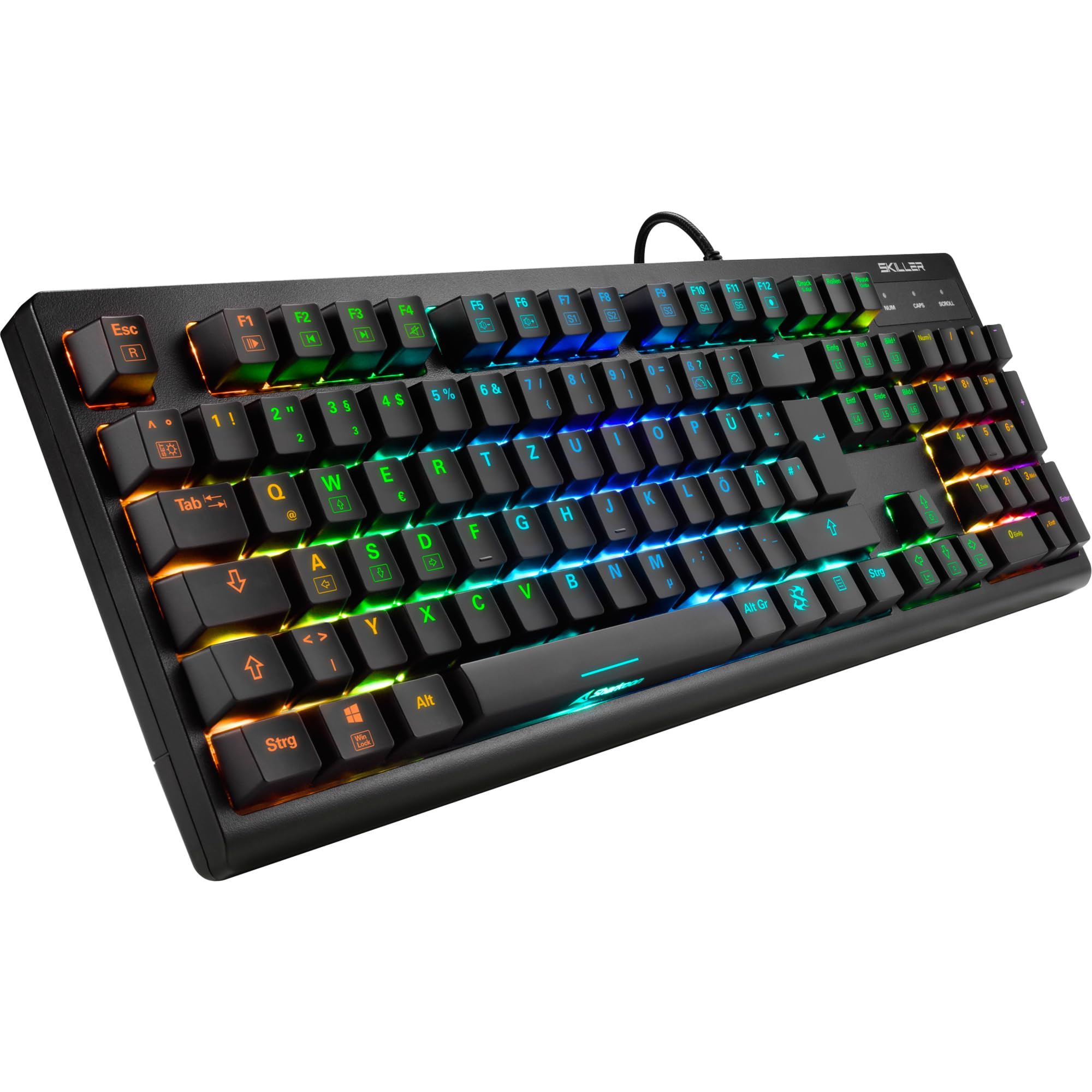
Obraz: widok z góry view of the Sharkoon Skiller SGK30 mechanical gaming keyboard, showcasinz pełnym układem i żywym podświetleniem RGB.
Produkt ponadview Wideo
Wideo: Oficjalny produkt już dostępnyview of the Sharkoon Skiller SGK30 Mechanical Gaming Keyboard, demonstrating its features, RGB lighting effects, and mechanical switches.
Organizować coś
Follow these steps to set up your Sharkoon Skiller SGK30 keyboard:
- Rozpakuj klawiaturę: Carefully remove the keyboard and the included USB cable from its packaging.
- Połącz z komputerem: Plug the Micro USB end of the cable into the keyboard's port and the standard USB-A end into an available USB port on your computer.
- Instalacja sterownika: The keyboard is plug-and-play. Your operating system (Windows 10 or later recommended) should automatically detect and install the necessary drivers.
- Instalacja oprogramowania (opcjonalnie): For advanced customization of RGB lighting and key assignments, download the official Sharkoon software from the manufacturer's webstrona.

Image: The Sharkoon Skiller SGK30 keyboard positioned on a desk, ready for connection.
Instrukcja obsługi
Podstawowe funkcje klawiszy
The Sharkoon Skiller SGK30 features a standard layout with additional function keys accessible via the FN klawisz.
- FN + F1-F12: Access multimedia controls (e.g., play/pause, volume up/down, mute).
- FN + Klawisz Windows: Zablokuj/odblokuj klawisz Windows, aby zapobiec przypadkowym naciśnięciom podczas gry.
- Najazd na klawisz N: All keys are registered simultaneously, ensuring every keystroke is detected, even during rapid input.
Sterowanie oświetleniem RGB
The keyboard offers extensive RGB lighting customization. Use the following combinations to adjust lighting effects:
- FN + Insert/Home/Page Up/Delete/End/Page Down: Cycle through various pre-programmed lighting effects.
- FN + Arrow Keys (Up/Down): Adjust brightness levels of the lighting.
- FN + Arrow Keys (Left/Right): Dostosuj prędkość dynamicznych efektów świetlnych.
- Custom Illumination: Use the dedicated software for advanced per-key lighting customization.

Obraz: Zbliżenie view of the keyboard keys highlighting the adjustable RGB illumination capabilities.
Dostosowywanie oprogramowania
For advanced settings, macro programming, and detailed RGB customization, download and install the Sharkoon Skiller SGK30 software from the official Sharkoon webwitryna. Oprogramowanie pozwala na:
- Utwórz i zapisz niestandardowe oświetlenie profiles.
- Program macros for specific keys.
- Zmień przypisanie funkcji klawiszy.

Image: A screenshot showing the graphical user interface of the Sharkoon Skiller SGK30 customization software, illustrating various options for lighting and key remapping.
Konserwacja
Właściwa konserwacja zapewnia długowieczność i wydajność klawiatury:
- Czyszczenie: Do przetarcia powierzchni klawiatury użyj miękkiej, suchej ściereczki. Aby dokładniej wyczyścić, użyj sprężonego powietrza, aby usunąć kurz i zanieczyszczenia spomiędzy klawiszy.
- Demontaż nasadki klawisza: If necessary, keycaps can be carefully removed using a keycap puller (not included) for thorough cleaning of the switches. Reinstall keycaps by pressing them firmly onto the switch stems.
- Unikaj płynów: Nie narażaj klawiatury na działanie płynów. W przypadku zalania natychmiast odłącz klawiaturę i pozostaw ją do całkowitego wyschnięcia przed ponownym podłączeniem.
- Składowanie: Przechowuj klawiaturę w chłodnym, suchym miejscu, z dala od bezpośredniego światła słonecznego i ekstremalnych temperatur.

Obraz: Zbliżenie view of the mechanical switches on the Sharkoon Skiller SGK30 keyboard, illustrating their design for durability and ease of maintenance. Note: This model is available with Red switches, while the image shows Blue switches.
Rozwiązywanie problemów
If you encounter issues with your Sharkoon Skiller SGK30 keyboard, refer to the following common solutions:
| Problem | Możliwa przyczyna | Rozwiązanie |
|---|---|---|
| Klawiatura nie odpowiada | Luźne połączenie USB, uszkodzony port USB, problem ze sterownikiem. |
|
| Oświetlenie RGB nie działa lub jest nieprawidłowe | Lighting settings incorrect, software conflict. |
|
| Klucze nie są zarejestrowane | Kurz/zanieczyszczenia pod klawiszem, uszkodzony przełącznik. |
|
Specyfikacje
| Funkcja | Szczegół |
|---|---|
| Marka | Rekin |
| Numer modelu | 4044951030026 |
| Typ klawiatury | Mechaniczna klawiatura do gier |
| Typ przełącznika | Red Switch (Blue switches are also available for this model series) |
| Łączność | Mikro USB |
| Współczynnik sondowania | 1000 Hz |
| N-Key Rollover | Utrzymany |
| Oświetlenie RGB | Customizable RGB |
| System operacyjny | Windows 10 (i zgodny z innymi wersjami systemu Windows) |
| Wymiary (dł. x szer. x wys.) | Wymiary 44 x 14.4 x 3.5 cm |
| Waga | 867 gramów |
Co jest w pudełku
The Sharkoon Skiller SGK30 package includes:
- Sharkoon Skiller SGK30 Mechanical Gaming Keyboard
- Kabel USB
Gwarancja i wsparcie
Aby uzyskać informacje dotyczące gwarancji i pomocy technicznej, zapoznaj się z oficjalną stroną Sharkoon webOdwiedź witrynę lub skontaktuj się z lokalnym sprzedawcą. Zachowaj dowód zakupu na wypadek reklamacji.
Uwaga: Specyfikacje i funkcje produktu mogą ulec zmianie bez wcześniejszego powiadomienia.