
Wstęp
This manual provides essential instructions for setting up, operating, maintaining, and troubleshooting your Surfans K7 Kids Tablet. Please read this guide thoroughly to ensure proper use and to maximize the tablet's features for a safe and engaging experience for children.
Produkt ponadview
Główne cechy
- System operacyjny Android 10.0: Provides a secure and fast user experience.
- 7-inch IPS FHD Display: Features a 1920 x 1200 resolution eye-care touchscreen with a 178-degree wide viewkąt.
- Procesor czterordzeniowy: Ensures smooth performance for apps and games.
- 2GB RAM, 32GB ROM: Sufficient memory for multitasking and storage, expandable via MicroSD card.
- Podwójny aparat: Equipped with 2MP front and 5MP rear cameras for photos and video calls.
- Łączność: Includes Wi-Fi and Bluetooth for wireless connections.
- Pre-installed iWAWA App: Offers updated educational content including games, videos, e-books, drawing, puzzles, and creative arts.
- Dostęp do sklepu Google Play: Allows downloading additional applications like YouTube Kids, Netflix, and Hulu.
- Tryb kontroli rodzicielskiej: Enables parents to manage content, set time limits, and customize child profiles.
- Wytrzymałe etui zabezpieczone przed dziećmi: Comes with a colorful, soft, and high-quality silicone case with an integrated 360-degree adjustable stand, suitable for children aged 2 to 10 years.

Image: The Surfans K7 Kids Tablet showcasing its GMS Certified Android 10.0 operating system and access to various applications via Google Play Store.

Image: The Surfans K7 Kids Tablet in use, illustrating its key features including quad-core processor, Android 10.0, 2GB RAM, 32GB ROM, WiFi, and Parent Mode.
Komponenty tabletu
Zapoznaj się z fizycznymi elementami swojego tabletu:
- Przycisk zasilania: Typically located on the side, used to turn the tablet on/off or put it to sleep/wake it up.
- Przyciski głośności: Dostosuj poziom wyjściowy dźwięku.
- Port USB-C: For charging the tablet and connecting to a computer for data transfer.
- Gniazdo audio 3.5 mm: Do podłączenia słuchawek lub głośników zewnętrznych.
- Gniazdo kart microSD: Allows for memory expansion using a compatible MicroSD card.
- Przednia kamera: Used for video calls and taking selfies.
- Kamera tylna: Do robienia zdjęć i nagrywania filmów.
- Głośnik: Provides audio output for media and notifications.
Organizować coś
1. Ładowanie tabletu
Before first use, fully charge the tablet. Connect the provided USB cable to the tablet's USB-C port and the other end to the power adapter. Plug the adapter into a wall outlet. The battery indicator on the screen will show the charging status.
2. Włączanie/wyłączanie zasilania
- Włączanie: Press and hold the Power Button until the screen lights up and the Surfans logo appears.
- Aby wyłączyć: Press and hold the Power Button until a menu appears on the screen. Select "Power off" and confirm.
- Aby zasnąć/obudzić się: Briefly press the Power Button to put the tablet to sleep or wake it up.
3. Konfiguracja początkowa
Upon first power-on, follow the on-screen prompts to configure basic settings:
- Wybierz preferowany język.
- Connect to a Wi-Fi network (see next step).
- Set up your Google account or create a new one. This is necessary for downloading apps from the Google Play Store.
- Review i zaakceptuj regulamin.
4. Łączenie z Wi-Fi
Aby podłączyć tablet do Internetu:
- Idź do Ustawienia.
- Stuknij w Sieć i internet.
- Wybierać Wi-Fi i włącz go.
- The tablet will scan for available networks. Select your desired network from the list.
- Wprowadź hasło Wi-Fi, jeśli zostaniesz o to poproszony, a następnie dotknij Łączyć.
Instrukcja obsługi
1. Podstawowa nawigacja
The Surfans K7 tablet uses a touchscreen for interaction:
- Uzyskiwać: Touch the screen once to select an item, open an app, or press a button.
- Trzepnąć: Przesuwaj palcem po ekranie, aby przewijać strony i listy lub przełączać się między ekranami głównymi.
- Powiększanie za pomocą szczypania: Aby powiększyć lub pomniejszyć obraz, połóż dwa palce na ekranie i rozsuń je lub zsuń.
- Powiadomienia i szybkie ustawienia: Przesuń palcem od góry ekranu w dół, aby uzyskać dostęp do powiadomień i szybkich przełączników ustawień (Wi-Fi, Bluetooth itp.).
2. Downloading Apps from Google Play Store
With a Google account set up, you can download a wide variety of applications:
- Kliknij Sklep Play ikonę na ekranie głównym lub w szufladzie aplikacji.
- Browse or search for apps, games, movies, and books.
- Select an item and tap Zainstalować aby pobrać i zainstalować.
3. Using Pre-installed iWAWA App
The iWAWA app provides a safe and engaging environment for children:
- Znajdź i stuknij iWAWA ikona.
- Explore the various categories such as games, videos, e-books, and creative activities.
- Content within iWAWA is curated to be age-appropriate and educational.
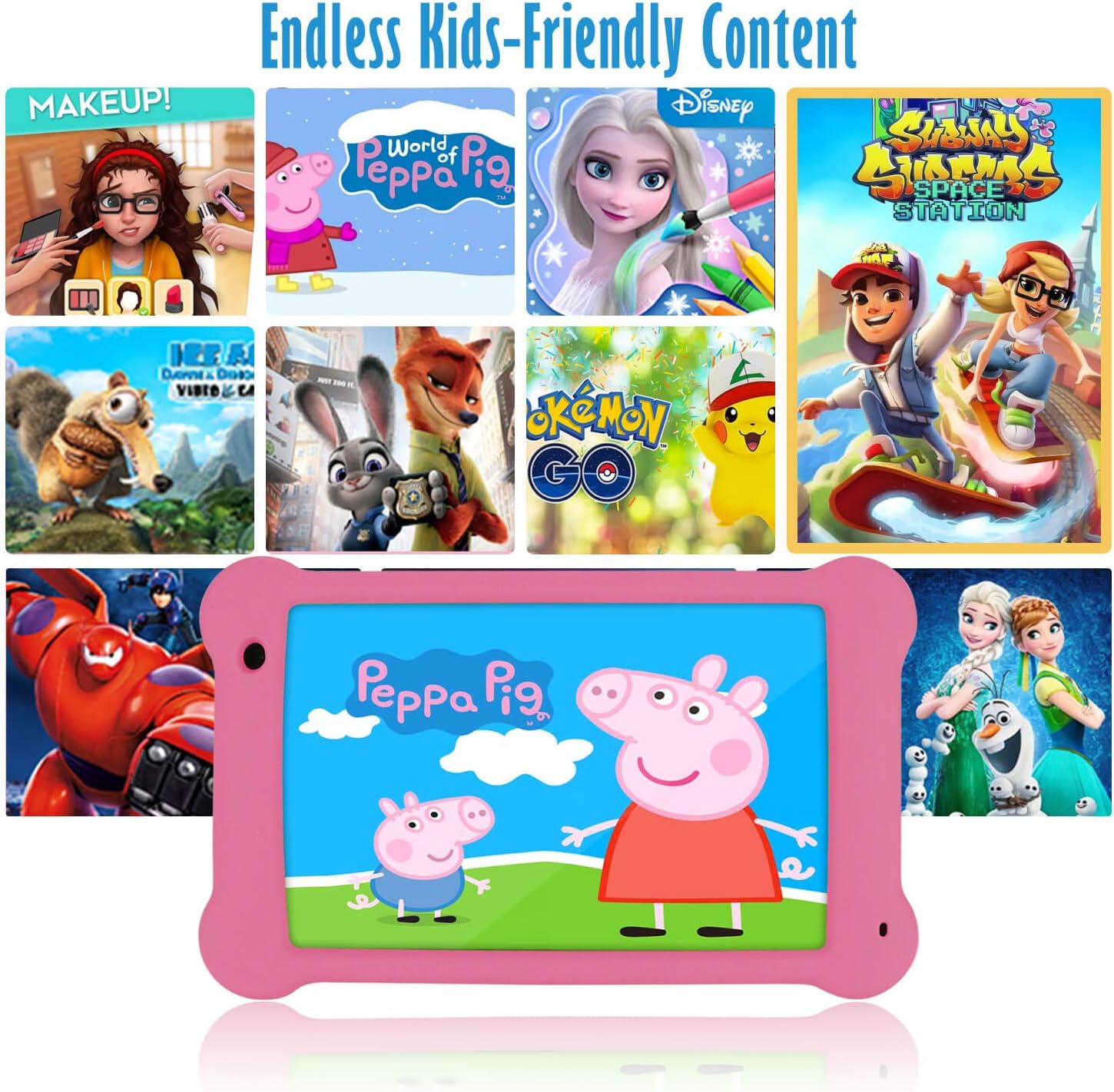
Image: The Surfans K7 Kids Tablet showcasing a variety of popular kid-friendly content, accessible through pre-installed apps and Google Play Store.
Tryb kontroli rodzicielskiej
The Surfans K7 tablet includes a dedicated Parental Control Mode to manage your child's usage and ensure a safe digital environment.
1. Accessing Parental Mode
To access and configure parental controls:
- Znajdź i otwórz Tryb Parent or iWAWA Parent aplikacja na tablecie.
- You will be prompted to set up a password or PIN for secure access. Remember this password.
2. Setting Time Limits
Manage how long your child can use the tablet:
- Configure daily usage limits for the tablet.
- Set specific time blocks during which the tablet can or cannot be used (e.g., bedtime restrictions).
3. Content Filtering
Ensure your child accesses only appropriate content:
- Select and approve specific applications, websites, and media content that your child is allowed to access.
- Block inappropriate content categories or specific webwitryny.
4. Managing Child Profiles
Create personalized experiences for each child:
- Utwórz indywidualnego profiles for multiple children.
- Customize settings, content access, and time limits for each profile based on age and preferences.

Image: A parent and child using the Surfans K7 Kids Tablet, demonstrating the ease of setting up and managing parental controls for time limits, child lock, and content filtering.
Konserwacja
1. Czyszczenie tabletu
To keep your tablet clean and functional:
- Use a soft, lint-free cloth (e.g., microfiber cloth) to gently wipe the screen and tablet body.
- W przypadku uporczywych plam delikatnieampPrzetrzyj ściereczkę wodą. Unikaj stosowania silnych środków chemicznych, ściernych środków czyszczących i nadmiernej wilgoci, ponieważ mogą one uszkodzić ekran lub elementy wewnętrzne.
- Przed czyszczeniem upewnij się, że tablet jest wyłączony i odłączony od zasilania.
2. Pielęgnacja baterii
Proper battery care extends the tablet's lifespan:
- Avoid fully discharging the tablet frequently. Charge the tablet when the battery level is low (e.g., below 20%).
- Do not expose the tablet to extreme temperatures (hot or cold), as this can degrade battery performance.
- Należy używać wyłącznie dołączonej ładowarki lub certyfikowanej, kompatybilnej ładowarki.
3. Aktualizacje oprogramowania
Keep your tablet's software up-to-date for optimal performance and security:
- Periodically check for system updates by going to Ustawienia > System > Aktualizacja systemu.
- Ensure your tablet is connected to Wi-Fi and has sufficient battery charge before starting an update.
4. Protective Case Care
The included kid-proof silicone case offers protection:
- Wyczyść obudowę za pomocą adamp szmatkę, jeśli się zabrudzi.
- Ensure the case is properly fitted around the tablet to provide maximum protection against drops and bumps.

Obraz: szczegółowy view of the Surfans K7 Kids Tablet's durable kid-proof case, highlighting its soft silicone material and anti-drop corner design for enhanced protection.
Rozwiązywanie problemów
This section addresses common issues you might encounter with your Surfans K7 Kids Tablet.
Tablet się nie włącza
- Sprawdź baterię: Upewnij się, że tablet jest naładowany. Podłącz go do ładowarki na co najmniej 30 minut, a następnie spróbuj ponownie go włączyć.
- Wymuś ponowne uruchomienie: Press and hold the Power Button for about 10-15 seconds until the tablet restarts.
Screen is Black but Audio is Playing
This can sometimes occur:
- Briefly press the Power Button to put the screen to sleep, then press it again to wake it up.
- If the issue persists, perform a force restart by pressing and holding the Power Button for 10-15 seconds.
Problemy z połączeniem Wi-Fi
- Włącz Wi-Fi: Idź do Ustawienia > Sieć i internet > Wi-Fi and ensure Wi-Fi is turned on.
- Uruchom ponownie router: Uruchom ponownie router Wi-Fi i modem.
- Zapomnij o sieci: Go to Wi-Fi settings, tap on your network, and select "Forget network." Then, reconnect to the network and re-enter the password.
- Siła sygnału: If the signal is weak, move closer to your Wi-Fi router.
Apps Are Slow or Crashing
- Zamknij nieużywane aplikacje: Swipe up from the bottom of the screen (or tap the square navigation button) to view recent apps, then swipe them away to close.
- Restart Tablet: A simple restart can often resolve performance issues.
- Wyczyść pamięć podręczną aplikacji: Idź do Ustawienia > Aplikacje > [Nazwa aplikacji] > Pamięć i pamięć podręczna > Wyczyść pamięć podręczną.
Tablet is Unresponsive
If the tablet freezes and does not respond to touch:
- Perform a force restart by pressing and holding the Power Button for approximately 10-15 seconds until the device powers off and restarts.
Przywracanie ustawień fabrycznych (ostateczność)
If all other troubleshooting steps fail, a factory reset may be necessary. Warning: This will erase all data on the tablet, including apps, photos, and user settings. Back up any important data before proceeding.
- Idź do Ustawienia > System > Opcje resetowania.
- Uzyskiwać Wymaż wszystkie dane (przywróć ustawienia fabryczne).
- Potwierdź swoją decyzję i postępuj zgodnie z instrukcjami wyświetlanymi na ekranie.
Specyfikacje

Image: Visual comparison highlighting the superior clarity of the 1920x1200 FHD IPS display with a 178-degree wide viewing angle on the Surfans K7 Kids Tablet.
| Funkcja | Specyfikacja |
|---|---|
| Marka | Surfans |
| Nazwa modelu | K7 |
| System operacyjny | Android 10.0 |
| Rozmiar ekranu | 7 cali |
| Maksymalna rozdzielczość ekranu | 1920 x 1200 pikseli |
| Marka procesora | ARM (Quad-core 1.6GHz) |
| Installed RAM Memory | 2 GB |
| Pojemność pamięci masowej | 32 GB |
| Możliwość rozbudowy pamięci masowej | MicroSD Card Slot |
| Front Photo Sensor Resolution | 2 MP |
| Maksymalnie WebRozdzielczość obrazu kamery | 5 MP |
| Rozdzielczość nagrywania wideo | FHD 1080p |
| Technologia łączności | Bluetooth, USB, Wi-Fi |
| Kompatybilność bezprzewodowa | 802.11a/b/g/n |
| Łączność Hardware | 3.5 mm Audio Jack, USB-C Port |
| Typ baterii | Polimer litowy |
| Pojemność baterii | 3000 mAh |
| Średnia żywotność baterii | 8 godzin |
| Waga przedmiotu | 450 gram |
| Kolor | Różowy |
| Opis przedziału wiekowego | Baby, Children (2-10 years) |
Gwarancja i wsparcie
The Surfans K7 Kids Tablet comes with a standard manufacturer's warranty. For specific warranty terms, conditions, and duration, please refer to the warranty card included in the product packaging or contact Surfans customer support.
For technical assistance, troubleshooting beyond this manual, or further inquiries, please visit the official Surfans webna stronie internetowej lub skontaktuj się z działem obsługi klienta, korzystając z danych kontaktowych podanych przy zakupie lub na ich stronie internetowej webstrona.