
VENZ R4040-V2
VENZ Indoor Camera R4040-V2 User Manual
Model: R4040-V2 | Brand: VENZ
Produkt ponadview
The VENZ Indoor Camera R4040-V2 is a 1080P HD home security camera designed for indoor use. It features 360° pan-tilt-zoom (PTZ) capabilities, two-way audio, motion detection, and night vision, making it suitable for monitoring babies, pets, or general home security.
Główne cechy
- Rozdzielczość HD 1080P: Provides clear and smooth video.
- Funkcjonalność PTZ 360°: Offers 360° horizontal rotation and 104° vertical view dla zapewnienia kompleksowego pokrycia.
- Dwukierunkowy dźwięk: Wbudowany mikrofon i głośnik umożliwiające komunikację.
- Detekcja i śledzenie ruchu: Sends instant alerts and tracks detected movement.
- Widzenie nocne: IR LEDs provide clear vision up to 28 feet in low light.
- Wiele opcji przechowywania: Supports cloud storage and up to 128GB Micro SD card (not included).
- Zgodność ze sterowaniem głosowym: Works with Echo Show/Spot/Fire TV and Google Nest Hub/Chromecast.
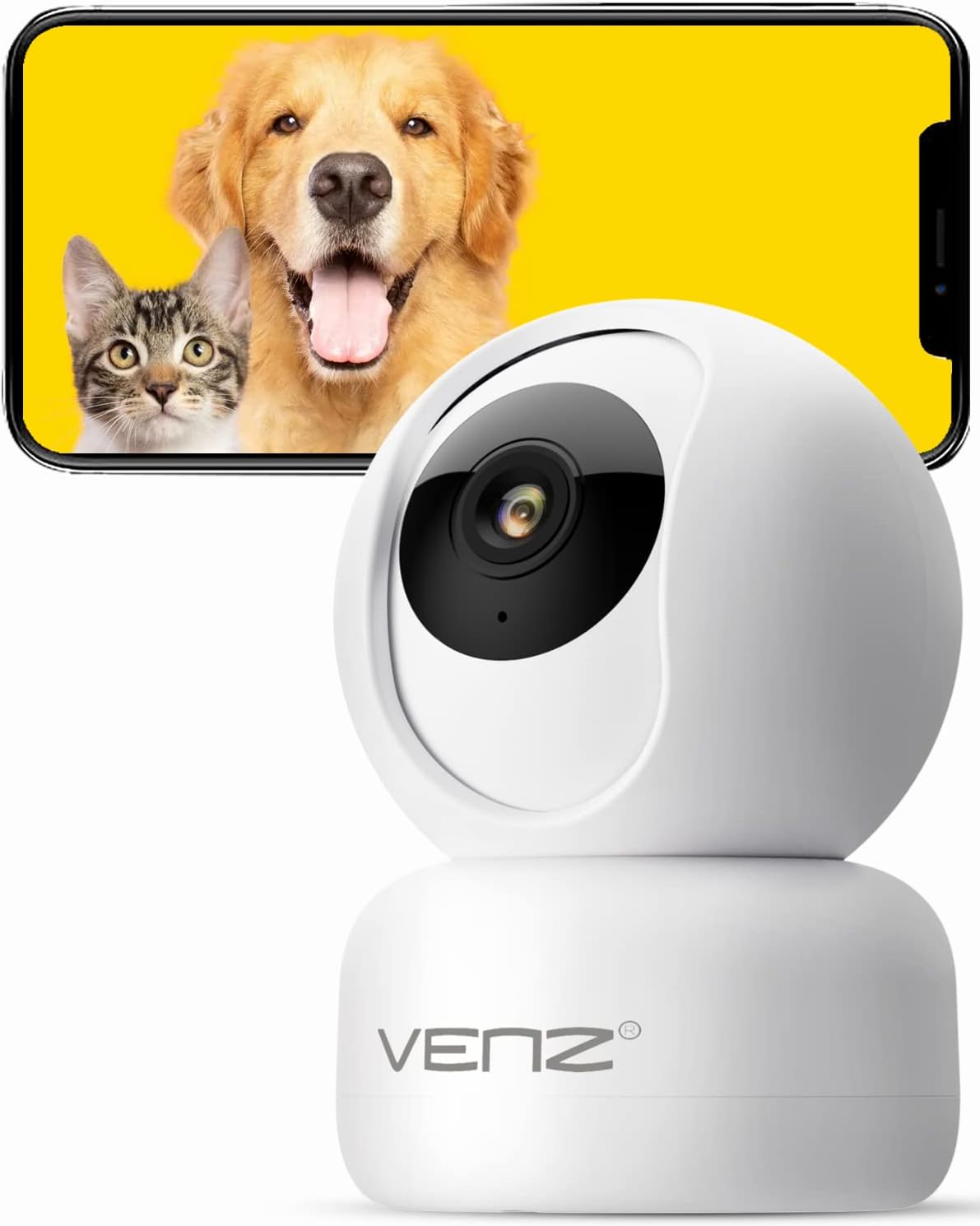
Image: The VENZ Indoor Camera R4040-V2, a white dome-shaped camera, shown next to a smartphone displaying live feed of a dog and a cat, illustrating its use for pet monitoring.
Co jest w pudełku
Przed przystąpieniem do instalacji sprawdź, czy wszystkie komponenty są obecne.
- Inteligentna kamera PTZ x 1
- Kabel USB x 1
- Instrukcja obsługi x 1
- Wspornik montażowy x 1
- adaptery x 1
- Torba na śruby x 1
- Naklejka dziurkowana x 1
- Zresetuj pin x 1
Przewodnik po konfiguracji
1. Włączanie aparatu
- Connect the provided USB cable to the camera's power port.
- Plug the USB cable into the adapter.
- Plug the adapter into a standard electrical outlet (DC 5V).
- Poczekaj, aż kontrolka kamery zacznie migać, co będzie oznaczać, że kamera jest gotowa do konfiguracji.
2. Instalacja aplikacji i utworzenie konta
The VENZ Indoor Camera operates via the Woox Home App.
- Download the "Woox Home" app from the Sklep Google Play or Sklep z aplikacjami Apple.
- Otwórz aplikację i zarejestruj nowe konto, jeśli jeszcze go nie masz, albo zaloguj się, używając istniejących danych logowania.

Image: The Woox Home App logo, indicating compatibility with Amazon Alexa and Google Assistant, and showing the app interface on a smartphone and a smart display.
3. Dodawanie kamery do aplikacji
- In the Woox Home app, tap the "+" icon to add a new device.
- Select "Camera" or "Security Camera" from the device list.
- Postępuj zgodnie z instrukcjami wyświetlanymi na ekranie, aby połączyć kamerę z siecią Wi-Fi 2.4 GHz. Upewnij się, że hasło Wi-Fi jest prawidłowe.
- The app will display a QR code. Position your camera to scan this QR code from your phone screen. Hold the phone approximately 6-8 inches (15-20 cm) from the camera lens.
- Once the camera successfully scans the QR code, it will emit a confirmation sound. Tap "I heard a prompt" in the app.
- The camera will then connect to your Wi-Fi network. Once connected, you can name your camera and begin using it.

Image: A hand holding a smartphone displaying a QR code, with the VENZ Indoor Camera positioned to scan it, illustrating the quick setup process.
4. Montaż kamery (opcjonalnie)
Kamerę można umieścić na płaskiej powierzchni lub zamontować na ścianie lub suficie za pomocą dołączonego uchwytu.
- Choose a suitable location for mounting, ensuring it has a clear view i znajduje się w zasięgu Wi-Fi.
- Use the punched sticker to mark the drilling positions on the wall/ceiling.
- Wywierć otwory i włóż kotwy ścienne.
- Przymocuj uchwyt montażowy do ściany/sufitu za pomocą dołączonych śrub.
- Secure the camera onto the mounting bracket by twisting it into place.
Obsługa aparatu
Na żywo View i sterowanie PTZ
- Otwórz aplikację Woox Home i wybierz kamerę z listy urządzeń.
- Wyświetli się transmisja wideo na żywo.
- Use the on-screen joystick or directional arrows to pan (rotate horizontally 360°) and tilt (rotate vertically 104°) the camera lens.
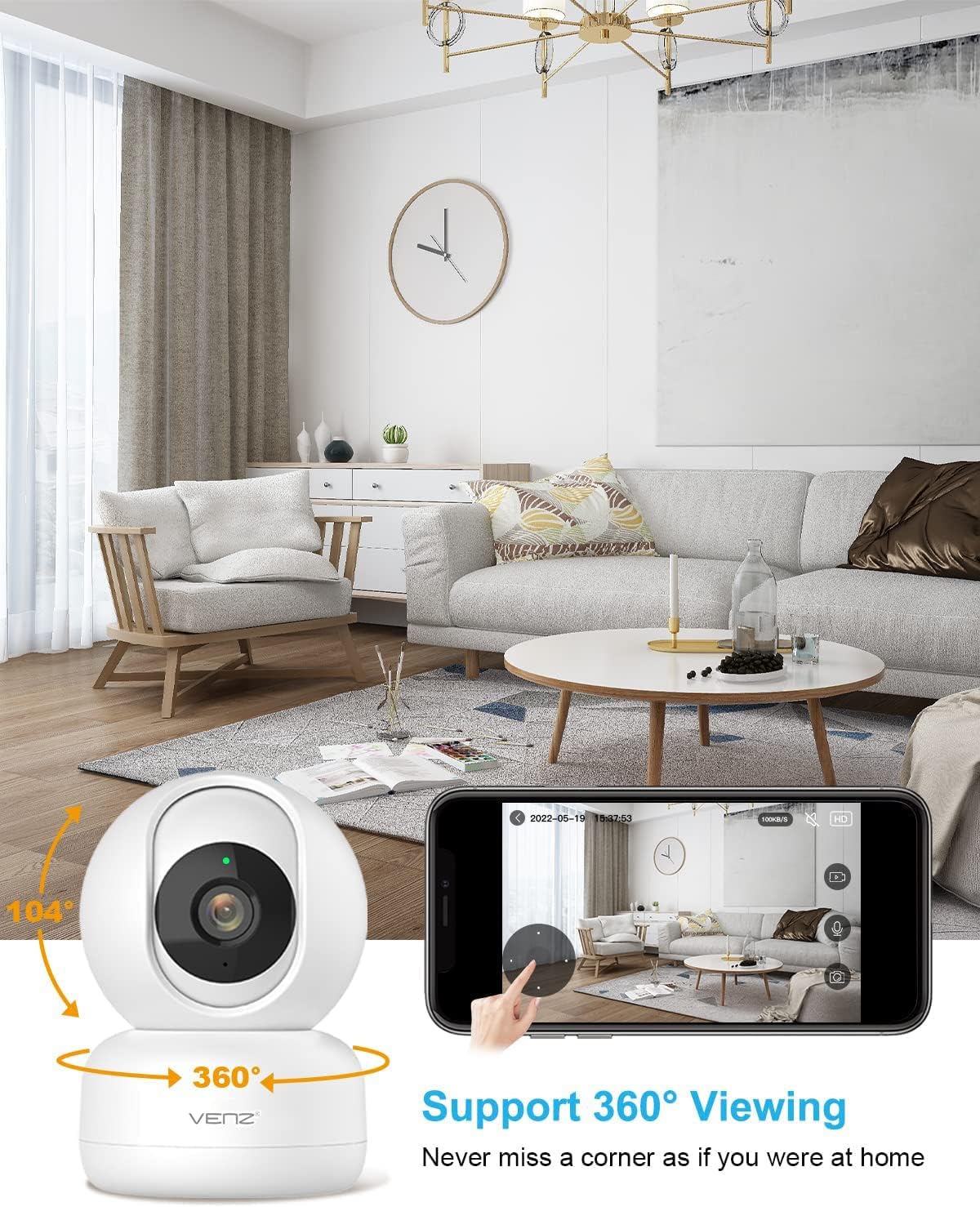
Image: The VENZ Indoor Camera with arrows indicating its 360-degree horizontal rotation and 104-degree vertical tilt capabilities, alongside a smartphone displaying the live view interfejs.
Dwukierunkowy dźwięk
- Na żywo view, dotknij ikony mikrofonu w aplikacji, aby mówić przez kamerę.
- Kliknij ikonę głośnika, aby słuchać dźwięku z otoczenia kamery.

Image: Illustrations showing a woman speaking into her phone and a child interacting with a dog near the camera, demonstrating the two-way audio communication feature.
Wykrywanie i śledzenie ruchu
- Navigate to the camera settings within the Woox Home app.
- Enable "Motion Detection" to receive instant alerts on your phone when movement is detected.
- Activate "Motion Tracking" for the camera to automatically follow and keep the detected subject within its field of view.
- Adjust sensitivity levels and set activity areas as needed.

Image: A child and an adult entering a room, with the camera's motion tracking feature highlighted by red boxes, and a smartphone displaying a "Motion Tracking Detection" notification from the Woox Home app.

Image: Two cats in a living room, with one jumping and the other sitting, demonstrating the camera's motion tracking capability by highlighting the subjects with yellow crosses, and a smartphone showing real-time motion detection notifications.
Wizja nocna
- Kamera automatycznie przełącza się na tryb noktowizyjny w warunkach słabego oświetlenia.
- Infrared LEDs provide clear black-and-white video up to 28 feet (8.5 meters).
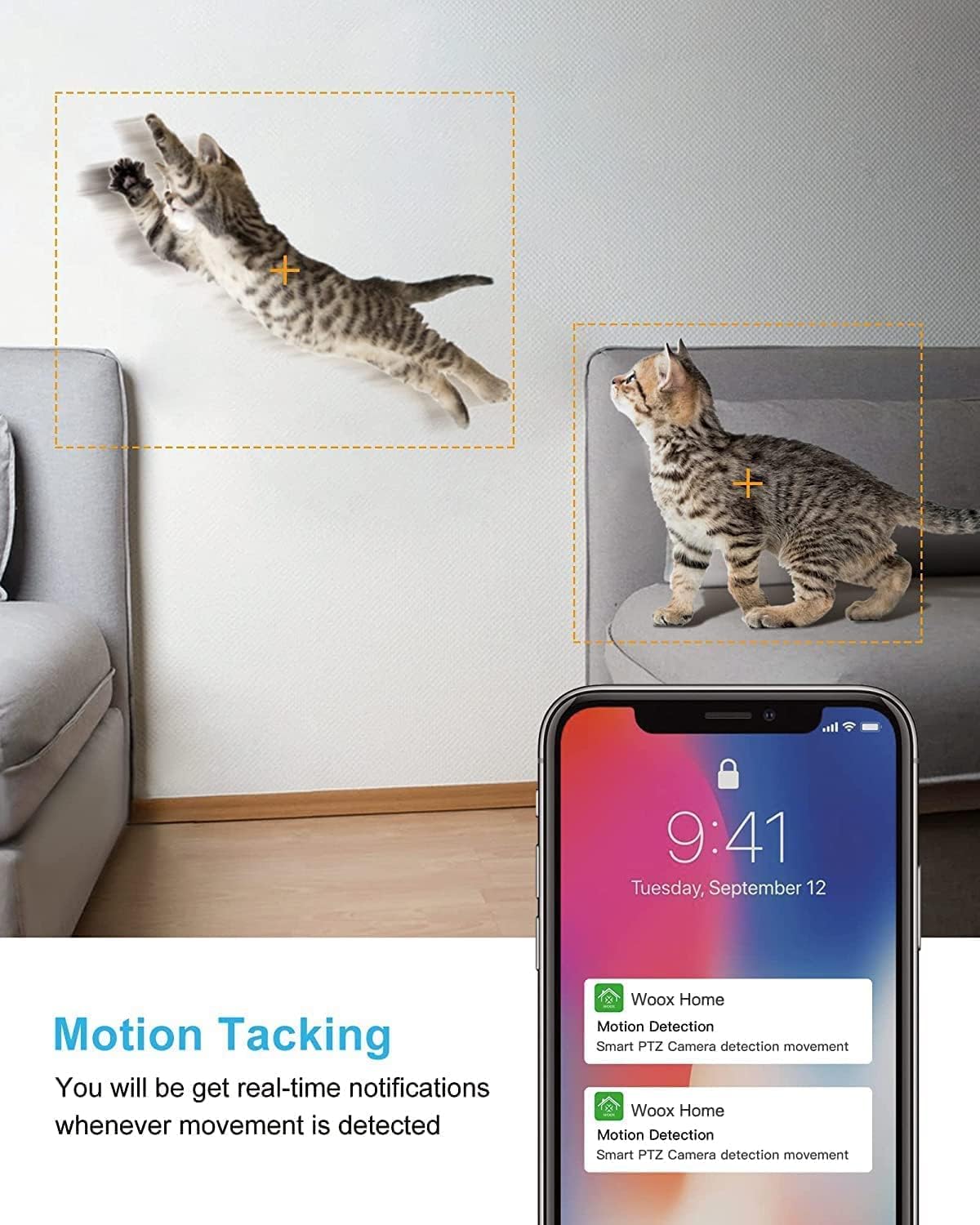
Image: A split image showing a baby sleeping in a crib in a dark room (top, black and white) and a woman viewing a clear image on her phone in bed (bottom), illustrating the camera's clear night vision capability.
Przechowywanie i odtwarzanie
- Karta micro sd: Insert a Micro SD card (up to 128GB, not included) into the camera's slot for local storage of recordings.
- Przechowywanie w chmurze: Subscribe to the optional cloud storage service via the Woox Home app for secure, encrypted data storage.
- Uzyskaj dostęp do nagranego pliku footage through the "Playback" or "History" section in the app.

Image: The VENZ Indoor Camera with an arrow pointing to its Micro SD card slot and a cloud icon with a shield, illustrating both local (Micro SD) and cloud storage options for recording and playback.
Multi-User and Multi-Device Access
- Share camera access with family members through the Woox Home app.
- Aplikacja obsługuje viewing multiple Wi-Fi cameras simultaneously (up to 4 live videos on one screen).
Konserwacja
- Czyszczenie: Do czyszczenia obiektywu i korpusu aparatu używaj miękkiej, suchej ściereczki. Unikaj środków czyszczących o właściwościach ściernych i rozpuszczalników.
- Aktualizacje oprogramowania układowego: Regularly check for and install firmware updates through the Woox Home app to ensure optimal performance and security.
- Stabilność sieci: Ensure your Wi-Fi network is stable and strong to prevent connection issues and maintain continuous monitoring.
- Zarządzanie kartami SD: If using a Micro SD card, periodically check its storage capacity and format it if necessary to prevent data corruption.
Rozwiązywanie problemów
| Problem | Możliwa przyczyna | Rozwiązanie |
|---|---|---|
| Kamera jest offline/Nie można połączyć się z siecią Wi-Fi |
|
|
| Poor video quality/Lagging feed |
|
|
| Wykrywanie ruchu nie działa |
|
|
| No audio/Poor two-way audio |
|
|
| Karta SD nie nagrywa |
|
|
Specyfikacje
| Funkcja | Szczegół |
|---|---|
| Numer modelu | R4040-V2 |
| Zastosowanie wewnątrz/na zewnątrz | Wnętrz |
| Rozdzielczość przechwytywania wideo | 1080p |
| Pole View | 360 stopni (obrót), 104 stopni (pochylenie) |
| Zakres noktowizora | 28 stóp (8.5 m) |
| Protokół łączności | Wi-Fi (tylko 2.4 GHz) |
| Źródło zasilania | Przewodowy elektryczny (prąd stały 5 V) |
| Typ kontrolera | Asystent Google, Amazon Alexa |
| Opcje przechowywania | Przechowywanie w chmurze, karta Micro SD (do 128 GB) |
| Wymiary (dł. x szer. x wys.) | 2.91 x 2.91 x 4.21 cala |
| Waga przedmiotu | 13.1 uncji |
| Tworzywo | PCV |
| UPC | 751004742501 |
Gwarancja i wsparcie
Informacje o gwarancji
Szczegóły dotyczące gwarancji są zazwyczaj podane w dokumentacji zakupu lub na oficjalnej stronie producenta. website. Please refer to the warranty card included in your product packaging for the most accurate and up-to-date information regarding coverage and duration.
Obsługa klienta
For technical assistance, troubleshooting, or any inquiries regarding your VENZ Indoor Camera, please visit the official VENZ website or contact their customer support team. You can often find contact information (email, phone, or support portal) on the product packaging or the brand's online presence.
Visit the official VENZ Store for more information and support: VENZ Store on Amazon
Ask a question about this manual
Ask about setup, troubleshooting, compatibility, parts, safety, or missing instructions. Manuals+ will review the question and use this page’s manual context to help answer it.