
1. Wprowadzenie
This manual provides essential information for the installation, operation, maintenance, and troubleshooting of your MAXSUN GeForce RTX 2060 iCraft 6GB graphics card. Please read this manual thoroughly before installing and using the product to ensure proper functionality and safety.
2. Informacje dotyczące bezpieczeństwa
- Zawsze odłączaj zasilanie komputera przed instalacją lub usunięciem jakichkolwiek podzespołów.
- Aby zapobiec uszkodzeniu podzespołów wskutek wyładowań elektrostatycznych (ESD), należy nosić opaskę antystatyczną na nadgarstku lub często dotykać uziemionego przedmiotu metalowego.
- Trzymaj kartę graficzną za krawędzie, aby uniknąć dotykania delikatnych podzespołów.
- Aby zapobiec przegrzaniu, należy zadbać o odpowiednią wentylację obudowy komputera.
- Do not attempt to repair the graphics card yourself. Refer to qualified service personnel.
3. Zawartość opakowania
Sprawdź, czy w przesyłce znajdują się następujące elementy:
- 1 x MAXSUN GeForce RTX 2060 iCraft 6GB Graphics Card
Jeśli brakuje któregokolwiek z elementów lub jest on uszkodzony, prosimy o kontakt ze sprzedawcą.
4. Koniec produktuview
The MAXSUN GeForce RTX 2060 iCraft 6GB graphics card is designed for gaming PCs, featuring NVIDIA's Turing GPU architecture, 6GB GDDR6 memory, and a 192-bit memory interface. It includes a triple-fan cooling system and RGB lighting.

Rycina 4.1: Przód view of the MAXSUN GeForce RTX 2060 iCraft 6GB graphics card, showing the three cooling fans and RGB lighting elements.

Rysunek 4.2: Kątowy view of the graphics card, highlighting its robust design and cooling solution.

Rysunek 4.3: Tył view karty graficznej, pokażasing the alloy backplate designed for structural integrity and heat dissipation.

Figure 4.4: Display output ports on the graphics card, including DisplayPort (DP), HDMI, and DVI connectors.
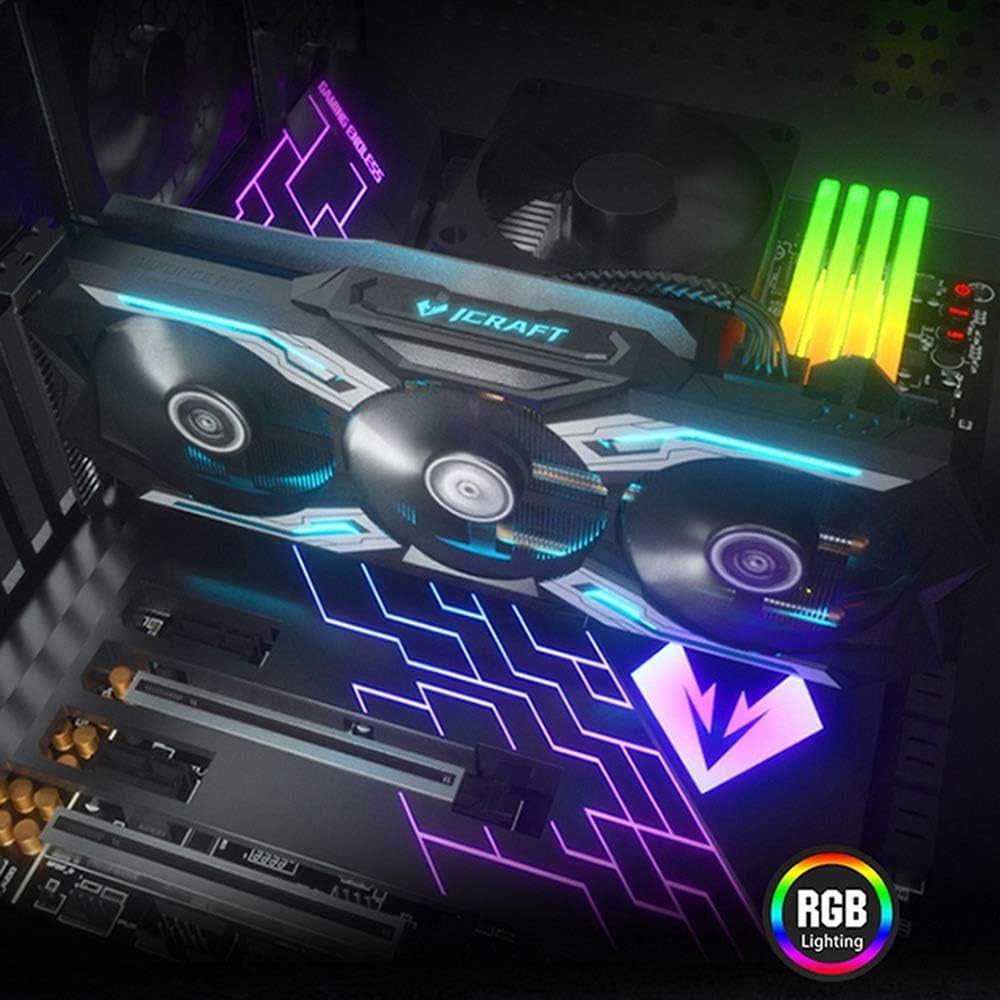
Figure 4.5: The graphics card installed in a PC case, demonstrating its integrated RGB lighting.
Główne cechy:
- Turing GPU Architecture: Provides enhanced performance for real-time ray tracing and AI capabilities.
- iCraft Series RGB Lighting: Features auto RGB lighting for aesthetic customization within your PC build.
- Triple Fan Cooling: Equipped with 3 MAXSUN Blade II hydro-mechanics low noise fans for efficient heat dissipation.
- Alloy Backplate & Radiator: Includes an alloy backplate and a high-end fin technology radiator with 5 heat pipes for improved thermal performance.
- Wydajność: Boost Clock up to 1680 MHz, 6GB GDDR6 memory, 192-bit memory interface.
5. Konfiguracja i instalacja
5.1 Wstępna instalacja
- Wyłączone: Wyłącz komputer i odłącz kabel zasilający od gniazdka ściennego.
- Otwarta sprawa: Open your computer case to access the motherboard and PCIe slots.
- Ochrona statyczna: Ground yourself by touching a metal part of the computer chassis or wearing an anti-static wrist strap to prevent ESD.
- Usuń starą kartę (jeśli dotyczy): If replacing an existing graphics card, carefully remove it by unscrewing its bracket and releasing the PCIe retention clip.
5.2 Fizyczna instalacja
- Zlokalizuj gniazdo PCIe: Identify an available PCIe x16 slot on your motherboard. This is typically the topmost long slot.
- Włóż kartę graficzną: Align the graphics card with the PCIe slot and press down firmly until it is securely seated. The PCIe retention clip should click into place.
- Karta bezpieczna: Przymocuj kartę graficzną do obudowy komputera za pomocą śrub.
- Podłącz zasilanie: Connect the required PCIe power cables from your power supply to the graphics card. This model typically requires one 8-pin PCIe power connector. Ensure all connections are firm.
- Zamknij sprawę: Zamknij obudowę komputera i podłącz ponownie kabel zasilający.
5.3 Instalacja sterownika
- Włączanie: Connect your monitor to one of the graphics card's output ports (HDMI, DisplayPort, or DVI) and power on your computer.
- Pobierz sterowniki: Przejdź do oficjalnej strony firmy NVIDIA webStrona (www.nvidia.com/drivers) aby pobrać najnowsze sterowniki dla karty GeForce RTX 2060.
- Zainstaluj sterowniki: Run the downloaded driver installer and follow the on-screen instructions. A restart may be required after installation.
Video 5.1: An official video demonstrating the MAXSUN Nvidia Geforce RTX 2060 iCraft 6GB graphics card, showcasinjego projekt i funkcje. Ten film przedstawia wizualny przeglądview produktu.
6. Instrukcja obsługi
6.1 Podłączanie wyświetlaczy
Connect your monitor(s) to the available display output ports on the graphics card (HDMI, DisplayPort, DVI). The card supports multiple displays simultaneously. Ensure your display cables are securely connected.
6.2 Oświetlenie RGB
The MAXSUN iCraft series graphics card features automatic RGB lighting. The lighting effects are pre-programmed and activate upon system power-on. Please note that dedicated software for controlling the RGB lighting is not typically provided for this model, and it may not be compatible with third-party motherboard RGB software.
7. Konserwacja
7.1 Czyszczenie
- Częstotliwość: Clean your graphics card periodically, especially if you notice dust accumulation on the fans or heatsink.
- Procedura: Disconnect power from your PC. Use compressed air to gently blow dust out of the heatsink fins and fan blades. Hold the fan blades in place while blowing to prevent over-spinning and potential damage.
- Unikać: Do not use liquid cleaners or abrasive materials on the graphics card.
7.2 Konserwacja wentylatora
The Blade II hydro-mechanics fans are designed for durability. If you notice unusual fan noise or reduced cooling performance, ensure there are no obstructions to the fan blades. Do not attempt to lubricate or disassemble the fans.
8. Rozwiązywanie Problemów
8.1 Brak wyjścia wyświetlacza
- Upewnij się, że kabel monitora jest solidnie podłączony zarówno do karty graficznej, jak i do monitora.
- Verify that the graphics card is fully seated in the PCIe slot and that all power connectors are properly attached.
- Sprawdź, czy monitor jest ustawiony na właściwe źródło sygnału wejściowego.
- Jeżeli to możliwe, wypróbuj inny kabel wyświetlacza lub monitor.
8.2 Performance Issues or Crashes
- Ensure you have the latest NVIDIA drivers installed.
- Monitor your GPU temperatures using third-party software. High temperatures can lead to throttling or instability. Ensure proper case airflow.
- Sprawdź, czy Twój zasilacz (PSU) spełnia minimalne wymagania dotyczące mocytagWymagania systemowe, w tym dotyczące karty graficznej.
- Check for any conflicting software or background applications that might be consuming system resources.
8.3 Hałas wentylatora
- Upewnij się, że żadne kable ani przeszkody nie kolidują z łopatkami wentylatora.
- Clean any dust accumulation from the fans and heatsink.
- Fan speed will increase under load to maintain optimal temperatures. This is normal operation.
9. Specyfikacje
| Funkcja | Specyfikacja |
|---|---|
| Koprocesor graficzny | NVIDIA GeForce RTX 2060 |
| Marka | maxsun |
| Rozmiar pamięci RAM grafiki | 6 GB pamięci GDDR6 |
| Interfejs wyjścia wideo | DVI, DisplayPort, HDMI |
| Producent procesorów graficznych | Nvidia |
| Wymiary produktu | 12.05 x 4.92 x 1.61 cala |
| Waga przedmiotu | 3.19 funta |
| Numer modelu | NVIDIA Geforce RTX 2060 iCraft 6G |
10. Gwarancja i wsparcie
For warranty information and technical support, please refer to the documentation provided with your purchase or visit the official MAXSUN webZachowaj dowód zakupu na wypadek roszczeń gwarancyjnych.