
Wstęp
This universal remote control is designed for seamless compatibility with all Samsung TV models, including LCD, Smart, 3D LED, and HDTVs. It serves as a perfect replacement for damaged or old remote controls, covering all functions of the original. Its user-friendly design and backlit buttons enhance convenience, especially in low-light conditions.
Organizować coś
Instalacja baterii
The remote requires two AAA batteries (not supplied). To install, locate the battery compartment on the back of the remote. Slide the battery cover downwards to open. Insert the batteries, ensuring correct polarity (+ and - ends match the indicators inside the compartment). Close the cover by sliding it back into place until it clicks securely.

Obraz: Tył view of the remote control with the battery cover removed, illustrating the battery insertion process.
Połączenie początkowe
No programming or complex setup is required. Once the batteries are correctly installed, the remote control is ready to use with your Samsung TV immediately.
Instrukcja obsługi
Remote Layout and Key Functions
Familiarize yourself with the buttons on your remote control. Key functions include:
- Przycisk zasilania: Located at the top left, turns the TV on or off.
- Przycisk źródła: Przełącza między różnymi źródłami sygnału wejściowego (HDMI, AV itp.).
- Klawiatura numeryczna (0-9): Do bezpośredniego wyboru kanału.
- Volume (+/-) and Mute: Reguluje głośność i wycisza dźwięk.
- Kanał (CH +/-): Zmienia kanały telewizyjne.
- Navigation Arrows (Up, Down, Left, Right) and Enter: Służy do nawigacji po menu i dokonywania wyborów.
- Przycisk Smart Hub: Accesses your Samsung Smart Hub for apps and streaming services.
- Netflix/Amazon Buttons: Direct access to popular streaming platforms.
- Powrót/Wyjście: Navigates back or exits menus/apps.
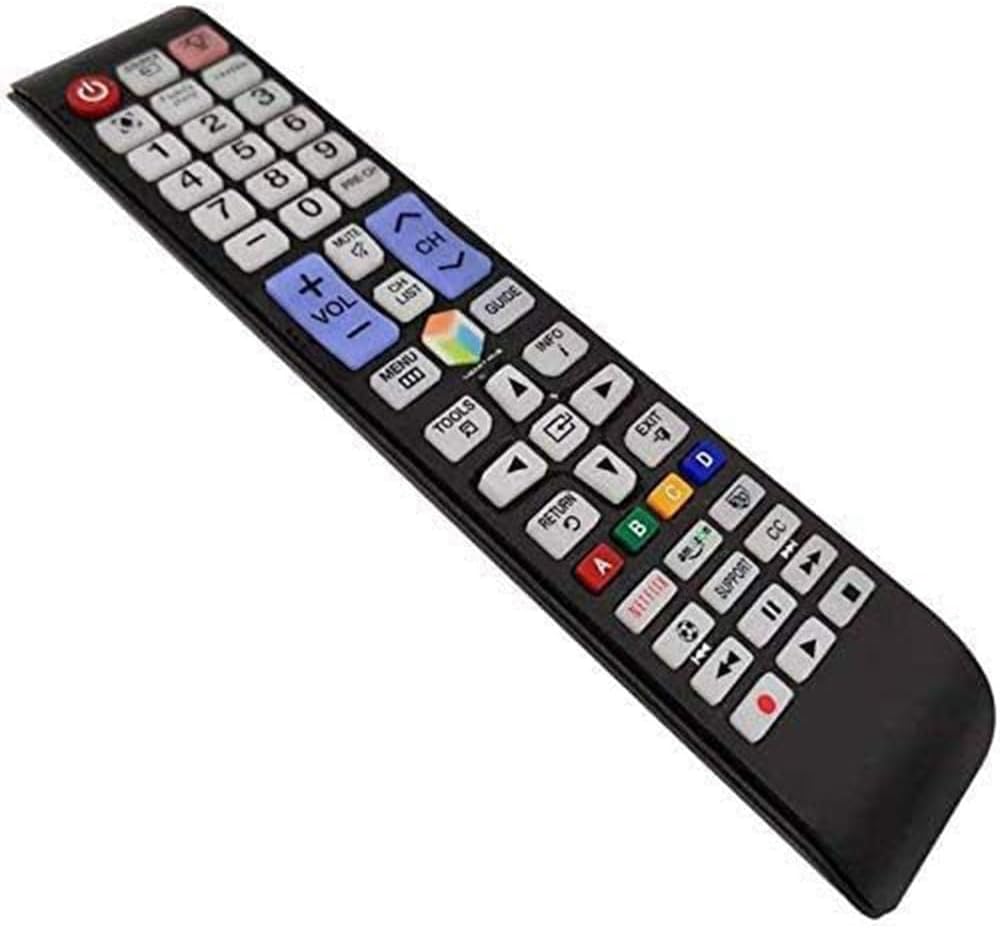
Obraz: Szczegółowy view układu przycisków pilota.
Funkcja podświetlenia
The remote features a backlight function for improved visibility in dark environments. Press the light bulb button (located near the top right) to illuminate the buttons. The backlight will automatically turn off after a short period of inactivity to conserve battery life.

Image: The remote control demonstrating its backlit button feature.
Smart TV and App Navigation
For Samsung Smart TVs, use the navigation arrows and the central 'Enter' button to browse through menus, select applications, and control playback within streaming services. The dedicated Netflix and Amazon buttons provide quick access to these platforms.

Image: The remote control being used to navigate a Samsung Smart TV interface.
Konserwacja
Czyszczenie
To clean the remote control, wipe it gently with a soft, dry cloth. Do not use liquid cleaners or abrasive materials, as they may damage the surface or internal components.
Wymiana baterii
Replace batteries when the remote's response becomes sluggish or the backlight dims significantly. Always replace both batteries at the same time with new AAA batteries to ensure optimal performance.
Rozwiązywanie problemów
| Wydanie | Możliwa przyczyna | Rozwiązanie |
|---|---|---|
| Pilot nie odpowiada | Wyczerpane lub nieprawidłowo włożone baterie | Wymień baterie, zwracając uwagę na prawidłową biegunowość. |
| Przyciski nie działają | Obstruction between remote and TV sensor | Ensure a clear line of sight to the TV's IR sensor. |
| Podświetlenie nie działa | Niski poziom naładowania baterii | Wymień baterie. |
Specyfikacje
| Funkcja | Szczegół |
|---|---|
| Wymiary produktu | 1.97 x 1.18 x 1.57 cala |
| Waga przedmiotu | 1.06 uncji |
| Wymagane baterie | 2 baterie AAA |
| Funkcja specjalna | Podświetlane przyciski |
| Kolor | Niebieski |
| Kompatybilne urządzenia | All Samsung TV / LCD / Smart TV / 3D LED / HDTVs |
Gwarancja i wsparcie
If you encounter any quality problems or require assistance with your SMATAR Universal Remote Control, please feel free to contact us. We are committed to providing a satisfactory solution and ensuring your complete satisfaction with our product.