
SUNMI TF700
Instrukcja obsługi tabletu przemysłowego SUNMI M2 MAX
Model: TF700
Wstęp
This manual provides comprehensive instructions for the safe and efficient use of your SUNMI M2 MAX Industrial Tablet, model TF700. Please read this manual thoroughly before operating the device and retain it for future reference.

Rycina 1: Przód view of the SUNMI M2 MAX Industrial Tablet, showing its display with various application icons.
Organizować coś
1. Rozpakowanie i wstępna inspekcja
Ostrożnie wyjmij wszystkie elementy z opakowania. Sprawdź, czy wszystkie wymienione poniżej elementy są obecne i nieuszkodzone:
- SUNMI M2 MAX Industrial Tablet (TF700)
- Zasilacz
- Kabel USB typu C.
- Hand Strap (optional, if included with your model)
2. Ładowanie urządzenia
Before first use, fully charge the tablet. Connect the USB Type-C cable to the tablet's charging port and the other end to the power adapter. Plug the power adapter into a wall outlet. The charging indicator will illuminate.
The tablet is equipped with an 8360mAh non-removable lithium polymer battery. A full charge can provide over 12 hours of continuous operation.
3. Installing SIM Card and MicroSD Card (Optional)
The device supports MicroSIM or NanoSIM cards (Config 1) and an eSIM (Config 2). It also supports MicroSD cards up to 128GB for expanded storage.
- Znajdź gniazdo karty SIM/MicroSD z boku tabletu.
- Otwórz tackę za pomocą dołączonego narzędzia do wyjmowania karty SIM (jeśli dotyczy) lub małego spinacza biurowego.
- Carefully place the SIM card(s) and/or MicroSD card into the tray according to the diagram on the tray.
- Delikatnie wsuń tackę z powrotem do gniazda, aż zatrzaśnie się na swoim miejscu.

Rysunek 2: Tył view of the SUNMI M2 MAX, highlighting the camera, pogo pin charging interface, and the location of the SIM/MicroSD card slot.
4. Attaching the Hand Strap (Optional)
If your model includes a hand strap, attach it to the designated points on the back of the tablet for secure handling during mobile operations.
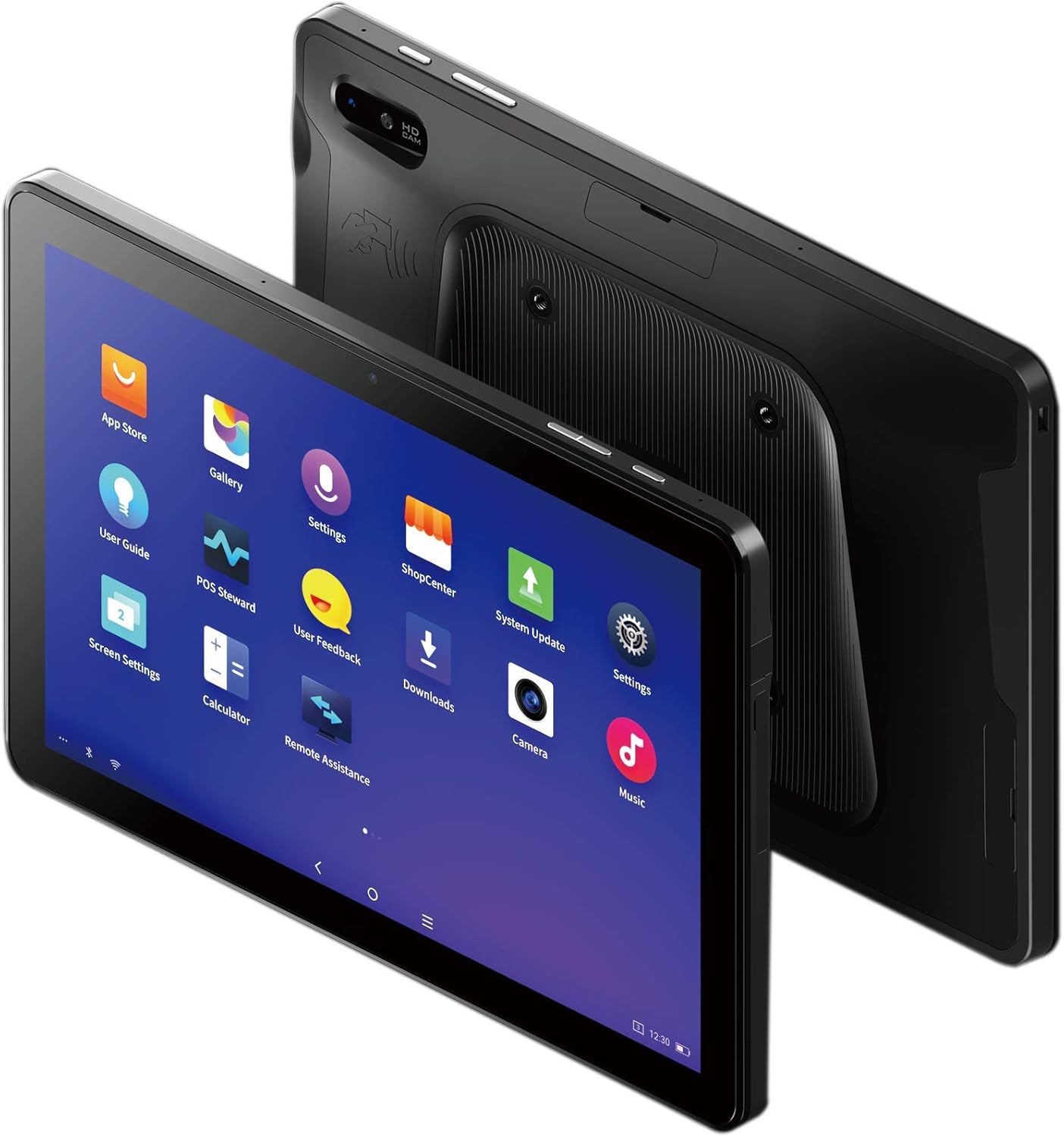
Figure 3: The SUNMI M2 MAX Industrial Tablet being held with an optional hand strap, demonstrating enhanced portability and secure grip.
Obsługa urządzenia
1. Włączanie/wyłączanie zasilania
- Włączanie: Press and hold the Power button (located on the side) until the SUNMI logo appears on the screen.
- Wyłączone: Naciśnij i przytrzymaj przycisk zasilania, aż pojawi się menu wyłączania. Wybierz „Wyłącz” i potwierdź.
- Uruchom ponownie: Z menu wyłączania wybierz opcję „Uruchom ponownie”, aby ponownie uruchomić urządzenie.
2. Podstawowa nawigacja
The SUNMI M2 MAX runs on the Android operating system. Navigation is primarily touch-based:
- Uzyskiwać: Aby wybrać element lub otworzyć aplikację.
- Trzepnąć: Aby przewijać listy lub przełączać się między ekranami.
- Powiększanie za pomocą szczypania: Aby powiększyć lub pomniejszyć obrazy lub web stron.
- Przycisk Home: Powrót do ekranu głównego.
- Przycisk Wstecz: Powrót do poprzedniego ekranu.
- Przycisk Ostatnie aplikacje: Wyświetla ostatnio używane aplikacje.
3. Łączenie się z sieciami
The tablet supports Wi-Fi (2.4GHz/5GHz, 802.11 a/b/g/n/ac) and cellular networks (2G, 3G, 4G).
- Wi-Fi: Idź do Ustawienia > Sieć i internet > Wi-FiWłącz Wi-Fi, wybierz żądaną sieć i wprowadź hasło, jeśli jest wymagane.
- Dane komórkowe: Upewnij się, że włożono prawidłową kartę SIM. Przejdź do Ustawienia > Sieć i internet > Sieć komórkowa to enable mobile data and configure APN settings if necessary.
- Bluetooth: Idź do Ustawienia > Podłączone urządzenia > Bluetooth to pair with Bluetooth devices (supports Bluetooth 5.0).
4. Using NFC
The SUNMI M2 MAX is equipped with NFC (Near Field Communication) for contactless transactions and data exchange. To use NFC, ensure it is enabled in settings and hold the tablet near a compatible NFC reader or device.
5. Obsługa kamery
The tablet features a 13 MP rear camera with flash and autofocus, and a 5 MP front camera. Open the "Camera" application to capture photos or record videos.
Konserwacja
1. Czyszczenie urządzenia
Użyj miękkiej, niestrzępiącej się ściereczki, lekko wyczyśćampened with water or a screen cleaner to wipe the display and exterior. Avoid using harsh chemicals, abrasive cleaners, or excessive moisture.
2. Pielęgnacja baterii
- Unikaj wystawiania tabletu na działanie ekstremalnych temperatur (poniżej -20°C lub powyżej 70°C).
- Nie należy dopuszczać do częstego całkowitego rozładowania akumulatora.
- Use only the original or certified compatible power adapter and cable.
3. Aktualizacje oprogramowania
Regularnie sprawdzaj dostępność aktualizacji systemu i instaluj je, aby zapewnić optymalną wydajność i bezpieczeństwo. Przejdź do Ustawienia > System > Aktualizacja systemu.
4. Ochrona środowiska
The SUNMI M2 MAX is designed with IP68 protection and a 1m drop specification, making it suitable for demanding environments. However, avoid intentional drops or prolonged submersion in water.
Rozwiązywanie problemów
| Problem | Możliwa przyczyna | Rozwiązanie |
|---|---|---|
| Urządzenie nie włącza się. | Niski poziom naładowania baterii; awaria oprogramowania. | Ładuj urządzenie przez co najmniej 30 minut. Naciśnij i przytrzymaj przycisk zasilania przez 10–15 sekund, aby wymusić ponowne uruchomienie. |
| Nie można połączyć się z siecią Wi-Fi. | Incorrect password; Wi-Fi disabled; router issue. | Verify password. Ensure Wi-Fi is enabled in settings. Restart router. Forget and reconnect to the network. |
| Ekran dotykowy nie reaguje. | Tymczasowy błąd oprogramowania. | Wymuś ponowne uruchomienie urządzenia, przytrzymując przycisk zasilania. |
| Applications crashing. | Insufficient RAM; app bug. | Close background apps. Clear app cache/data (Settings > Apps). Update the app. |
Specyfikacje
The following table outlines the key technical specifications of the SUNMI M2 MAX Industrial Tablet (Model: TF700).

Figure 4: Comprehensive technical specifications for the SUNMI M2 MAX Industrial Tablet.
- Model: TF700
- System operacyjny: Android 9.0 (SUNMI OS)
- Edytor: Kryo-260, Octa-core 2.2GHz (Qualcomm)
- Pamięć: 3GB RAM + 32GB ROM (eMMC)
- Wyświetlacz: 10.1-inch FHD, 1920x1200, Capacitive multitouch, Corning Gorilla Glass 3
- Kamery: Front: 5MP FF; Rear: 13MP AF + Flashlight, supports 1D/2D barcode recognition
- NFC: Type-A&B card, Mifare card, Felica card, ISO/IEC 14443 and ISO/IEC 15693 compliant
- Speaker/MIC: 1W Speaker, 2x MIC
- Gniazdo karty PSAM: 1x PSAM
- Gniazdo karty SIM: 1x MicroSD (TF), 1x MicroSIM or 1x NanoSIM (TF700 Config 1), eSIM (TF700 Config 2)
- Sieć: 2G i 3G i 4G
- Wi-Fi: 2.4GHz/5GHz, 802.11 a/b/g/n/ac
- Bluetooth: Supports Bluetooth 2.1/3.0/4.2/5.0 (BLE)
- GPS: Supports AGPS, GPS, GLONASS, Beidou (Config 2)
- Transduktor: Gravity sensor, light sensor, compass, Hall
- Pikolak: 1x Power (lock screen), 2x Volume (+/-)
- Porty: 1x Type-C (supports OTG), 1x Audio Jack, 1x MicroSD (up to 128GB expansion)
- Bateria: Non-removable Lithium Polymer battery, 8360mAh
- Zasilacz: Input: AC 100-240V, Output: DC 5V/2A
- Wymiary (dł. x szer. x wys.): 249.8 × 160 × 9.9 mm (0.39 × 6.3 × 9.84 cala)
- Całkowita waga: 673g (1.48 funta)
- Ochrona: IP68, 1m drop spec
- Temperatura pracy: -20°C do 55°C
- Temperatura przechowywania: -40°C do 70°C
Gwarancja i wsparcie
For warranty information and technical support, please refer to the documentation provided with your purchase or visit the official SUNMI webZachowaj dowód zakupu na wypadek roszczeń gwarancyjnych.
SUNMI Official Webstrona: www.sunmi.com
Ask a question about this manual
Ask about setup, troubleshooting, compatibility, parts, safety, or missing instructions. Manuals+ will review the question and use this page’s manual context to help answer it.