
Wstęp
Thank you for choosing the iClever BK10 Bluetooth Wireless Keyboard. This manual provides detailed instructions on how to set up, operate, and maintain your keyboard to ensure optimal performance. Please read this manual carefully before use and retain it for future reference.
Zawartość opakowania
- Klawiatura bezprzewodowa Bluetooth iClever BK10
- Kabel ładujący USB
- Instrukcja obsługi
Specyfikacje
| Marka | iClever |
| Numer modelu | BK10 |
| Technologia łączności | Bluetooth |
| Kompatybilne urządzenia | Android 9+, ChromeOS (BT 4.0+), Windows 10/11, iPadOS 13.4+, macOS 10.15+ |
| Układ klawiatury | AZERTY |
| Liczba kluczy | 78 |
| Typ przełącznika | Przełącznik nożycowy |
| Źródło zasilania | Zasilany bateryjnie |
| Wymiary produktu | 43Dł. x 14Sz. x 2.5Wys. centymetrów |
| Materiał wewnętrzny | Akrylonitryl-butadien-styren, stal nierdzewna |
Organizować coś
1. Ładowanie początkowe
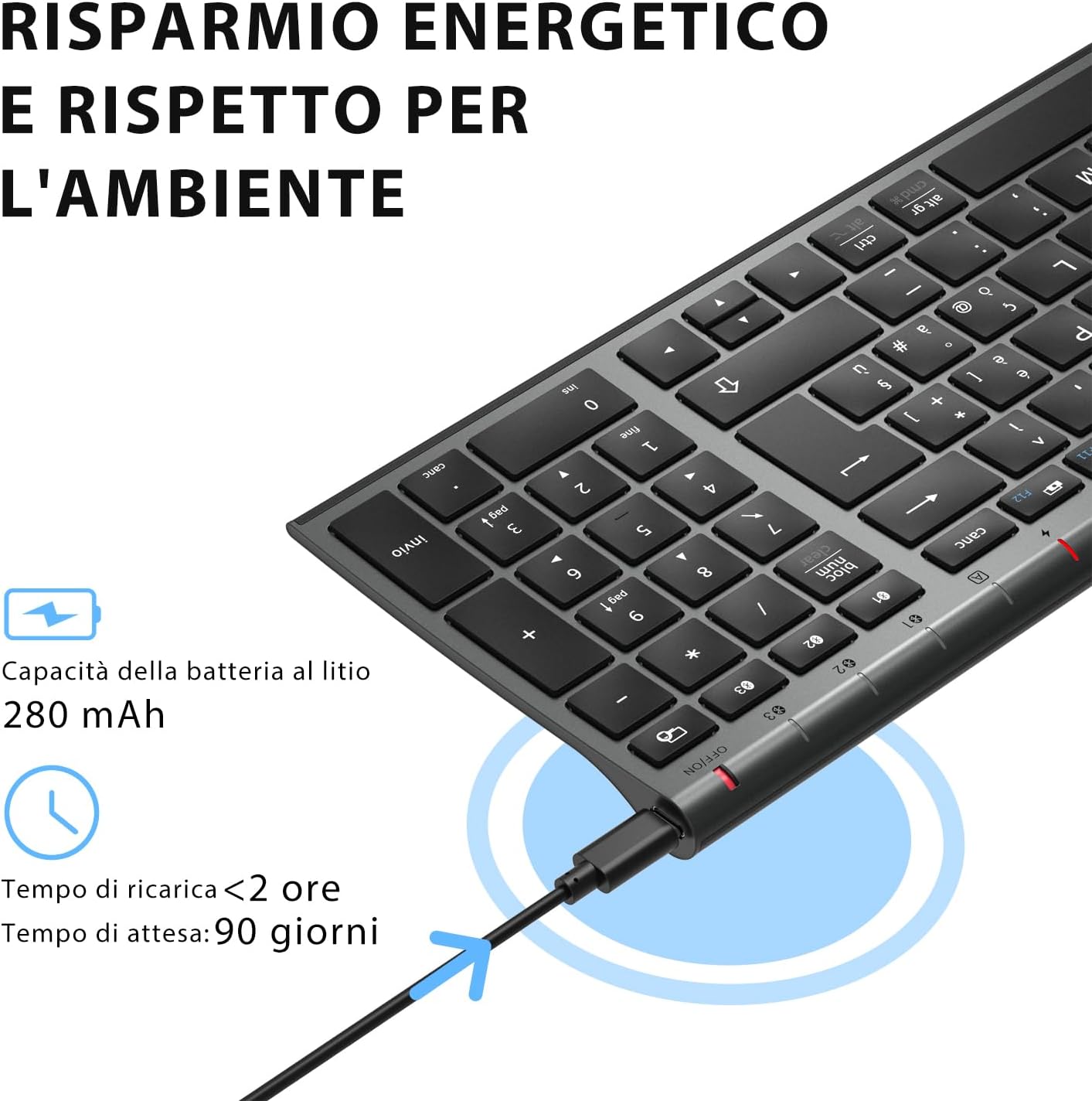
Before first use, fully charge the keyboard. Connect the provided USB charging cable to the keyboard's USB-C port and the other end to a USB power source (e.g., computer, wall adapter). The charging indicator light will show charging status and turn off when fully charged.

The iClever BK10 keyboard connected via USB-C for charging. This image details the 280 mAh lithium battery capacity, a charging time of less than 2 hours, and a standby time of 90 days.
2. Włączanie/wyłączanie zasilania
Locate the power switch on the keyboard. Slide the switch to the 'ON' position to power on the keyboard. Slide it to the 'OFF' position when not in use to conserve battery.
3. Parowanie Bluetooth
The iClever BK10 keyboard supports connection to up to three devices simultaneously.
- Włącz klawiaturę za pomocą włącznika zasilania.
- Naciśnij Fn naciśnij jednocześnie jeden z klawiszy kanału Bluetooth (BT1, BT2, Lub BT3) aby wybrać kanał.
- Press and hold the selected Bluetooth channel key (e.g., BT1) for 3-5 seconds until the indicator light for that channel starts blinking rapidly. This indicates the keyboard is in pairing mode.
- Włącz Bluetooth na swoim urządzeniu (komputerze, tablecie, smartfonie) i wyszukaj dostępne urządzenia.
- Select "iClever BK10" (or similar name) from the list of found devices.
- Follow any on-screen prompts to complete the pairing process. The indicator light will stop blinking and remain solid for a few seconds, then turn off, indicating a successful connection.

The iClever BK10 keyboard demonstrating its ability to connect to an iPad, MacBook, and iPhone via three distinct Bluetooth channels. The image also illustrates key mapping for Windows/Android (Alt/Cmd) and iPad/Mac (Alt/Cmd) operating systems.
Obsługa klawiatury
1. Przełączanie między sparowanymi urządzeniami
Aby przełączać się między sparowanymi urządzeniami, wystarczy nacisnąć Fn klawisz wraz z odpowiadającym mu klawiszem kanału Bluetooth (BT1, BT2, Lub BT3) that your device is paired to. The keyboard will automatically connect to the selected device.
2. Klawisze funkcyjne (Fn)
The keyboard features a row of function keys (F1-F12) that also serve as multimedia and shortcut keys. To use the secondary function of these keys, press and hold the Fn key while pressing the desired function key.
3. Kompatybilność systemu operacyjnego
The iClever BK10 keyboard is designed to be compatible with various operating systems. Key functions may adapt slightly depending on the connected OS. For optimal performance, ensure your device's Bluetooth version is 4.0 or higher.

Close-up of the iClever BK10 keyboard with a hand typing, highlighting the low-profile keys and scissor switch mechanism designed for quiet and comfortable typing.
Konserwacja
1. Czyszczenie
Aby wyczyścić klawiaturę, wyłącz ją i odłącz od wszelkich urządzeń. Użyj miękkiej, niepozostawiającej włókien ściereczki, lekko przetrzyj.ampened with water or a mild cleaning solution. Avoid using harsh chemicals, abrasives, or excessive moisture. Do not spray cleaners directly onto the keyboard.
2. Pielęgnacja baterii
To prolong the battery life of your keyboard:
- Charge the keyboard fully before its first use.
- Unikaj częstego całkowitego rozładowywania baterii.
- Jeśli klawiaturę nie używasz przez dłuższy czas, przechowuj ją w chłodnym i suchym miejscu.
- Turn off the keyboard when transporting it or when not in use to prevent accidental key presses and battery drain.
Rozwiązywanie problemów
1. Klawiatura nie łączy się/nie paruje
- Sprawdź, czy klawiatura jest włączona i całkowicie naładowana.
- Upewnij się, że Bluetooth jest włączony w Twoim urządzeniu.
- Ensure the keyboard is in pairing mode (indicator light blinking).
- Spróbuj rozłączyć i ponownie sparować klawiaturę w ustawieniach Bluetooth swojego urządzenia.
- Uruchom ponownie klawiaturę i urządzenie.
- Ensure your device's Bluetooth version is compatible (BT 4.0+ recommended).
2. Klawisze nie reagują
- Sprawdź czy klawiatura jest podłączona do właściwego urządzenia.
- Ensure the battery is not low. Charge the keyboard if necessary.
- Uruchom ponownie klawiaturę i podłączone urządzenie.
- Wyczyść okolice klawiszy ze wszelkich zanieczyszczeń.
3. Connection Drops Frequently
- Upewnij się, że w pobliżu nie ma silnych źródeł zakłóceń (np. routerów Wi-Fi, innych urządzeń Bluetooth).
- Keep the keyboard within the recommended operating range of your device.
- Sprawdź, czy klawiatura jest w pełni naładowana.
Gwarancja i wsparcie
iClever products come with a standard warranty. For detailed warranty information, technical support, or customer service, please refer to the warranty card included with your product or visit the official iClever website. Please have your product model number (BK10) and purchase information ready when contacting support.
Produkt ponadview Obrazy

Od góry do dołu view of the iClever BK10 Bluetooth Wireless Keyboard, showcasinz pełnym układem, łącznie z klawiaturą numeryczną i klawiszami funkcyjnymi.
Na bok view of the iClever BK10 keyboard, illustrating its ultra-thin profile with a thickness ranging from 0.16 inches to 0.45 inches.

The iClever BK10 keyboard positioned on a desk in an office environment, alongside a computer monitor, laptop, tablet, and smartphone, illustrating its versatile use in various professional and personal setups.