
1. Wprowadzenie
Thank you for choosing the iClever GK08 Wireless Keyboard and Mouse Combo. This full-size keyboard with a numeric keypad and a silent mouse offers a stable 2.4 GHz connection, USB-C recharging, and dual-layout compatibility for Mac and Windows systems. This manual provides detailed instructions to help you set up, operate, and maintain your new device.
2. Informacje dotyczące bezpieczeństwa
- Trzymaj urządzenie z dala od wody, ognia i wysokich temperatur.
- Nie próbuj demontować ani modyfikować urządzenia.
- Do ładowania należy używać wyłącznie dołączonego kabla USB-C.
- Unikaj upuszczania i narażania urządzenia na silne uderzenia.
- Baterie i podzespoły elektroniczne należy utylizować zgodnie z lokalnymi przepisami.
3. Przewodnik konfiguracji
3.1 Zawartość opakowania
- iClever GK08 Wireless Keyboard
- iClever Wireless Mouse
- USB-A Nano Receiver (stored inside the mouse)
- Kabel ładujący USB-C
- Washable Dust Cover
- Instrukcja obsługi
3.2 Pierwsze ładowanie
Przed pierwszym użyciem upewnij się, że klawiatura i mysz są w pełni naładowane.
- Connect the provided USB-C charging cable to the keyboard's USB-C port (located on the top edge).
- Podłącz drugi koniec kabla do źródła zasilania USB (np. portu USB komputera, zasilacza ściennego USB).
- The charging indicator light on the keyboard will illuminate during charging and turn off when fully charged.
- For the mouse, connect the USB-C cable to its charging port. The mouse also has an indicator light.
- A full charge takes approximately 2 hours and provides up to 45 days of use for the keyboard.
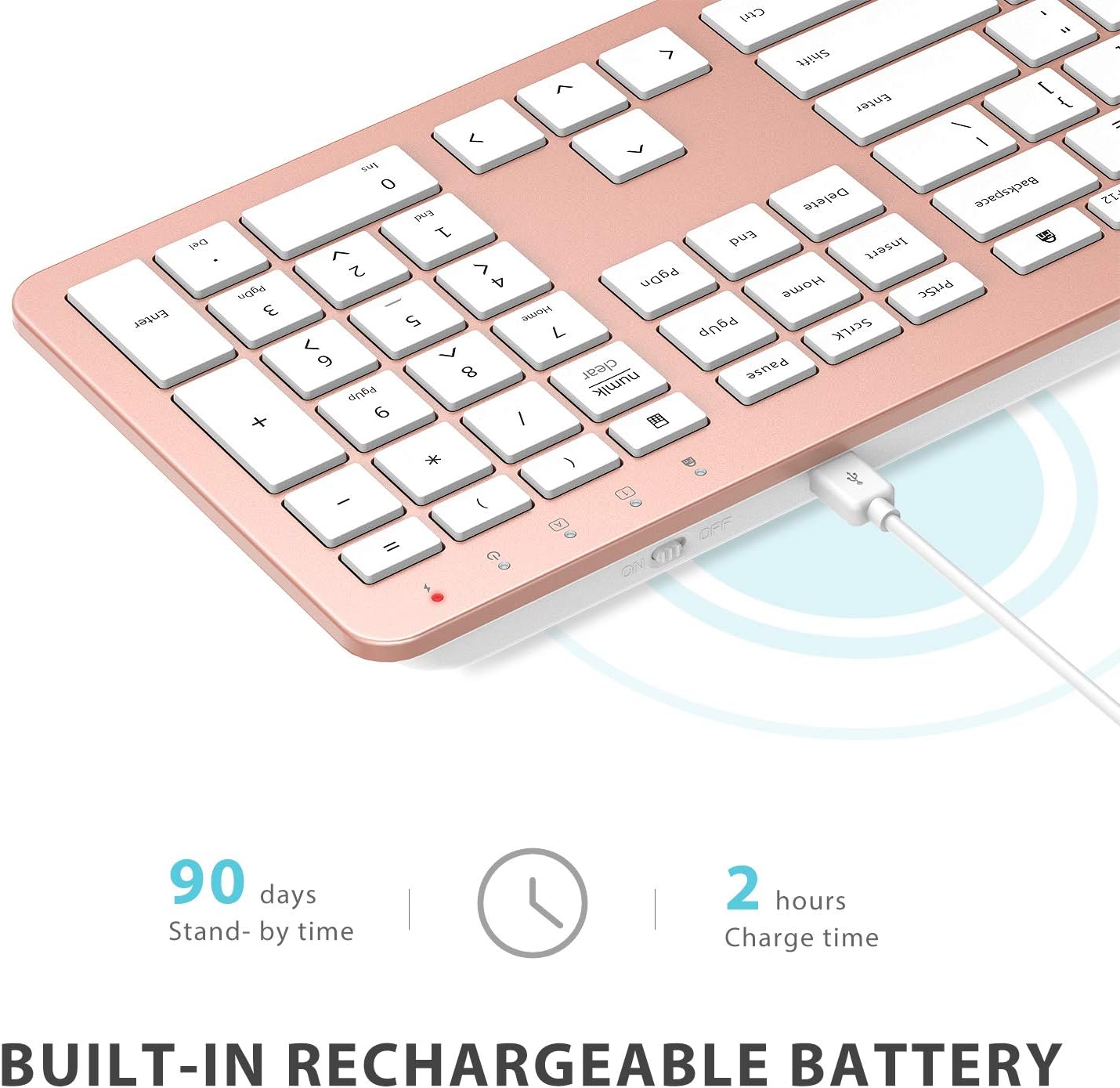
Image: The iClever GK08 keyboard connected to a USB-C charging cable, illustrating the charging process and battery life indicators.
3.3 Connecting to Your Computer (2.4 GHz Wireless)
The keyboard and mouse connect via a single 2.4 GHz USB-A nano receiver.
- Locate the USB-A nano receiver. It is typically stored in a compartment on the underside of the mouse.
- Plug the nano receiver into an available USB-A port on your computer.
- Turn on the keyboard using the ON/OFF switch (usually on the top edge).
- Turn on the mouse using the ON/OFF switch (located on the underside).
- Your computer should automatically detect and install the necessary drivers. The devices are ready for use once recognized.
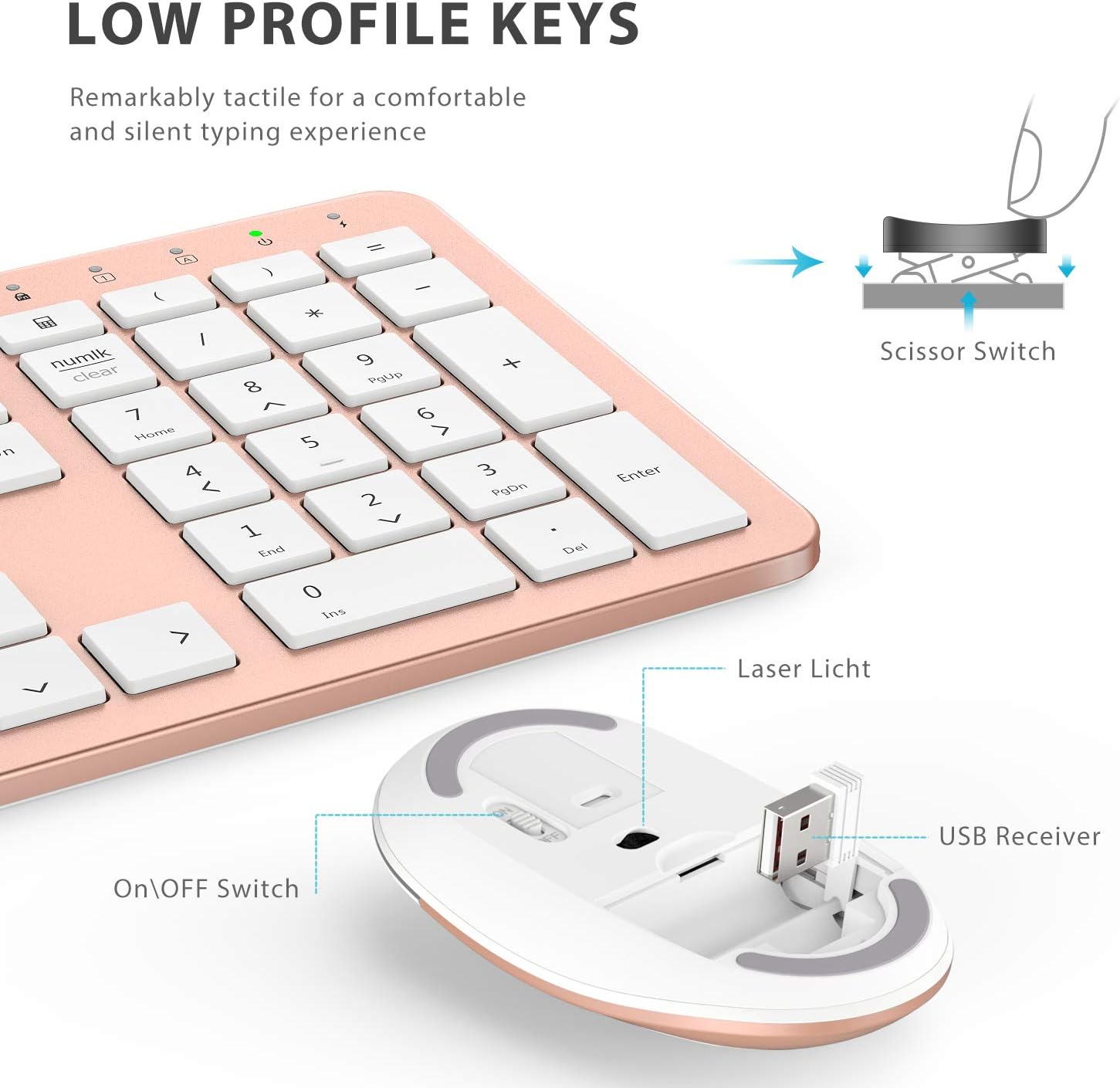
Obraz: Zbliżenie view of the iClever mouse, highlighting the compartment where the USB nano receiver is stored for convenience.
3.4 Sprawdzenie zgodności
This combo requires an available USB-A port for the nano receiver. For newer Macs with only USB-C ports, a USB-C to USB-A adapter (not included) is required. It is compatible with:
- Windows 10/11 PC & laptop
- macOS desktops / notebooks with USB-A port (e.g., iMac Retina 4K/5K, MacBook Air/Pro ≤ 2017)
- System operacyjny Chrome

Image: A visual representation emphasizing the requirement of a USB-A port for the 2.4G wireless receiver, with a note about USB-C adapters for newer devices.
4. Instrukcja obsługi
4.1 Funkcje klawiatury
- Układ pełnowymiarowy: The keyboard features a 110-key layout with a dedicated numeric keypad for efficient data entry.
- Ciche klawisze nożycowe: Enjoy a comfortable and quiet typing experience with low-profile keys that produce less than 50 dB of sound.
- Media Shortcuts: Access common media functions directly from the keyboard.
- Dual-Layout Compatibility: The keyboard has clearly printed Mac and PC legends.
Switching Between Mac and Windows Layouts:
- Dla Okna: Naciskać Fn + W to activate Win, Alt, NumLK functions.
- Dla Mac OS: Naciskać Fn + Q to activate Alt (Option), Cmd, Clear functions.

Image: The iClever GK08 keyboard displaying the dual Mac and Windows key legends, with instructions for switching between operating system layouts using the Fn key combinations.
4.2 Funkcje myszy
- Ciche kliknięcie: The mouse is designed for quiet operation, minimizing distractions.
- Regulowane DPI: The mouse features 3 adjustable DPI levels (800/1200/1600) to customize cursor sensitivity. Press the DPI button (usually located near the scroll wheel) to cycle through the settings.

Image: A visual demonstrating the quiet operation of the iClever mouse and the three adjustable DPI settings (800, 1200, 1600) for varied precision needs.
4.3 Funkcja automatycznego uśpienia
To conserve battery life, both the keyboard and mouse will enter an auto-sleep mode after 10 minutes of inactivity. To wake them up, simply press any key on the keyboard or move the mouse.
Video: A seller-provided video demonstrating the plug-and-play functionality and long battery life of the iClever Wireless Keyboard and Mouse. This video highlights the ease of setup and extended usage between charges.
5. Konserwacja
- Czyszczenie: Użyj miękkiego, damp cloth to clean the surfaces of the keyboard and mouse. Avoid harsh chemicals.
- Osłona przeciwpyłowa: Utilize the included washable dust cover to protect the keyboard from dust and spills when not in use.
- Składowanie: When not in use for extended periods, turn off both devices to conserve battery. Store the USB receiver inside the mouse.
6. Rozwiązywanie Problemów
- Brak połączenia:
- Ensure both keyboard and mouse are turned ON.
- Verify the USB nano receiver is securely plugged into a working USB-A port on your computer.
- Spróbuj podłączyć odbiornik do innego portu USB-A.
- Check if the devices are charged.
- Opóźnienia lub przerywane połączenie:
- Ensure the devices are within the 33 ft / 10 m operating range of the receiver.
- Unikaj umieszczania odbiornika w pobliżu silnych źródeł zakłóceń (np. innych urządzeń bezprzewodowych, dużych obiektów metalowych).
- Re-pair the devices by unplugging and re-plugging the receiver.
- Keyboard Not Typing Correctly (Mac/Windows):
- Ensure you have selected the correct operating system layout using Fn + W dla systemu Windows lub Fn + Q dla komputerów Mac.
- Kursor myszy skacze lub działa nieprawidłowo:
- Ustawienia DPI można dostosować za pomocą przycisku DPI na myszy.
- Upewnij się, że czujnik myszy jest czysty i nie ma w nim żadnych przeszkód.
- Używaj myszki na odpowiedniej powierzchni (nie odblaskowej i nie przezroczystej).
7. Specyfikacje
| Funkcja | Szczegół |
|---|---|
| Marka | iClever |
| Numer modelu | GK08 |
| Kolor | Różowe złoto |
| Technologia łączności | 2.4 GHz wireless (USB-A nano receiver) |
| Zasięg bezprzewodowej | Do 33 stóp / 10 m |
| Układ klawiatury | QWERTY, Full-size 110-key with Numpad |
| Typ klucza | Scissor Switch (Quiet typing < 50 dB) |
| Źródło zasilania | Rechargeable Lithium Ion Battery (Keyboard) |
| Port ładowania | USB-C |
| Czas ładowania | Około 2 godzin |
| Czas pracy baterii (klawiatura) | Do 45 dni (typowe użytkowanie) |
| Ustawienia DPI myszy | 800 / 1200 / 1600 DPI |
| Kompatybilne systemy operacyjne | Windows 8/10/11, macOS, Chrome OS |
| Cechy specjalne | Dual Mac/Windows layout, 10-min auto-sleep, Washable dust cover |
8. Gwarancja i wsparcie
iClever products typically come with a standard manufacturer's warranty. Please refer to the warranty card included in your product packaging or visit the official iClever webSzczegółowe warunki gwarancji można znaleźć na naszej stronie.
W celu uzyskania pomocy technicznej, pomocy w rozwiązywaniu problemów lub w przypadku pytań dotyczących produktu prosimy o kontakt z działem obsługi klienta iClever za pośrednictwem oficjalnej strony internetowej webwitrynę lub dane kontaktowe podane w dokumentacji produktu.
Wsparcie online: www.iclever.com/support