
1. Wprowadzenie
Thank you for choosing the Sharkoon CA300T ATX PC Case. This full tower case is designed for high-performance gaming systems, offering extensive compatibility, efficient cooling, and advanced cable management features. This manual provides essential information for the proper setup, operation, and maintenance of your new PC case.
2. Informacje dotyczące bezpieczeństwa
- Always disconnect the power supply from the wall outlet before installing or removing any components inside the PC case.
- Ostrożnie obchodź się z elementami, aby uniknąć uszkodzeń spowodowanych wyładowaniami elektrostatycznymi. Rozważ użycie antystatycznej opaski na nadgarstek.
- Trzymaj małe części i materiały opakowaniowe poza zasięgiem dzieci.
- Avoid placing the PC case in direct sunlight, near heat sources, or in environments with high humidity.
- Do not attempt to modify the case structure, as this may void your warranty and cause damage.
3. Zawartość opakowania
Sprawdź zawartość paczki, aby upewnić się, że znajdują się w niej wszystkie elementy:
- Obudowa PC Sharkoon CA300T ATX
- Accessory box (screws, cable ties, standoffs, etc.)
- RGB lighting controller (if applicable)
- Instrukcja obsługi (ten dokument)
4. Koniec produktuview i funkcje
The Sharkoon CA300T is a premium full tower ATX PC case designed for enthusiasts. It features a modern design with robust construction, tempered glass panels, and advanced cooling options.
Główne cechy:
- Full Tower Design: Ample space for high-end components and custom liquid cooling solutions.
- Panele ze szkła hartowanego: Side panels made of tempered glass for a clear view komponentów wewnętrznych.
- Oświetlenie RGB: Integrated RGB lighting for customizable aesthetics.
- Zoptymalizowany przepływ powietrza: Includes three 120mm fans and supports multiple radiators for superior cooling.
- Zaawansowane zarządzanie kablami: Features an openable cable pocket/channel and ample routing options for a clean build.
- Filtry przeciwpyłowe: Three-layer top plate with a dust filter to maintain system cleanliness.
- Rozbudowana łączność: Front panel includes 2x USB 3.0 ports and additional USB ports.
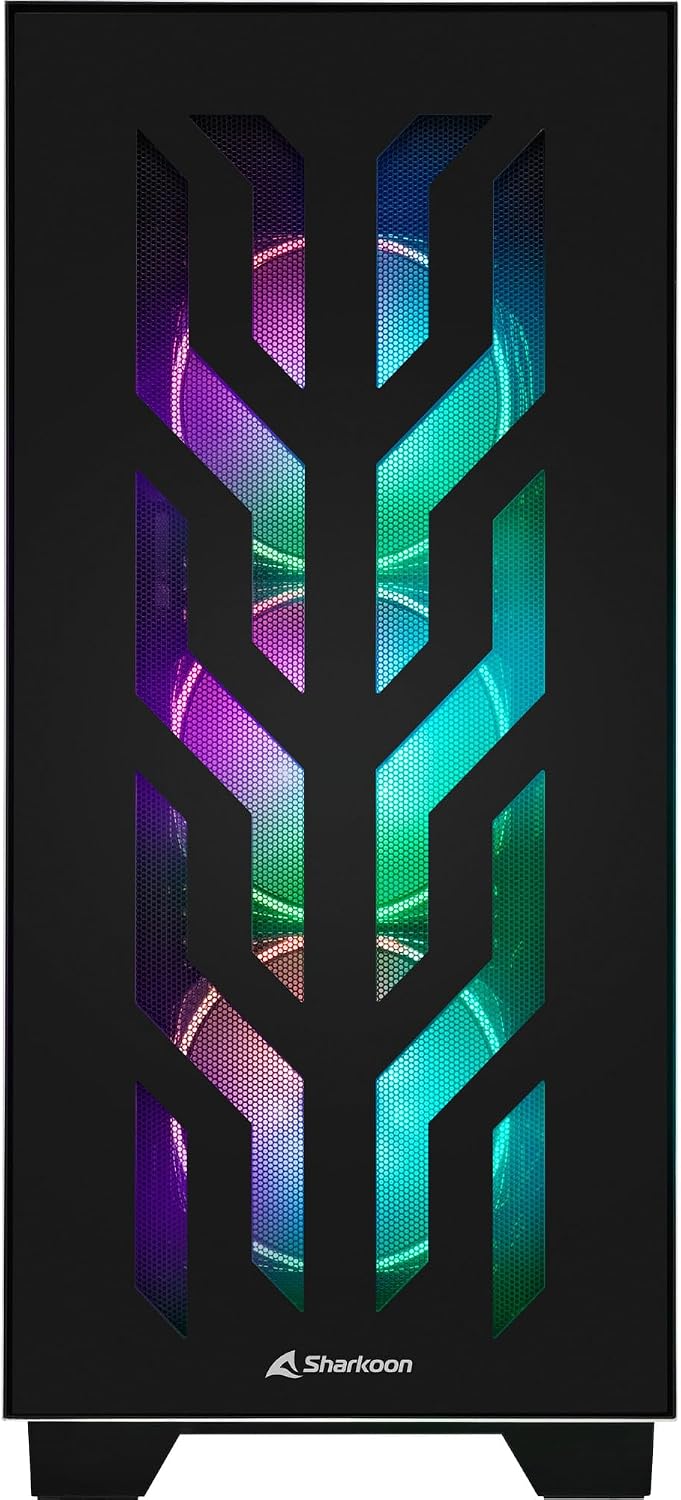
Rycina 4.1: Przód view of the Sharkoon CA300T PC case, showcasing the illuminated RGB fans behind the mesh panel.
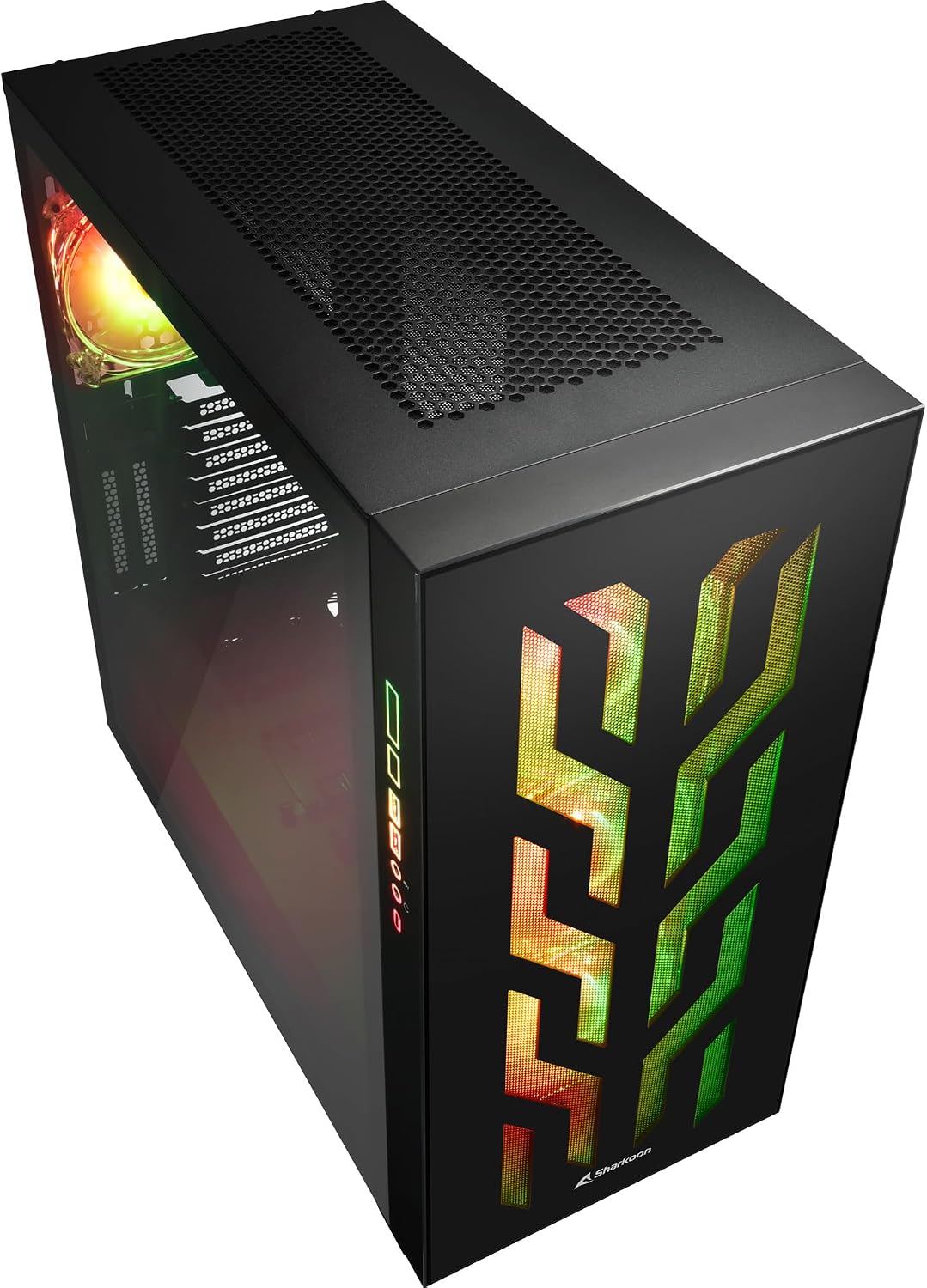
Rysunek 4.2: Kątowy view of the Sharkoon CA300T PC case, showing the tempered glass side panel and the vibrant RGB lighting from the interior.
5. Konfiguracja
5.1 Rozpakowanie
- Ostrożnie wyjmij obudowę komputera z opakowania.
- Inspect the case for any signs of damage during transit. Contact your retailer if any damage is found.
- Locate the accessory box inside the case, which contains screws and other installation hardware.
5.2 Demontaż paneli bocznych
The Sharkoon CA300T features tempered glass side panels for easy access to components.
- Locate the two screws on the rear of the case securing the side panel.
- Odkręć te dwie śruby.
- Gently pull the panel upwards and away from the case to remove it. Repeat for the other side if necessary.

Rysunek 5.1: Wnętrze view of the Sharkoon CA300T PC case, showing the main compartment with the left tempered glass panel removed, ready for component installation.

Rysunek 5.2: Wnętrze view of the Sharkoon CA300T PC case with the left side panel completely removed, exposing the motherboard tray and various mounting points.
5.3 Instalacja płyty głównej
- Install the necessary standoffs onto the motherboard tray according to your ATX motherboard's screw holes.
- Carefully place your ATX motherboard onto the standoffs, aligning the screw holes.
- Przymocuj płytę główną za pomocą dołączonych śrub.
5.4 Instalacja zasilacza (PSU).
The CA300T supports bottom-mounted power supplies.
- Wsuń zasilacz do przeznaczonego dla niego przedziału w dolnej tylnej części obudowy.
- Przymocuj zasilacz do obudowy za pomocą śrub od tyłu.
5.5 Instalacja napędu
The case provides internal bays for 3.5-inch and 2.5-inch drives.
- Locate the drive cages or mounting points for your 3.5-inch or 2.5-inch drives.
- Mount your drives using the appropriate screws or tool-less mechanisms.
5.6 Instalacja karty graficznej i karty rozszerzeń
The case offers multiple expansion slots and supports vertical GPU mounting.
- Zdejmij niezbędne zaślepki gniazd rozszerzeń z tyłu obudowy.
- Umieść kartę graficzną lub inną kartę rozszerzeń w gniazdach PCIe na płycie głównej.
- Secure the cards with screws. For vertical GPU mounting, an additional riser cable (not included) is required.
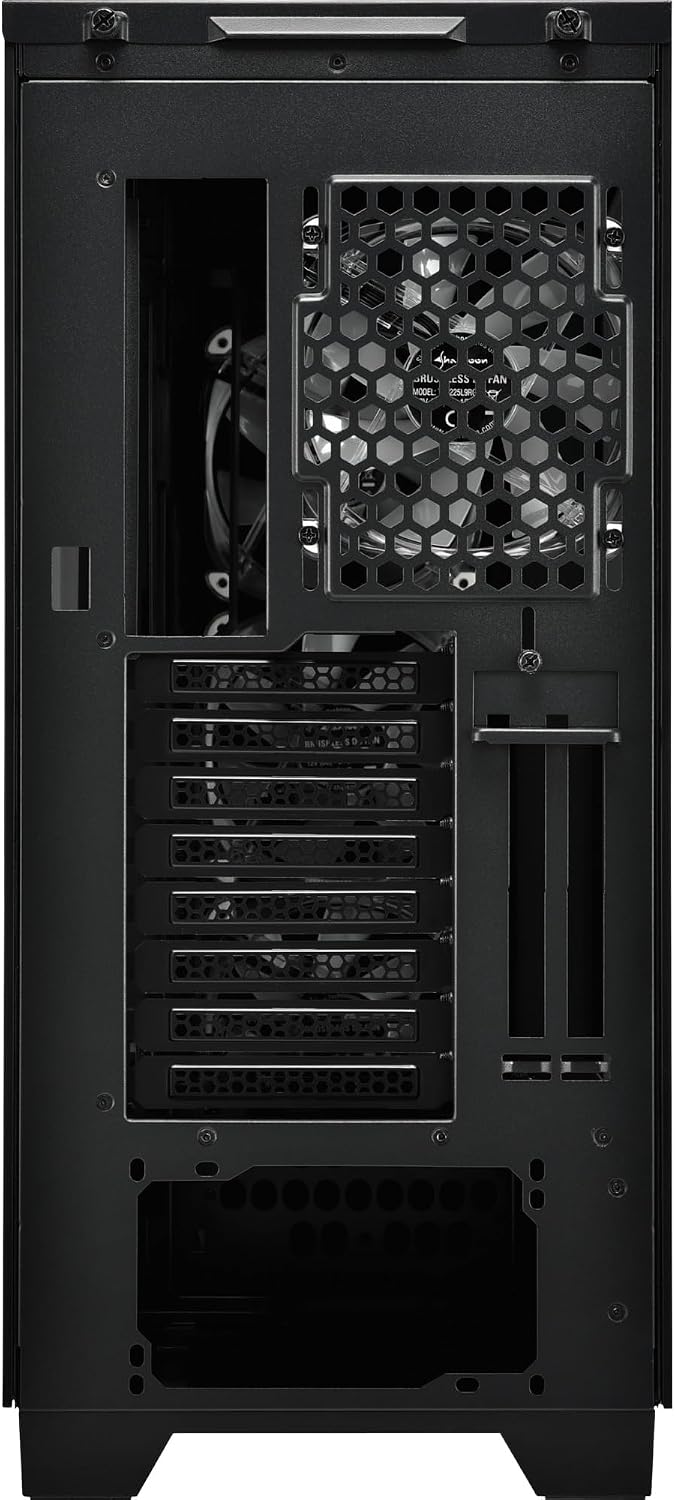
Rysunek 5.3: Tył view of the Sharkoon CA300T PC case, illustrating the expansion slots, rear fan mount, and PSU opening.
5.7 Zarządzanie kablami
Wykorzystaj kanały kablowe i punkty mocowania znajdujące się za tacką płyty głównej, aby uporządkować kable i poprawić przepływ powietrza oraz estetykę.

Rysunek 5.4: Wnętrze tyłu view of the Sharkoon CA300T PC case, highlighting the dedicated cable management area behind the motherboard tray.
6. Obsługa
6.1 Włączanie/wyłączanie zasilania
After all components are installed and cables are connected, press the power button on the front panel to turn on your system. Press it again to turn off, or use your operating system's shutdown function.
6.2 Sterowanie oświetleniem RGB
The integrated RGB lighting can be controlled via the dedicated RGB controller (if included) or through compatible motherboard software, depending on how the RGB components are connected. Refer to your motherboard manual for software control options.
7. Konserwacja
7.1 Czyszczenie filtrów przeciwpyłowych
The Sharkoon CA300T features a three-layer top plate with a dust filter. Regularly clean all dust filters to maintain optimal airflow and cooling performance.
- Wyłącz komputer i odłącz go od zasilania.
- Carefully remove the dust filters (e.g., from the top, front, and bottom).
- Clean the filters using compressed air or by gently washing them with water. Ensure they are completely dry before reinstallation.
7.2 Ogólna opieka
- Przetrzyj zewnętrzną część obudowy miękką szmatką.amp płótno. Unikaj ściernych środków czyszczących.
- Ensure all cables are securely connected and not obstructing airflow.
8. Rozwiązywanie Problemów
Jeśli napotkasz problemy ze swoim komputerem, rozważ poniższe typowe kroki rozwiązywania problemów:
- Brak zasilania: Ensure the power supply is properly connected to the wall outlet and the motherboard. Check all power cables (24-pin, CPU, GPU).
- Wentylatory nie kręcą się: Verify that all fan headers are correctly connected to the motherboard or fan controller. Check BIOS settings for fan control.
- Brak wyświetlacza: Confirm that your monitor is connected to the graphics card (not the motherboard's integrated graphics, unless intended). Reseat the graphics card and RAM modules.
- RGB nie działa: Check RGB cable connections to the motherboard or controller. Ensure any necessary software is installed and configured.
- Przegrzanie: Ensure all fans are spinning correctly and dust filters are clean. Verify proper thermal paste application on the CPU cooler.
For more complex issues, consult the manuals for your individual components (motherboard, GPU, PSU) or seek professional assistance.
9. Specyfikacje
| Funkcja | Specyfikacja |
|---|---|
| Marka | Rekin |
| Nazwa modelu | CA300T |
| Typ sprawy | Pełna Wieża |
| Zgodność płyty głównej | ATX |
| Zalecane zastosowanie | Hazard |
| Kolor | Czarny |
| Tworzywo | Metal |
| Power Supply Mount Type | Mocowanie dolne |
| Metoda chłodzenia | Powietrze |
| Rozmiar wentylatora | 120 mm |
| Liczba fanów | 3 |
| Total Expansion Slots | 4 |
| Total USB 3.0 Ports | 2 |
| Łączna liczba portów USB | 3 |
| Cechy specjalne | RGB Lighting, Openable Cable Pocket, Three-layer Top Plate with Dust Filter |
| HDD Bay Size | 3.5 cali |
| Number of Internal Bays | 4 |
| Kompatybilne urządzenia | ATX Motherboards, 3.5-inch Hard Drives |
| Kolor światła | RGB |
| Waga przedmiotu | 14.7 kilograma |
10. Gwarancja
The Sharkoon CA300T PC Case comes with a 2-letnia gwarancja producenta. Please retain your proof of purchase for warranty claims. The warranty covers defects in materials and workmanship under normal use. It does not cover damage caused by misuse, accidents, unauthorized modifications, or improper installation.
11. Wsparcie
For technical support, warranty inquiries, or further assistance, please visit the official Sharkoon website or contact their customer service department. You may find contact information and FAQs on their support pages.
Urzędnik Webstrona: www.sharkoon.com