
Bmax X15
Bmax X15 Laptop User Manual
Model: X15
Wstęp
This manual provides comprehensive instructions for the setup, operation, and maintenance of your Bmax X15 laptop. Please read this manual carefully before using your device to ensure proper functionality and longevity.
Produkt ponadview
Przód View

The Bmax X15 features a vibrant 15.6-inch Full HD display, providing clear and crisp visuals for all your computing needs.
Klawiatura i touchpad

Equipped with a full-sized keyboard including a numeric keypad and a large 4.7-inch multi-touch touchpad for comfortable and efficient input.
Strona Profile i porty

The slim design incorporates essential ports including two USB 3.0 ports, a Micro HDMI output, a DC power input, and a headphone jack for versatile connectivity.
Tył View

The Bmax X15 features a durable metal back cover, enhancing both its aesthetic appeal and structural integrity.
Organizować coś
Pierwsze włączenie zasilania
- Naładuj baterię: Before first use, connect the included power adapter to the laptop's DC port and a power outlet. Allow the battery to charge fully. The charging indicator light will typically change color or turn off when fully charged.
- Włączanie: Open the laptop lid and press the power button, usually located on the top right of the keyboard area.
- Instalacja systemu Windows: Follow the on-screen prompts to complete the Windows 10 Pro setup. This includes selecting your language, region, connecting to a Wi-Fi network, and creating a user account.
Podłączanie urządzeń peryferyjnych
- Urządzenia USB: Connect USB mice, keyboards, or external drives to the USB 3.0 ports on the sides of the laptop.
- Wyświetlacz zewnętrzny: Use a Micro HDMI cable to connect the laptop to an external monitor or TV. Ensure the external display is set to the correct input source.
- Urządzenia audio: Podłącz słuchawki lub głośniki zewnętrzne do gniazda audio 3.5 mm.
- Karta Micro-SD: Insert a Micro-SD card into the designated slot for additional storage.
Instrukcja obsługi
Korzystanie z klawiatury i touchpada
The Bmax X15 features a responsive keyboard and a large touchpad. The touchpad supports multi-touch gestures for enhanced navigation. Refer to Windows settings for customizing touchpad gestures.
Ustawienia wyświetlania
The 15.6-inch Full HD IPS display offers excellent clarity. You can adjust display settings such as brightness, resolution, and scaling through Windows Display Settings.
Rozszerzenie pamięci masowej
Expandable M.2 SSD Slot
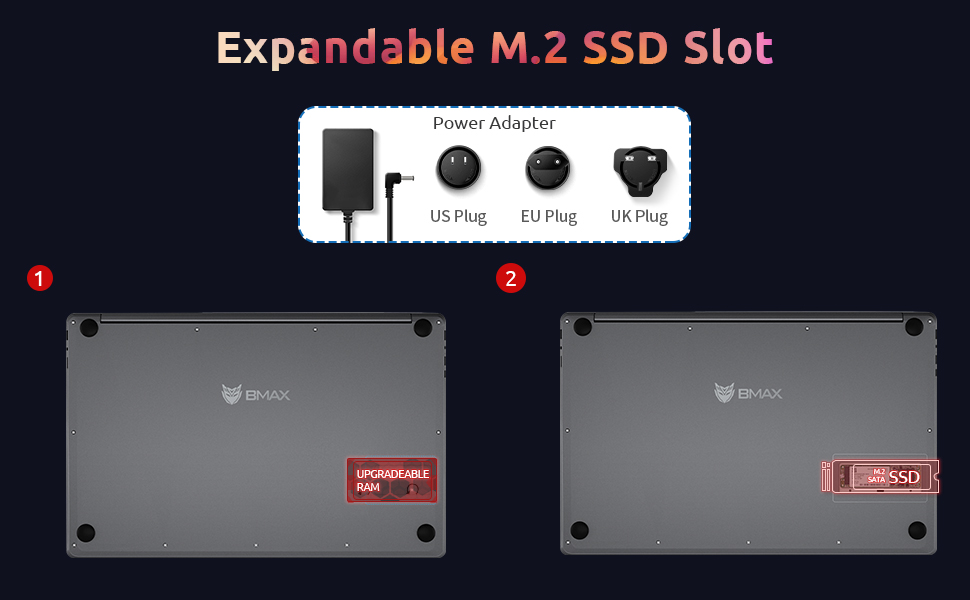
The Bmax X15 comes with a 256GB SSD and supports further storage expansion via an M.2 SATA SSD slot. This allows for significant upgrades to your storage capacity.
Konserwacja
Czyszczenie
- Ekran: Użyj miękkiej, niestrzępiącej się ściereczki, lekko wyczyśćampSpryskaj wodą lub płynem do czyszczenia ekranów. Nie rozpylaj płynu bezpośrednio na ekran.
- Klawiatura i obudowa: Użyj miękkiej, suchej ściereczki. W przypadku uporczywych zabrudzeń, delikatnie przetrzyj.amp Można użyć ściereczki, upewniając się, że do otworów nie dostanie się żaden płyn.
- Porty: Delikatnie usuń kurz z portów za pomocą sprężonego powietrza.
Pielęgnacja baterii
- Unikaj częstego całkowitego rozładowywania akumulatora.
- Jeśli laptop nie będzie używany przez dłuższy czas, należy go przechowywać w chłodnym i suchym miejscu, przy czym bateria powinna być naładowana do poziomu około 50%.
- Use only the original Bmax power adapter.
Aktualizacje oprogramowania
Regularnie sprawdzaj dostępność aktualizacji systemu Windows i instaluj je, aby zapewnić stabilność, bezpieczeństwo i optymalną wydajność systemu. Przejdź do Ustawienia > Aktualizacja i zabezpieczenia > Windows Update.
Rozwiązywanie problemów
| Problem | Możliwa przyczyna | Rozwiązanie |
|---|---|---|
| Laptop się nie włącza. | Niski poziom naładowania baterii; Problem z zasilaczem; Błąd sprzętowy. | Ensure power adapter is securely connected and outlet is working. Allow battery to charge for at least 30 minutes before attempting to power on again. |
| Wyświetlacz jest pusty lub miga. | Incorrect display settings; Driver issue; Hardware fault. | Naciskać Fn+F1 (or relevant display toggle key) to cycle through display modes. Update graphics drivers. Restart the laptop. |
| Problemy z połączeniem Wi-Fi. | Wi-Fi adapter off; Router issue; Driver issue. | Ensure Wi-Fi is enabled in Windows settings. Restart your router. Update network drivers. |
| Niska wydajność. | Too many programs running; Low storage space; Malware. | Close unnecessary applications. Free up disk space. Run a virus scan. Consider upgrading SSD or RAM if consistently slow. |
Specyfikacje
| Funkcja | Szczegół |
|---|---|
| Model | Bmax X15 |
| Edytor | Intel Celeron N4120 Quad Core (up to 2.6 GHz) |
| BARAN | 8 GB DDR4 |
| Składowanie | 256 GB SSD (Expandable via M.2 SATA SSD slot) |
| Wyświetlacz | 15.6-inch Full HD (1920x1080) IPS |
| Grafika | Karta graficzna Intel UHD 600 (zintegrowana) |
| System operacyjny | Windows 10 Pro (Supports Linux OS) |
| Łączność bezprzewodowa | Wi-Fi 802.11ac, Bluetooth |
| Porty | 2x USB 3.0, 1x Micro HDMI, 1x DC Power, 1x 3.5mm Headphone Jack, 1x Micro-SD Card Reader |
| Webkrzywka | 0.3 MP |
| Żywotność baterii | Do 5 godzin (typowe użytkowanie) |
| Wymiary (dł. x szer. x wys.) | 14.8 x 9.6 x 0.8 cala |
| Waga | 4.4 funta |
Gwarancja i wsparcie
Bmax offers a worry-free 30-day return policy and a 12-month warranty for the X15 laptop. For technical support or warranty claims, please refer to the contact information provided with your product packaging or visit the official Bmax support webstrona.
Customer service is available 7 days a week, 24 hours a day.
Aby uzyskać więcej informacji, odwiedź stronę Bmax Store on Amazon.