
Ridgeway Ridgeway Bluetooth Gamepad
Instrukcja obsługi gamepada Bluetooth Ridgeway
Model: Ridgeway Bluetooth Gamepad
Wstęp
Thank you for choosing the Ridgeway Bluetooth Gamepad. This versatile controller is designed to enhance your gaming experience across multiple platforms, including PC and Android devices. This manual provides detailed instructions on how to set up, operate, and maintain your gamepad to ensure optimal performance.
Produkt ponadview
The Ridgeway Bluetooth Gamepad features an ergonomic design for comfortable extended play, precise controls, and a built-in phone holder for mobile gaming. Familiarize yourself with the various components of your new gamepad.

Rysunek 1: Przód view of the Ridgeway Bluetooth Gamepad with a smartphone securely mounted in the integrated holder, ready for gaming. This image highlights the controller's overall design and its primary use case with mobile devices.
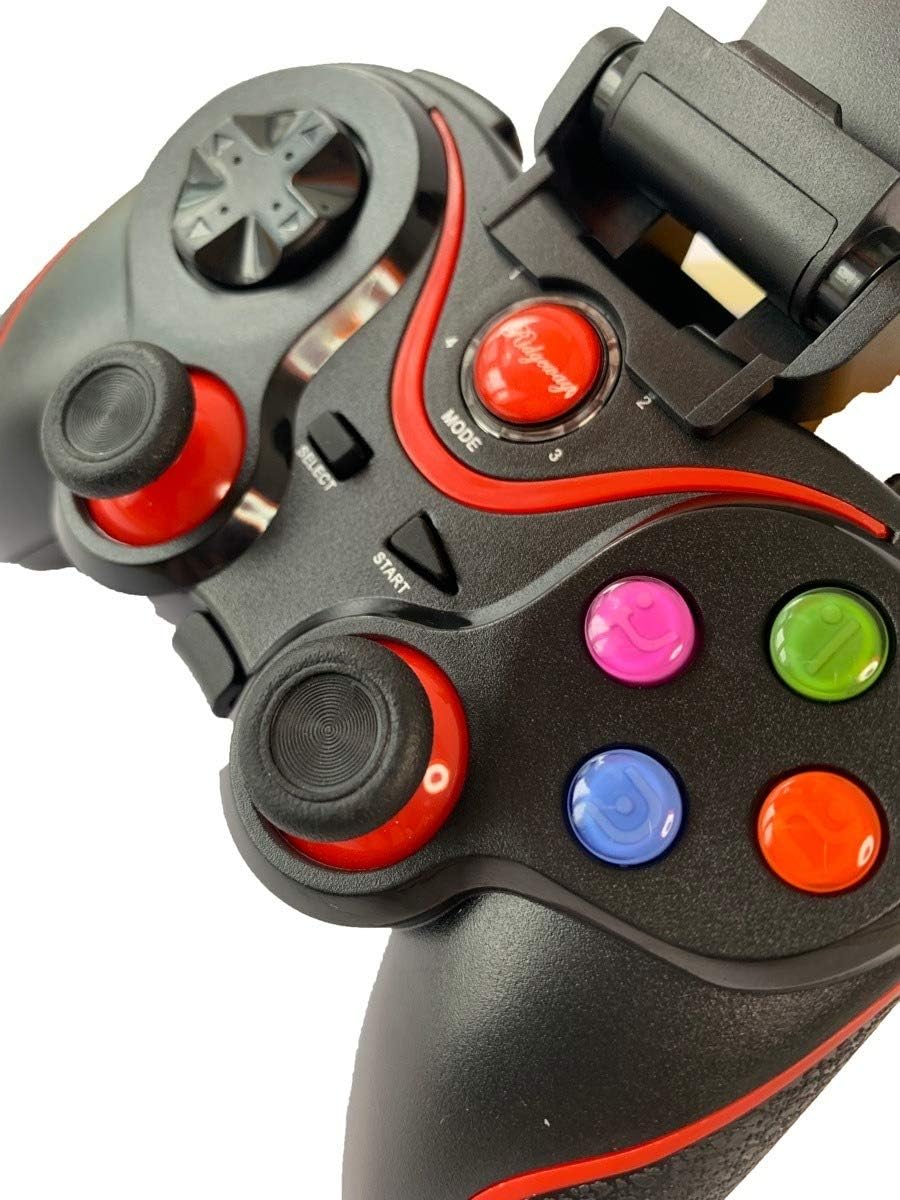
Rysunek 2: A detailed close-up of the central control area of the gamepad, showing the Mode, Select, and Start buttons, along with the vibrant A, B, X, Y action buttons. This view emphasizes the button layout and the Ridgeway branding.
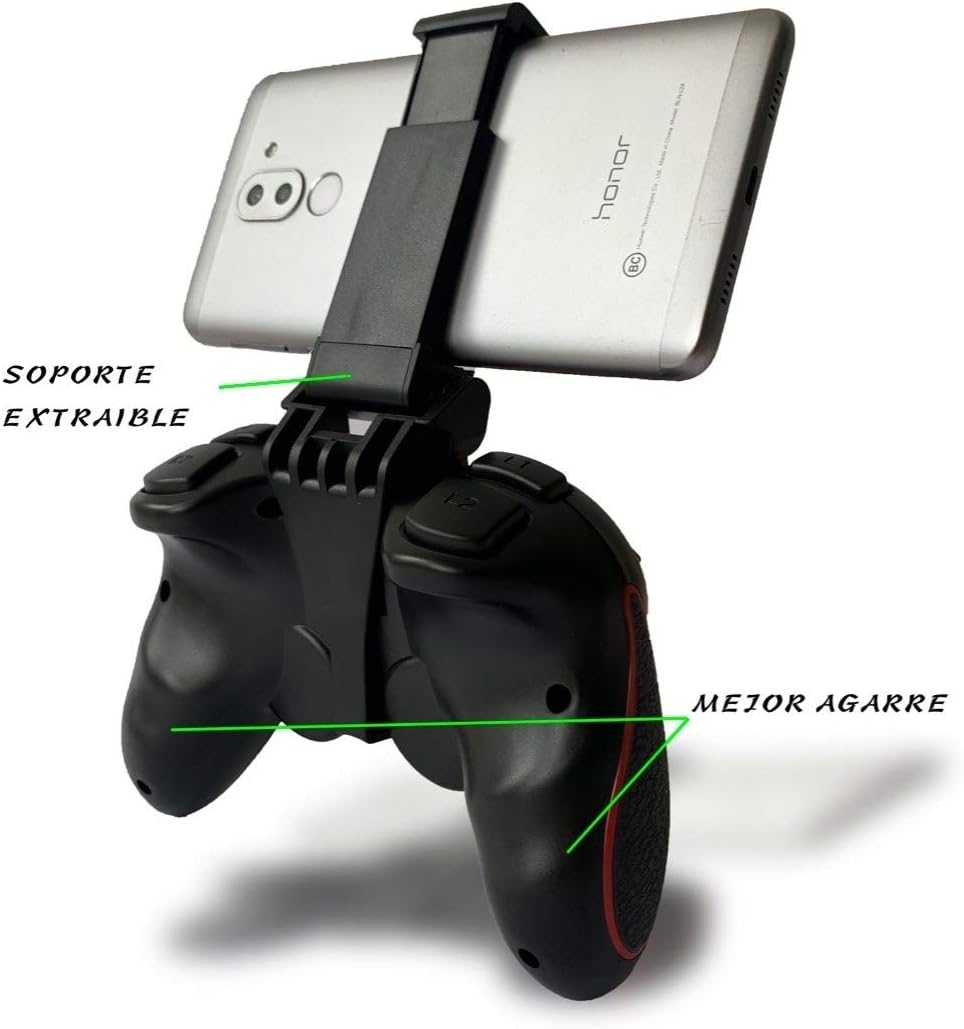
Rysunek 3: Tył view of the gamepad illustrating the removable phone support mechanism and the textured, ergonomic grip designed for enhanced comfort and stability during gameplay.
Komponenty kontrolera:
- Gałki analogowe: Two high-precision analog sticks for 360-degree movement.
- Pad kierunkowy: Podkładka kierunkowa umożliwiająca precyzyjne wprowadzanie kierunku.
- Przyciski akcji: A, B, X, Y buttons (color-coded).
- Shoulder Buttons/Triggers: L1/R1 and L2/R2 buttons for additional in-game actions.
- Przycisk trybu: Used for switching operating modes and pairing.
- Przyciski Wybierz/Start: Standardowe przyciski sterujące grą.
- Uchwyt na telefon: Integrated, adjustable holder for smartphones.
- Port ładowania: Micro-USB port for charging the internal battery.
Konfiguracja i parowanie
Before using your Ridgeway Bluetooth Gamepad, ensure it is fully charged. The gamepad supports multiple connection modes for different devices.
Charging the Gamepad:
- Connect the provided USB cable to the gamepad's charging port.
- Podłącz drugi koniec kabla USB do źródła zasilania USB (np. portu USB komputera, zasilacza ściennego USB).
- Kontrolka pokaże stan ładowania (więcej szczegółów w sekcji dotyczącej wskaźników LED).
- Po pełnym naładowaniu kontrolka zmieni kolor lub zgaśnie.
Pairing with Android Devices:
- Ensure the gamepad is turned off.
- Naciśnij i przytrzymaj Tryb przycisk i A button simultaneously until the indicator light starts flashing rapidly. This puts the gamepad into Android pairing mode.
- Na urządzeniu z systemem Android przejdź do Ustawienia > Bluetooth.
- Włącz Bluetooth i zeskanuj dostępne urządzenia.
- Select "Ridgeway Gamepad" (or similar name) from the list of found devices.
- Po sparowaniu kontrolka na gamepadzie zacznie świecić światłem ciągłym.
Pairing with PC (Windows):
- Ensure the gamepad is turned off.
- Naciśnij i przytrzymaj Tryb przycisk i X button simultaneously until the indicator light starts flashing rapidly. This puts the gamepad into PC pairing mode.
- Na komputerze z systemem Windows przejdź do Ustawienia > Urządzenia > Bluetooth i inne urządzenia.
- Kliknij „Dodaj urządzenie Bluetooth lub inne” i wybierz „Bluetooth”.
- Select "Ridgeway Gamepad" (or similar name) from the list.
- Follow any on-screen prompts to complete the pairing. The indicator light on the gamepad will become solid upon successful connection.
- Notatka: Some games may require controller configuration within their settings.

Rysunek 4: This diagram illustrates the multi-platform compatibility of the Ridgeway Bluetooth Gamepad, showing its ability to connect wirelessly to various devices such as Smart TVs, desktop computers, Android phones/tablets, and laptops. It highlights the controller's versatility and ease of connection.
Instrukcja obsługi
Once paired, your Ridgeway Bluetooth Gamepad is ready for use. The functionality may vary slightly depending on the game and platform.
Ogólne zasady działania:
- Włączanie: Naciśnij i przytrzymaj Tryb przycisk przez 3 sekundy.
- Wyłączone: Naciśnij i przytrzymaj Tryb button for 5 seconds until the indicator light turns off. The gamepad will also automatically power off after a period of inactivity to save battery.
- Ponowne łączenie: After initial pairing, the gamepad should automatically reconnect to the last paired device when powered on and Bluetooth is active on the device. If not, briefly press the Mode button or re-initiate pairing.
Doświadczenie w grach:

Rysunek 5: The Ridgeway Bluetooth Gamepad being used in conjunction with a larger display, showcasing a racing game. This image demonstrates the immersive gaming experience possible with the controller on a bigger screen, such as a monitor or TV.
- Gałki analogowe: Use for character movement, camera control, or precise aiming.
- Pad kierunkowy: Ideal for menu navigation, quick item selection, or specific directional inputs in retro games.
- Przyciski akcji (A, B, X, Y): Perform in-game actions such as jumping, attacking, interacting, or confirming selections.
- Shoulder Buttons/Triggers: Commonly used for firing weapons, accelerating, braking, or special abilities.
- Uchwyt na telefon: Extend the integrated holder to securely mount your smartphone for portable gaming. Ensure your phone is properly seated to prevent accidental drops.
Konserwacja
Proper care and maintenance will extend the life of your Ridgeway Bluetooth Gamepad.
- Czyszczenie: Use a soft, dry cloth to wipe down the gamepad. For stubborn dirt, slightly dampen the cloth with water. Do not use harsh chemicals, abrasive cleaners, or excessive moisture.
- Składowanie: Przechowuj gamepad w chłodnym, suchym miejscu, z dala od bezpośredniego światła słonecznego i ekstremalnych temperatur.
- Pielęgnacja baterii: Avoid fully discharging the battery frequently. If storing for a long period, charge the battery to about 50% every few months to maintain battery health.
- Unikaj kropli: Chroń gamepad przed upadkami i uderzeniami, ponieważ mogą one uszkodzić podzespoły wewnętrzne.
Rozwiązywanie problemów
If you encounter issues with your gamepad, refer to the following common problems and solutions.
| Problem | Możliwa przyczyna | Rozwiązanie |
|---|---|---|
| Gamepad nie włącza się. | Niski poziom naładowania baterii. | Charge the gamepad for at least 2 hours. |
| Nie można sparować z urządzeniem. | Incorrect pairing mode; Bluetooth off on device; device already paired with another gamepad. | Ensure correct pairing mode (Android/PC); turn on Bluetooth on your device; unpair from other devices or forget the gamepad and try pairing again. |
| Gamepad często się rozłącza. | Niski poziom naładowania baterii; zbyt duża odległość od urządzenia; zakłócenia. | Recharge the gamepad; move closer to the device; reduce interference from other wireless devices. |
| Buttons or sticks are unresponsive. | Błąd oprogramowania; uszkodzenie fizyczne. | Restart the gamepad and the connected device. If the issue persists, contact customer support. |
Specyfikacje
- Łączność: Bluetooth bezprzewodowy
- Zgodność: Android (Phones, Tablets, Smart TVs), PC (Windows)
- Bateria: Rechargeable Lithium-ion (Capacity not specified, but implied by "long battery life" in image)
- Port ładowania: Mikro USB
- Wymiary: (Approximate, based on typical gamepad size) 150mm x 100mm x 50mm
- Waga: (Approximate) 200-300g
Gwarancja i wsparcie
Ridgeway products are designed for durability and performance. For warranty information and technical support, please refer to the contact details provided with your purchase or visit the official Ridgeway webZachowaj dowód zakupu na wypadek roszczeń gwarancyjnych.
For further assistance, please contact Ridgeway Customer Support:
- Webstrona: www.ridgeway.com (Uwaga: To jest symbol zastępczy URL ponieważ nie ma oficjalnego website was provided.)
- E-mail: support@ridgeway.com (Uwaga: To jest adres e-mail zastępczy.)
Ask a question about this manual
Ask about setup, troubleshooting, compatibility, parts, safety, or missing instructions. Manuals+ will review the question and use this page’s manual context to help answer it.